Knowledge base
1000 FAQs, 500 tutorials and instructional videos. Here, there are only solutions!
Display email logs
Update 10/12/2026
This guide explains how to view the activity logs for email addresses within an Infomaniak Mail Service.
Introduction
- The logs for your email addresses are available free of charge for the past 19 days.
- Accessing logs for a longer period is subject to a fee:
View logs from the Infomaniak Web Mail app
Prerequisites
- You must have valid access to the Infomaniak Mail web app (online service ksuite.infomaniak.com/mail) to which the email address is linked.
- You must have permission to view the logs: it is possible that the Mail Service administrator hasremoved this permission from their admin account
- Click here to access your emails on your Infomaniak kSuite (❓: help).
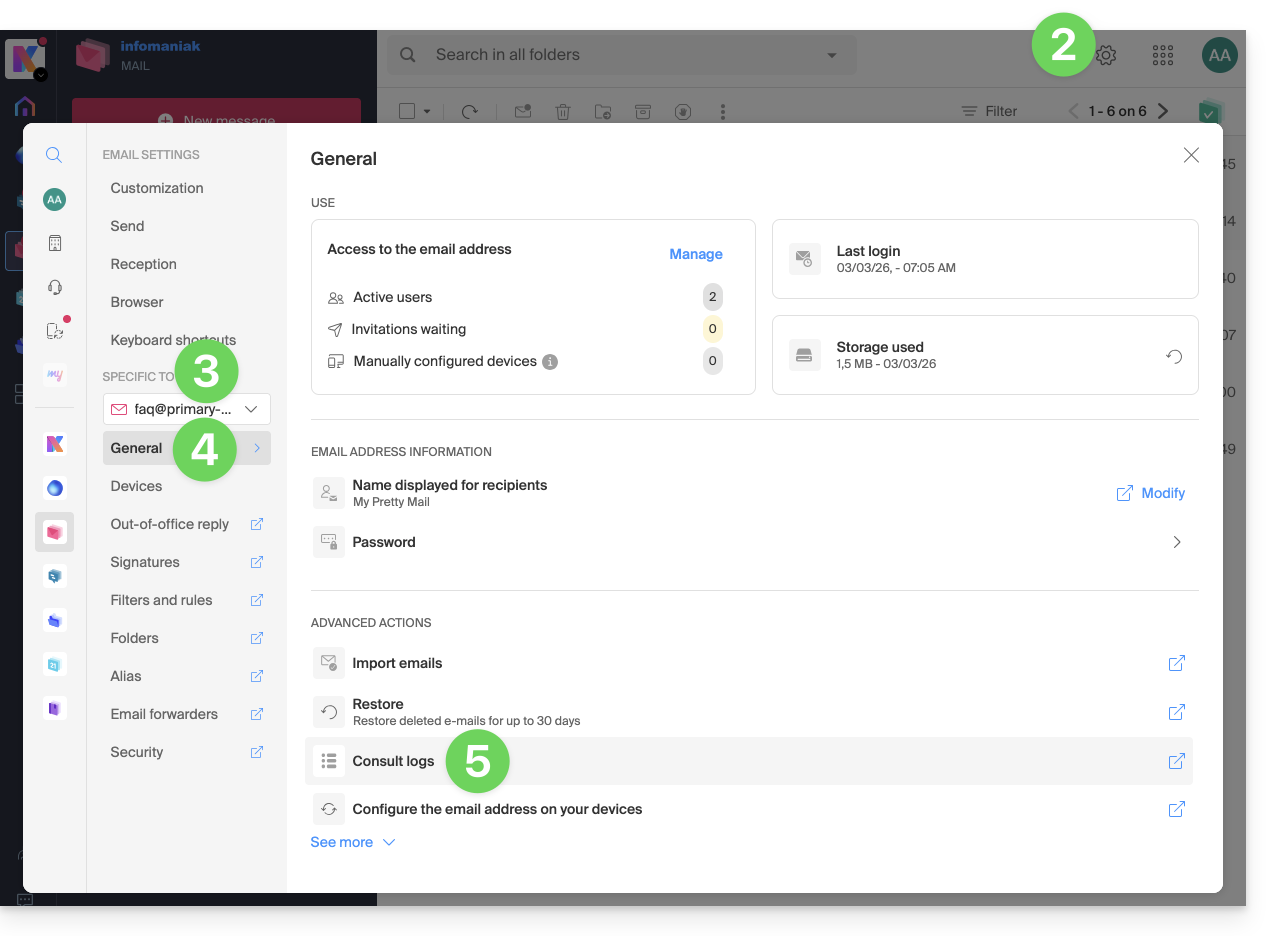
- Click on Settings in the top right corner.
- Check or select the relevant email address from the dropdown menu in the left-hand sidebar.
- Click on General below.
- Click on View logs:
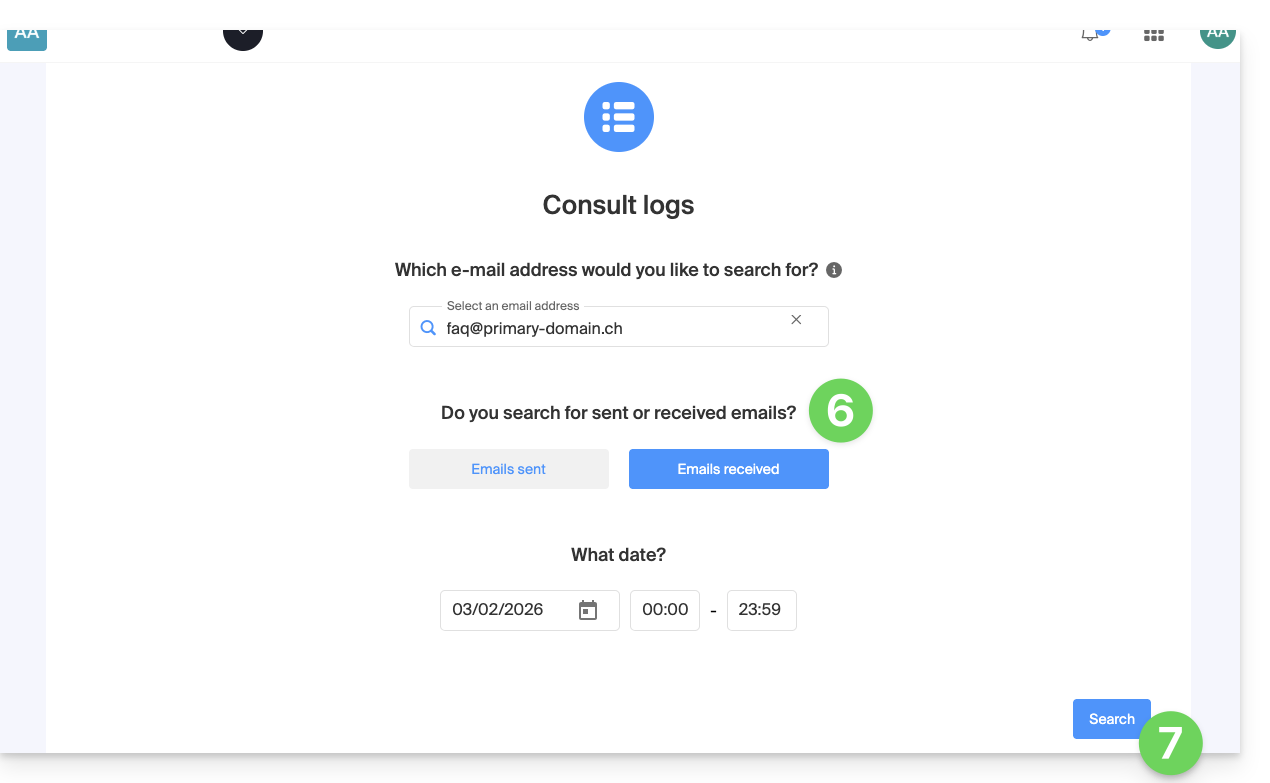
- Choose to view the logs of sent or received emails, and set the date and time.
- Click on Search:
View logs from Service Mail
To access the Mail Service:
- Click here to access the management of your Mail Service in the Infomaniak Manager (❓: help).
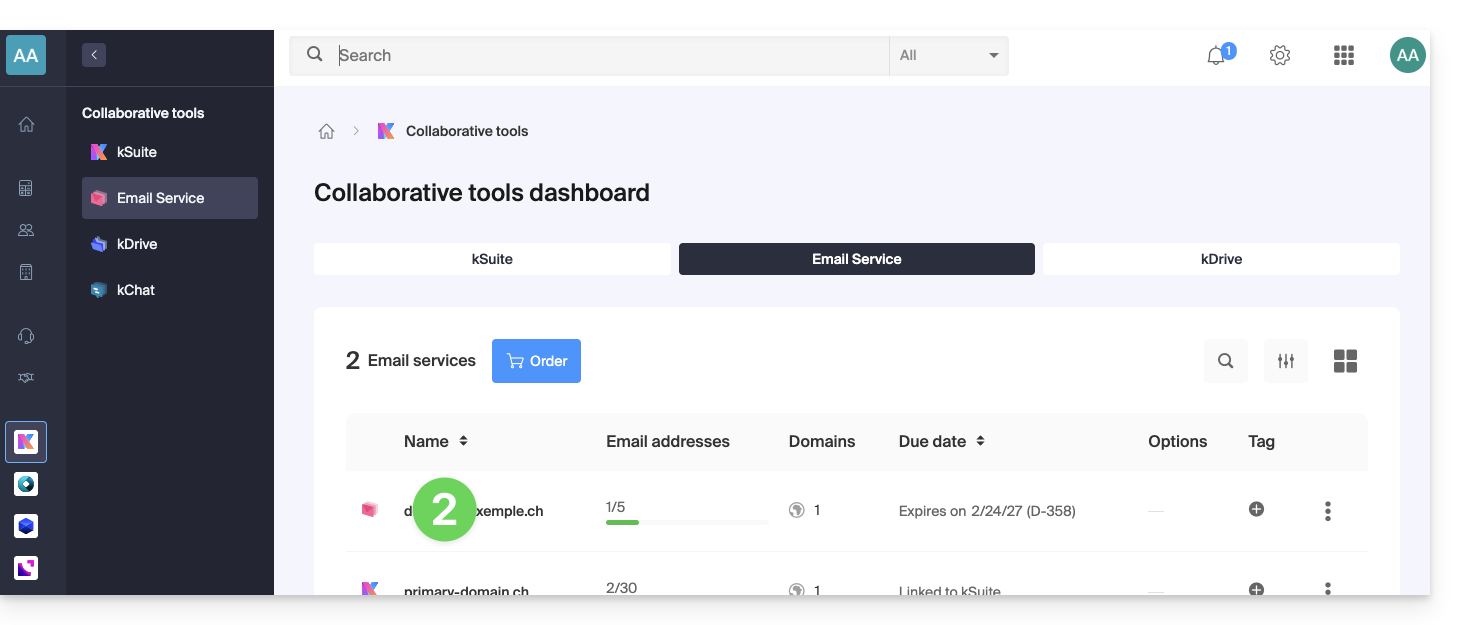
- Click directly on the name assigned to the Mail Service in question:
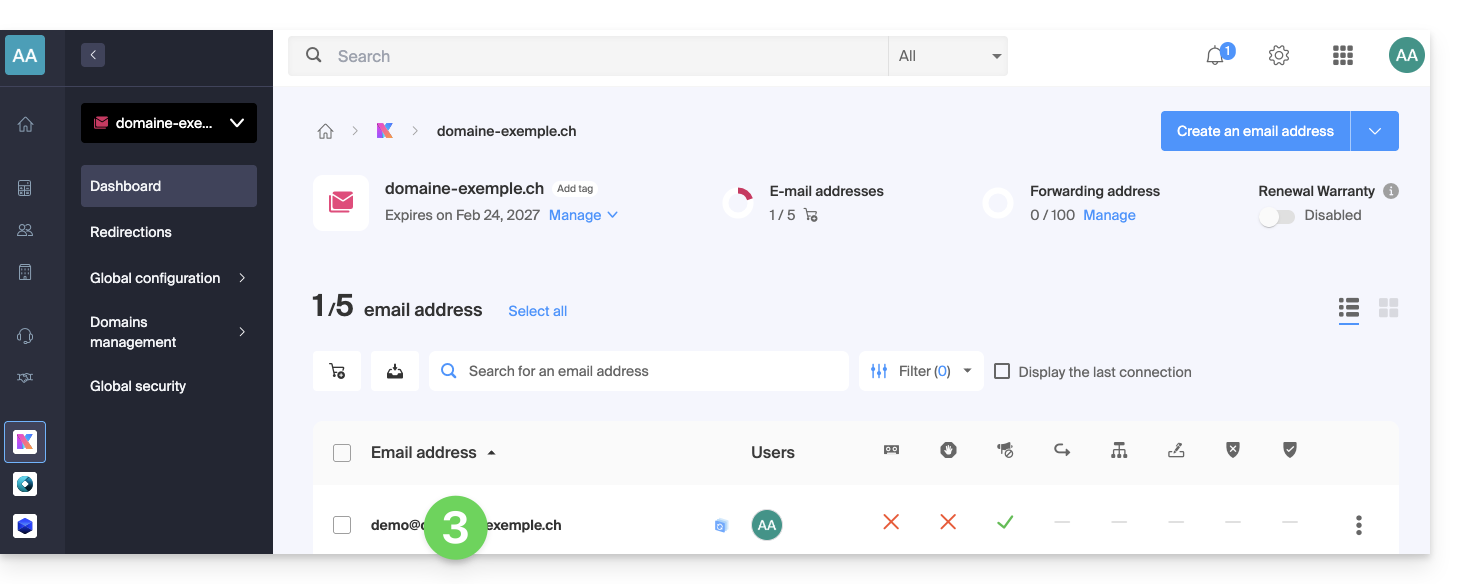
- Click on the mail address in question in the table that appears:
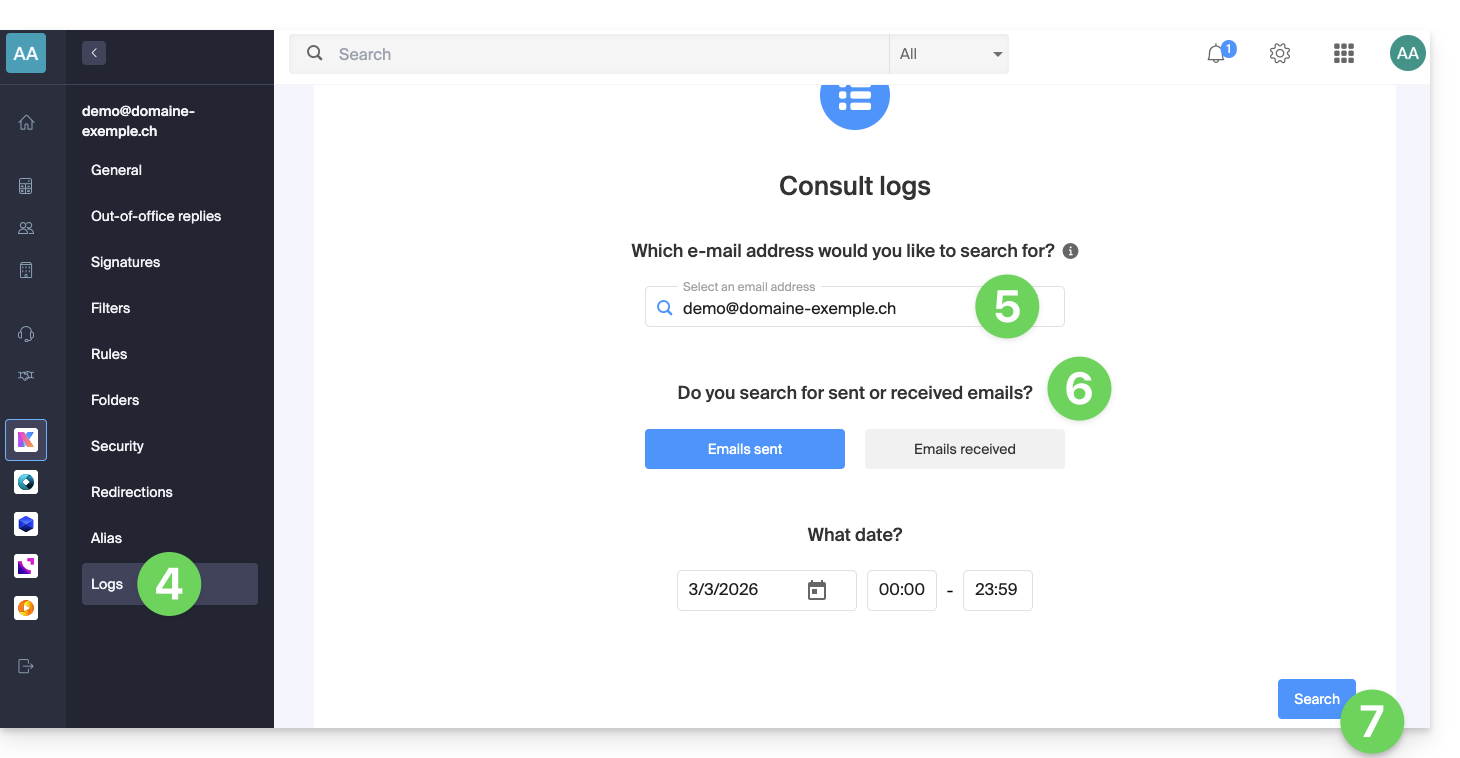
- Click on Logs in the left-hand menu.
- If necessary, select the relevant email address from the drop-down menu.
- Choose whether to view the logs of sent or received emails, and specify the date and time.
- Click on Search:
Log Results
Email sending and receiving logs will be displayed in a table.
Hover over the possible ⓘ icon in the Status column to display more information if needed: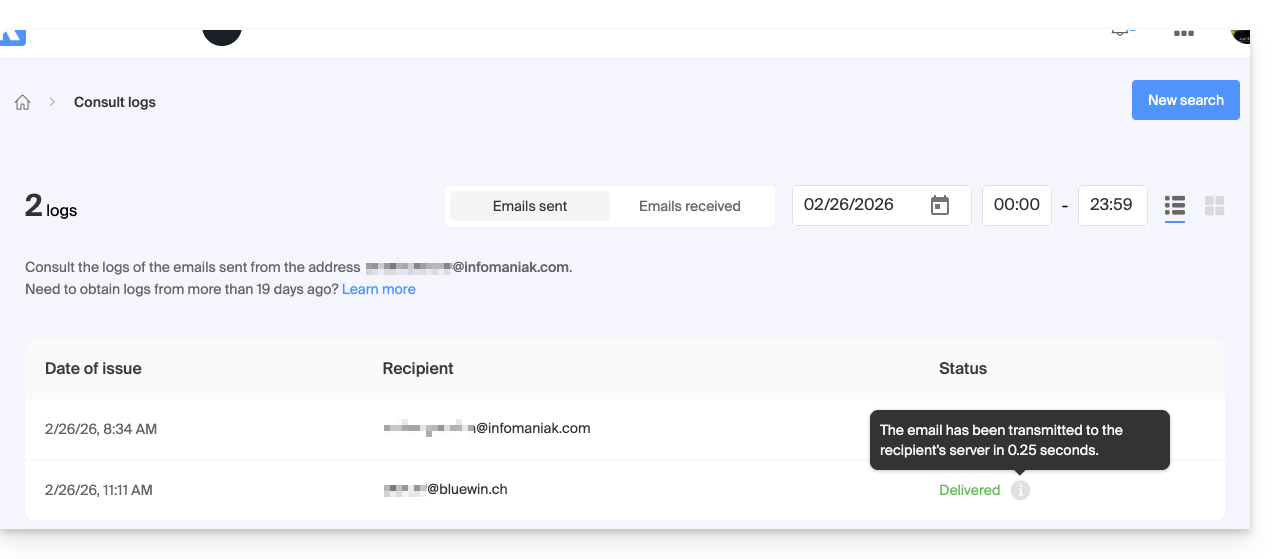
Link to this FAQ: https://faq.infomaniak.com/2630
Has this FAQ been helpful?