Knowledge base
1000 FAQs, 500 tutorials and instructional videos. Here, there are only solutions!
Link a domain name to kSuite
This guide explains how to link a domain name to any kSuite offer Infomaniak.
Manage the kSuite domain
To manage your domains, start by logging in with your credentials (user account with the necessary permissions for the relevant product):
- Click here to access your kSuite management.
- If nothing is displayed after logging in, you may not be in the Organization to which your kSuite is linked (❓: help).
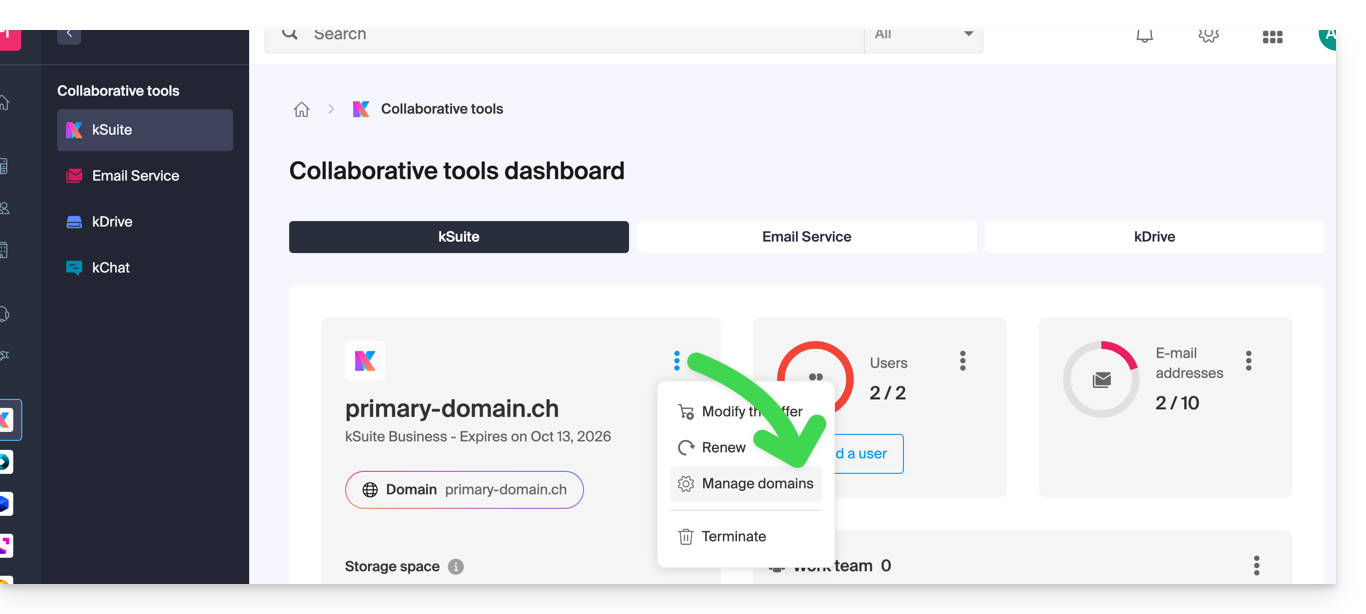
- If a domain is already linked, you can manage it by clicking on the action menu ⋮ to the right of the kSuite name, then Manage domains:
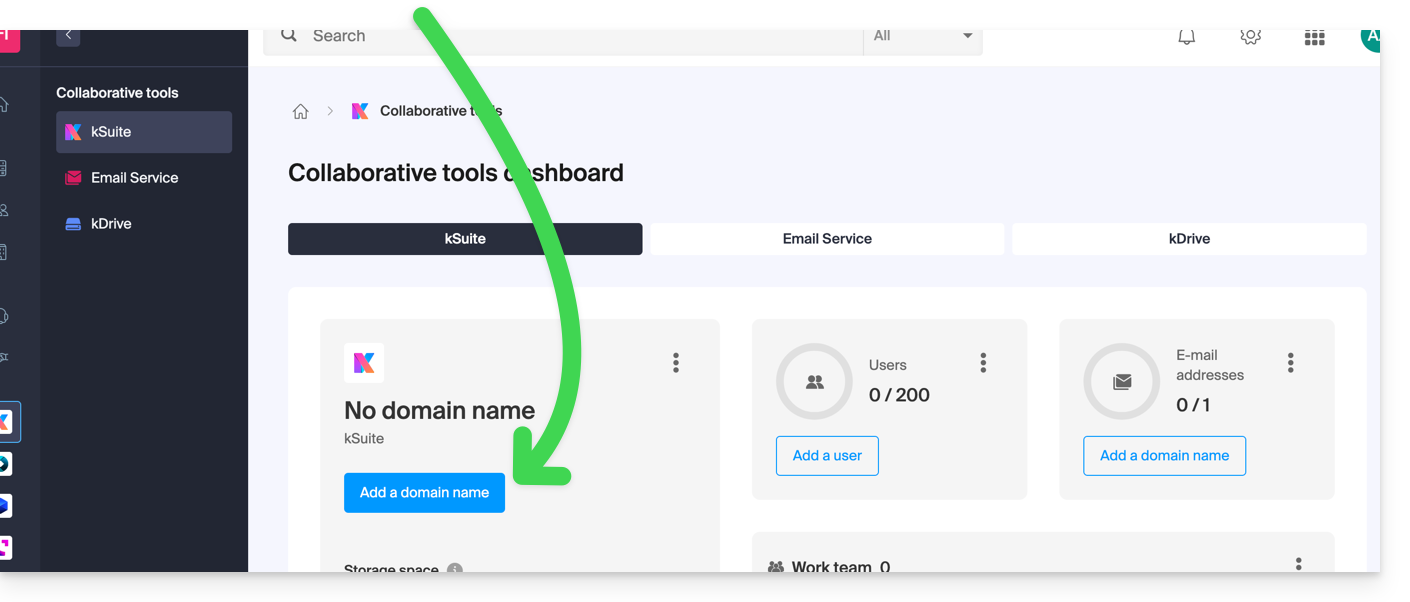
- If no domain is yet linked, you can add one by clicking on the button:
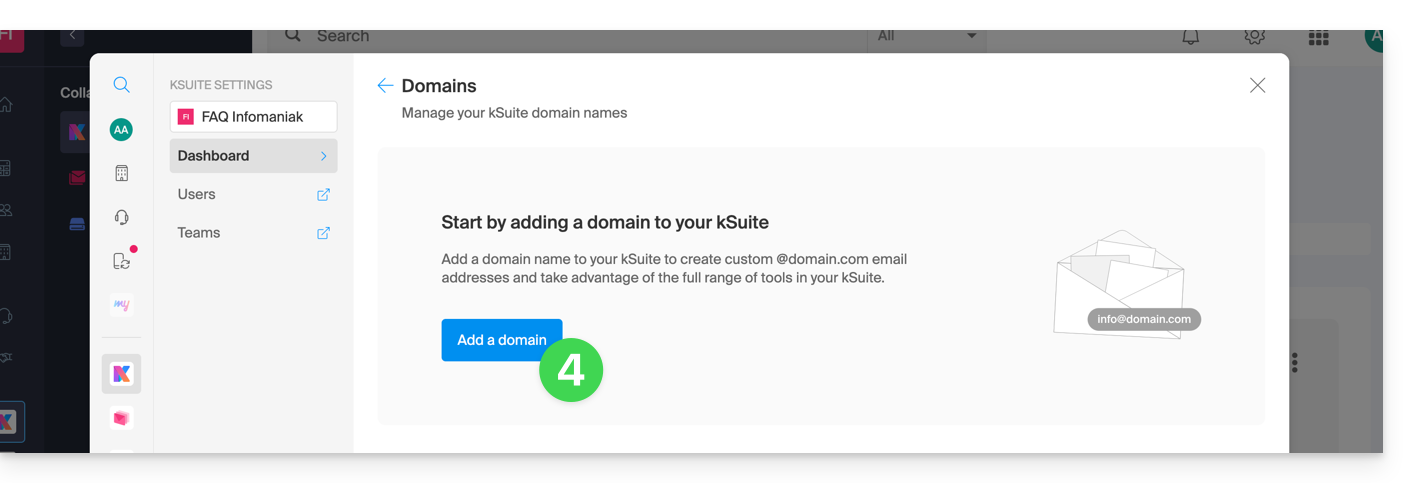
- Click the button to add a domain:
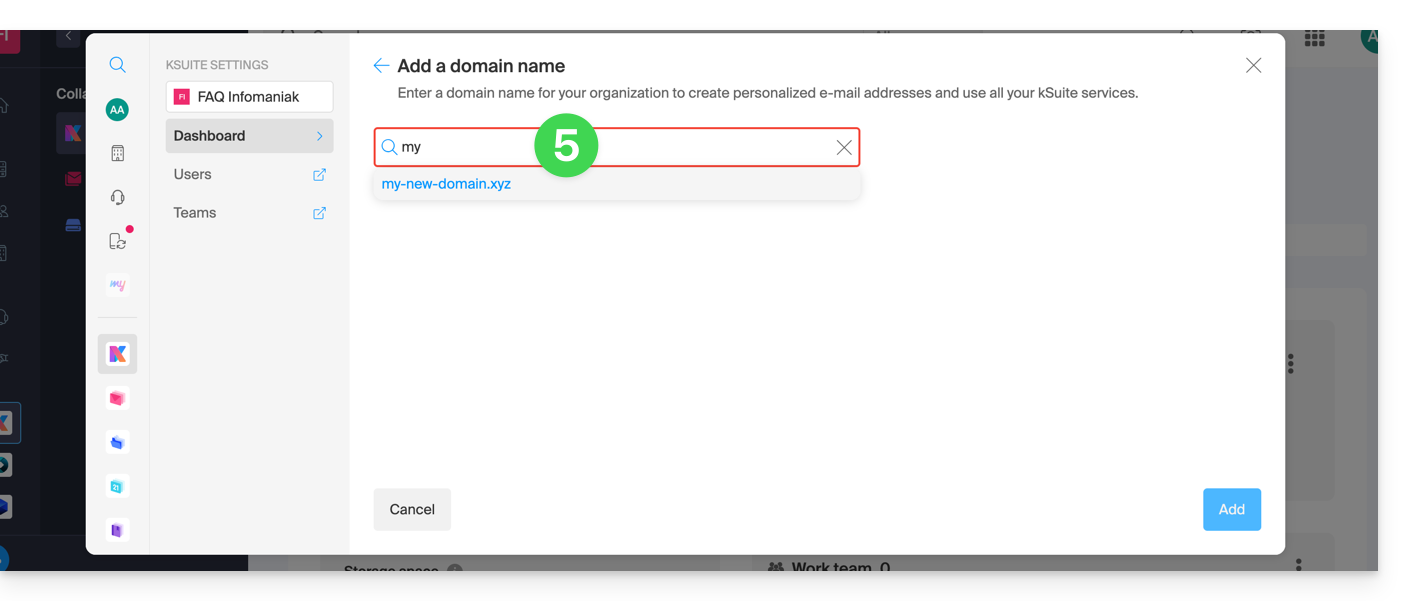
- Choose the domain to associate from among those in your Organization (still available, i.e., not associated with any service) or enter an external domain name:
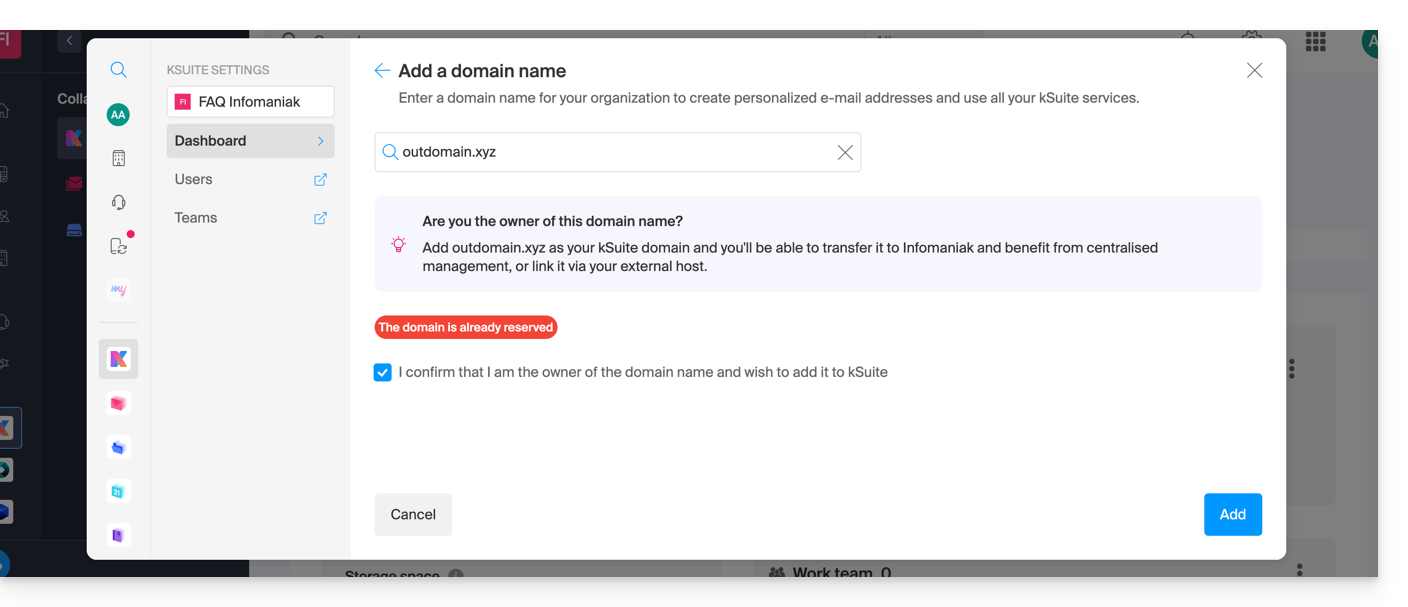
- Depending on the status of your domain (also see the information below), you may need to perform some preliminary steps…
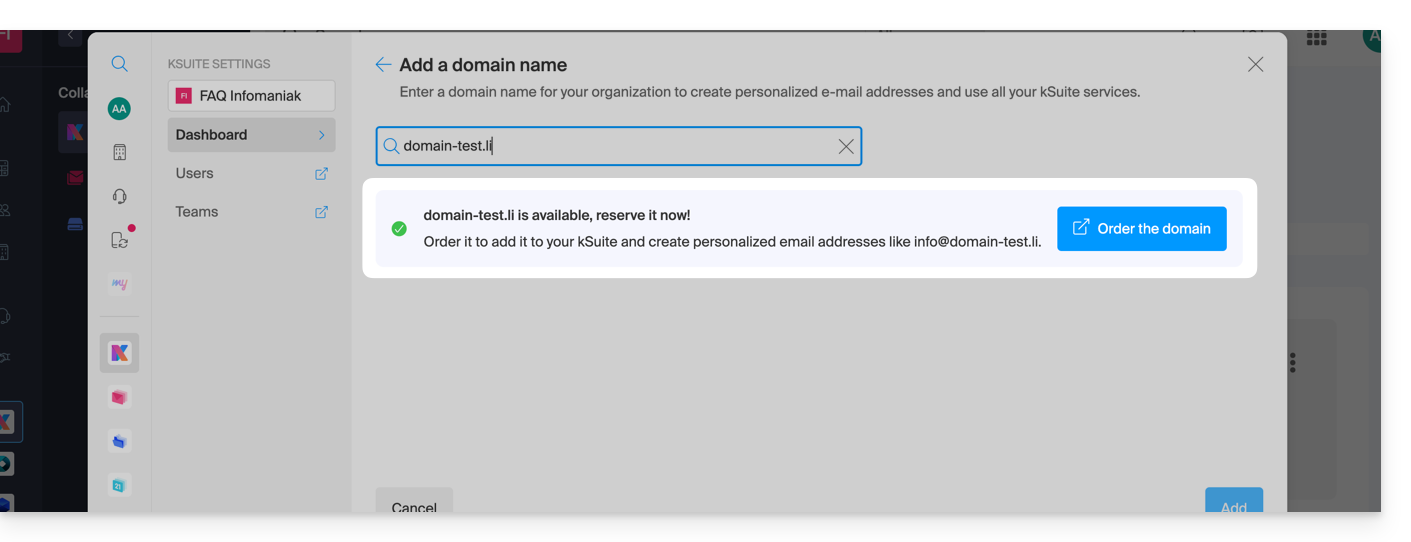
- … or even purchase a domain if necessary:
- Depending on the status of your domain (also see the information below), you may need to perform some preliminary steps…
If the domain name is located…
…with Infomaniak, within the same Organization
If your domain name is registered with Infomaniak and is in the same user account or Organization as your email, then there is nothing to do.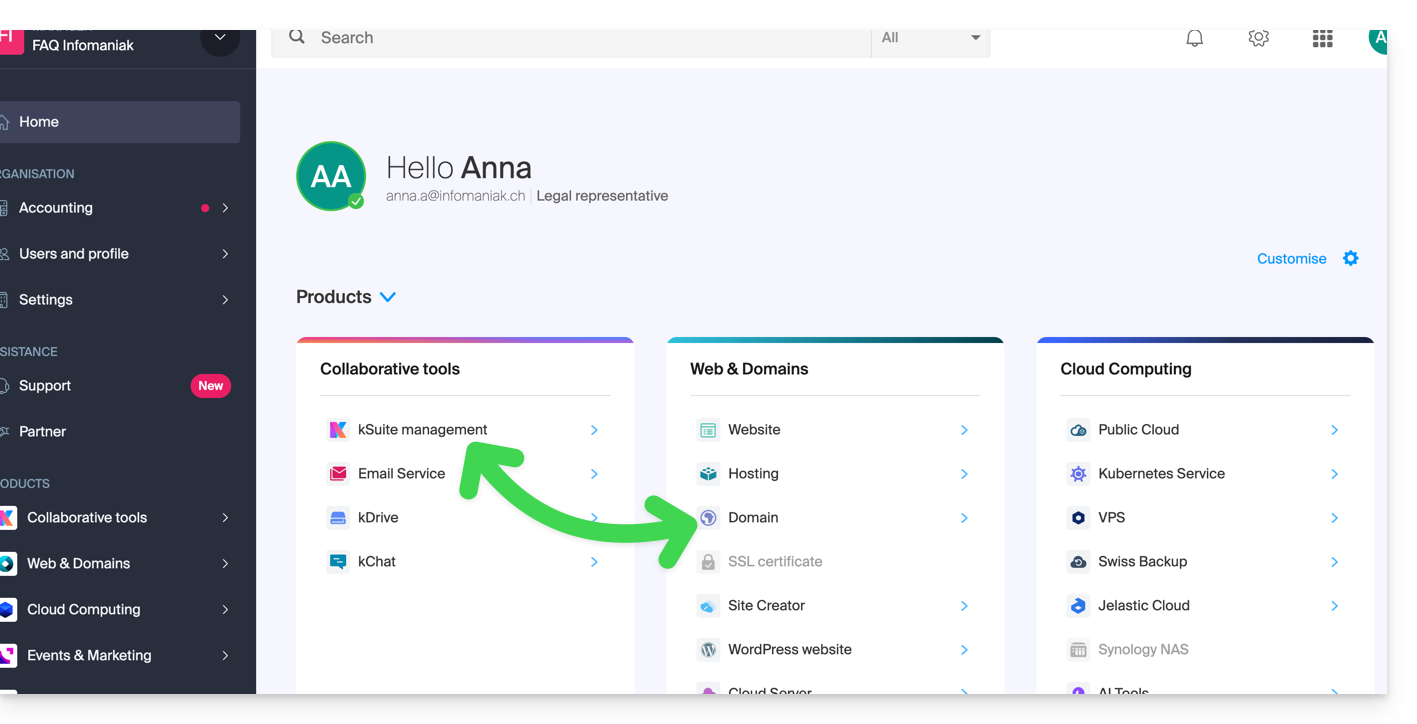
Simply add it to your kSuite: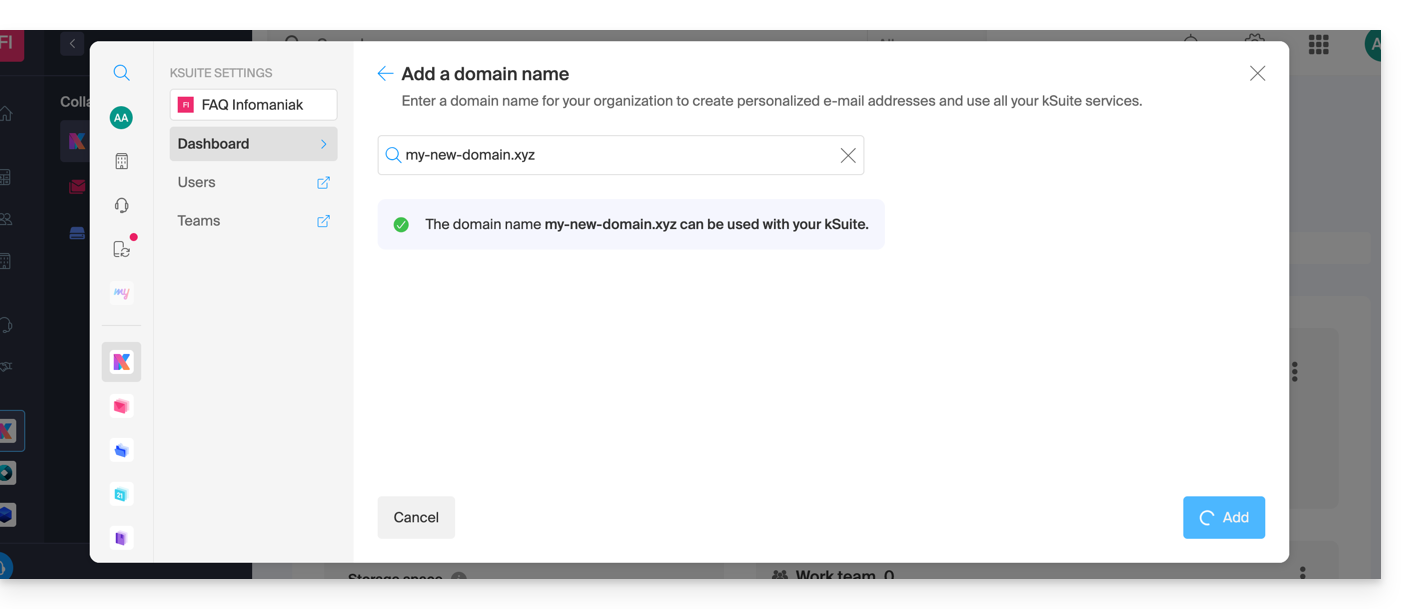
The domain will then be added and visible on the dashboard: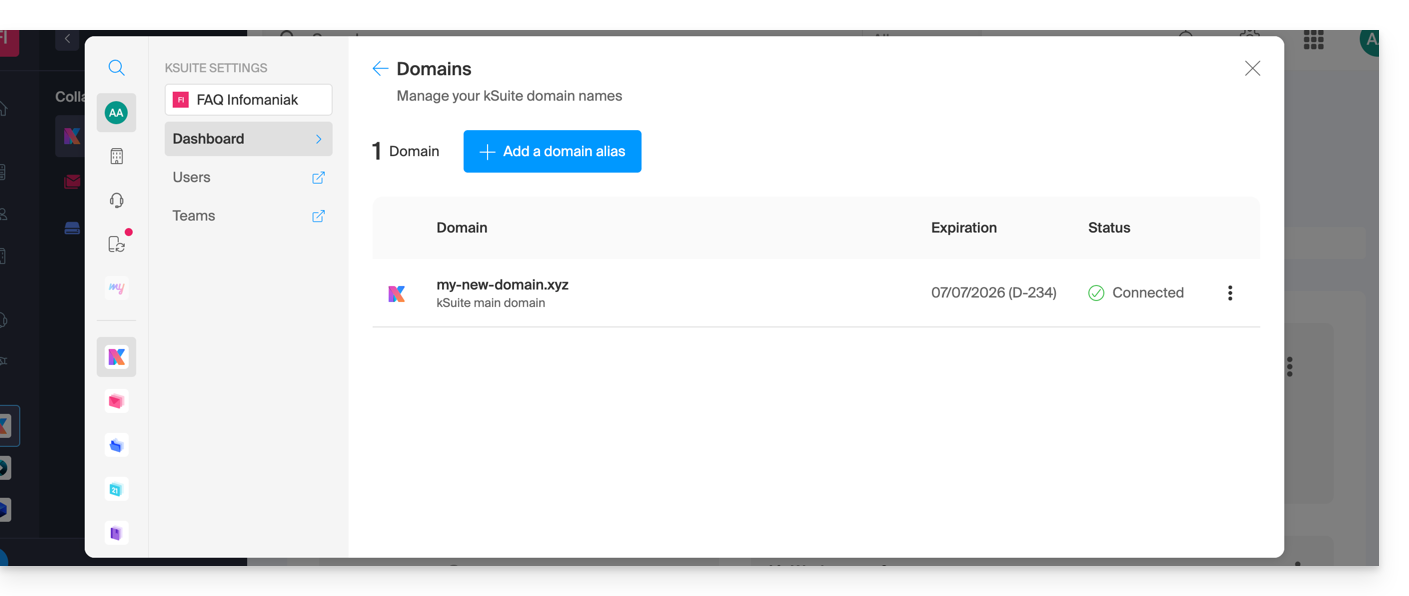
- Refer to this other guide to check and correct any potential configuration errors.
... with Infomaniak, even if you already have an Organization and it's linked to a Mail service or kDrive
No problem, you can convert your existing products into kSuite (❓: help).
… with Infomaniak, Different Organization
If your domain name is registered with Infomaniak but in a different user account or Organization, then:
- Edit its DNS zone (❓: help) by specifying the Infomaniak MX record (❓: help) + SPF (❓: help) & DKIM (❓: help).
- Any DNS addition/modification may take up to 48 hours to propagate (❓: help).
OU
- Move it within the same Organization (❓: help).
Generally, a message will notify you of this situation: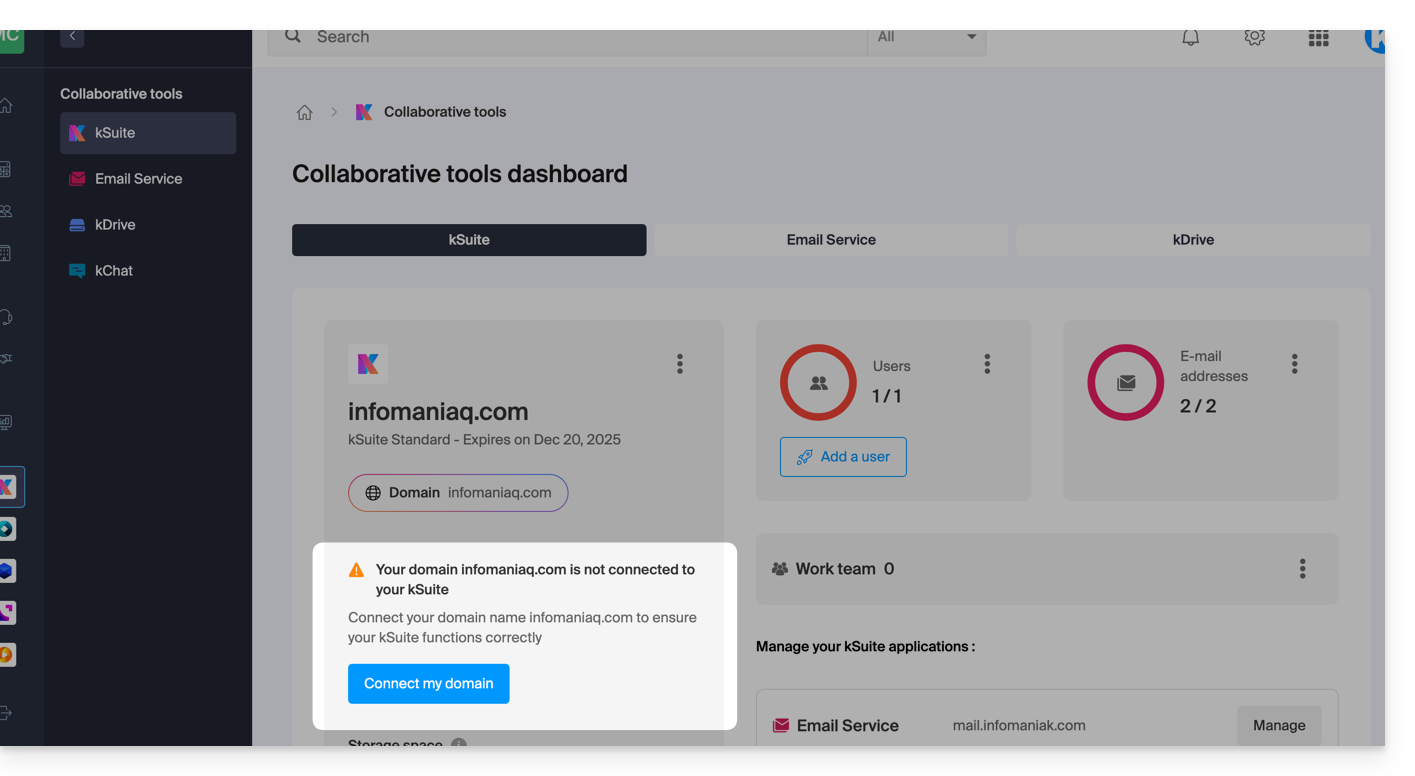
… and the technical information, which you should enter where the domain is located, will be provided: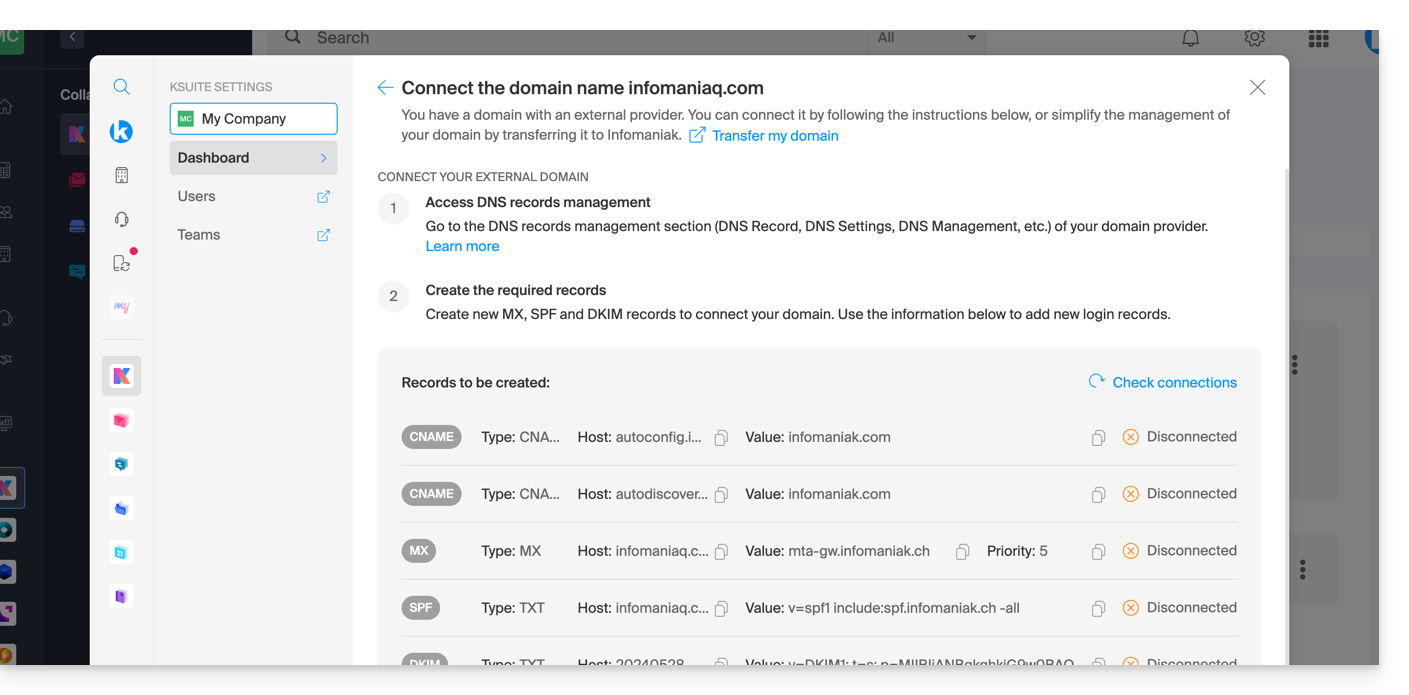
… with Infomaniak using external DNS
If your domain name uses DNS servers other than Infomaniak's, then:
- Edit its current DNS zone where it is hosted (if necessary, consult the documentation provided by your current provider) and specify Infomaniak's MX record (❓: help) + SPF (❓: help) & DKIM (❓: help).
- Any DNS addition or modification may take up to 48 hours to propagate (❓: help).
OU
- Change your current DNS settings and select the option to use Infomaniak's DNS servers.
- Any DNS addition or modification may take up to 48 hours to propagate (❓: help).
- Refer to this other guide to check and correct any potential configuration errors.
You will be notified (see the images above).
… elsewhere, with external DNS
If your domain name is registered with another registrar and uses DNS servers that are not Infomaniak's, then:
- Edit its current DNS zone where it is hosted (if necessary, consult the provider's help documentation) and specify Infomaniak's MX record (❓: help) + SPF (❓: help) & DKIM (❓: help).
- Any DNS addition or modification may take up to 48 hours to propagate (❓: help).
OU
- Change your current DNS settings (if necessary, consult the documentation provided by your provider) and specify Infomaniak's DNS servers; this requires having a DNS zone with Infomaniak (❓: help).
- Any DNS addition or modification may take up to 48 hours to propagate (❓: help).
- This DNS zone with Infomaniak will be configured correctly, but please refer to this other guide to check for and correct any potential configuration errors.
You will be notified (see the images above).
… elsewhere, but you bring it back
If your domain name is registered with another registrar and you want to transfer it to the same location as your Infomaniak email, then:
- Transfer the domain name (❓: help) to Infomaniak (it will be configured correctly, but please refer to this other guide to check for and correct any potential configuration errors).
Alternatively, consider ordering a new domain name (❓: help).
Link to this FAQ: https://faq.infomaniak.com/2629
Has this FAQ been helpful?