Knowledge base
1000 FAQs, 500 tutorials and instructional videos. Here, there are only solutions!
Modify an existing Swiss Backup plan
This guide explains the procedure for changing a Swiss Backup plan, the secure backup solution in an independent Swiss cloud.
Change your Swiss Backup plan
To access the modification options for your Swiss Backup plan, follow these steps:
- Click here to open the management interface for your product in the Infomaniak Manager (need help?).
- In the list of your products, click on the action menu ⋮ located to the right of your Swiss Backup space name.
- Select Modify plan:
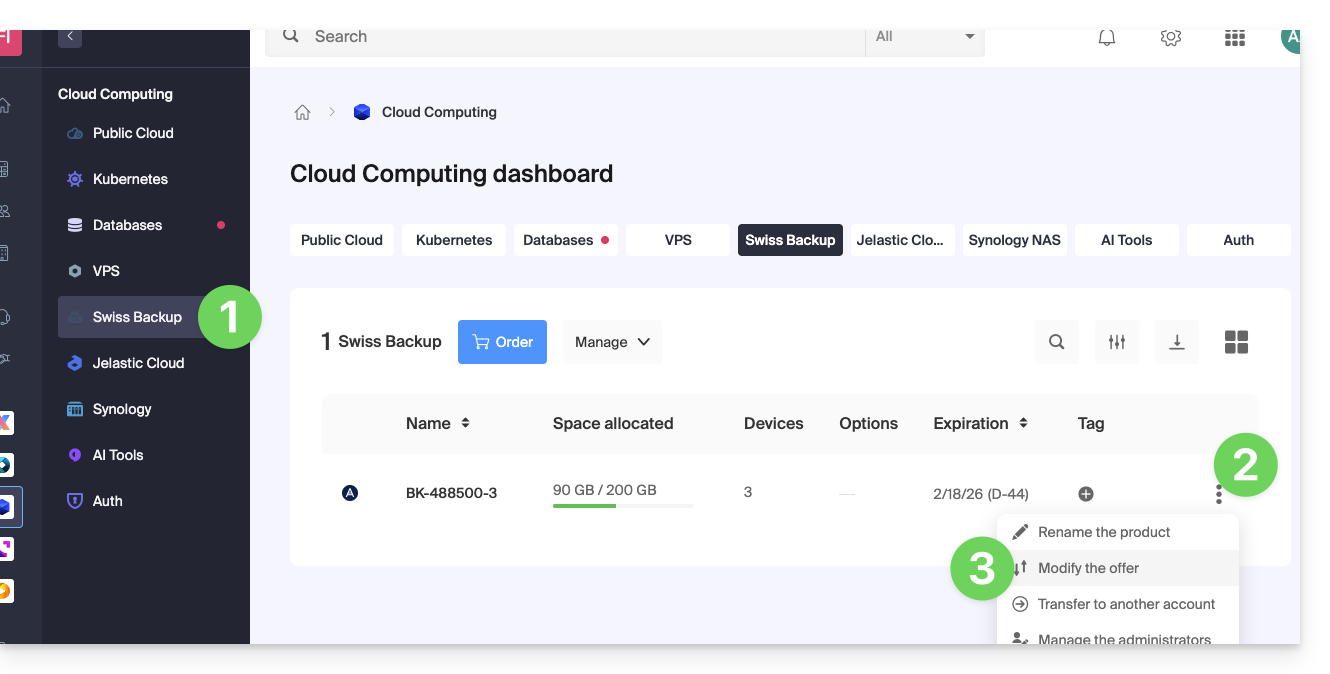
- Adjust the settings of your plan according to your needs by modifying:
- the storage space
- the number of devices
- the number of virtual machines via Acronis
- the number of Linux/Windows servers via Acronis
- etc.
- Click on Next and proceed with the payment to validate the change.
You can also manage your plan directly from the product dashboard: 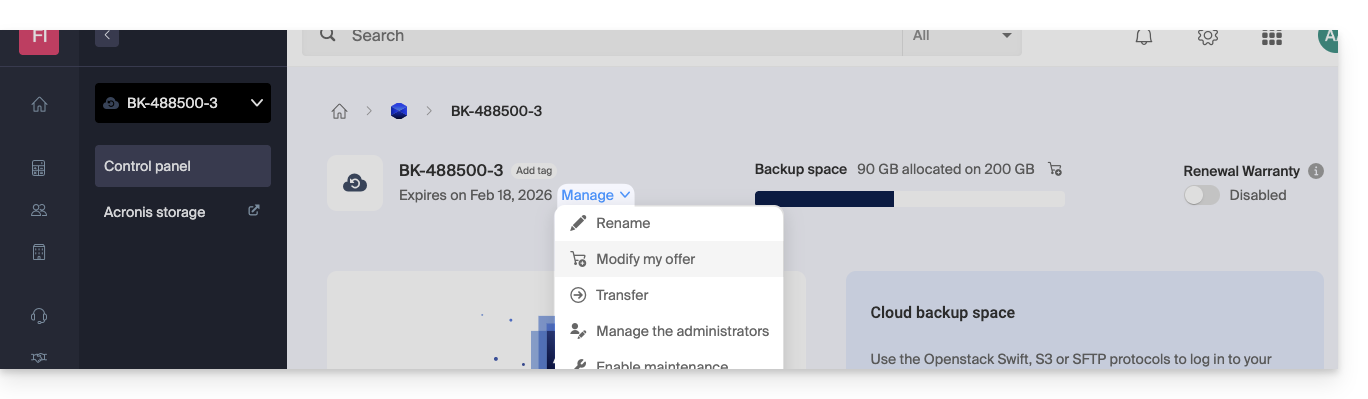
Examples of plan modifications
Initially, the user wanted to:
- back up an iOS/Android mobile device with Acronis
- and have a free Cloud-based backup accessible via SFTP or a similar method.
He now wants:
- back up two devices via Acronis (always the mobile device and a Windows computer), without keeping the free backup.
It modifies the quotas: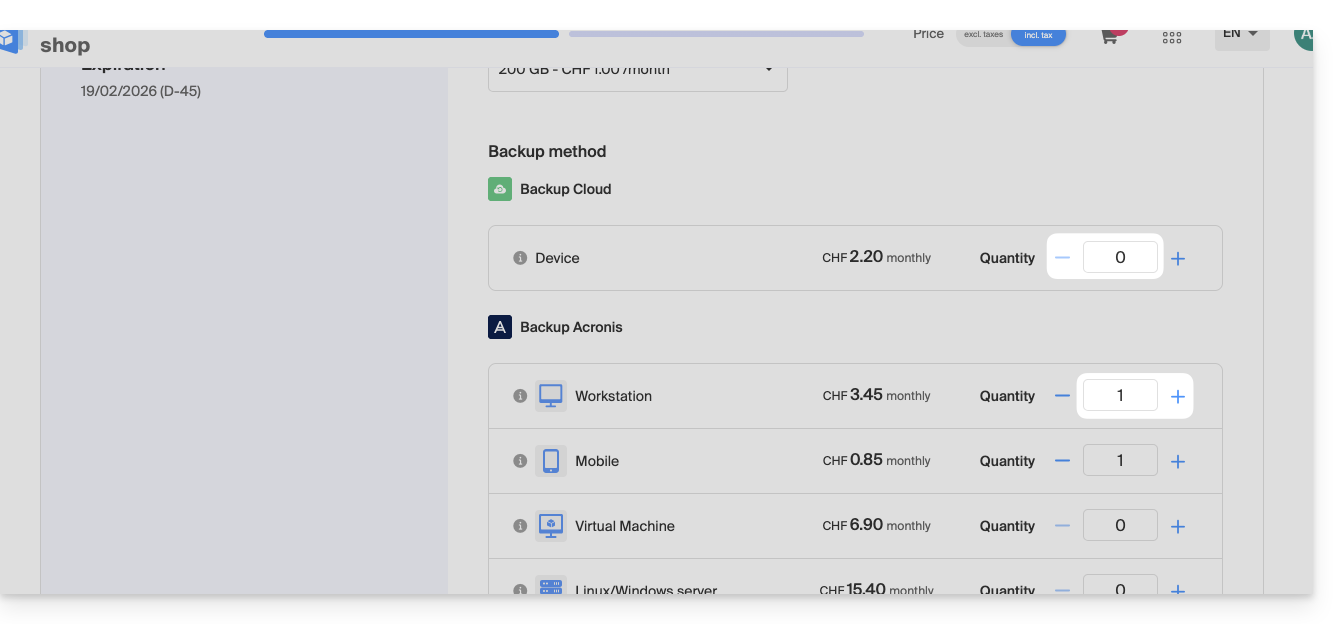
All that remains is to validate the payment to apply the change.
Warning:
To remove a device type that you no longer want to use, that device must first be deleted from your Acronis console, which means that the quota displayed on the plan modification page must be zero.
For example, if you want to remove a website backup, you must first delete it from your Acronis dashboard.
Indeed, to completely modify the offer (for example, to keep only a single backup of a Windows computer), the command cannot be completed until the following message appears:
“The number of licenses selected is less than the current usage of your product.”
This message appears when you try to reduce the quantity of a type of backup that is still active to zero.
In this case, proceed as follows:
- Click here to access the Acronis console using the credentials obtained when adding the device (need help?).
- Remove the device in question from the “Devices” menu.
- Wait about ten minutes for the quotas to update.
The quota for your devices displayed in the Infomaniak Manager should then be set to zero. You can then change the plan without encountering any blocking errors.
Link to this FAQ: https://faq.infomaniak.com/2624
Has this FAQ been helpful?