Knowledge base
1000 FAQs, 500 tutorials and instructional videos. Here, there are only solutions!
Remotely control a device with kMeet
Update 10/13/2026
This guide explains how to use the remote control feature for a device whose screen is shared, with kMeet, Infomaniak's ethical and free video conferencing solution.
Prerequisites
- Have the desktop app kMeet (desktop application on macOS / Windows).
- Share an entire screen and not just an application window.
Take control of a device
For user A to be able to take control of user B's computer:
- Start the kMeet desktop app, then start a meeting (❓: help) or join one (❓: help) in which users A & B should be present.
- User A should click on the action menu.○○○ in the upper right corner of user B's thumbnail.
- User A must click on Start remote control, and follow the same steps to stop the remote control:
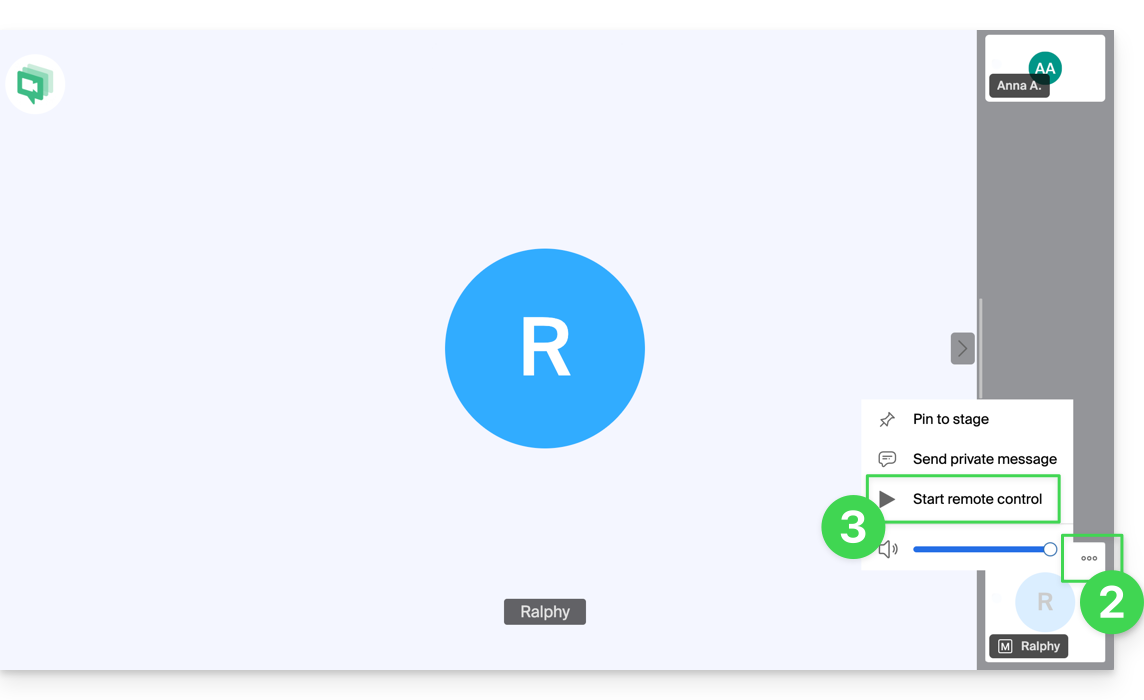
- User B receives a notification in the app to validate and accept the device control request.
It is also possible to simply annotate a screen sharing session without taking control of the device.
Link to this FAQ: https://faq.infomaniak.com/2622
Has this FAQ been helpful?