Knowledge base
1000 FAQs, 500 tutorials and instructional videos. Here, there are only solutions!
Draw on kMeet
Update 10/13/2026
This guide explains how to use the drawing feature with kMeet, Infomaniak's ethical and free video conferencing solution, which allows participants to collaborate visually.
Display a collaborative whiteboard
It is possible to display a blank area where all participants can enter information:
- Start the kMeet desktop app, then start a meeting (❓: help) or join one (❓: help) in which the users will be present.
- Once in the meeting, click on the action menu ○○○ in the kMeet toolbar.
- Click on Show whiteboard:
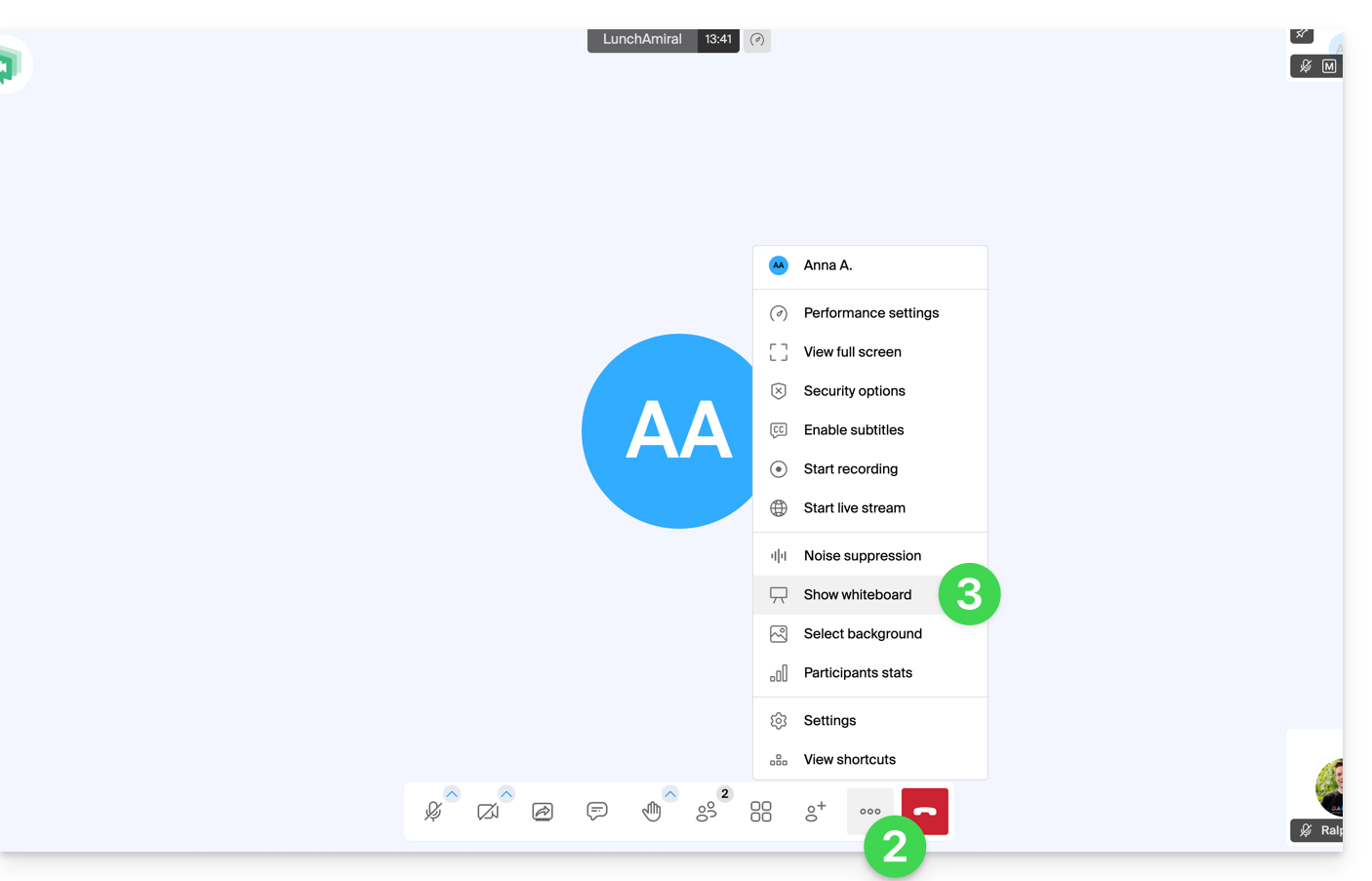
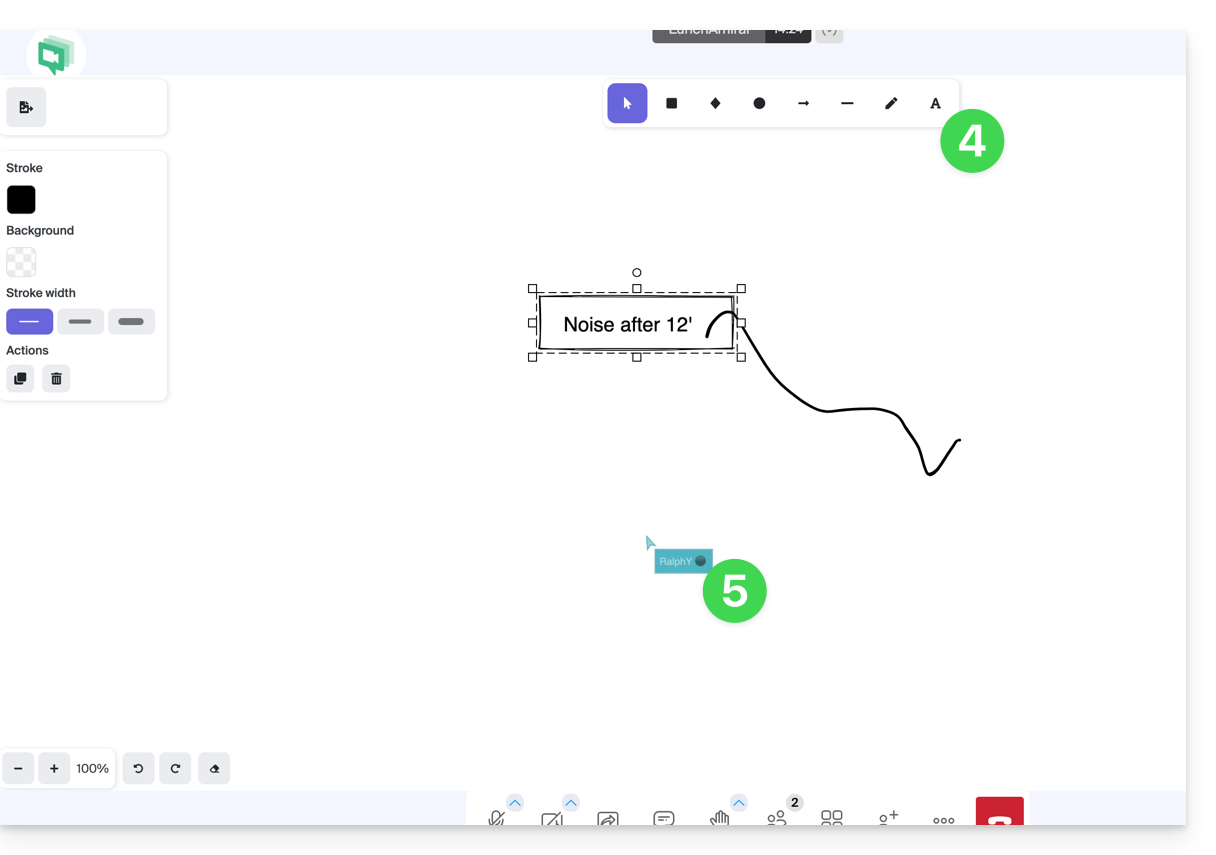
- The drawing area will be displayed for all participants, and each person can write what they want in it.
- Each participant's cursor is displayed:
Drawing on a screen sharing session
Prerequisites
- Have the desktop app kMeet (desktop application for macOS / Windows / Linux).
- Share your entire screen, not just a single application window (see point 2 below).
Next:
- Start the kMeet desktop app, then create or join a meeting room where the users will be.
- One of the participants initiates a screen sharing session (desktop app only - see prerequisites).
- The other participants can then collaboratively draw on the shared screen:
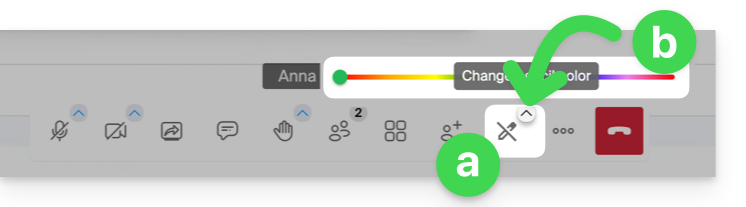
- Click the pencil icon in the bottom toolbar to draw on the screen.
- Change the pen color if needed:
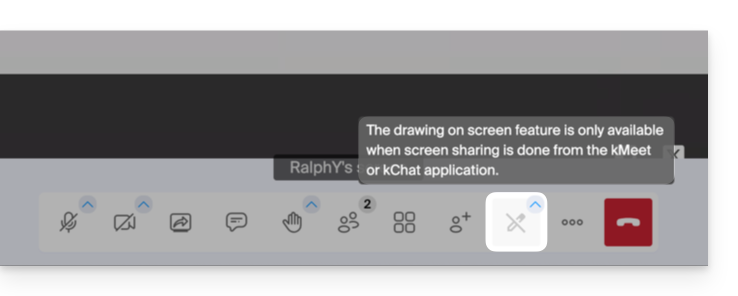
- If the screen sharing is not initiated from the kMeet application (desktop version), this message will appear for participants who want to enable the drawing feature:
It is also possible to take control of the device during a screen sharing session.
Link to this FAQ: https://faq.infomaniak.com/2620
Has this FAQ been helpful?