Knowledge base
1000 FAQs, 500 tutorials and instructional videos. Here, there are only solutions!
Block / allow email senders
This guide explains how to block email addresses or entire domainsto stop receiving unwanted messages, or conversely, to allow addresses to bypass the anti-spam filter in your Infomaniak email inbox, ensuring that you always receive their messages.
Introduction
- In addition to the Infomaniak anti-spam filter (❓: help), which eliminates the majority of unwanted emails as it evolves, Infomaniak offers two distinct lists that you can fill in as you wish:
- Blocked senders:
- Emails and domains that are blocked (blacklist) are then directly treated as spam…
- Allowed senders:
- Allowed senders and domains (whitelist) will no longer be filtered by the anti-spam filter…
- The list of allowed senders is only active for the original recipient of each message; if the message is addressed to an address abc@domain.xyz and this is then redirected to def@domain.xyz, the anti-spam filter and the list of allowed senders must be configured for the address abc.
- Blocked senders:
- These lists are specific to the email address on which the operation is performed, but a Mail Service administrator can also apply these lists to the entire Mail Service, via the Global Configuration of a Mail Service (❓: help).
- These lists are also automatically populated based on your actions on emails at the anti-spam filter level.
Supported formats
Replace the example domain (the-spam-domain.xyz) with the domain that is bothering you and that you want to send directly to the Spam folder:
Block a specific email address
john.example@the-spam-domain.xyz
Block all email addresses from a specific domain
*@the-spam-domain.xyz
Block specific email addresses from a particular domain
*example@the-spam-domain.xyz or john*@the-spam-domain.xyz
Block all incoming emails
*
Manage blocks or permissions from the Infomaniak Web Mail app
Prerequisites
- You must have permission to manage security: it is possible that the Mail Service administrator has removed this permission from their admin account
- Click here to access your emails on your Infomaniak kSuite (❓: help).
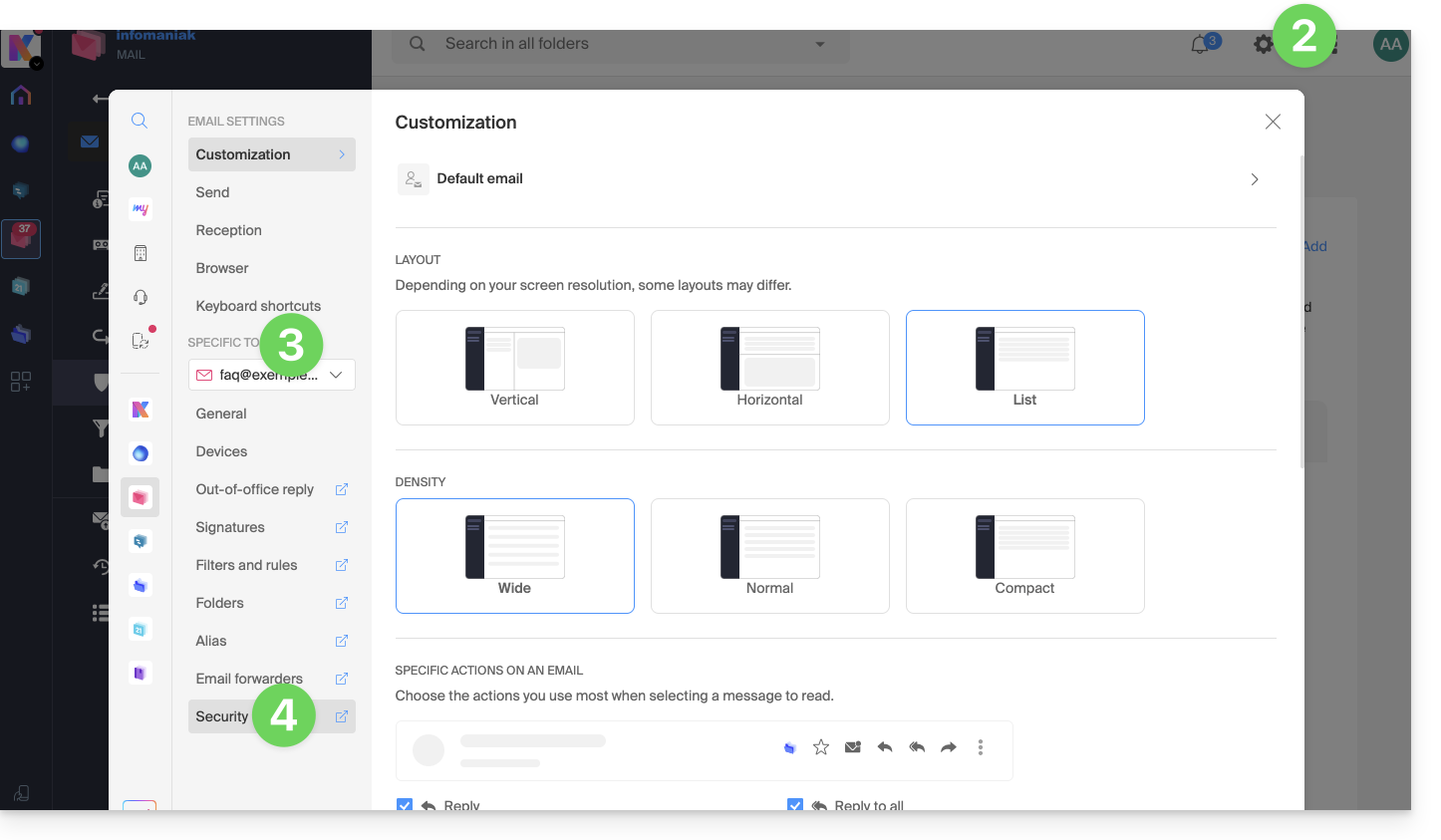
- Click on Settings in the top right corner.
- Check or select the relevant email address from the dropdown menu in the left-hand sidebar.
- Click on Security:
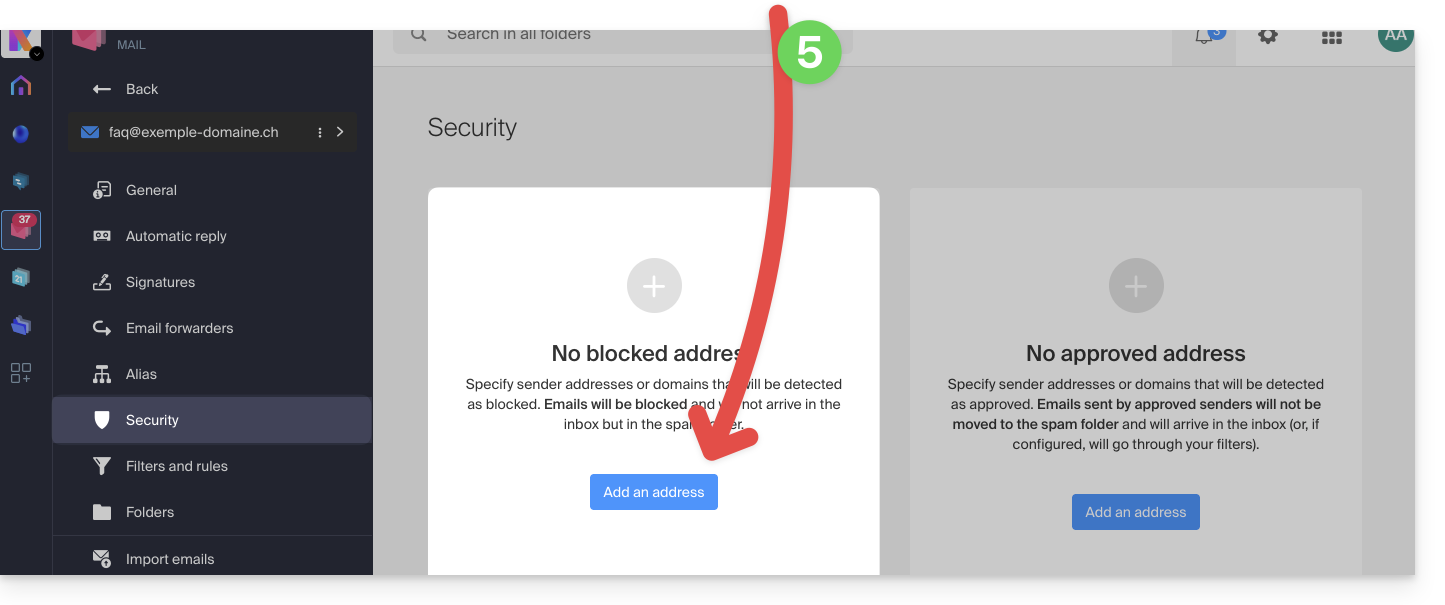
- To add a blocked sender (to the blacklist), click the Add address button in the Blocked address box:
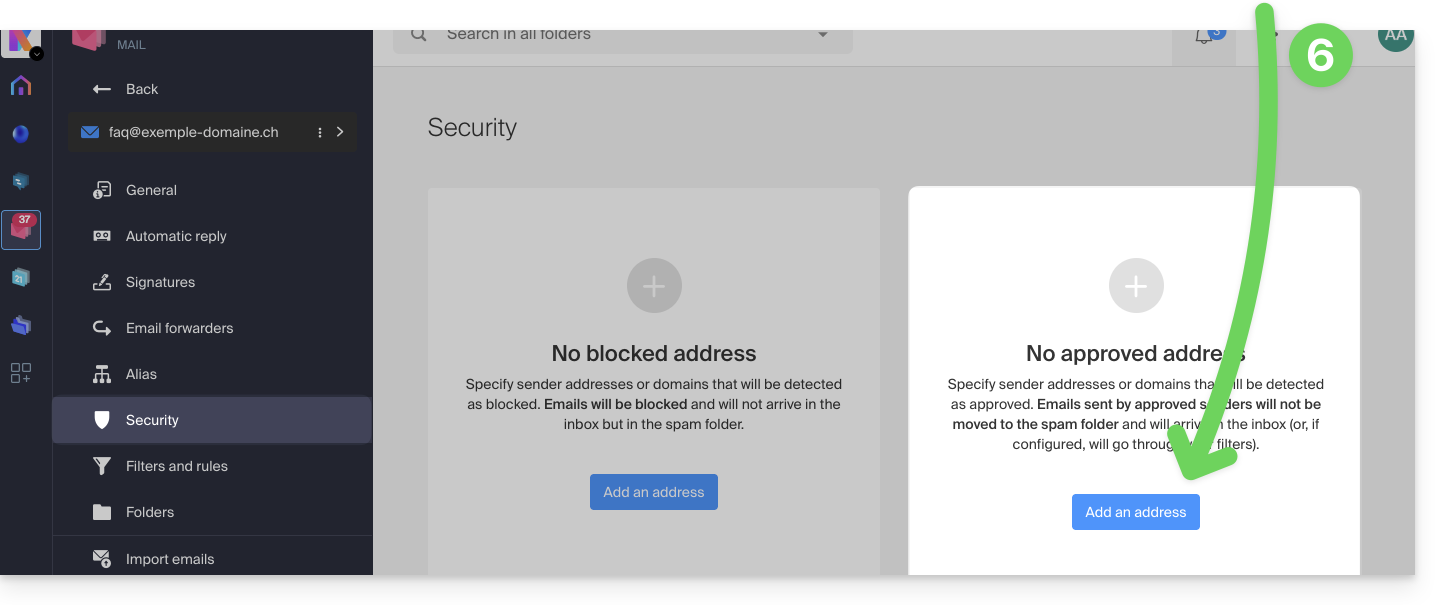
- To add an allowed sender (to the whitelist), click the Add address button in the Approved address box:
- Fill in the fields as desired and/or according to the formats indicated above.
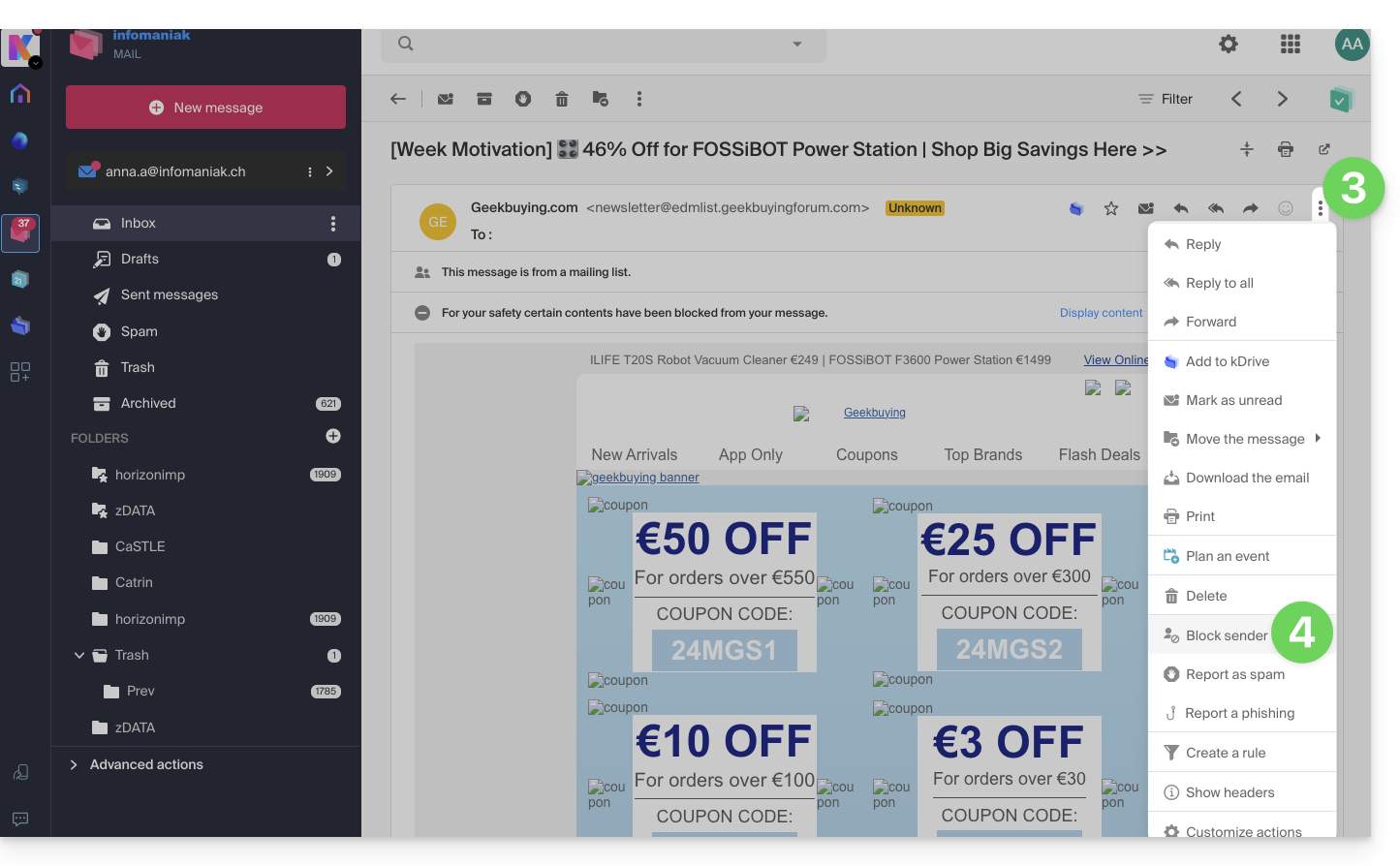
You can also block a sender directly from the received email:
- Click here to access your emails in your Infomaniak kSuite (❓: help).
- Open the message from the unwanted sender.
- Click on the ⋮ icon at the top right of the open message.
- Choose Block sender to add it directly to the blocked addresses list:
If necessary, remove the address by going back to the Security tab.
Manage blockings or authorizations from a Mail Service
To block or authorize senders from a Mail Service:
- Click here to access the Mail Service management section in your Infomaniak Manager (❓: help).
- Click on the name of the Mail Service in question.
- Click on the email address in question.
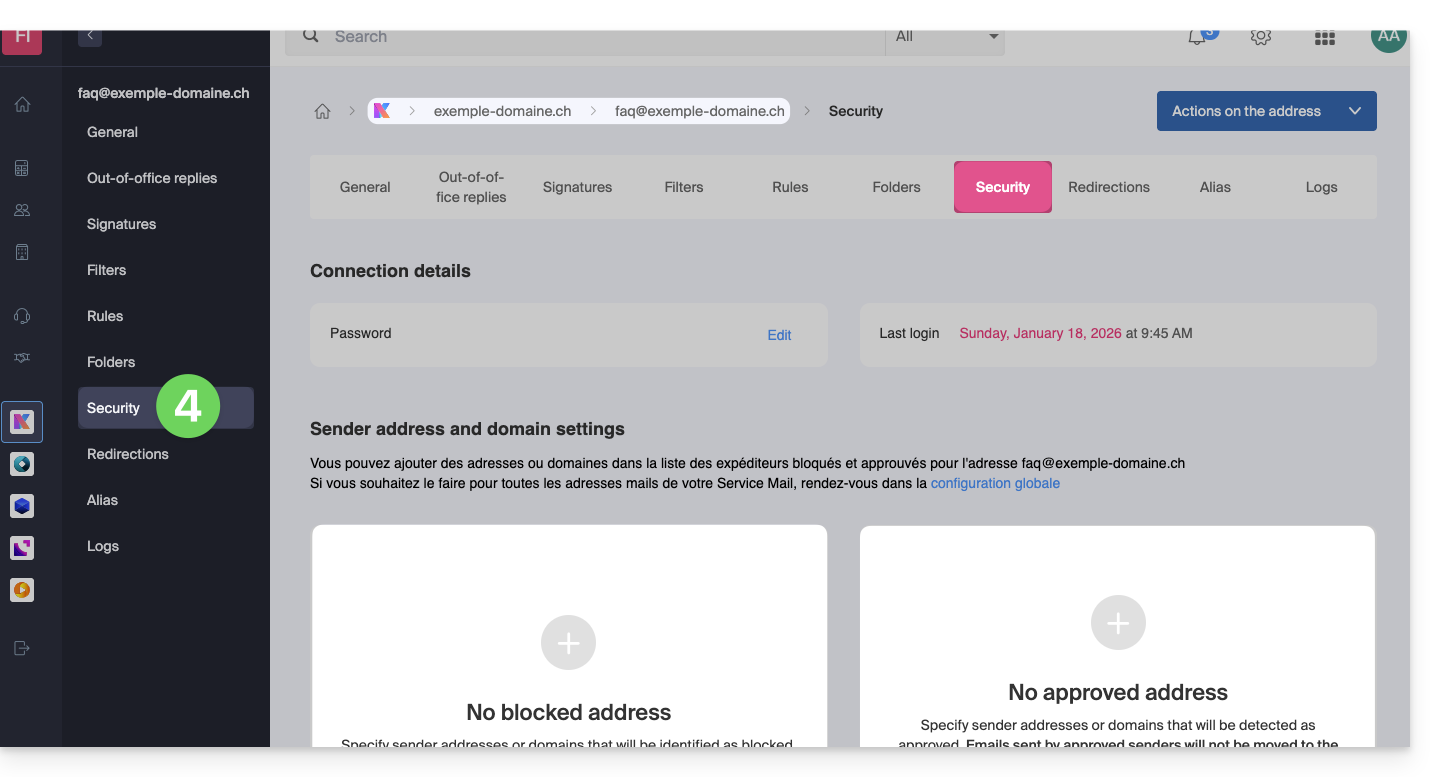
- Click on the Security tab or, from the left-hand menu, click on Security:
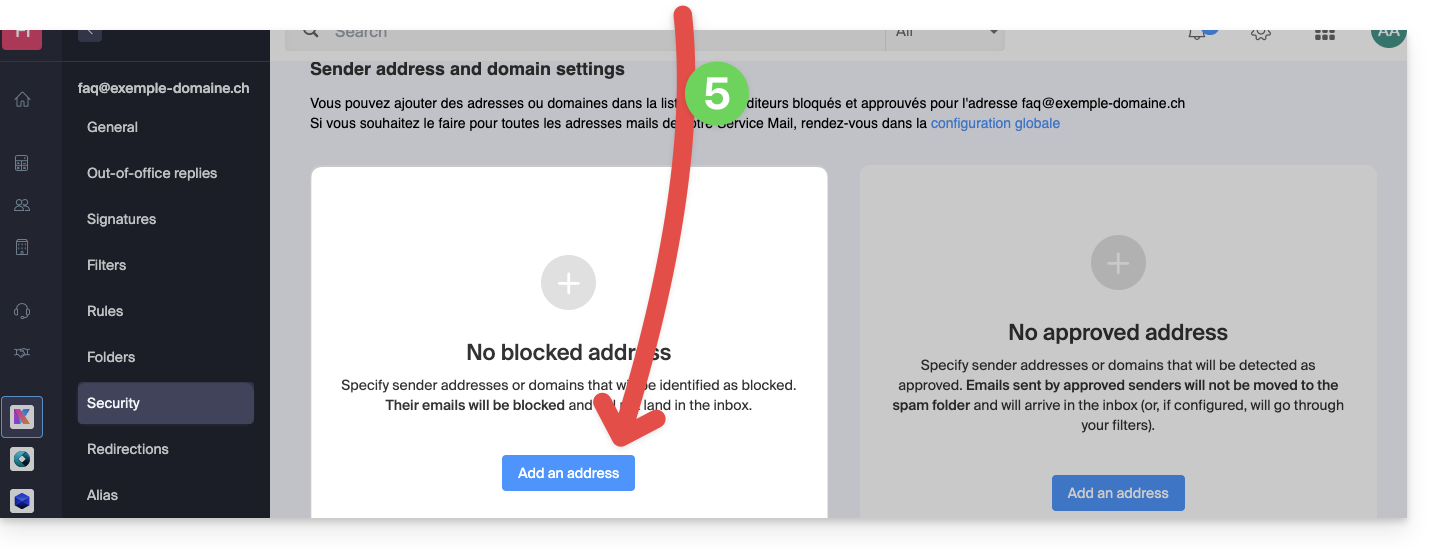
- To add a blocked sender, click the Add address button in the Blocked address box:
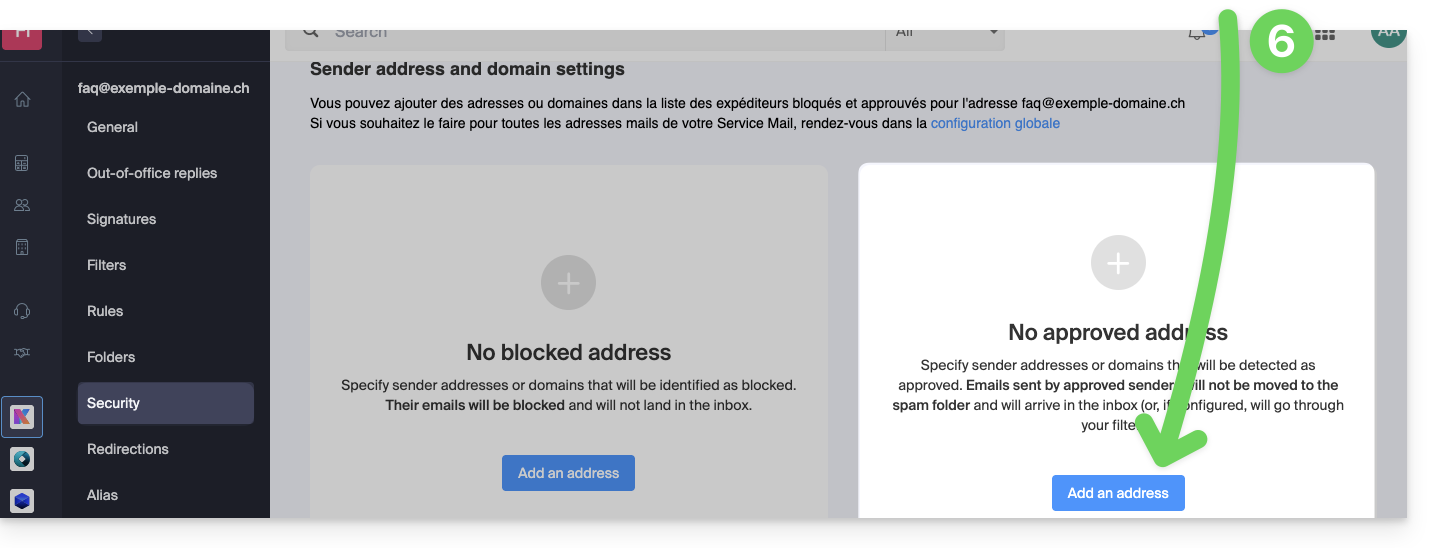
- To add an allowed sender, click the Add address button in the Approved address box:
- Fill in the fields as desired and/or according to the formats indicated above.
Alternative
To manage your incoming emails, you can also use email filters (❓: help) or disable email usage (❓: help) for an entire domain (messages will continue to be received).
Link to this FAQ: https://faq.infomaniak.com/2618
Has this FAQ been helpful?