Knowledge base
1000 FAQs, 500 tutorials and instructional videos. Here, there are only solutions!
Forward an existing email address to one or more other addresses
This guide explains how to automatically forward new messages from an existing email address, and managed with Infomaniak, to the email account of your choice, even if it is completely external to Infomaniak, while keeping (or not) the messages.
✘ UNAVAILABLE with
my kSuite (ik.me, etik.com, ikmail.com)
Preamble
- Emails detected by Infomaniak as spam…
- … ARE REDIRECTED when all redirection addresses are hosted by Infomaniak.
- … ARE NOT REDIRECTED AT ALL from the moment one of the redirection addresses is not hosted by Infomaniak (even if all other redirection addresses are).
- Emails not considered as spam ARE REDIRECTED, including to Gmail (❓: help).
- Users of the email address on the Infomaniak Mail web app receive an email each time a redirect is added or removed.
- It is also possible tocreate email addresses intended solely to redirect incoming emails(❓: help).
- Number of redirect addresses that can be added per email address:
- kSuite Free = 1
- kSuite Standard = 100
- kSuite Business = 100
- kSuite Enterprise = 100
- my kSuite+ (ik.me, etik.com, ikmail.com) = 100
- Mail Service Starter = 1
- Mail Service Premium = 100
Add a redirect from the Infomaniak Web Mail app
Prerequisites
- You must have permission to manage redirects: it is possible that the Mail Service administrator has removed this permission from their admin account
- Click here to access your emails on your Infomaniak kSuite (❓: help).
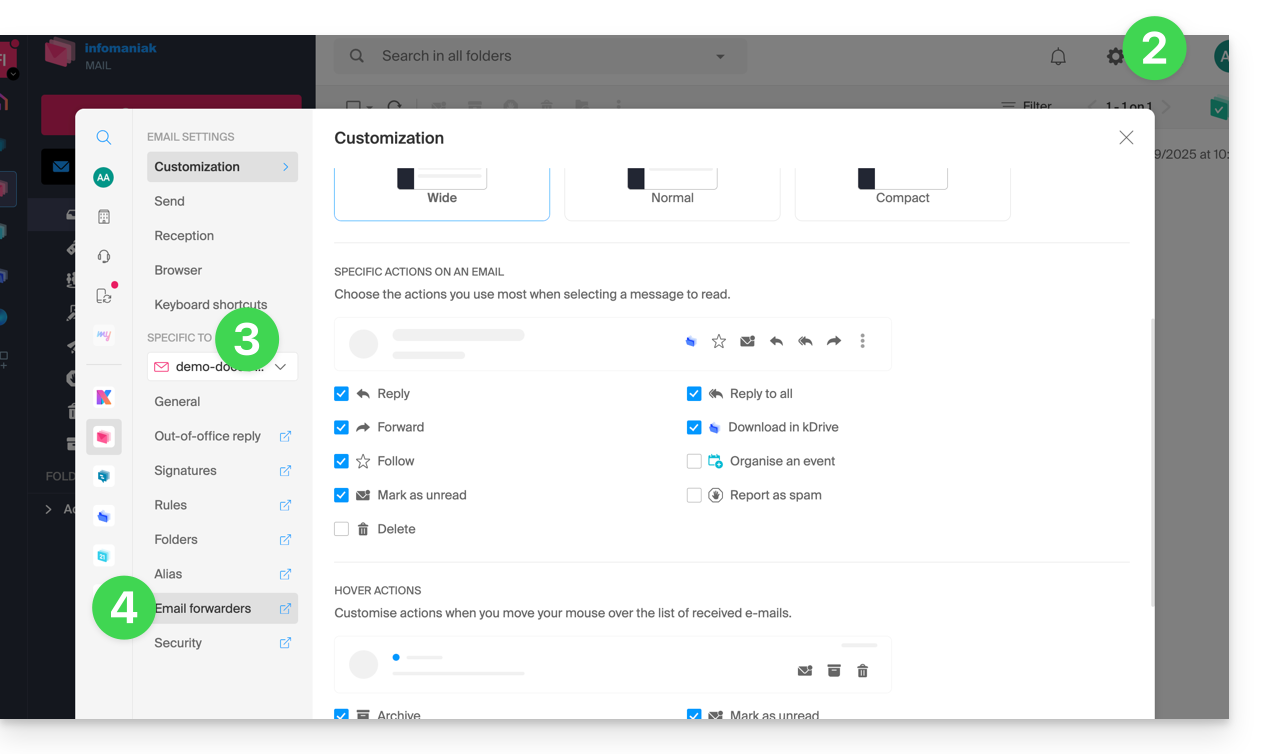
- Click on Settings in the top right corner.
- Check or select the relevant email address in the dropdown menu on the left-hand sidebar.
- Click on Forwarding:
- Click on the blue Add a redirection button.
- Enter a destination email address per line.
- Click on Add.
Add a redirection from a Mail Service
To access the Mail Service:
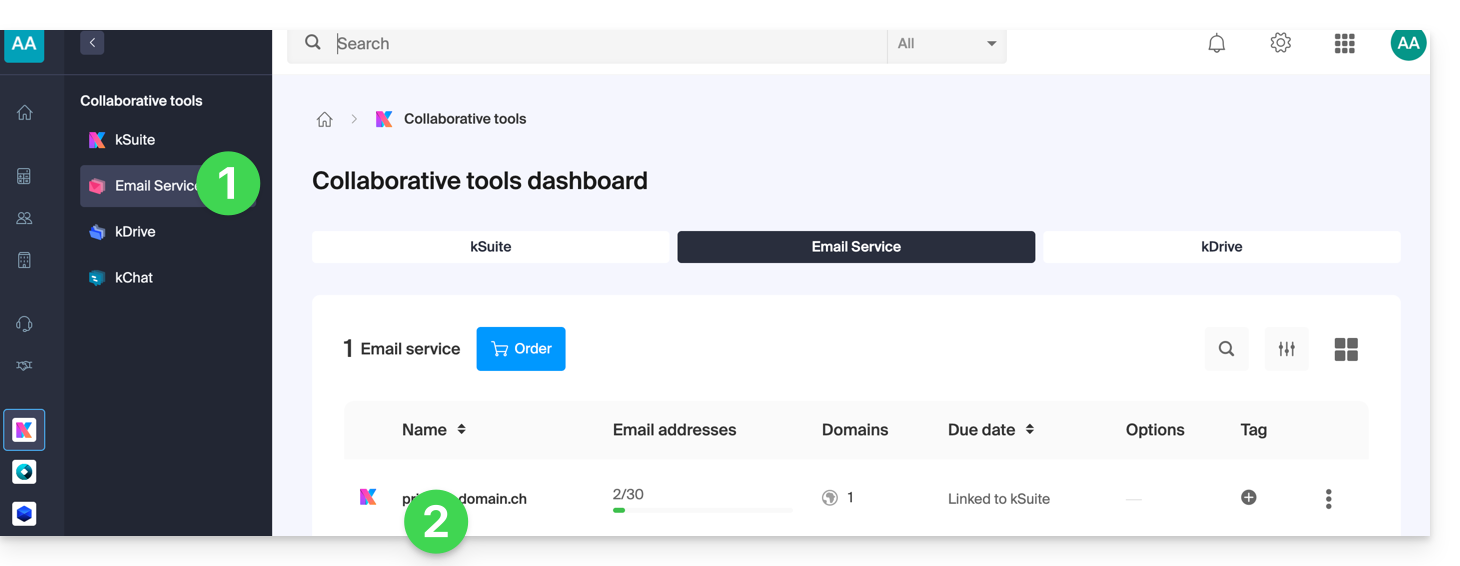
- Click here to access the Mail Service management in your Infomaniak Manager (❓: help).
- Click on the name of the Mail Service in question:
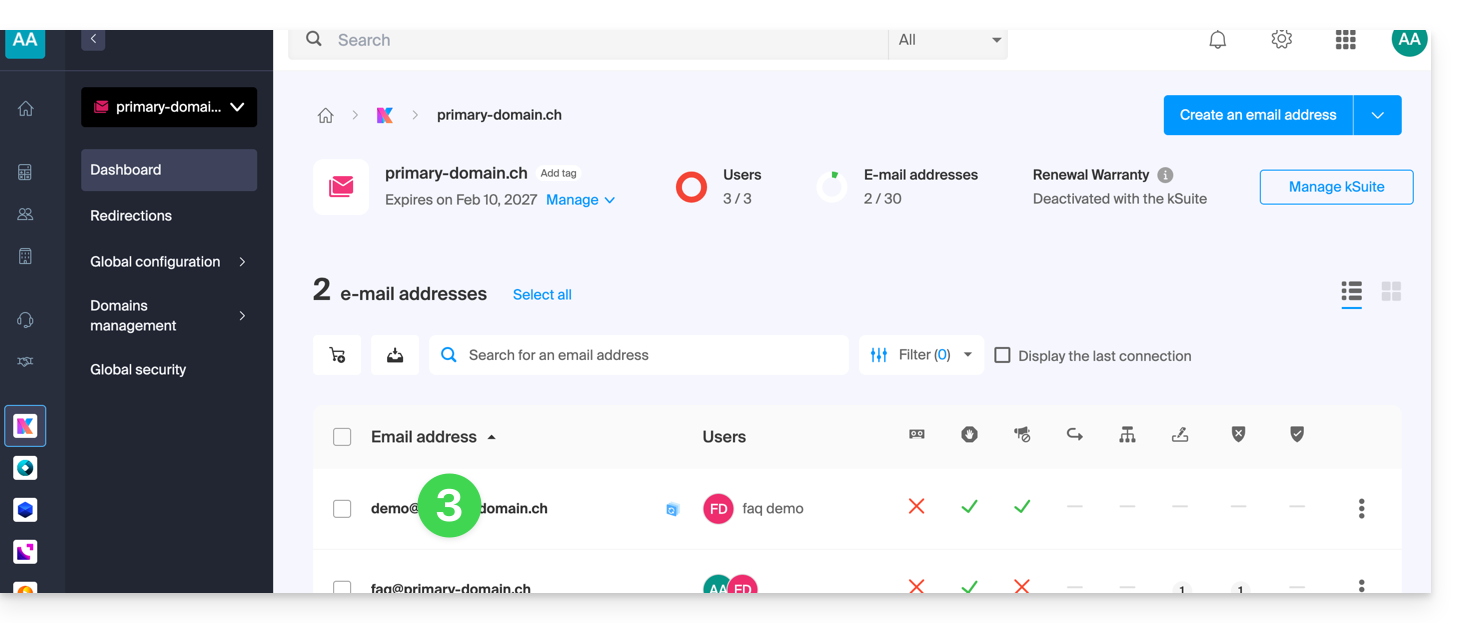
- Click on the email address in question in the table that appears:
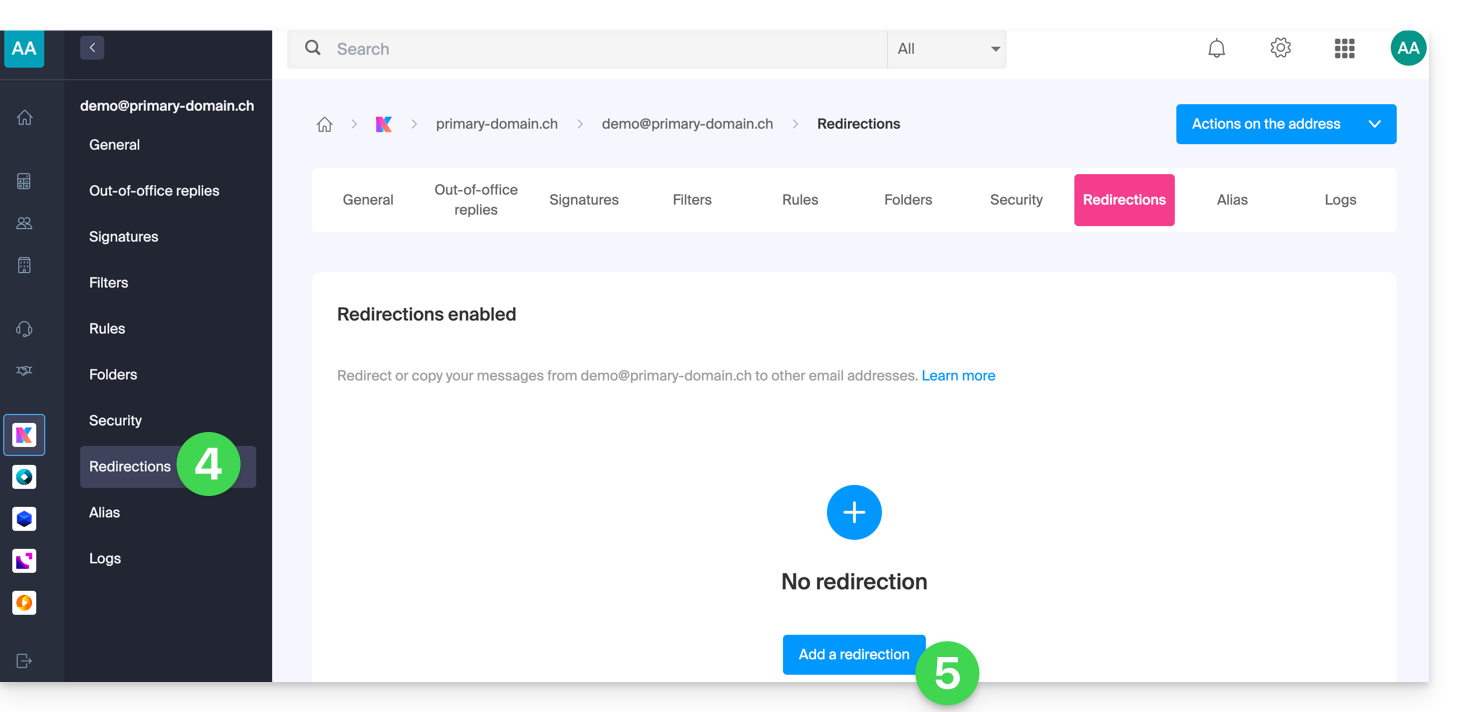
- Click on the Redirections menu in the left sidebar (or the tab).
- Click on the blue Add a redirection button (and if necessary, enter your login password for security):
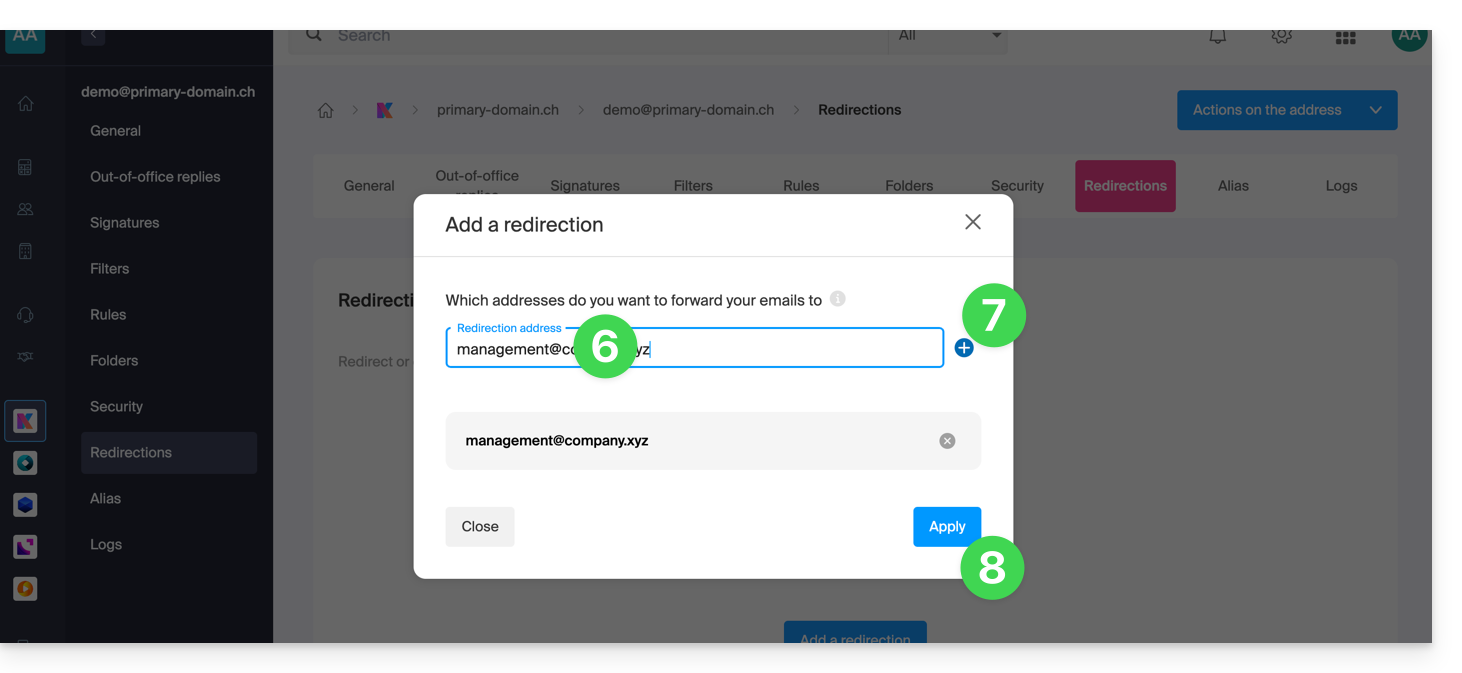
- Enter a destination email address.
- Click the blue + button to add more email addresses.
- Click on Confirm to complete the addition:
- Click on the toggle switch to Keep or delete a copy of emails on the email address after redirection:
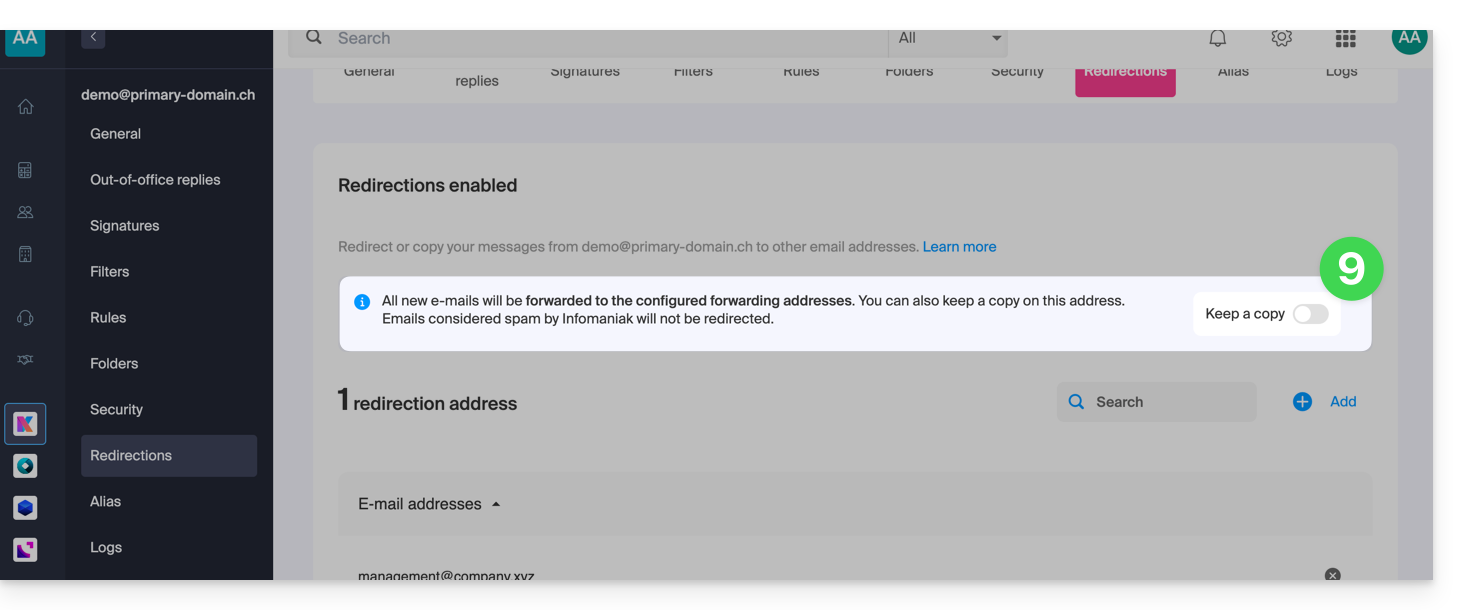
- Once a forwarding email address is added, you can check the box to delete emails from the server after forwarding. The redirection then becomes a move rather than a copy.
Delete email redirects
You cannot apply the redirection service to multiple email addresses within a domain in a single operation. However, the reverse is possible (❓: help) and you will therefore be able toselect all addresses for a Mail service and delete any existing redirects: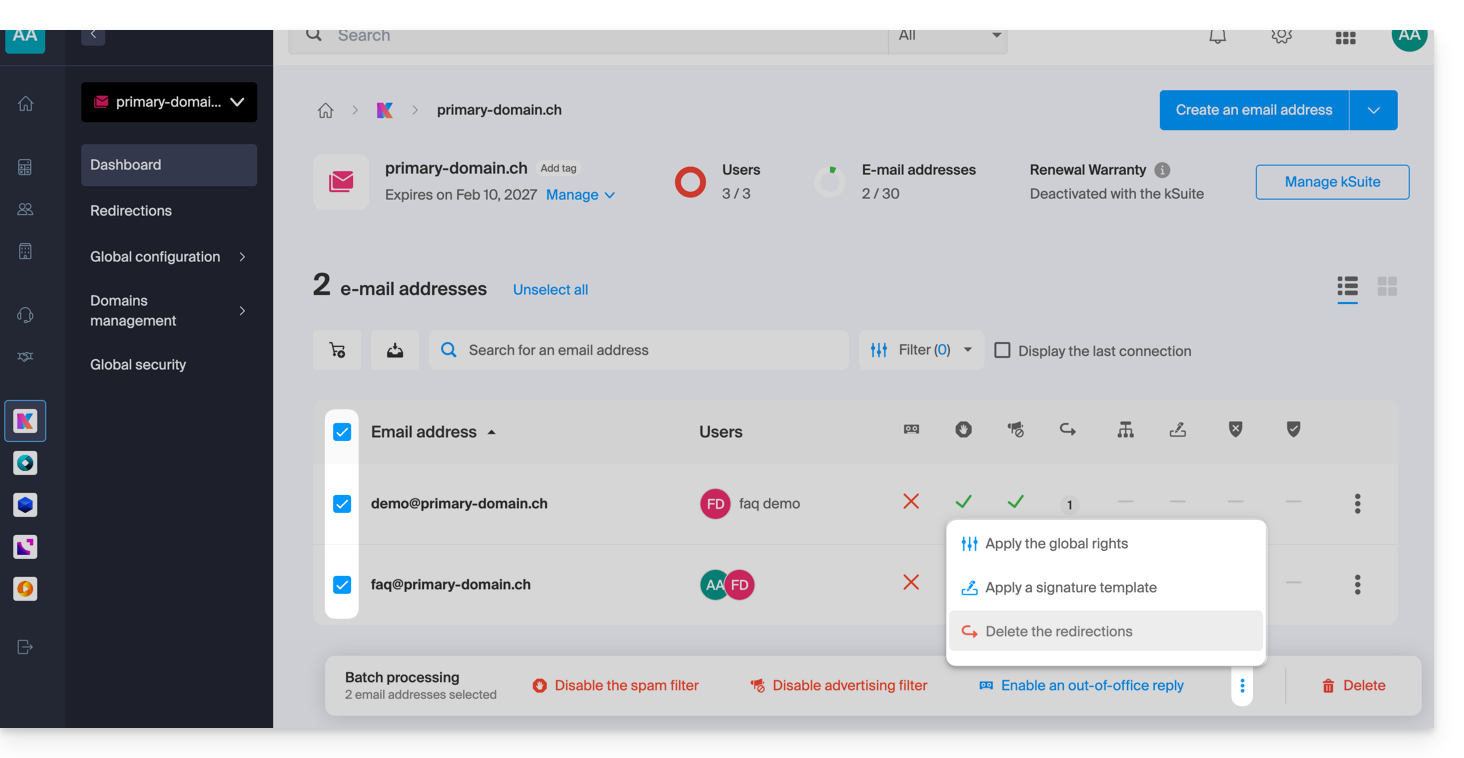
Link to this FAQ: https://faq.infomaniak.com/2614
Has this FAQ been helpful?