Knowledge base
1000 FAQs, 500 tutorials and instructional videos. Here, there are only solutions!
Ticketing: Manage invoice payment method
This guide explains how to set up invoice payments (within the Infomaniak ticketing system).
Introduction
- This payment method will allow your customers to pay for their order later.
- Regardless of the payment method, you will be the one to receive the money.You will therefore need to manually validate the order.
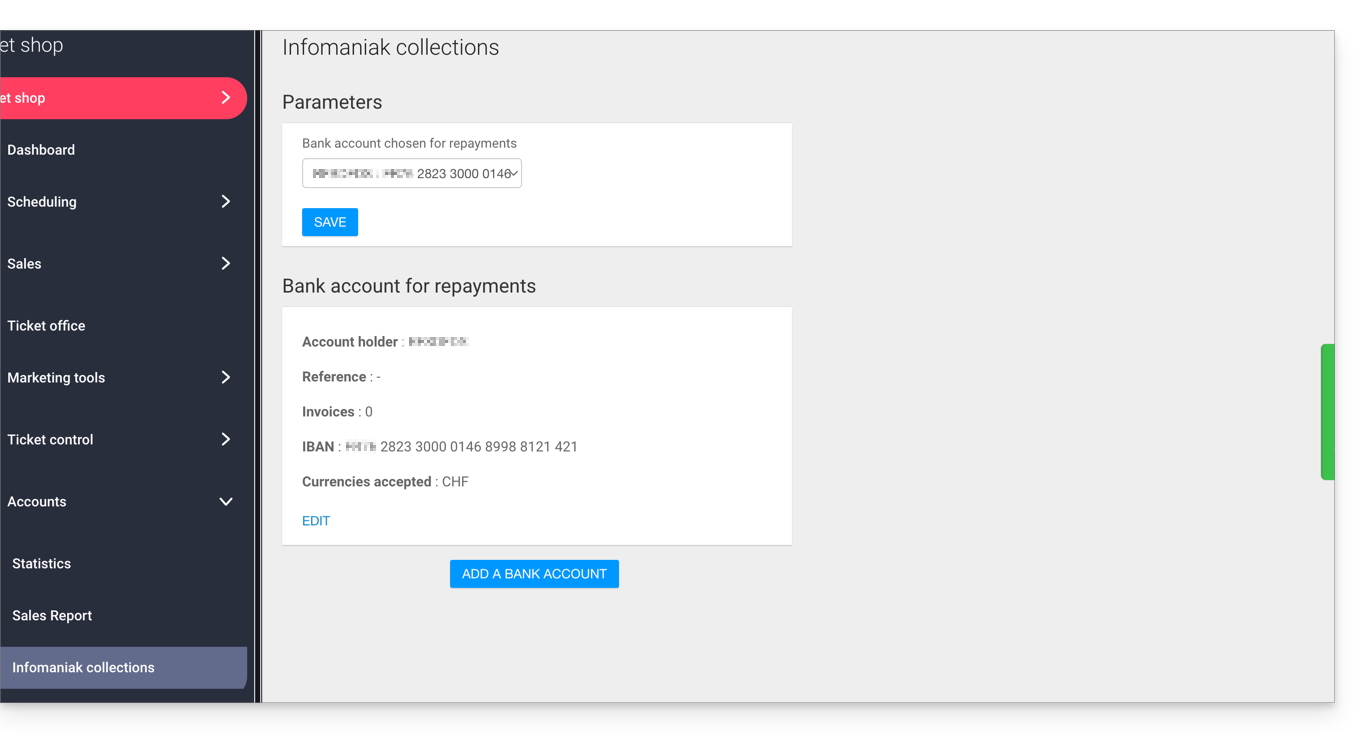
- In the case of a bank transfer, the payment will be directly credited to the account details (RIB/IBAN) configured in your billing area under Accounting, then Infomaniak Payments in the left-hand menu:
- This payment method is subject to a fixed fee of 0.20 per ticket (see pricing).
Enable the payment method in the Ticketing system
To do this:
- Click here to access the management of your product in the Infomaniak Manager (need help?).
- Click directly on the name assigned to the ticketing system for the event.
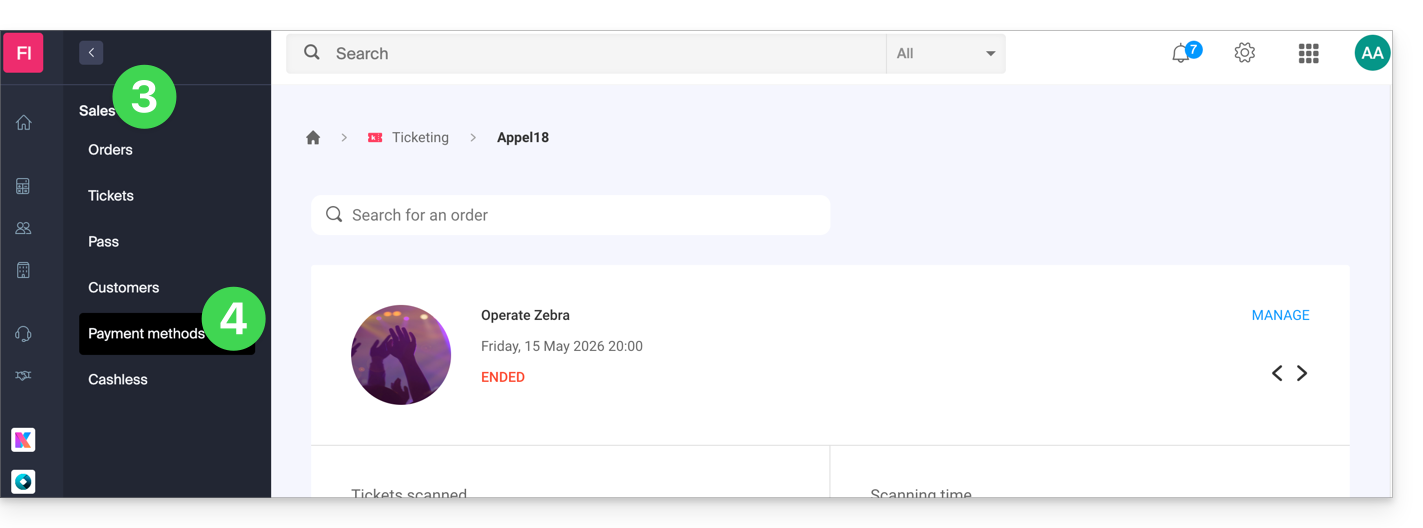
- Click on Sales in the left-hand menu.
- Click on Payment methods in the left-hand menu:
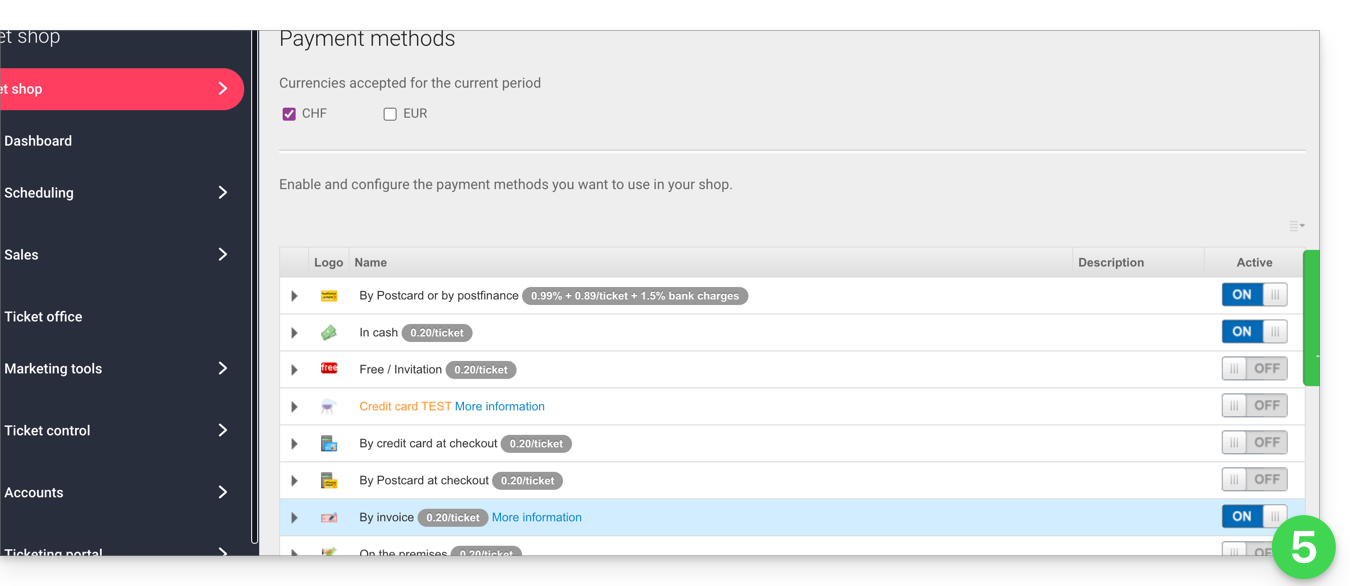
- Set the toggle switch to ON to the right of the Invoice item:
Configure the method
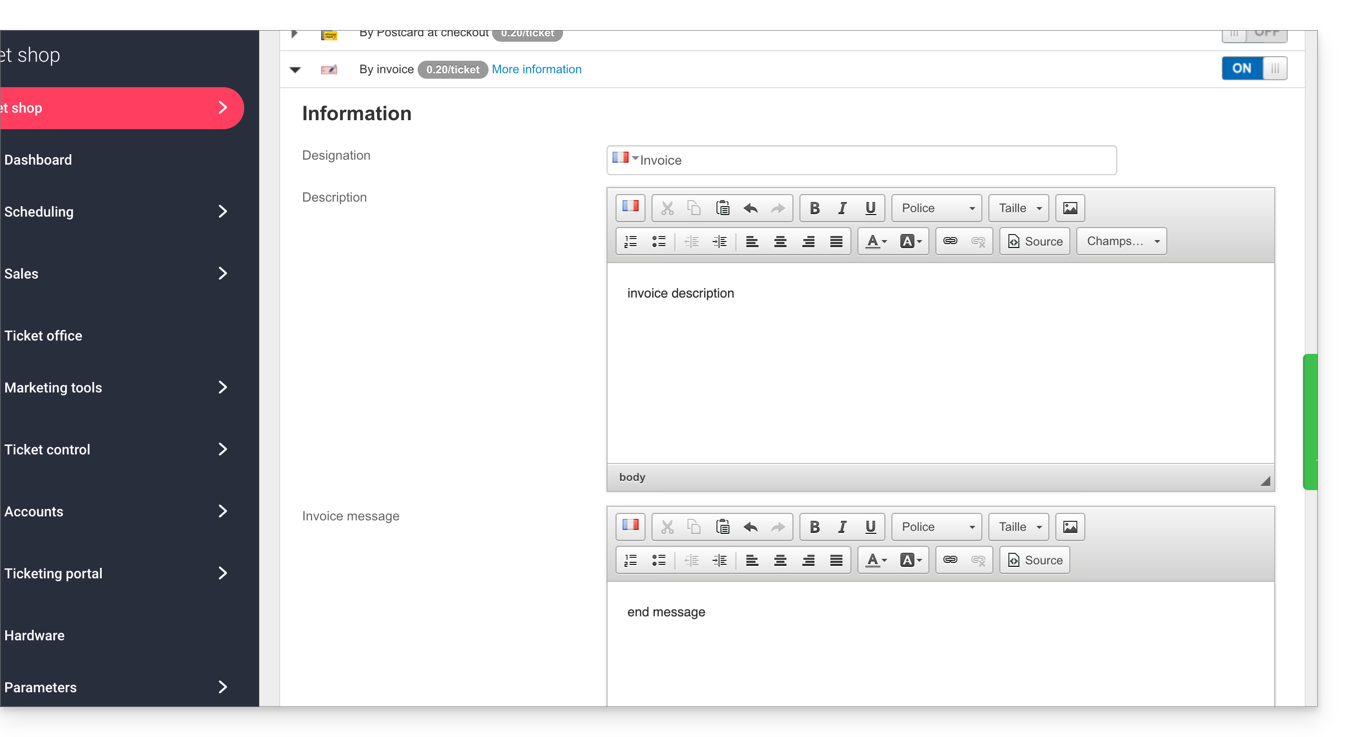
Click on the arrow to the left of the Invoice payment method:
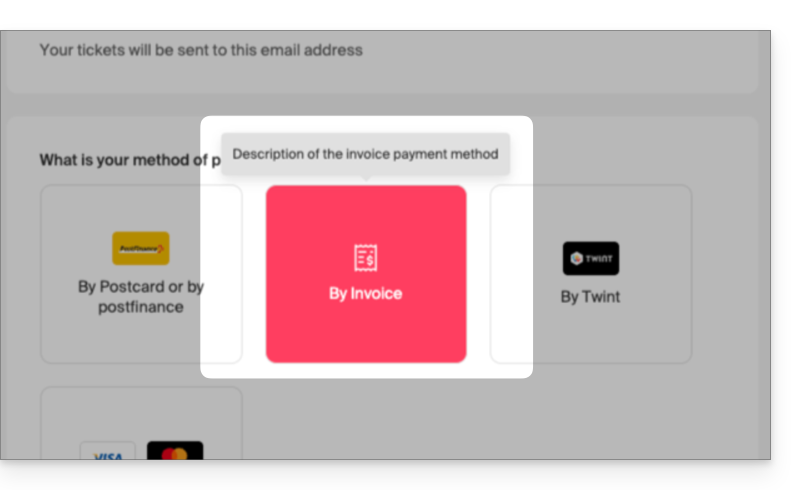
- The first section allows you to define the name of this payment method, add a description, and add a message to the end of the generated document:
- Here is a sample result:
Customizing the invoice payment method
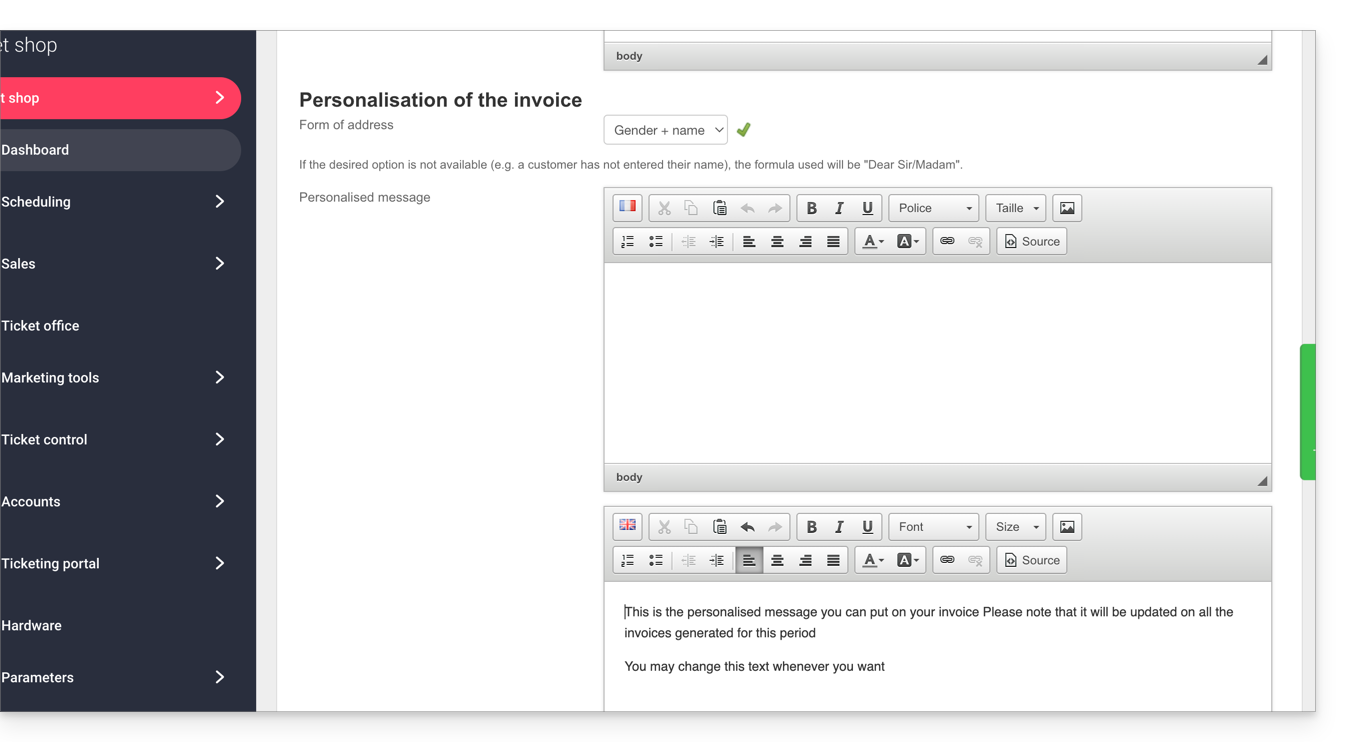
You can customize the invoice to address it to the customer and include a personalized message:
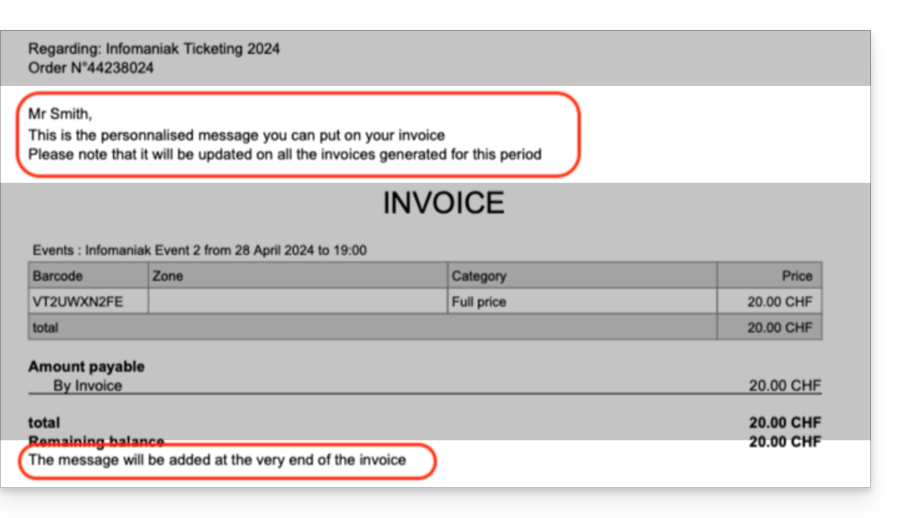
- If you want to address the invoice directly to the customer, in the form Mr. Smith, please ensure that the customer records have the Title and Name fields filled in and completed:
- Here is a sample result:
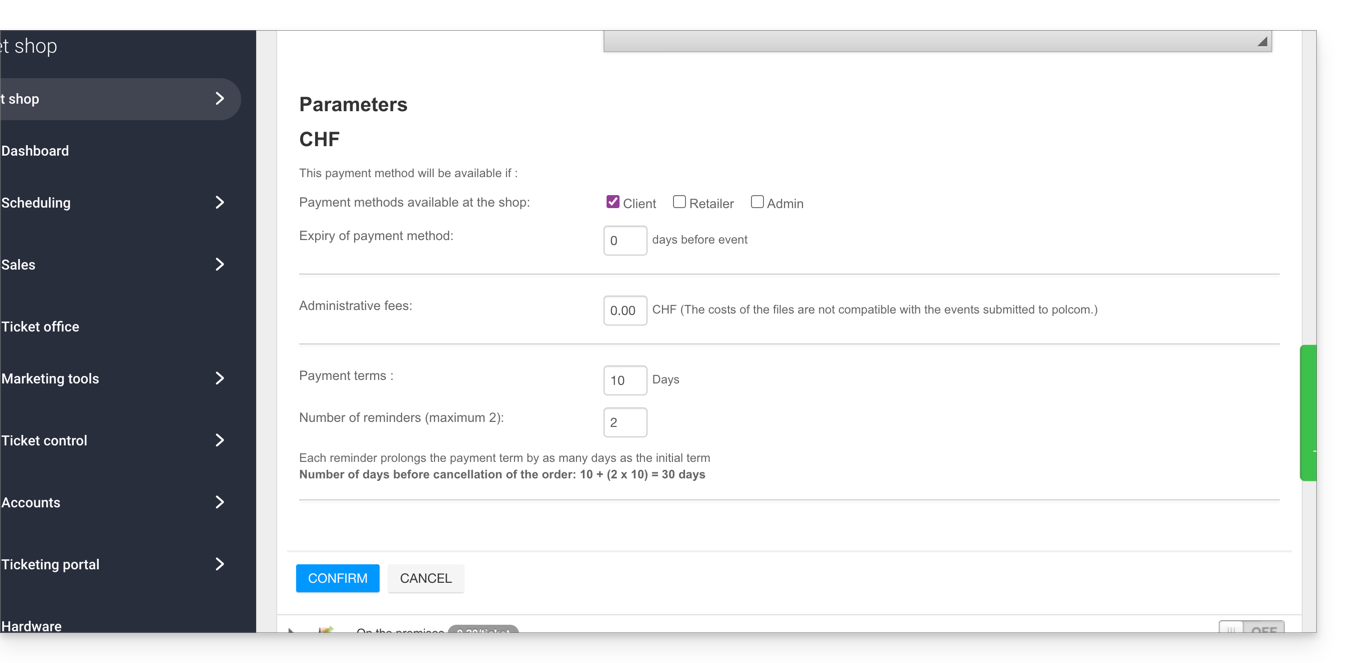
The following settings allow you to manage the use of this payment method:
- The ability to choose the availability of this payment method:
- customer: for online orders by visitors
- reseller and administrator: for the web and mobile interface
- The ability to define an expiration date for using this payment method when placing an order.
- It will always be possible to pay an invoice generated before the expiration date, but it will no longer be possible to choose this payment method when placing orders during the period indicated in this field.
- Add processing fees to cover the management costs of this payment method.
Manage payment due dates for Invoices
To ensure that slots are not blocked indefinitely by this payment method, you can define a payment deadline. Please refer to this other guide if you are looking for information on the number of days before each reminder and the number of reminders.
Validating an order awaiting payment
There are several ways to validate a payment method:
From the Infomaniak Manager
- Click here to access the management of your product in the Infomaniak Manager (need help?).
- Click directly on the name assigned to the ticketing system for the event.
- Click on Sales in the left-hand menu.
- Click on Orders in the left-hand menu.
- Click on an order awaiting payment.
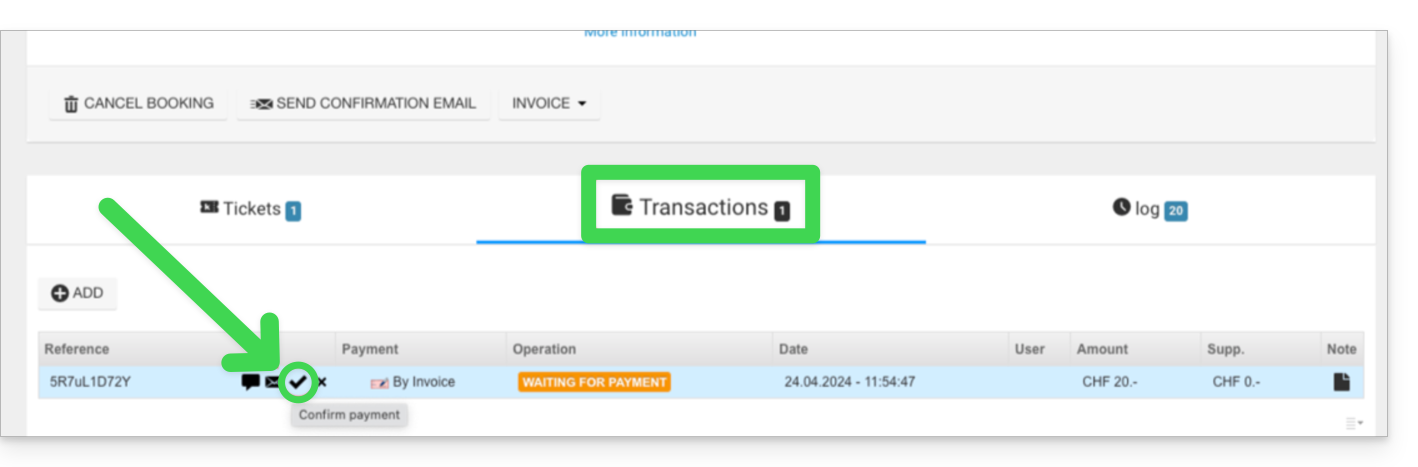
- Click on the Transactions tab, hover over the unpaid invoice payment, and click on the Validate icon:
Via the Web Control Panel
- Log in to the Web Control Panel.
- Start a search for pending payment orders by:
- Order number
- Customer name
- Click on the pending payment order.
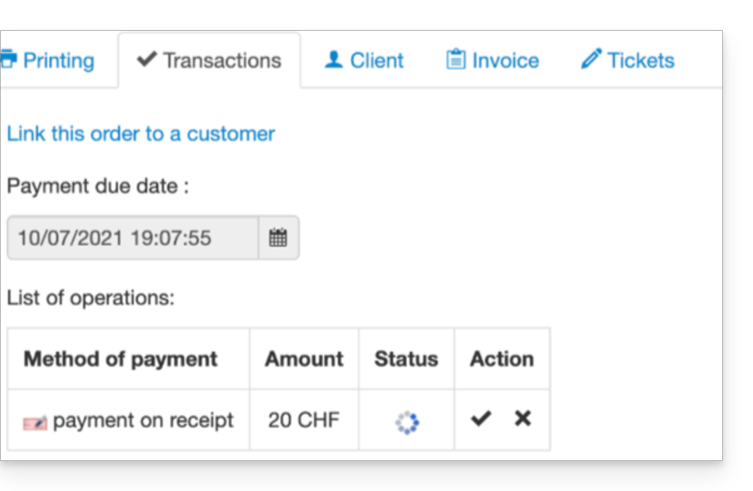
- Go to the Transaction tab and click on the Validate icon:
From the Mobile App
- Log in to the Mobile Portal.
- Start a search for pending payment orders.
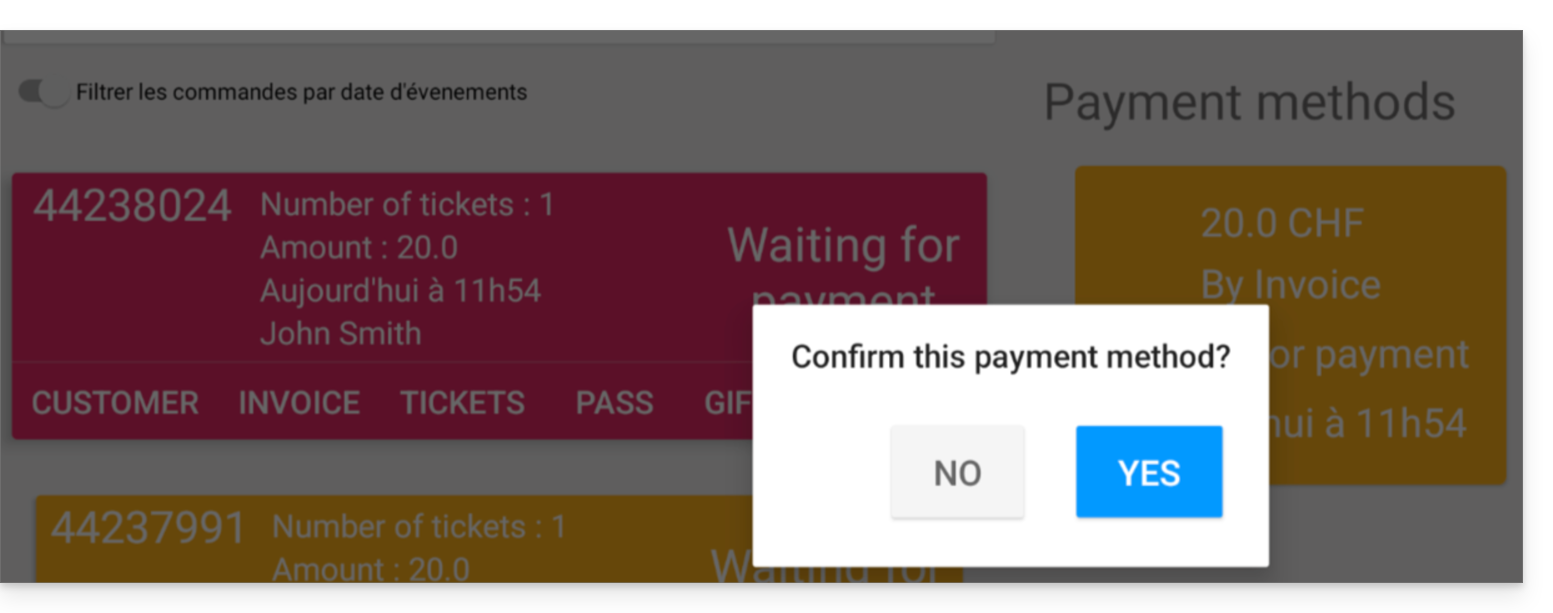
- From the list of payment methods, choose the one to validate and select Confirm:
Link to this FAQ: https://faq.infomaniak.com/2609
Has this FAQ been helpful?