Knowledge base
1000 FAQs, 500 tutorials and instructional videos. Here, there are only solutions!
Manage the Lite Sync option (kDrive v3.x macOS)
This guide details the Lite Sync option in the desktop app kDrive v3.x (desktop application for macOS). The Lite Sync option is also available on Windows.
Introduction
- The Lite Sync feature saves space by virtually storing your kDrive files on your computer, only downloading them when necessary.
- Files are always accessible from the kDrive web app (online service ksuite.infomaniak.com/kdrive), but locally they are present in a "dehydrated" form, requiring a loading time to be fully accessible.
- This allows you to view, complete, and synchronize the content of kDrive without saturating the hard drive.
- The Lite Sync option always applies:
- to a specific kDrive (in the case where you synchronize several on the application).
- and to the entirety of the kDrive (or the entirety of an advanced synchronization).
- and via a specific kDrive app (another user of the same kDrive can make a different Lite Sync choice than yours).
- If you encounter any issues, please refer to this other guide for more information.
Enable Lite Sync
Prerequisites & scope of use for Lite Sync
- macOS version ≥ 10.15 — not available with Linux
- File storage system using NTFS / APFS (FAT32 excluded)
The Lite Sync option can be enabled during the installation of version 3.x of the application (you will be prompted) or later:
- Left-click on the app icon in the notification area of your computer (top right on macOS).
- Click on the action menu ⋮ to the right of the kDrive window.
- Select kDrive Settings:
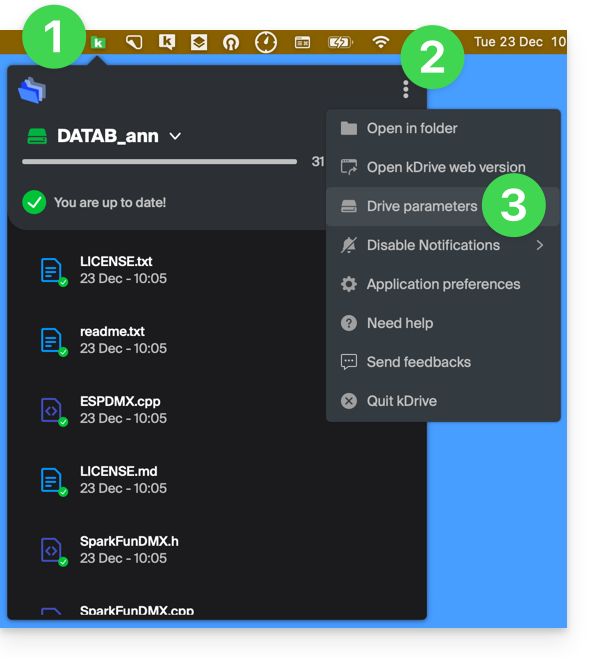
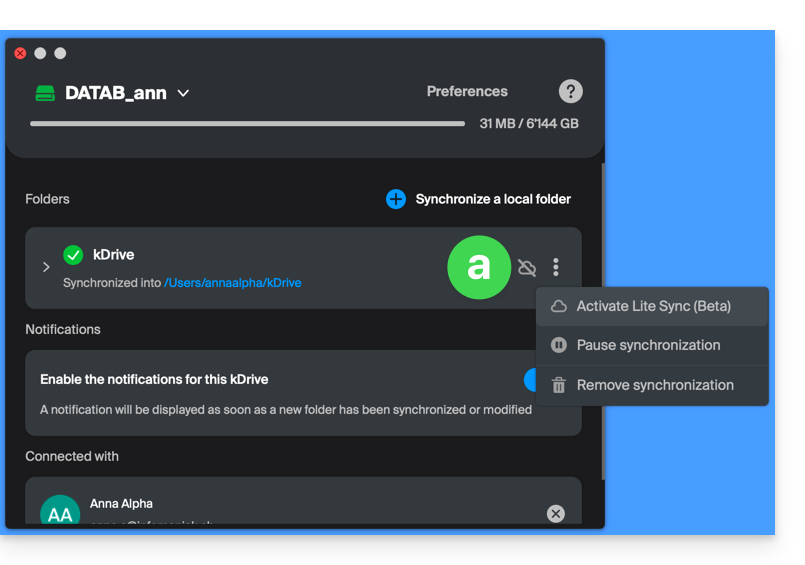
- Click on the action menu ⋮ to the right of the current synchronization and the cloud symbol:
- If the cloud is crossed out, you can enable Lite Sync because it was not yet active:
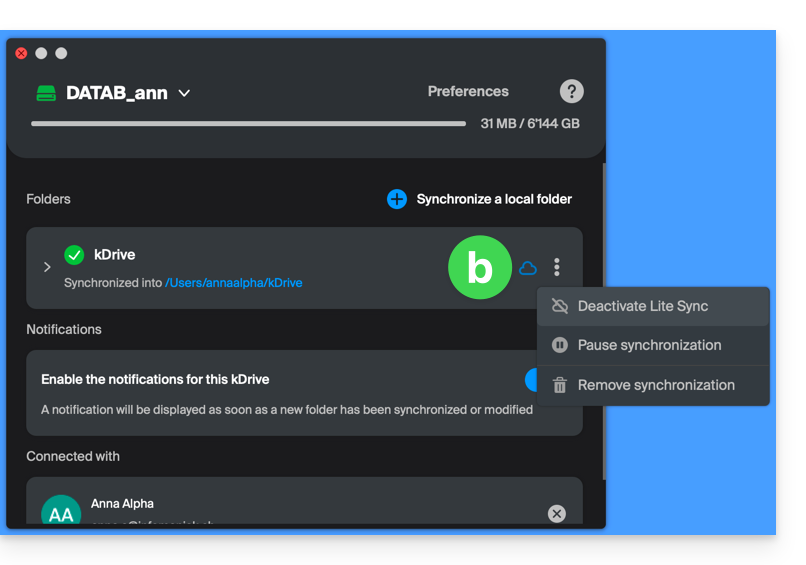
- In the same place, you can disable Lite Sync if the cloud was not crossed out (also see the end of this guide):
- If the cloud is crossed out, you can enable Lite Sync because it was not yet active:
Actions on synchronized data on the disk
Always keep on this device
Once Lite Sync is enabled (and the data on the disk becomes “virtual”), you can still make a folder and its subfolders, or only one or more files, available locally:
- In macOS Finder, navigate to a folder synchronized with kDrive and right-click.
- Select the Always make available locally option under kDrive:
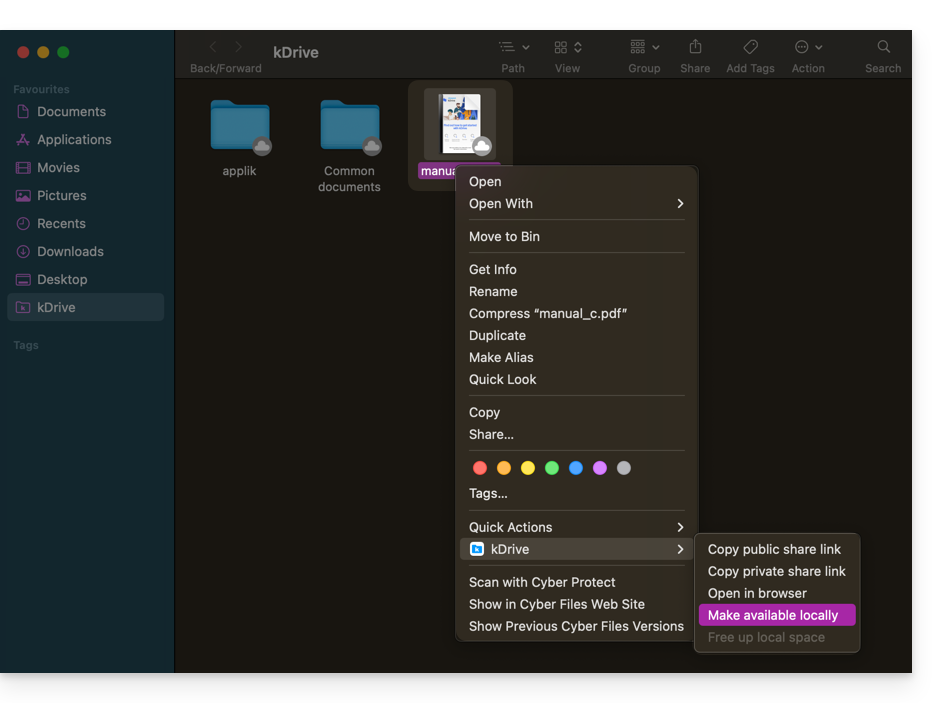
- The symbol visible on the icon of the files in question will change to indicate that the file is no longer "in the cloud" but is fully present on your disk:

Free up space
Conversely, once Lite Sync is activated, you can free up space, file by file or within a folder and its subfolders.
Please note: "free up space" is not applied by default to new files or folders added locally.
- In macOS Finder, navigate to a folder synchronized with kDrive and right-click.
- Select the free up local space option under kDrive:
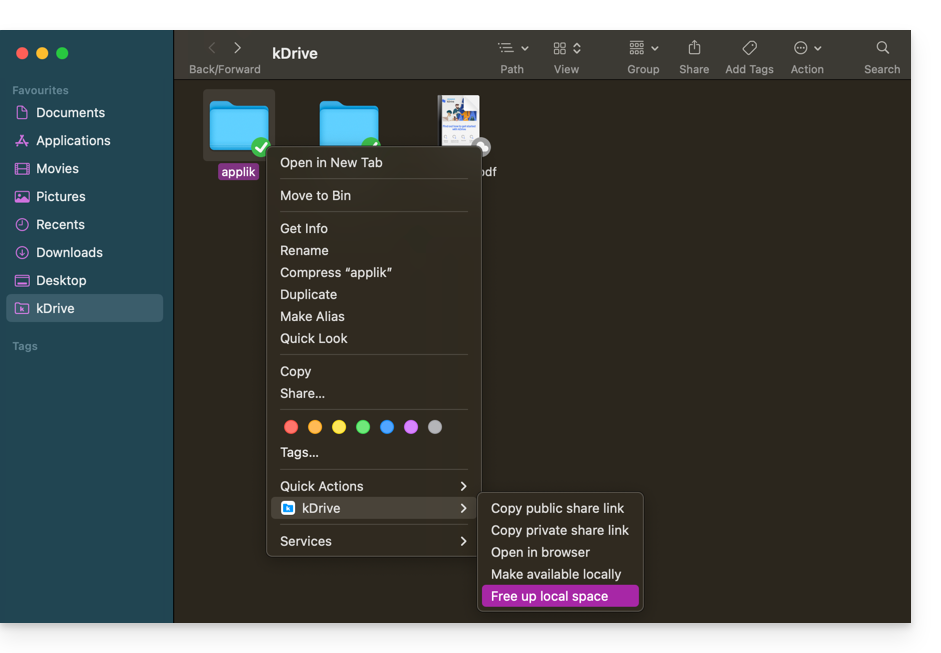
- The symbol visible on the icon of the files/folders concerned will change to indicate that the data is “in the cloud” and is no longer fully present on your disk:

- The Free up space action will free up storage space on your computer.
- The files will remain visible but will no longer be accessible without an internet connection.
Example of use (storage space required)
If you activate Lite Sync, the space used (900 GB, for example) on the Infomaniak server will be freed up on your hard drive, but the reverse is also true (for example, 900 GB of free space is required on your hard drive if you activate the Lite Sync option later).
Therefore, it is recommended to keep the initial choice of whether or not to activate Lite Sync, and not to change it midway.
"Dehydration" of files
As explained in the introduction, a dehydrated file is a kDrive file whose full version is not present on the hard drive; instead, a 1 KB "shortcut" is displayed, which is normal behavior when Lite Sync is enabled.
In some cases (for example, if you copy files from your hard drive while Lite Sync is enabled, and then start a new synchronization to a new kDrive), the application will block the import of this type of file. To resolve these errors, you can download the full file from the web app kDrive (online service ksuite.infomaniak.com/kdrive).
Here are the status icons used and their explanations:
| Status Icons | Description |
|---|---|
| |
| |
| kDrive is experiencing a synchronization conflict with the file/folder. | |
| An error occurred during the file/folder transfer, and the process was interrupted. | |
| The progress circle indicates an ongoing download. |
Disable the Lite Sync option
To do this, follow the steps at the top of this guide (especially point 4.b). When disabling LiteSync, two scenarios may occur depending on the remaining space on the storage device of the device used:
- If there is enough space on your computer, a message confirming the deactivation will appear; simply click on Continue.
- If there is not enough space on your computer, a message will indicate the amount of space needed to allow you to disable Lite Sync; the synchronization of your kDrive will be paused until you select the files to synchronize on your computer.
Link to this FAQ: https://faq.infomaniak.com/2608
Has this FAQ been helpful?