Knowledge base
1000 FAQs, 500 tutorials and instructional videos. Here, there are only solutions!
Modify a Group (work team)
Update 09/03/2026
This guide explains how to modify a Group (a work team) from the Infomaniak Manager.
Prerequisites
- Be Administrator or Legal Representative within the Organization.
- Have created one or more Groups.
Manage & modify a Group
To do this:
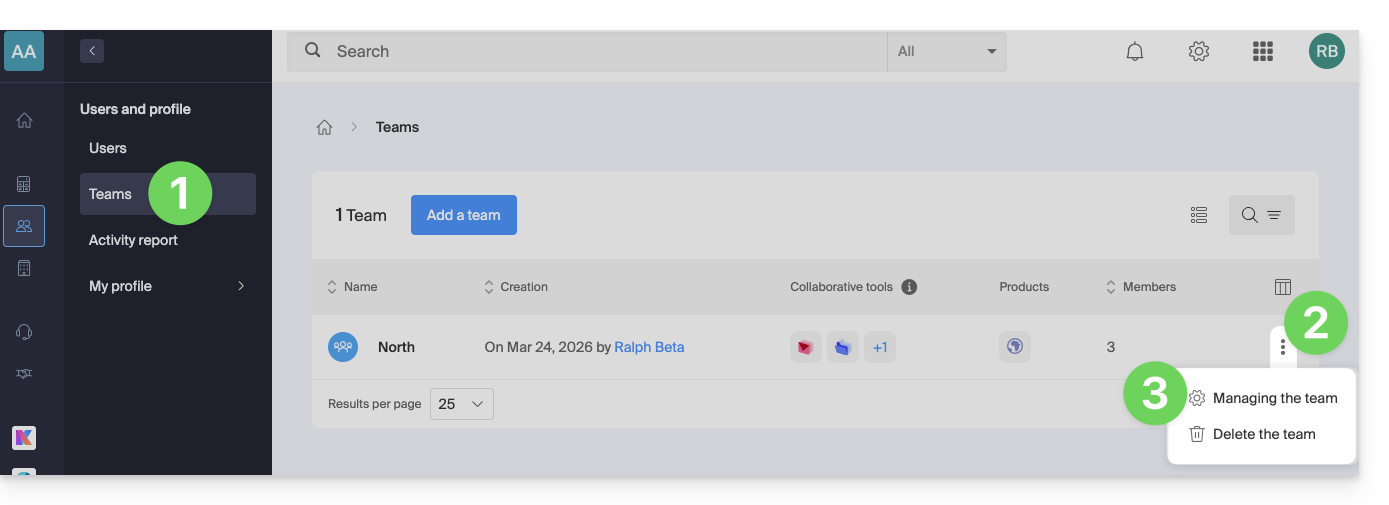
- Click here to access Group management on the Infomaniak Manager (need help?).
- Click on the action menu ⋮ located to the right of the item concerned.
- Select Manage the Group:.
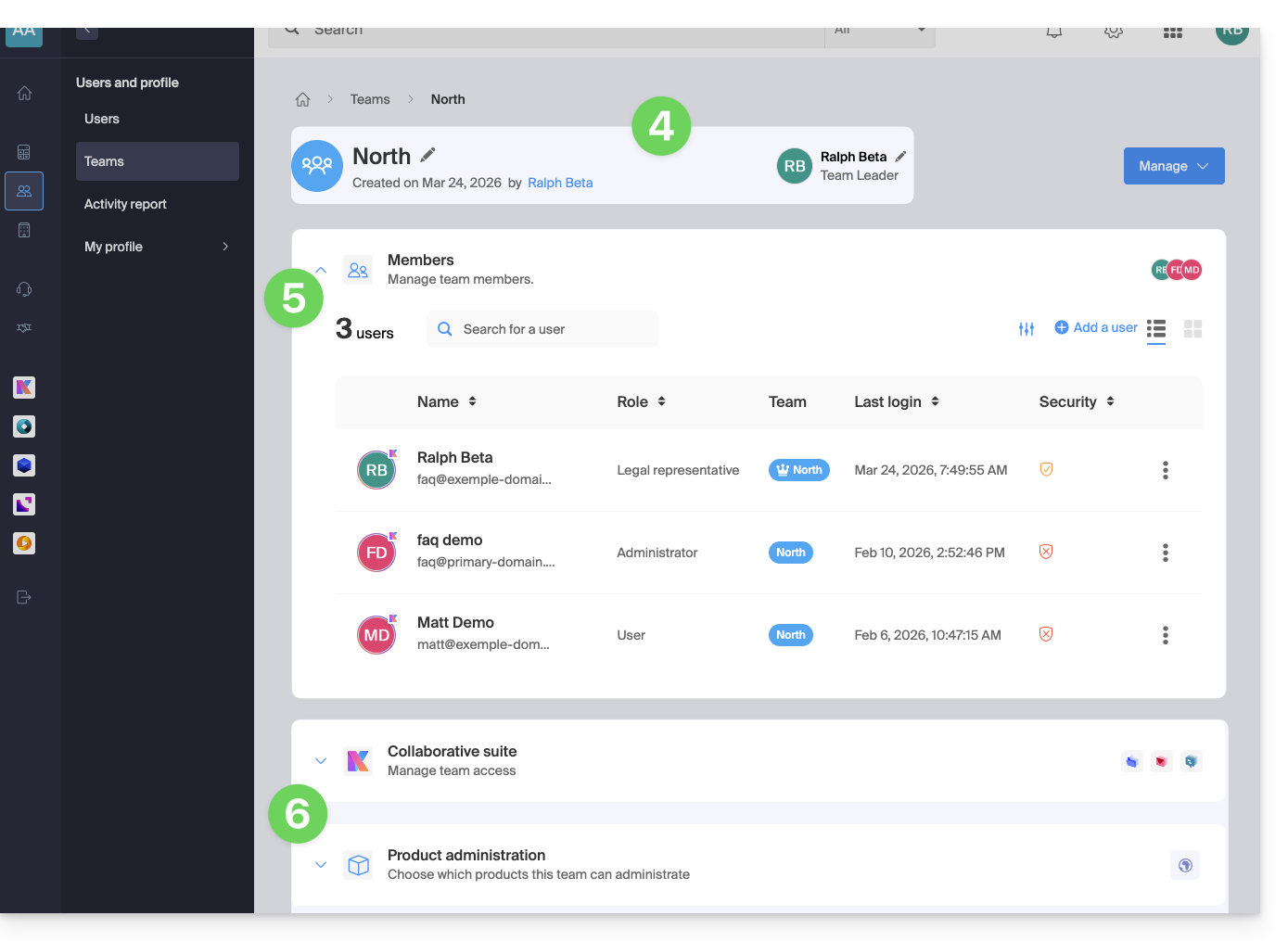
- At the top, you can manage the Group name and the manager (click on the pencil icon ✎).
- Click on the chevron to expand the table of users in the Group and click on the action menu ⋮ located to the right (the actions are described below); you can also add new members to the Group.
- Below, you can manage the services available to members (collaborative kSuite tools and/or product management on the Manager):
List of actions on Group users
| Actions on a user | Details |
|---|---|
| Allows you to access the user's profile | |
| Allows you to switch the user's rights between Administrator and Collaborator | |
| Allows adding the user to other Groups | |
| Allows removing or modifying access to products | |
| Allows viewing all actions performed by the user | |
| Allows removing the user from the Group |
Learn more
Link to this FAQ: https://faq.infomaniak.com/2590
Has this FAQ been helpful?