Knowledge base
1000 FAQs, 500 tutorials and instructional videos. Here, there are only solutions!
Create a Group
Update 10/12/2026
This guide explains how to create a Group (❓: help) from the Infomaniak Manager.
Prerequisites
- You must be at least an Administrator of the Organization (❓: help).
Create a Group and Subgroups
To do this:
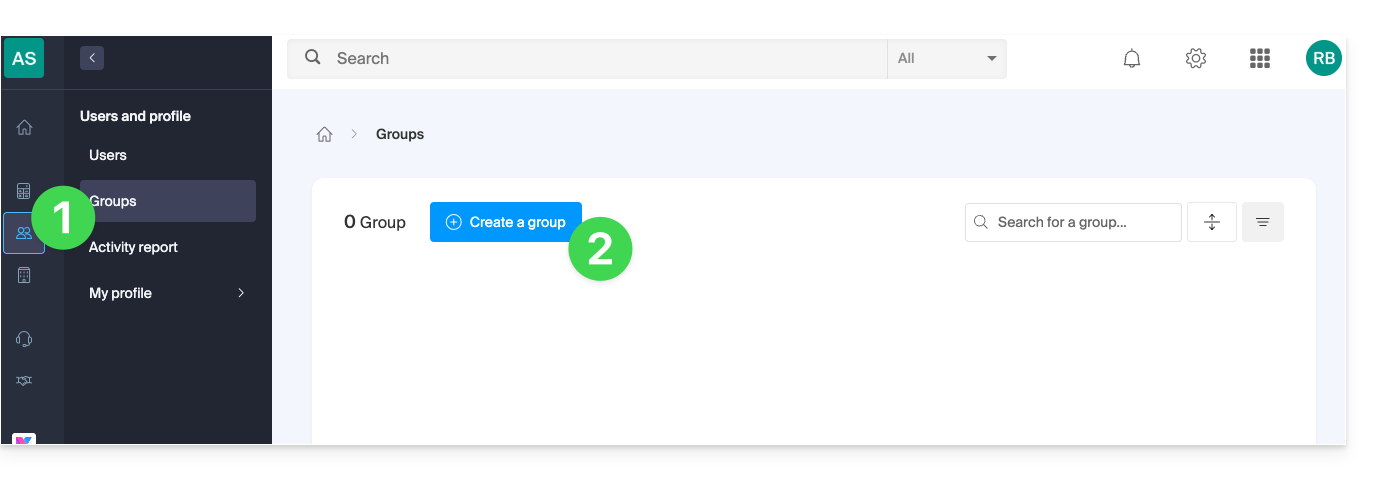
- Click here to access the Groups management section in the Infomaniak Manager.
- Click on the Create Group button:
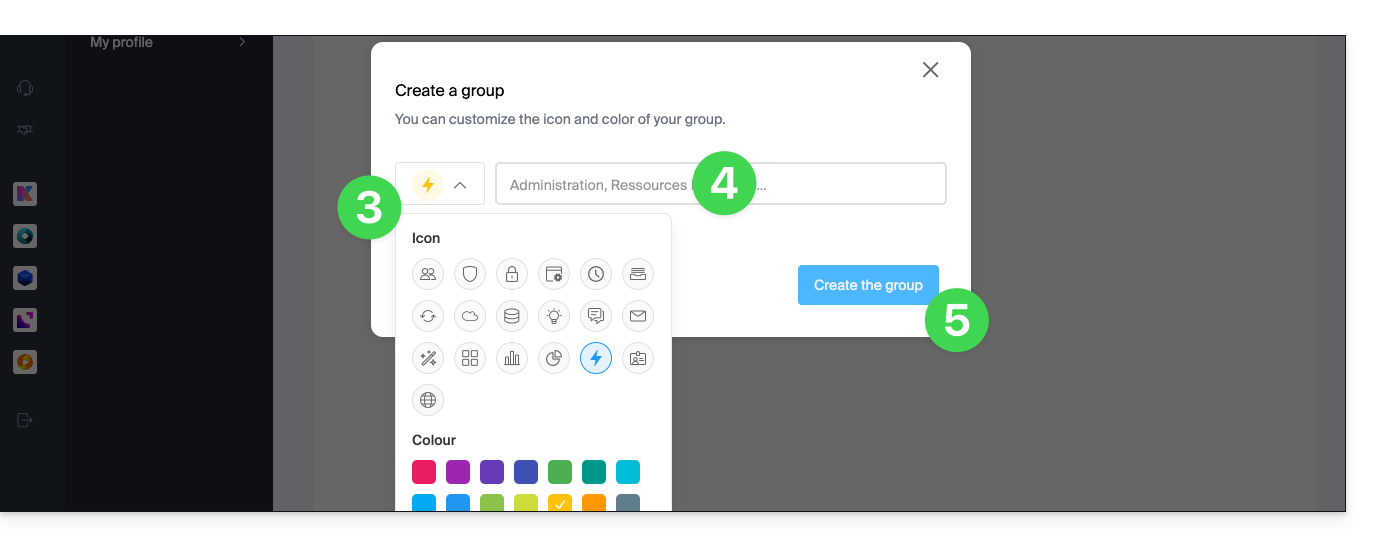
- Define an icon and its color.
- Give the group a name (you can also add a description from the Group settings once it is created).
- Click the button to Create the Group:
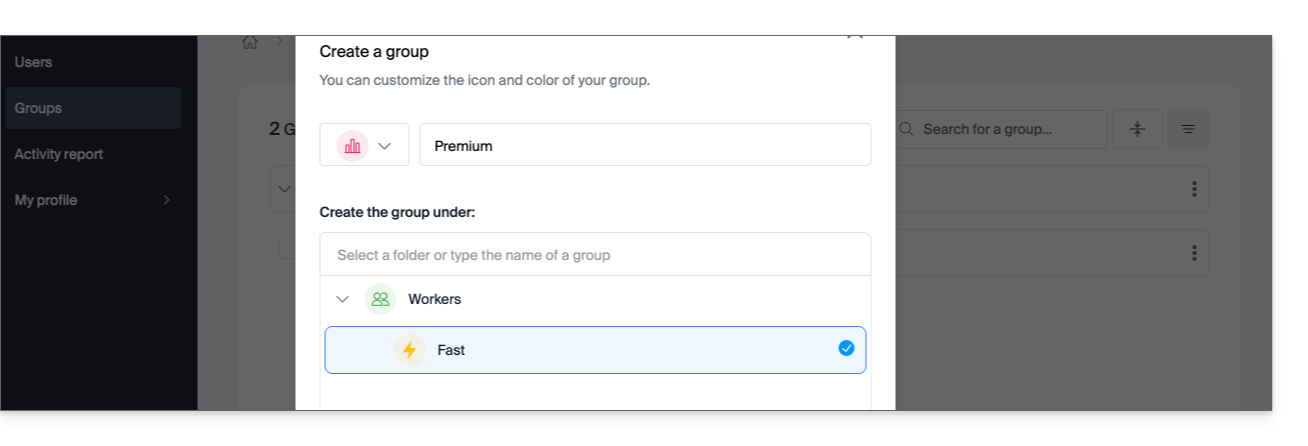
- If this is not your first group, you can choose to create it within an existing group to establish a hierarchy of up to 10 levels:
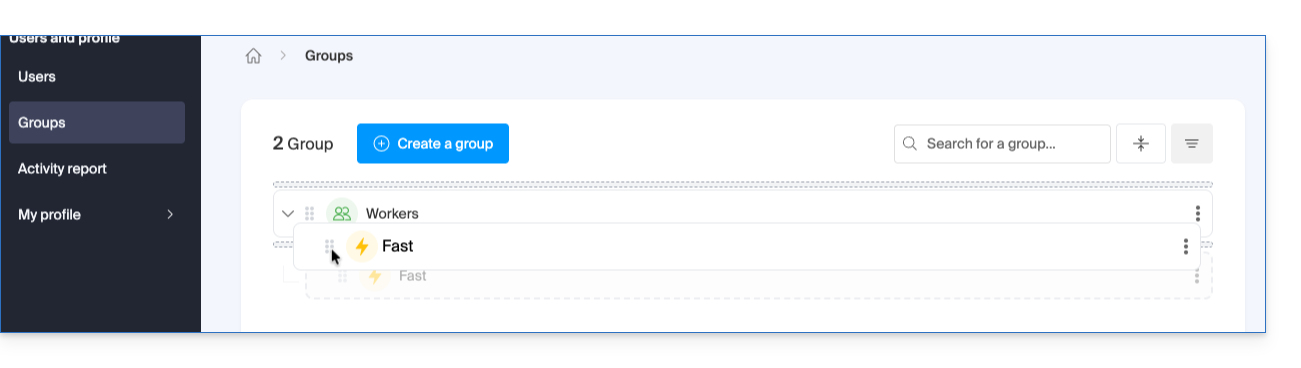
- The hierarchy can also be established manually after the group is created, by dragging and dropping:
- or by using the action menu ⋮ located to the right of the item in question to choose the root (or Parent) to which to move the Group:
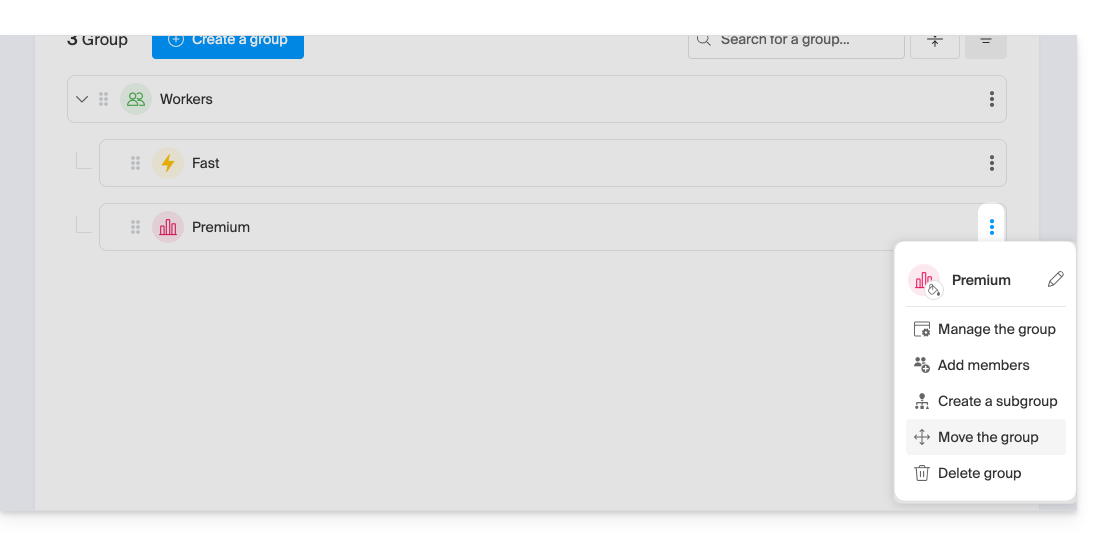
- or by using the action menu ⋮ located to the right of the item in question to choose the root (or Parent) to which to move the Group:
- If this is not your first group, you can choose to create it within an existing group to establish a hierarchy of up to 10 levels:
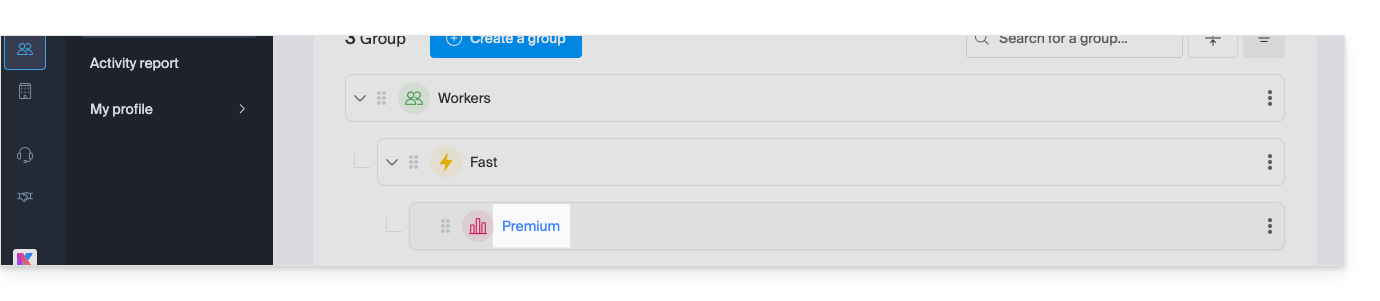
- Click on the Group name to edit it, add a description, etc.:
- Optional: you can define a “manager” for the Group from the dedicated section on the first tab of the page:
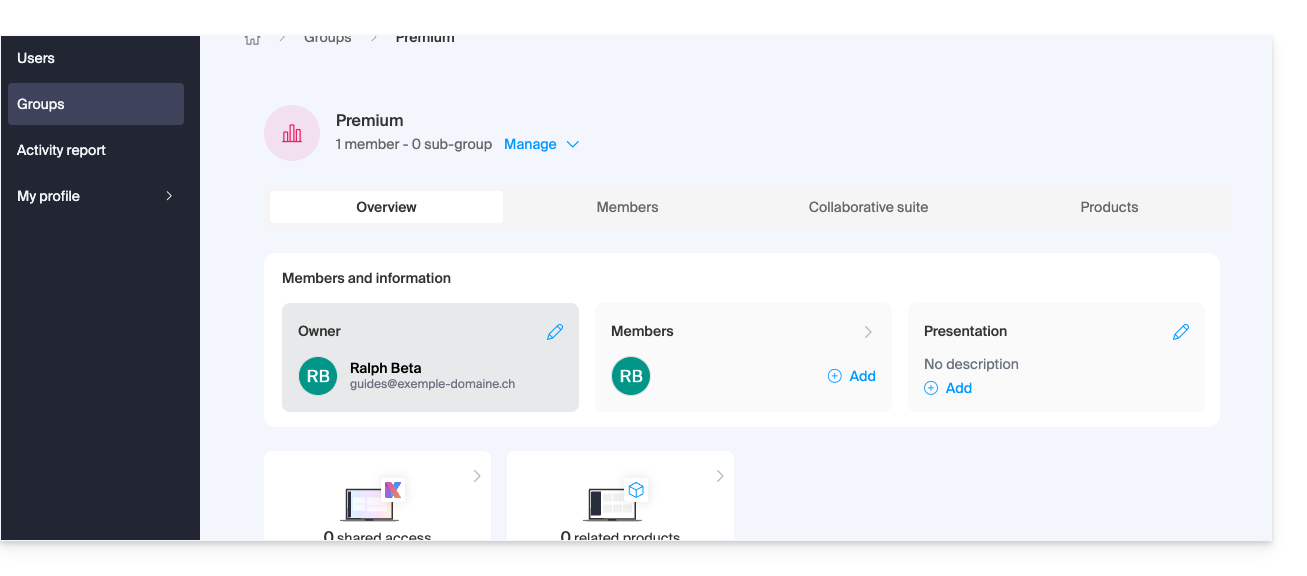
- Optional: you can define a “manager” for the Group from the dedicated section on the first tab of the page:
Compose the Group with members of the Organization
Once the group has been created, choose the members who will be part of it (you can add new users at any time):
- You can do this from the Organization user management section:
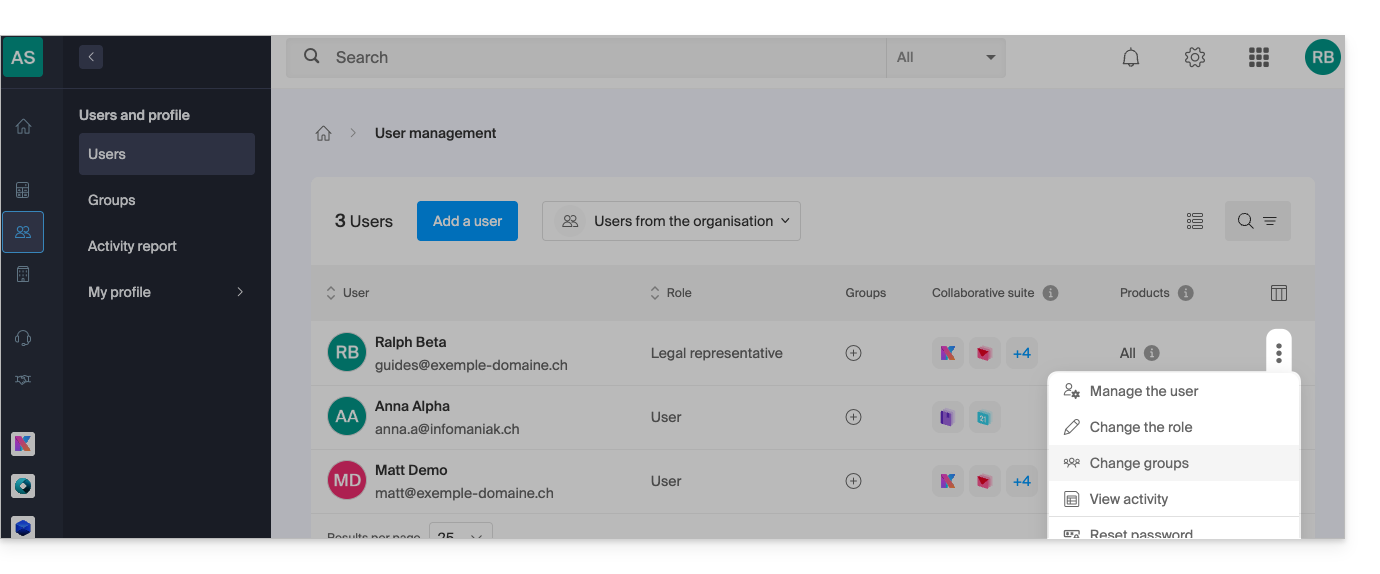
- or from the management of a specific user:
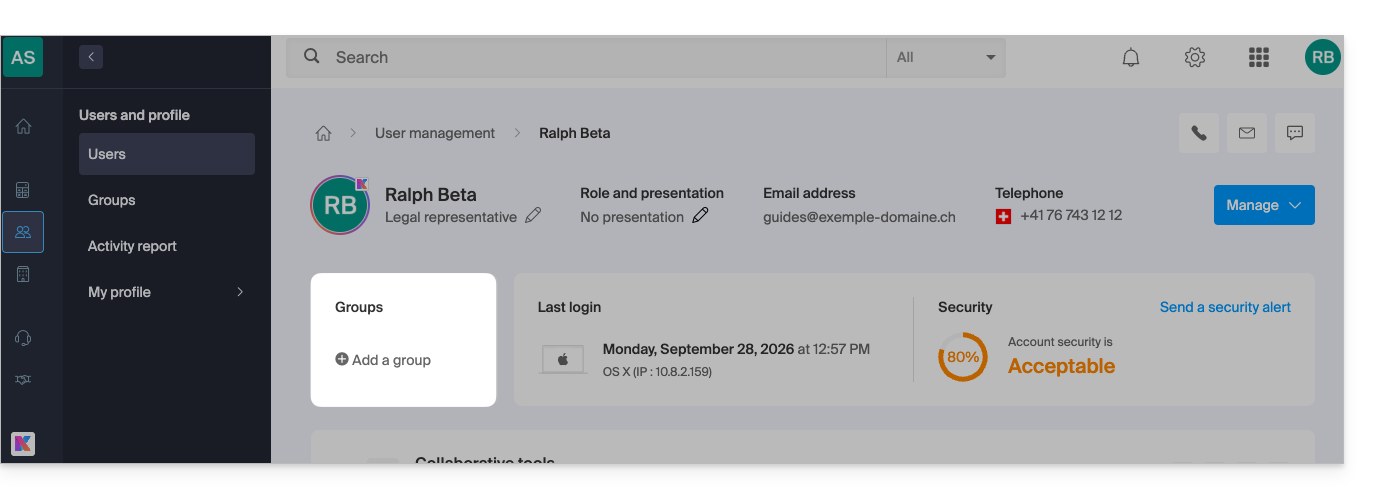
However, it is also possible to create it from a specific Group page:
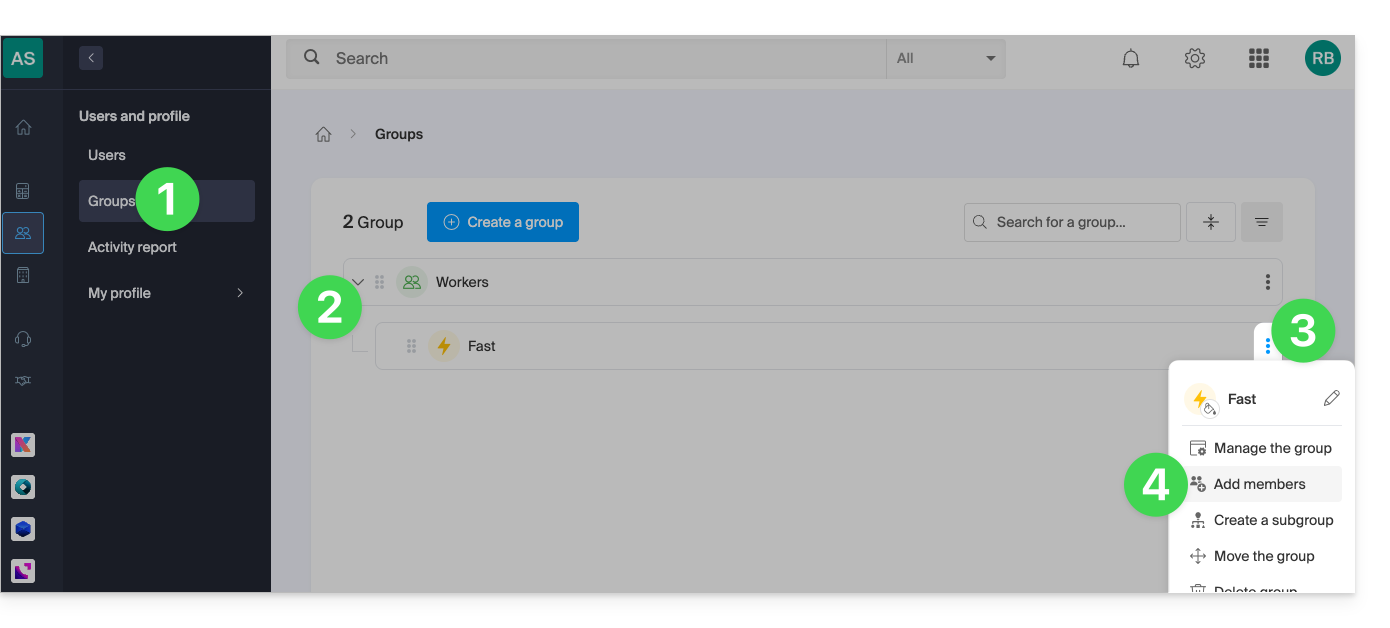
- Click here to access the Groups management section in the Infomaniak Manager.
- Expand any sub-groups by clicking on the down arrow .
- Click on the action menu ⋮ located to the right of the item in question.
- Choose to add members:
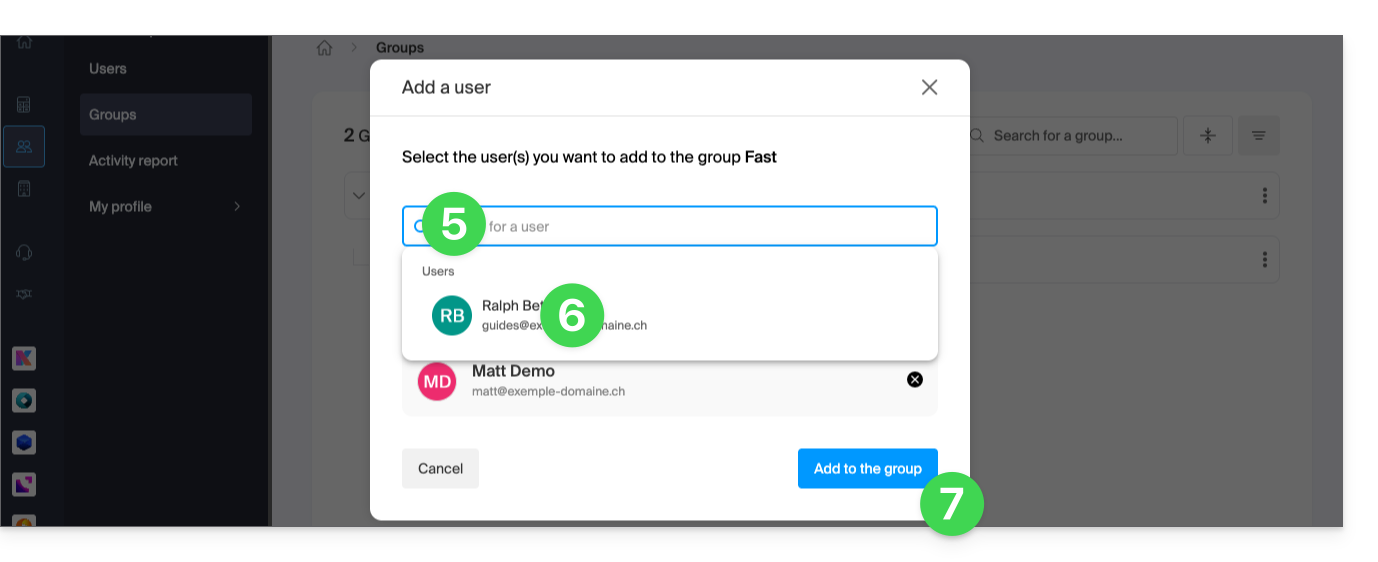
- Click to search for and display the list of existing users in your Organization.
- Add the different users who will make up the Group.
- Click the button to add them to the group:
Manage Group Members
You can delete an entire group (❓: help) or simply remove a specific member from the Group:
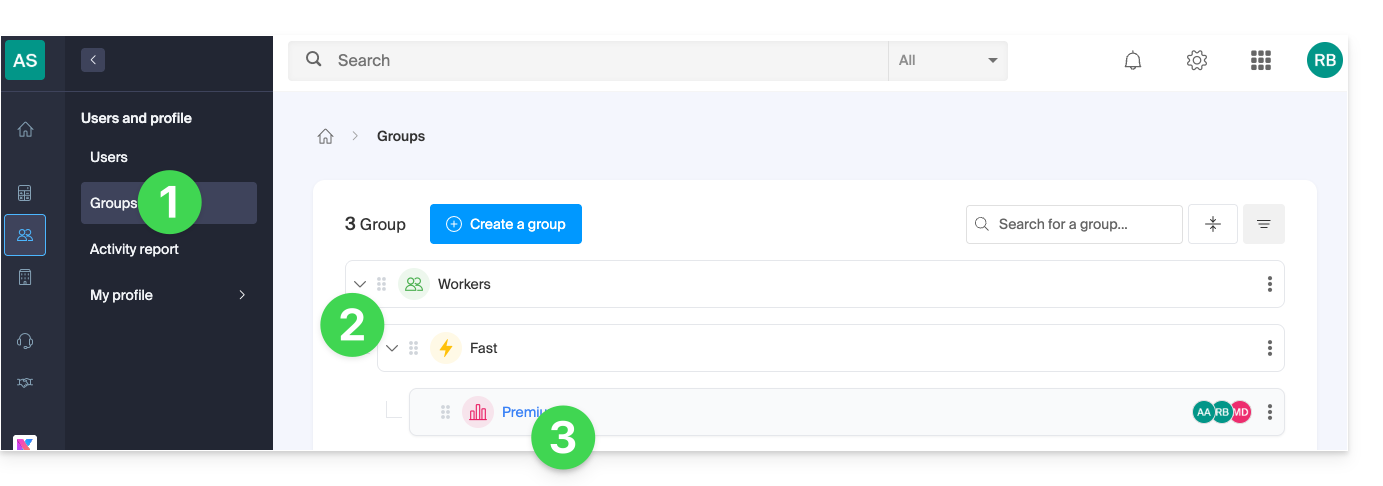
- Click here to access the Groups management section in the Infomaniak Manager.
- Expand any sub-groups by clicking on the chevron .
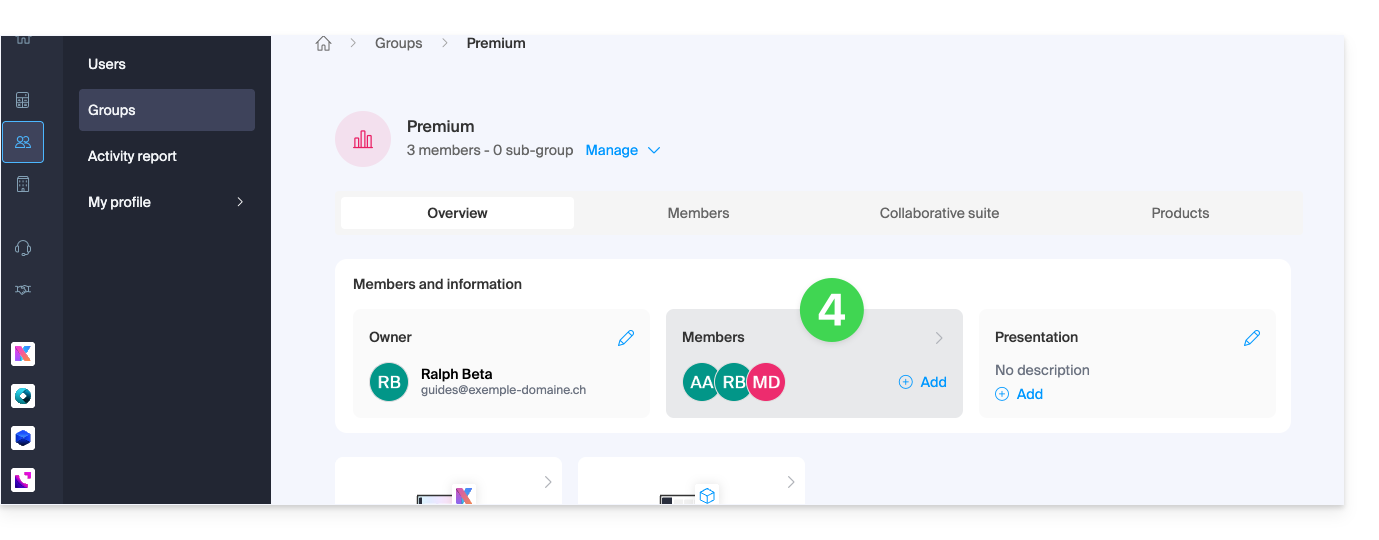
- Click on the Group name to edit it:
- Click on the members block:
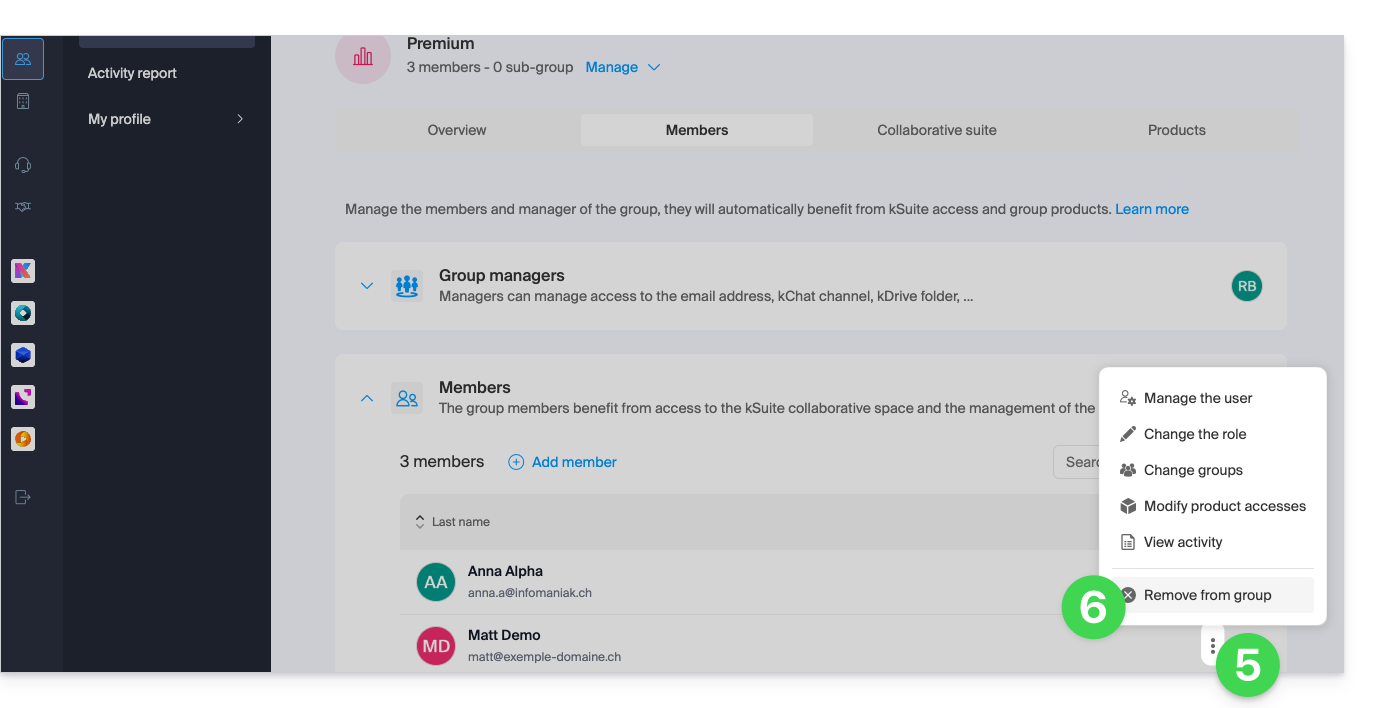
- Click on the action menu ⋮ located to the right of the user in question.
- Click to remove it:
- Confirm the operation.
To manage the permissions and access granted globally to all members of a Group, please refer to this other guide.
Link to this FAQ: https://faq.infomaniak.com/2589
Has this FAQ been helpful?