Knowledge base
1000 FAQs, 500 tutorials and instructional videos. Here, there are only solutions!
Synchronize IMAP folders (email)
This guide explains how to display the folders in your Infomaniak email account using an email client, via the IMAP protocol.
Introduction
- The various default folders are created by Mail Infomaniak during the very first connection to the interface.
- Therefore, some IMAP email software/clients may not display any folders if no connection has been made beforehand in Mail.
- Even if they are present in Mail, some folders may not appear in your email software/clientconfigured in IMAP.
Force synchronization of IMAP folders…
… on Microsoft Outlook
In some cases, after configuring an Infomaniak address in the Outlook email client, certain folders may not appear. In this case, it is necessary to check the synchronization with subscribed folders in Outlook:
- Start the Outlook software on your computer.
- Under your Infomaniak email address, without selecting it first, right-click on the inbox folder.
- Select IMAP Folders from the menu that appears:

- If the IMAP Folders item is not present, deselect the address beforehand.
- If the IMAP Folders item is not present, deselect the address beforehand.
- Disable the
Only display subscribed folders when displaying the hierarchy in Outlookoption by unchecking the box: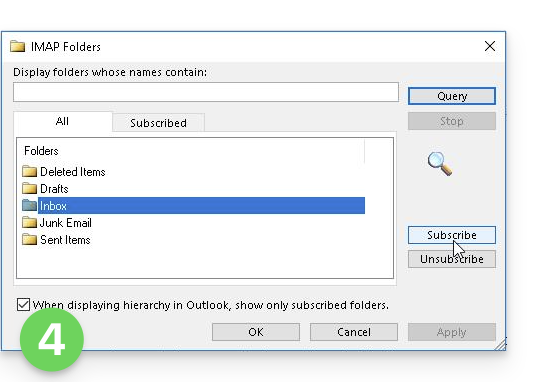
- Click Apply.
Depending on the version, the menu may be located here: 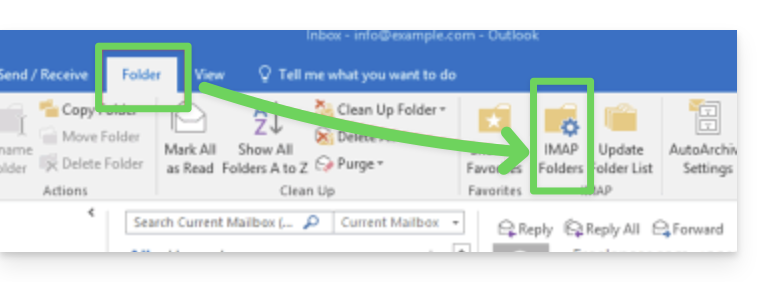
or here: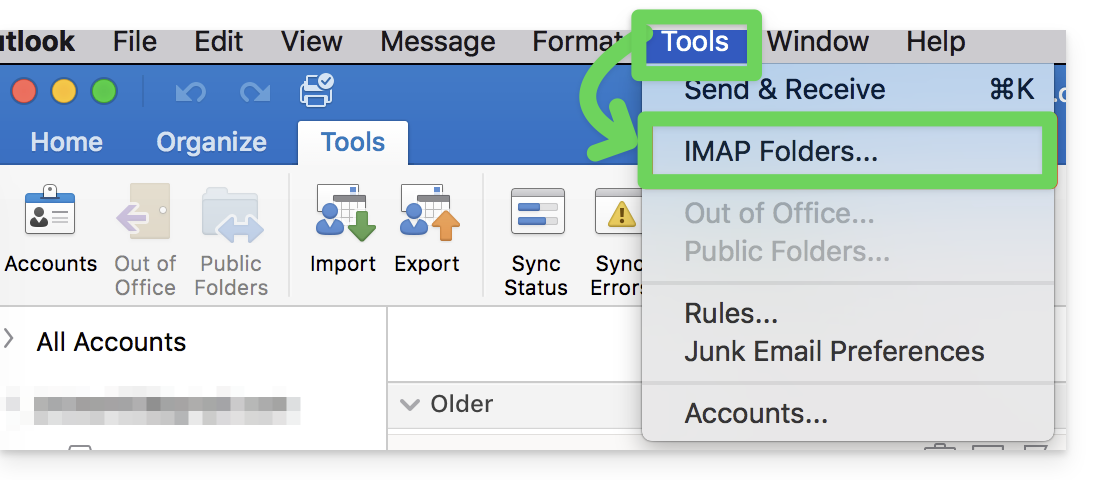
…on Thunderbird
In some cases, after configuring an Infomaniak address in the Thunderbird email client, certain folders may not appear. In this case, you need to manually check these folders from the subscription menu in Thunderbird:
- Start the Thunderbird software on your computer.
- Right-click on the Infomaniak address in question.
- Select the Subscribe menu:
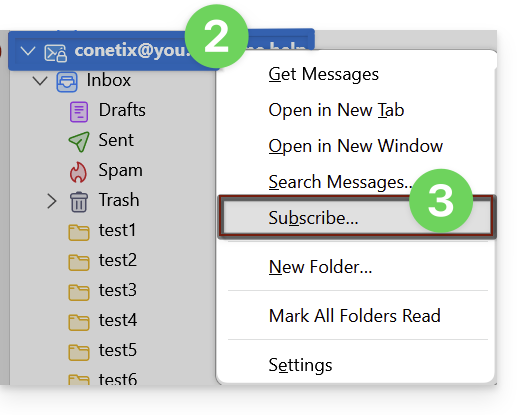
- Check the missing folders.
- Click OK to confirm your selection.
… elsewhere
In your usual email software/client, find the term "IMAP folders" and/or "subscribe", "IMAP subscription", etc.
Modify synchronized folders
Refer to this other guide to change the location of certain default folders.
Link to this FAQ: https://faq.infomaniak.com/2586
Has this FAQ been helpful?