Knowledge base
1000 FAQs, 500 tutorials and instructional videos. Here, there are only solutions!
Display kDrive statistics and activity reports
This guide details the Statistics section, which is accessible online to administrators of a kDrive.
✘ UNAVAILABLE with
my kSuite (ik.me, etik.com, ikmail.com)
kSuite Free: statistics for the last 7 days only
Access kDrive statistics
To view the page that details the various statistics for your kDrive:
- Click here to access the Infomaniak kDrive web app (online service ksuite.infomaniak.com/kdrive).
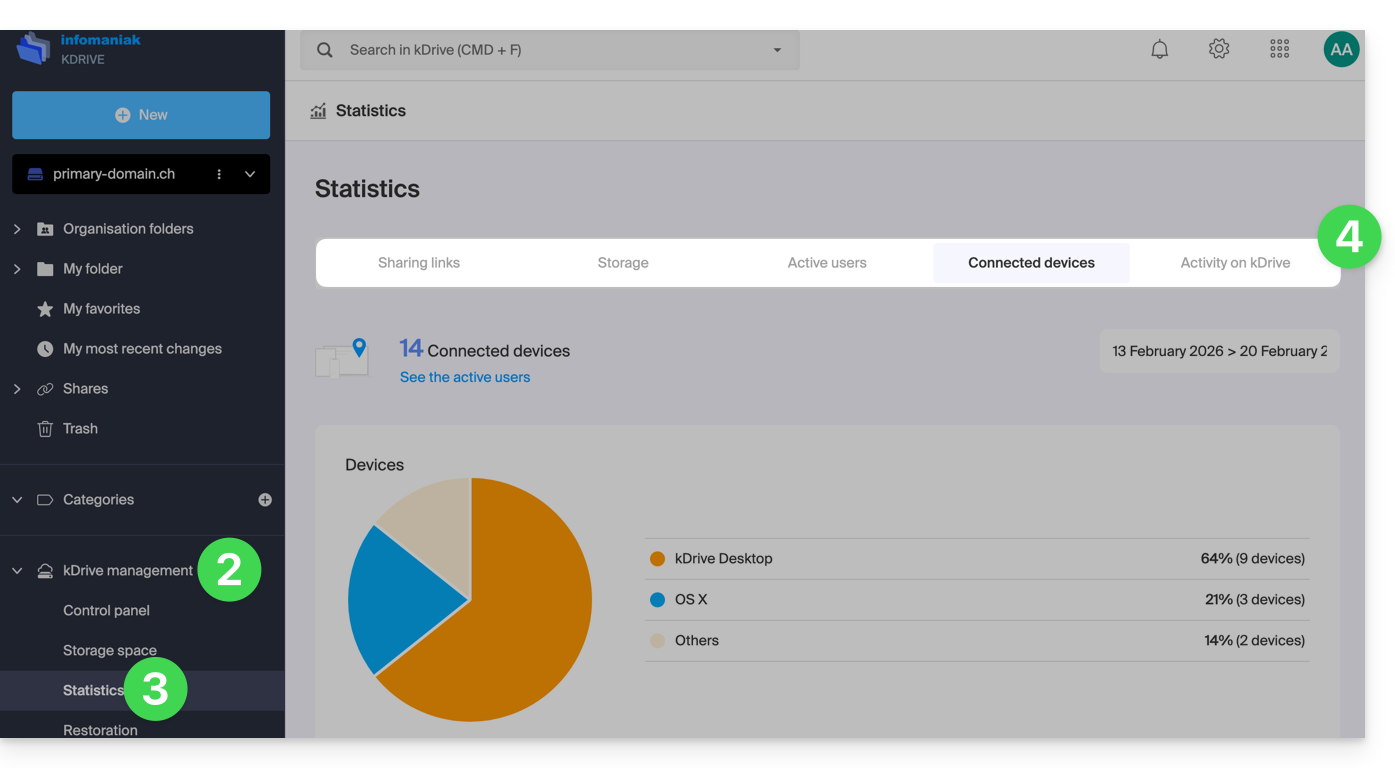
- Click on kDrive Management in the left-hand menu.
- Click on Statistics.
- Choose the type of statistics to display:
Customize the display
Each screen of these statistics (Share links, kDrive activity, etc.) features icons and buttons: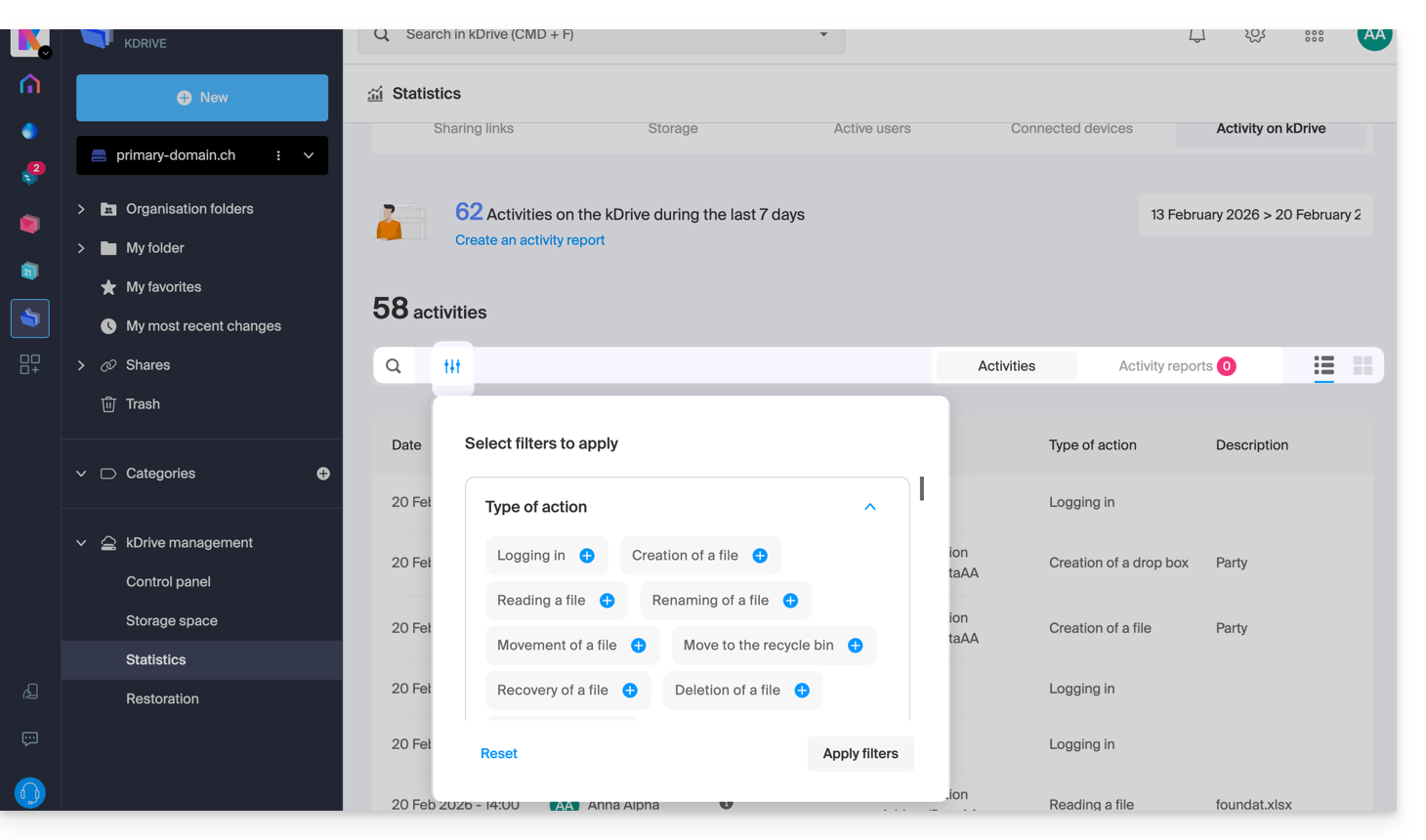
Clicking on it allows you to:
- perform a search for a term
- download a CSV file (
.csvformat) with the obtained data (see below) - filter items based on users, for example, or the number of views on the files, as well as the type of sharing (with or without a password and expiration date)
1. Share link stats
The creation of share links is listed in the left-hand menu of the kDrive web interface, but this statistics screen allows you to view the number of views for a file over a given period.
2. Storage statistics
This screen, which is updated every hour, allows you to view the space used by the various users, the total space, etc.
3. Active users
This screen shows the recently opened sessions (or sessions within the filtered period) by the users of your kDrive and their operating system.
4. Connected devices
This screen details the operating systems of the devices connected to your kDrive, with their representation in percentage: Windows X% (X devices); the same applies to macOS, Linux, Android, etc.
5. kDrive Activity
If you have any doubts about who did what on your shared space, whether it's updating a file, moving it to the trash, etc., this screen lets you know minute by minute what happened.
Create an activity report
With this information, you can create activity reports using the dedicated link at the top of the table. These reports can encompass one or more users and focus on one or more actions. You will receive the report by email within minutes and can download it in CSV format. Please note that the times mentioned may be in UTC 0 format.
Link to this FAQ: https://faq.infomaniak.com/2579
Has this FAQ been helpful?