Knowledge base
1000 FAQs, 500 tutorials and instructional videos. Here, there are only solutions!
Ticketing: Create multi-date events
This guide explains how to create events with multiple performances (within the Infomaniak ticketing system).
Creating a multi-date event
To do this:
- Click here to access the management of your product in the Infomaniak Manager (need help?).
- Click directly on the name of the ticketing system in question.
- Click on Scheduling in the left-hand menu.
- Click on Events in the left-hand menu.
- Click on the Add an event button.
- In the Date and Location step, you can choose the Multiple performances option:
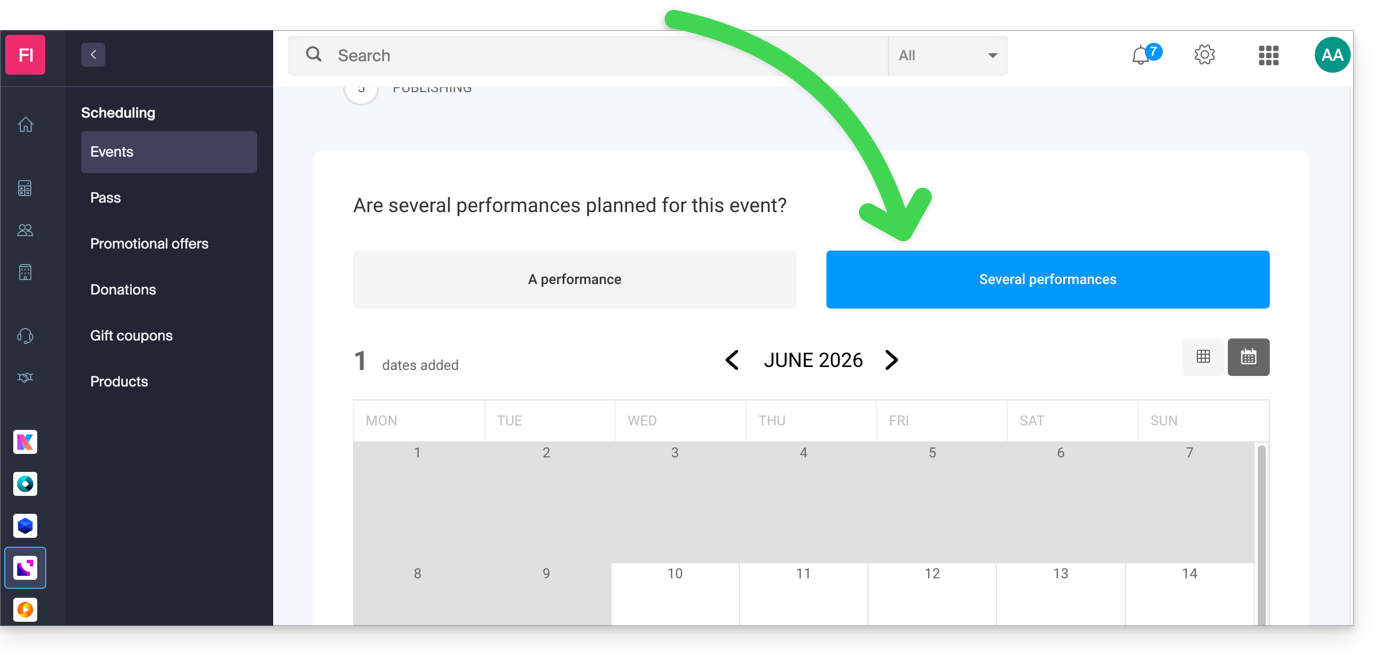
- An interface displaying a calendar appears; choose the start date of the event.
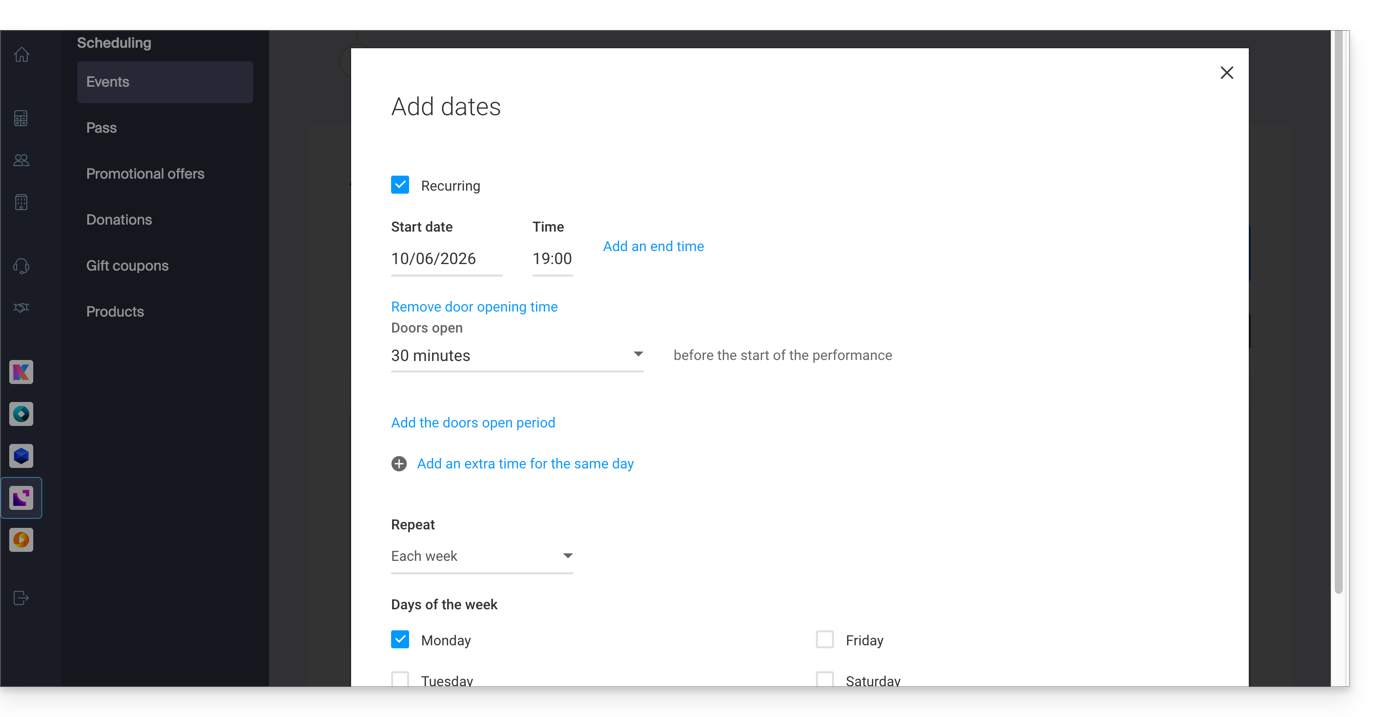
- You can define whether the event lasts for several days, weeks, or months, or whether it is repeated several times on the same day:
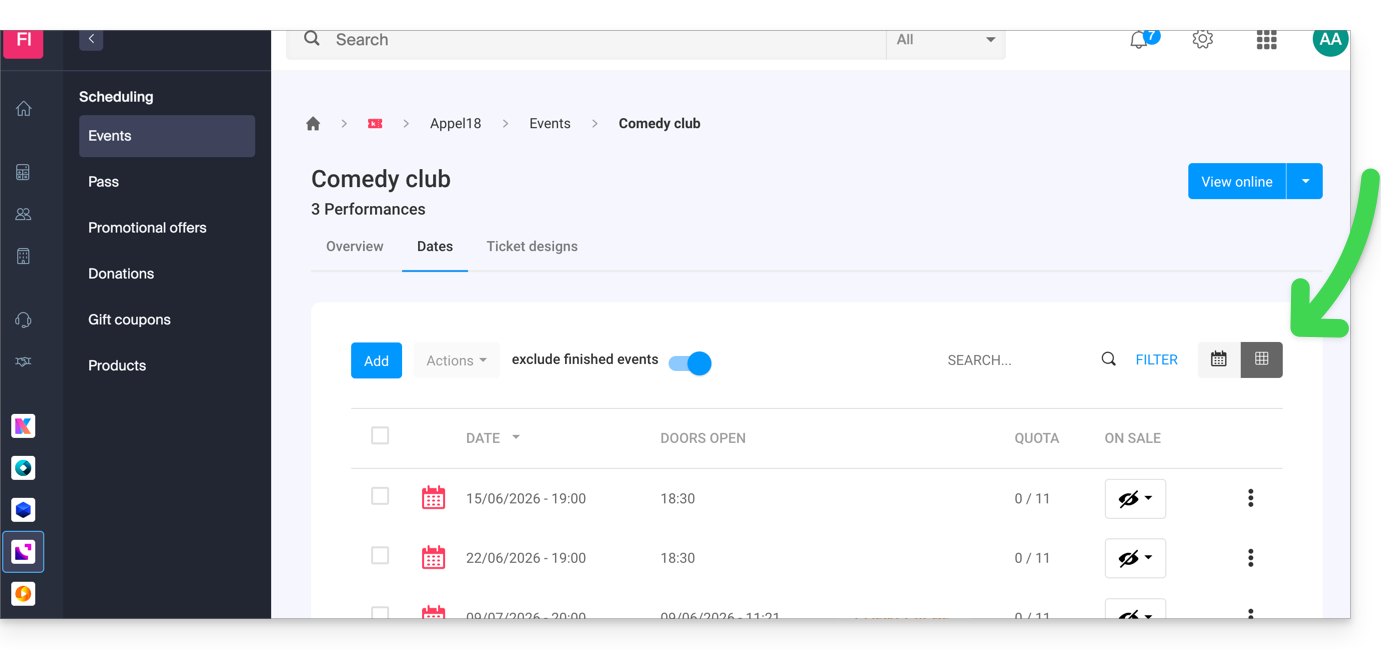
- Once the event has been created and opened for sale, you can track the progress of orders for each date using a List view:
Link to this FAQ: https://faq.infomaniak.com/2574
Has this FAQ been helpful?