Knowledge base
1000 FAQs, 500 tutorials and instructional videos. Here, there are only solutions!
Ticketing: create multi-date events
This guide explains how to create events with multiple dates (within the Infomaniak ticketing system).
Create a multi-date event
To do this:
- Click here to access your product management interface in the Infomaniak Manager (need help?).
- Click directly on the name of the relevant ticketing system.
- Click on Programming in the left-hand menu.
- Click on Events in the left-hand menu.
- Click on the Add event button.
- In the Date and Location step, you can select the Multiple occurrences option:
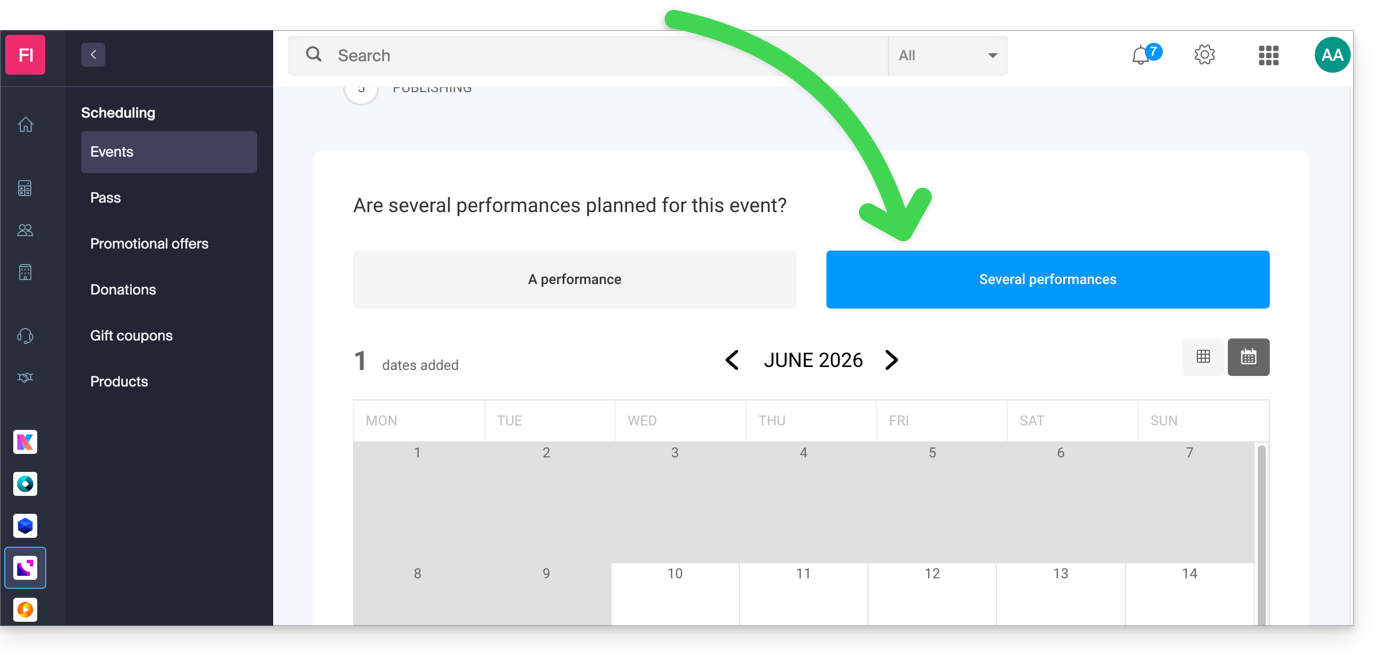
- An interface displaying a calendar appears; choose the start date of the event.
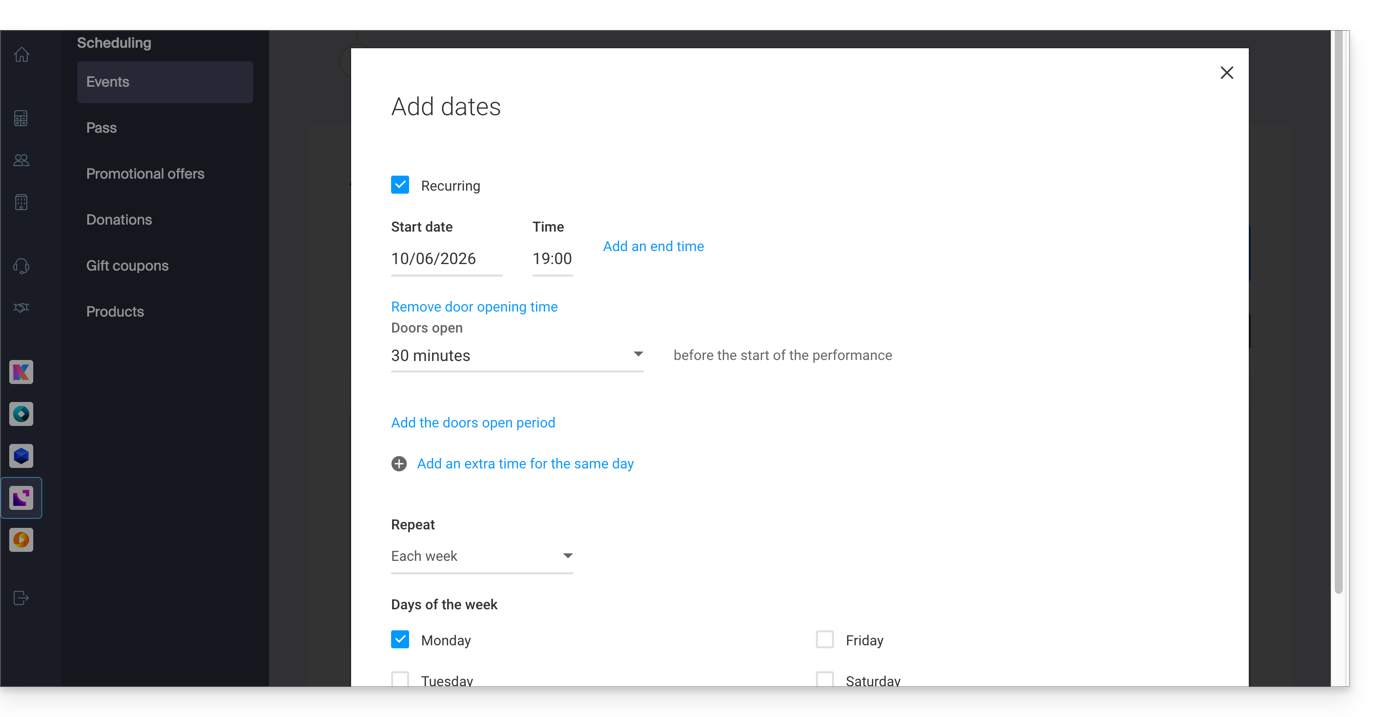
- You can specify whether the event lasts for several days, weeks, or months, or whether it recurs several times in the same day:
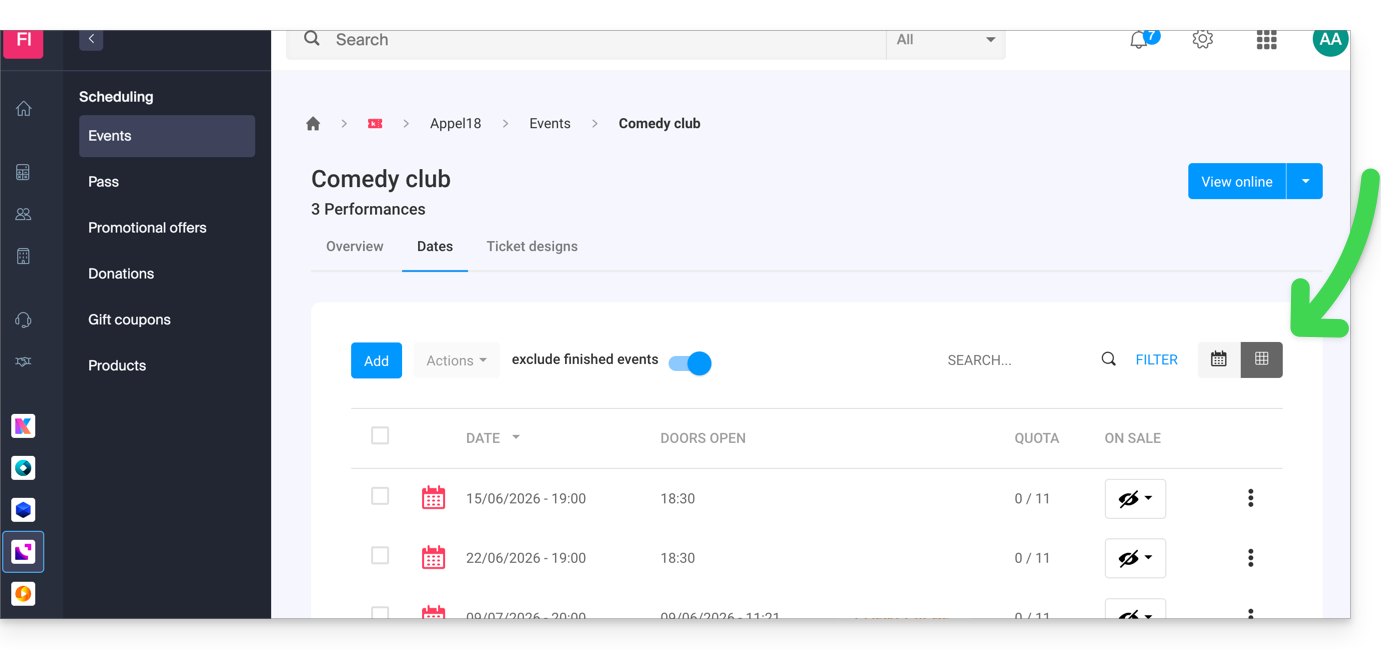
- Once the event is created and open for sale, you can track the progress of orders for each date using a List view:
Link to this FAQ: https://faq.infomaniak.com/2574
Has this FAQ been helpful?