Knowledge base
1000 FAQs, 500 tutorials and instructional videos. Here, there are only solutions!
Manage Acronis backup users
This guide covers managing Swiss Backup users for Acronis backups.
Swiss Backup Administrator
Your SBA-XXXX-ADMIN account, obtained after configuring Swiss Backup in the Infomaniak Manager, has default access to all licenses, devices, locations, and the entire available quota:
- Click here to access the Acronis Console using the credentials obtained after adding the device (need help?).
- On the home page, an administrator account will always see the management button, which will not be the case with a limited account:
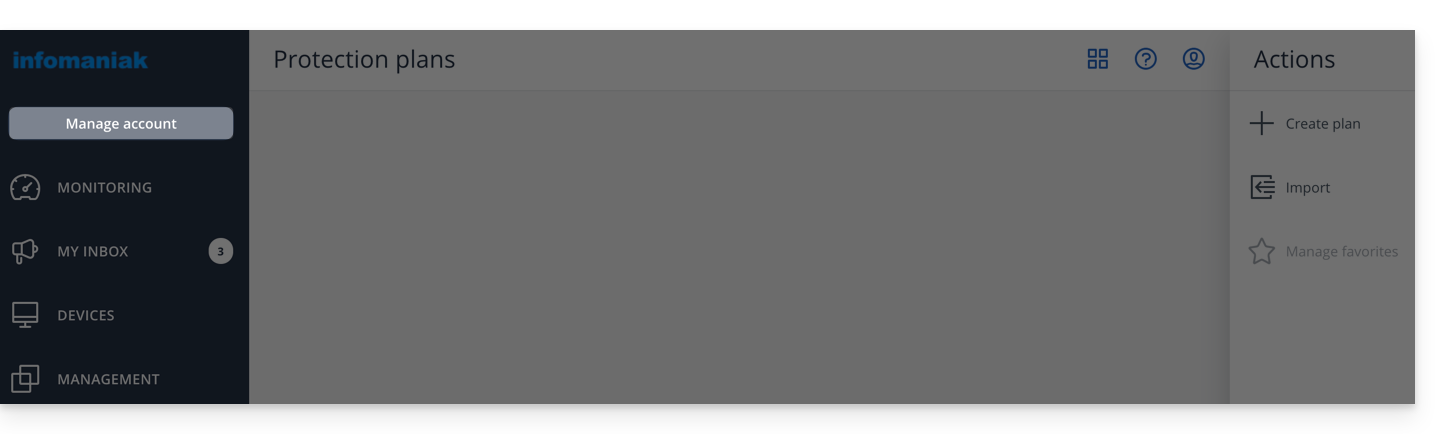
- This provides access to the section reserved for admin accounts (or “company” / “business owner” depending on the terms displayed on the acronis.infomaniak.com platform):
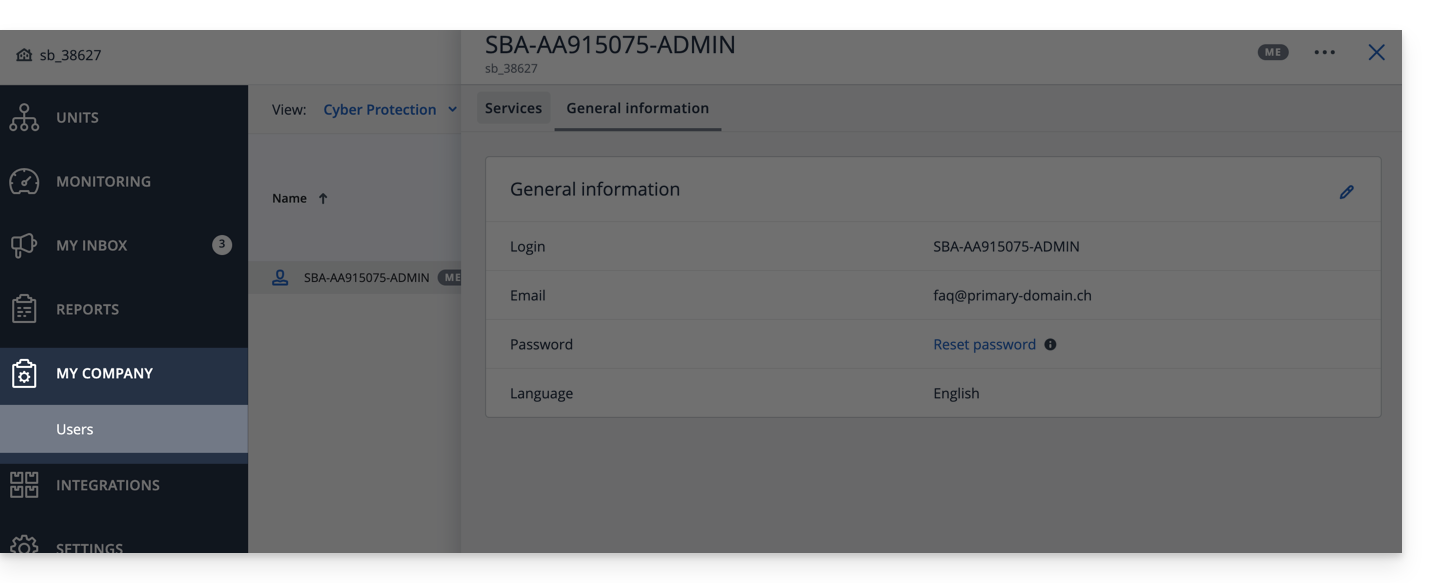
If you have purchased 2 licenses/devices and your total storage quota is 1 TB for Acronis (for example):
- 1 Mobile
- 1 Server
Your SBA-XXXX-ADMIN account can back up 1 mobile device and 1 server; the storage quota for the 2 devices will be shared, but limited to 1 TB.
In the Acronis interface, you will see an "unlimited" quota, but this remains limited to the options you have chosen in the Swiss Backup Manager.
For better management of storage quotas and service quotas (licenses), create users in Acronis. This allows you to:
Add a user
There are two types of user accounts: administrator accounts and user accounts (see the Acronis help for more information). Only an administrator account can add/remove users:
- Click here to access the Acronis Console using the credentials obtained after adding the device (need help?).
- Click on Manage account in the left sidebar.
- Click on Company representatives.
- Click on the Users button.
- Click on the +New button at the top of the page.
- Enter the information (see Acronis help for more information).
Delete a user
Warning:
- Deleting the device is irreversible, and all saved data will be deleted from Infomaniak's servers.
- The machines associated with this user will be unregistered.
- All protection plans will be revoked from all machines associated with this user.
To delete the account:
- Click here to access the Acronis Console with an Admin account.
- Click on Manage account in the left sidebar.
- Click on Company representatives (as in this example).
- Click on the action menu ⋮ to the right of the user in question in the table that appears.
- Disable the account.
- Once the account is deactivated, delete the account (from step 5 above).
Link device and user
Example
1 TB Storage
Licenses: 2 Mobile, 1 Server, 1 VM
- SBA-XXXX-ADMIN (limited to the default Infomaniak Manager quotas)
- User1 (storage quota: 800 GB, service quota: 1 Mobile, 1 Server)
- User2 (storage quota: 200 GB, service quota: 1 Mobile, 1 VM)
To link a device to a user,download and install the Acronis agent on the device in questionthen confirm the registration with the correct account (SBA-XXXX-ADMIN, user1, or user2):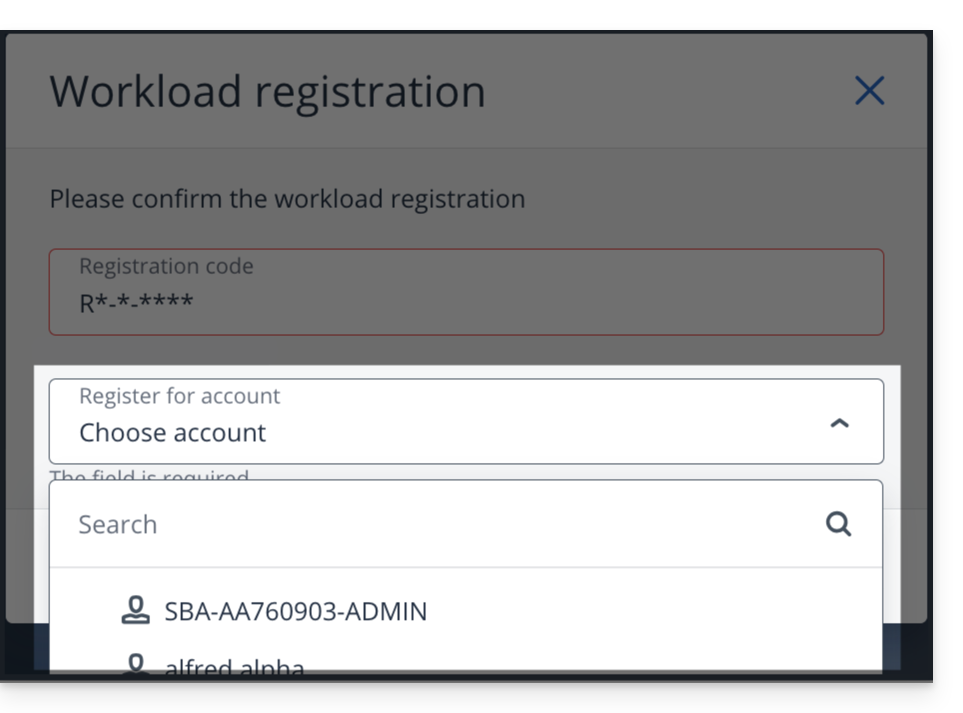
To resolve registration issues, please refer to this other guide.
Link to this FAQ: https://faq.infomaniak.com/2573
Has this FAQ been helpful?