Knowledge base
1000 FAQs, 500 tutorials and instructional videos. Here, there are only solutions!
Schedule an appointment from Infomaniak Mail
Update 10/12/2026
This guide explains how to quickly schedule an event, such as a meeting between several users, from the Infomaniak Mail web app (online service ksuite.infomaniak.com/mail) using the features of Infomaniak Calendar.
Create an event with the email recipient(s)
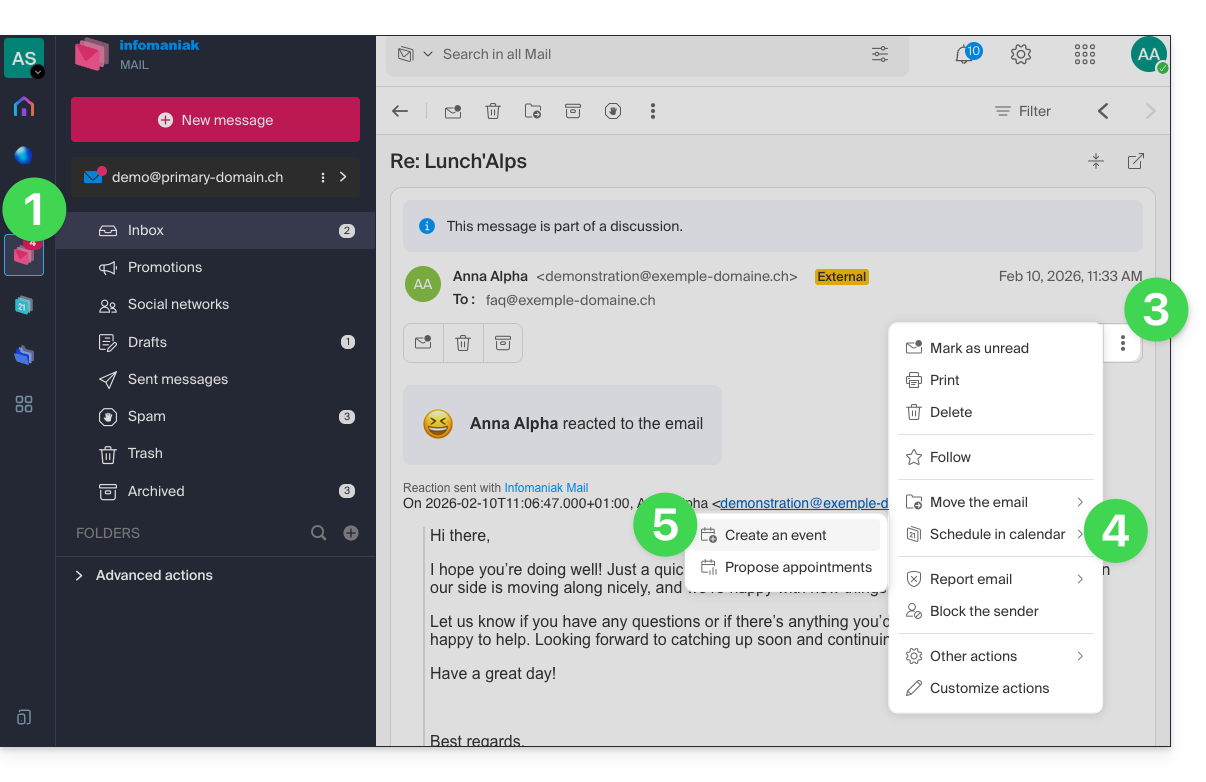
To start the scheduling assistant, which will allow you to quickly create an event with the participants (senders/recipients) of the email you are currently viewing:
- Click here to access your emails on your Infomaniak kSuite (❓: help).
- Open the message from the sender (or the conversation between multiple participants) with whom you want to organize a meeting/event.
- Click on the action menu ⋮ in the top right corner of the open message.
- Click on Schedule in Calendar.
- Click on Create an event:
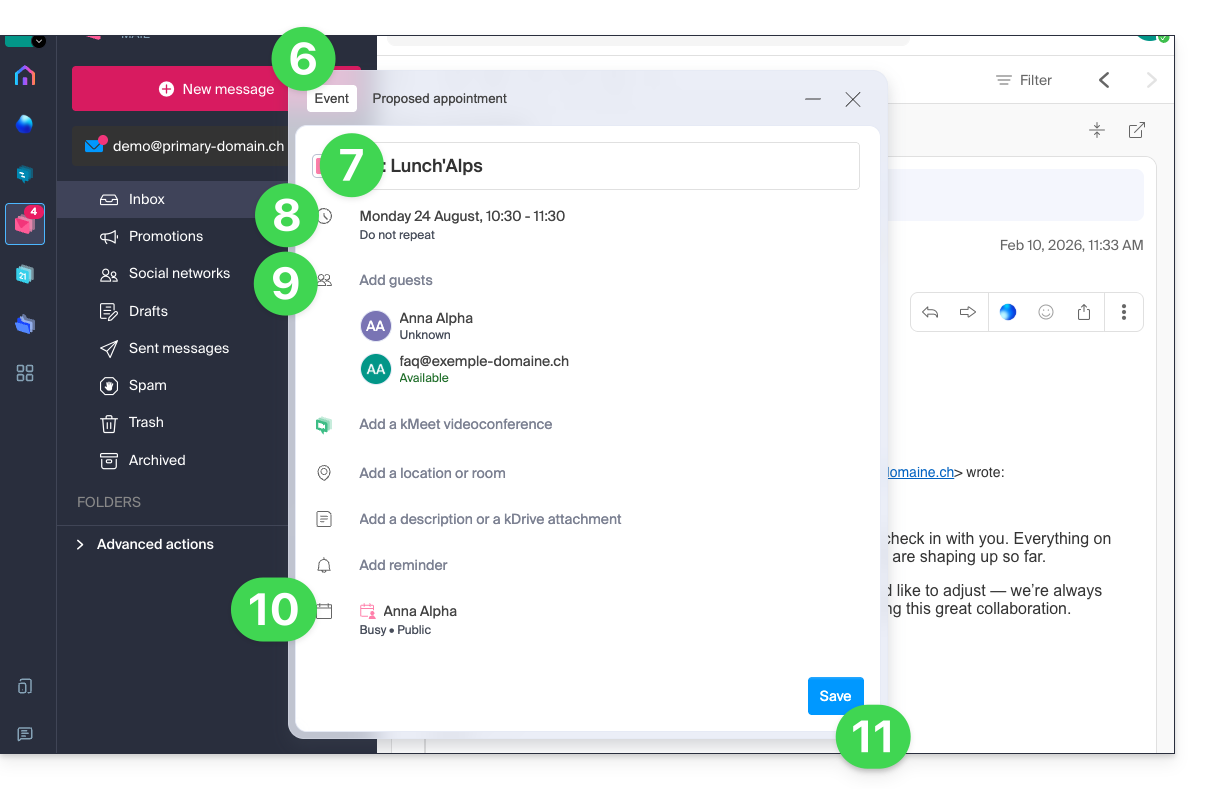
- The assistant for the Calendar app by Infomaniak appears.
- The meeting title is automatically generated from the email subject, but it can be modified.
- The duration of the event (and its time slot within the day) is automatically generated to be as close as possible to the current time, but it can be modified. You can also add a room below, if needed.
- Participants in the discussion are automatically added based on their email address.
- Check or change the calendar used.
- Save the information to create the event and the invitations:
Suggest time slots for a meeting
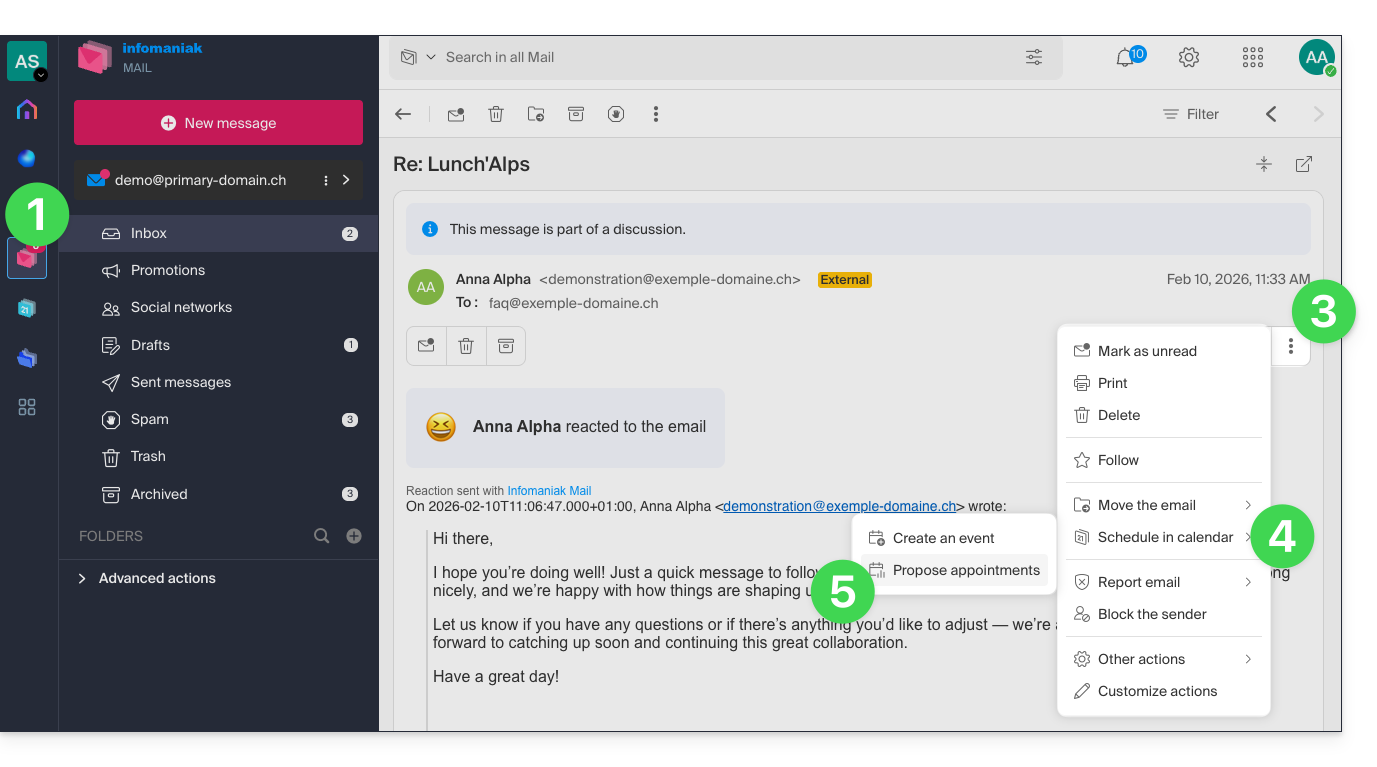
To suggest a new shared event with the participants (senders/recipients) of the email you are currently viewing, use a meeting request:
- Click here to access your emails on your Infomaniak kSuite (❓: help).
- Open the message from the sender (or the conversation between multiple participants) with whom you want to organize a meeting/event.
- Click on the action menu ⋮ in the top right corner of the open message.
- Click on Schedule in Calendar.
- Click on Suggest meeting time:
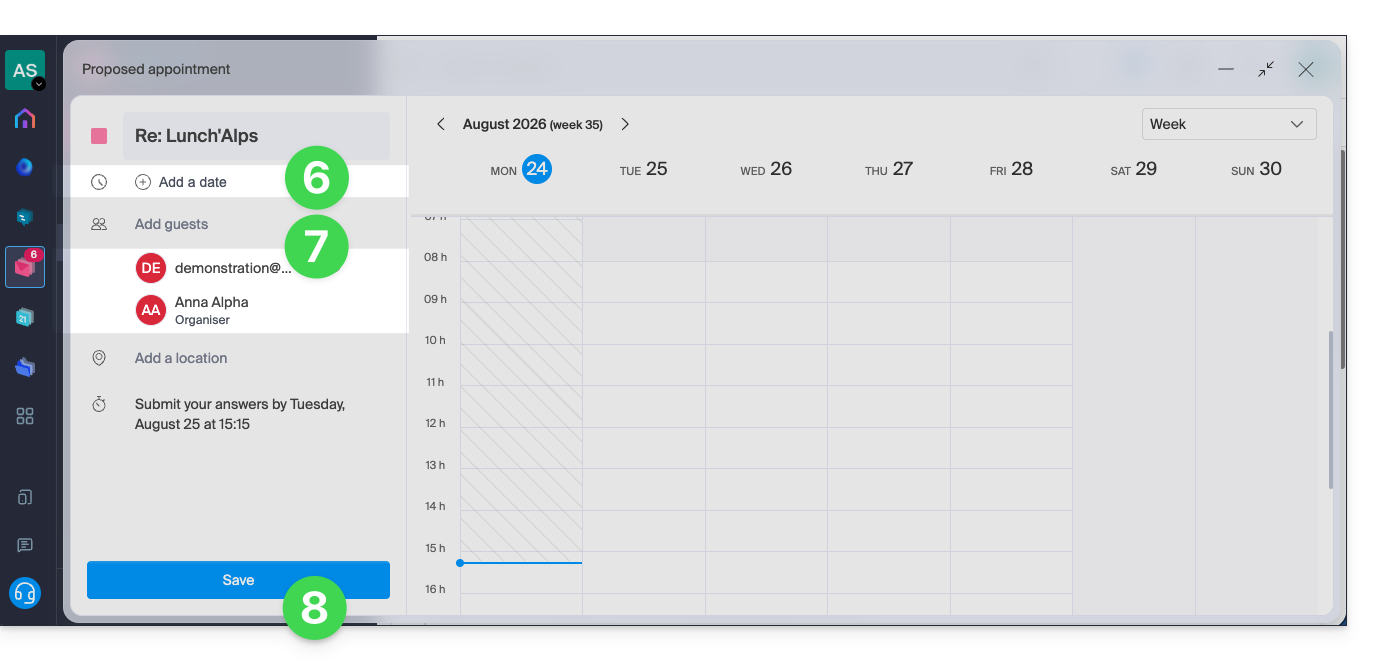
- You will then need to specify suggested dates/times to arrange a meeting with your contacts.
- Email contacts are automatically added.
- Don't forget to save:
Refer to this other guide to learn more about this feature.
Link to this FAQ: https://faq.infomaniak.com/2572
Has this FAQ been helpful?