Knowledge base
1000 FAQs, 500 tutorials and instructional videos. Here, there are only solutions!
Remove a website from a web hosting account
Update 10/22/2026
This guide explains how to delete a website from a Web Hosting account.
Introduction
- Once removed, the website will no longer be accessible on the internet at its previous URL.
- The number of websites allowed on your hosting plan will be increased by one.
Remove a website from a paid Web Hosting plan
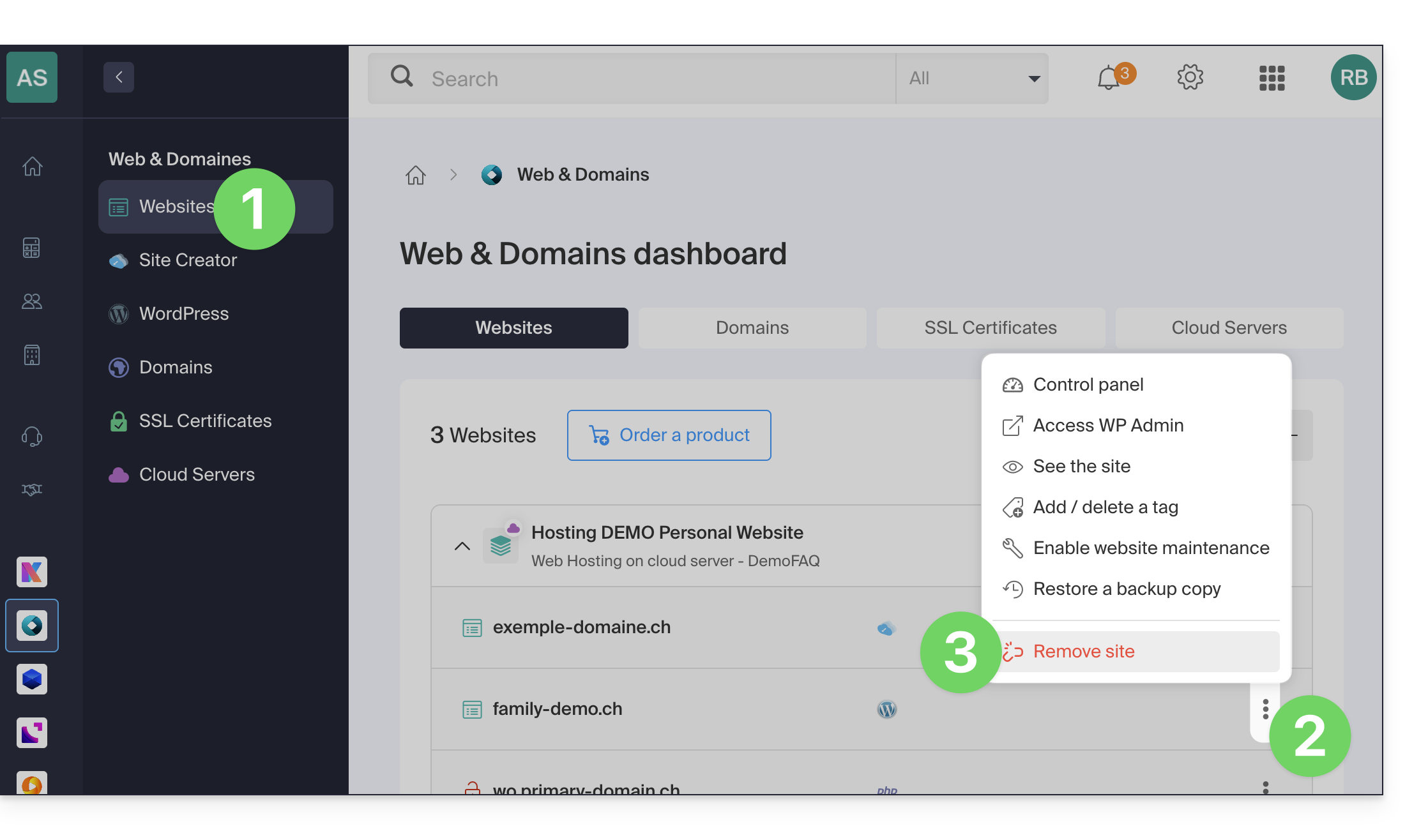
To access the Web Hosting plans and remove a website:
- Click here to access the hosting & website management section in your Infomaniak Manager (❓: help).
- Click on the action menu ⋮ to the right of the website in question (if necessary, expand the hosting content first by clicking on the chevron to the left of its name).
- Click on Remove site:
Unlink a site from a free Starter hosting plan
A Starter hosting plan (basic web page) only contains a single website, which is specific to the domain name itself. Therefore, unlike paid plans, it is not possible to create multiple websites or remove one website to add another.
You must therefore cancel the Starter hosting plan directly:
- This will only cancel your Web Hosting Starter product, i.e., the part concerning your website, without affecting other products, such as your email or domain name.
- You will need to confirm the cancellation request by email; otherwise, no data will be deleted.
- A cancellation confirmation is sent to any other administrators of the Organization.
- Backups will be permanently deleted upon cancellation, making any restoration impossible.
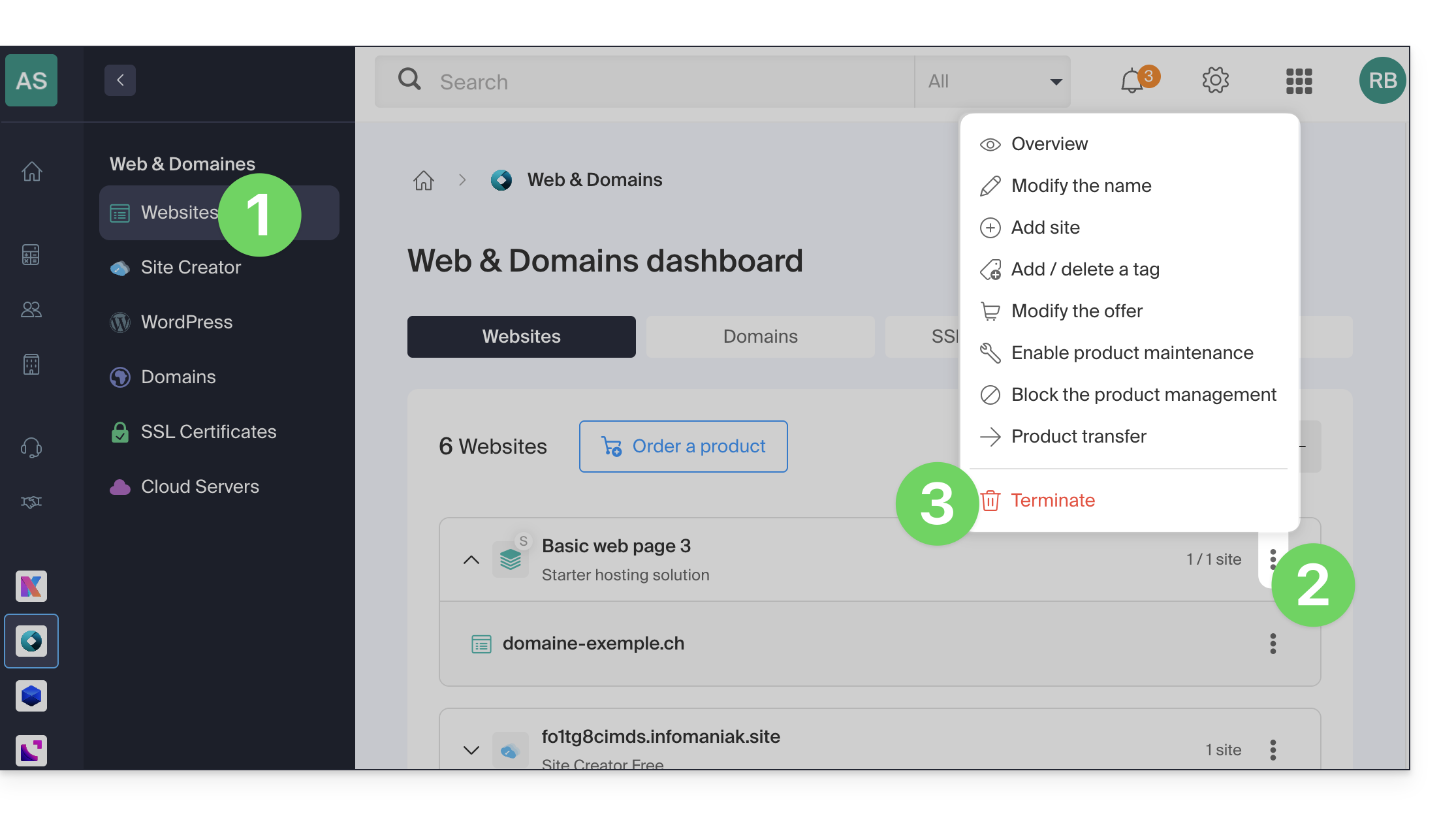
To cancel:
- Click here to access the hosting & website management section in your Infomaniak Manager (❓: help).
- Click on the action menu ⋮ located to the right of the Starter hosting plan in question.
- Select the Cancel option:
- Follow the procedure to the end.
Link to this FAQ: https://faq.infomaniak.com/2569
Has this FAQ been helpful?