Knowledge base
1000 FAQs, 500 tutorials and instructional videos. Here, there are only solutions!
Manage VOD/AOD Players
A Player (i.e., a media file player) is essential for your media when you embed them in your Infomaniak VOD/AOD space to make them available to your viewers and internet users.
Create a Player
To create a Player:
- Click here to access the management interface for your product in the Infomaniak Manager (need help?).
- Click directly on the name assigned to the product in question:
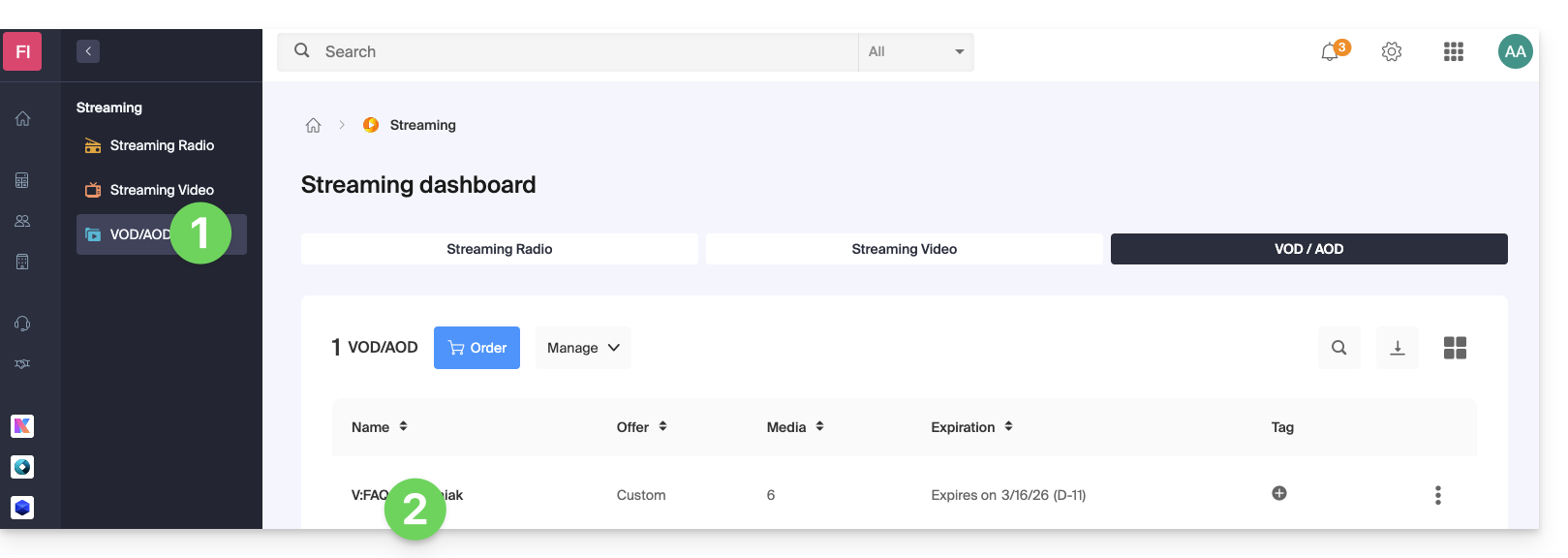
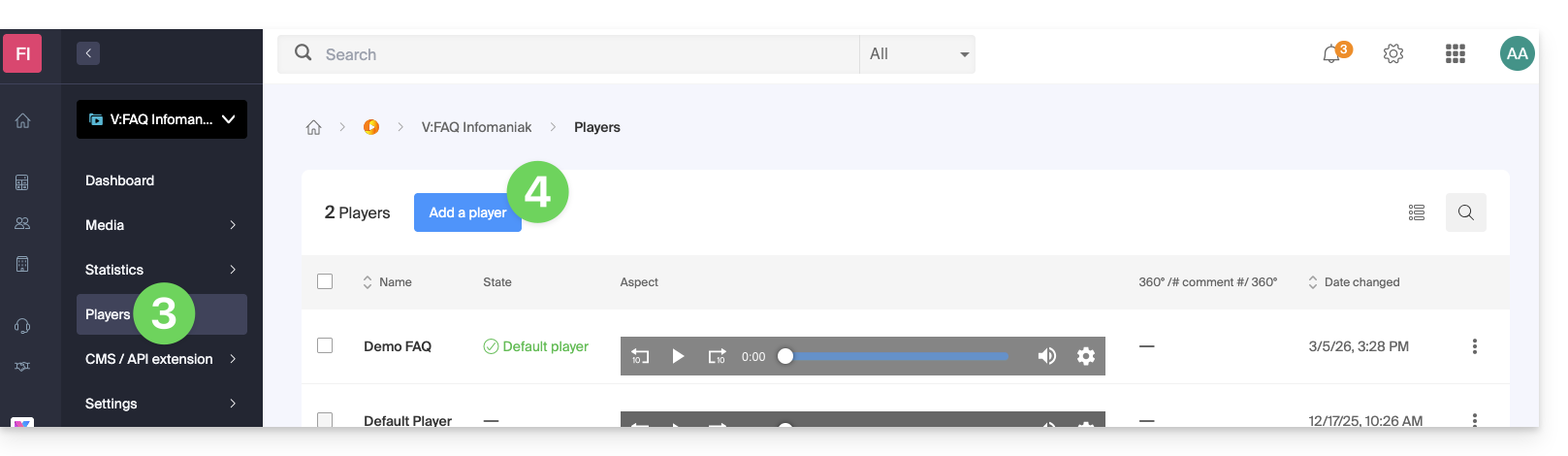
- Click on Players in the left-hand menu.
- Click the blue button to add a new Player:
- You will then be taken to the configuration page, and tabs (or menus) allow you to manage various aspects of the Player, such as the playback bar at the bottom and the sharing icons:
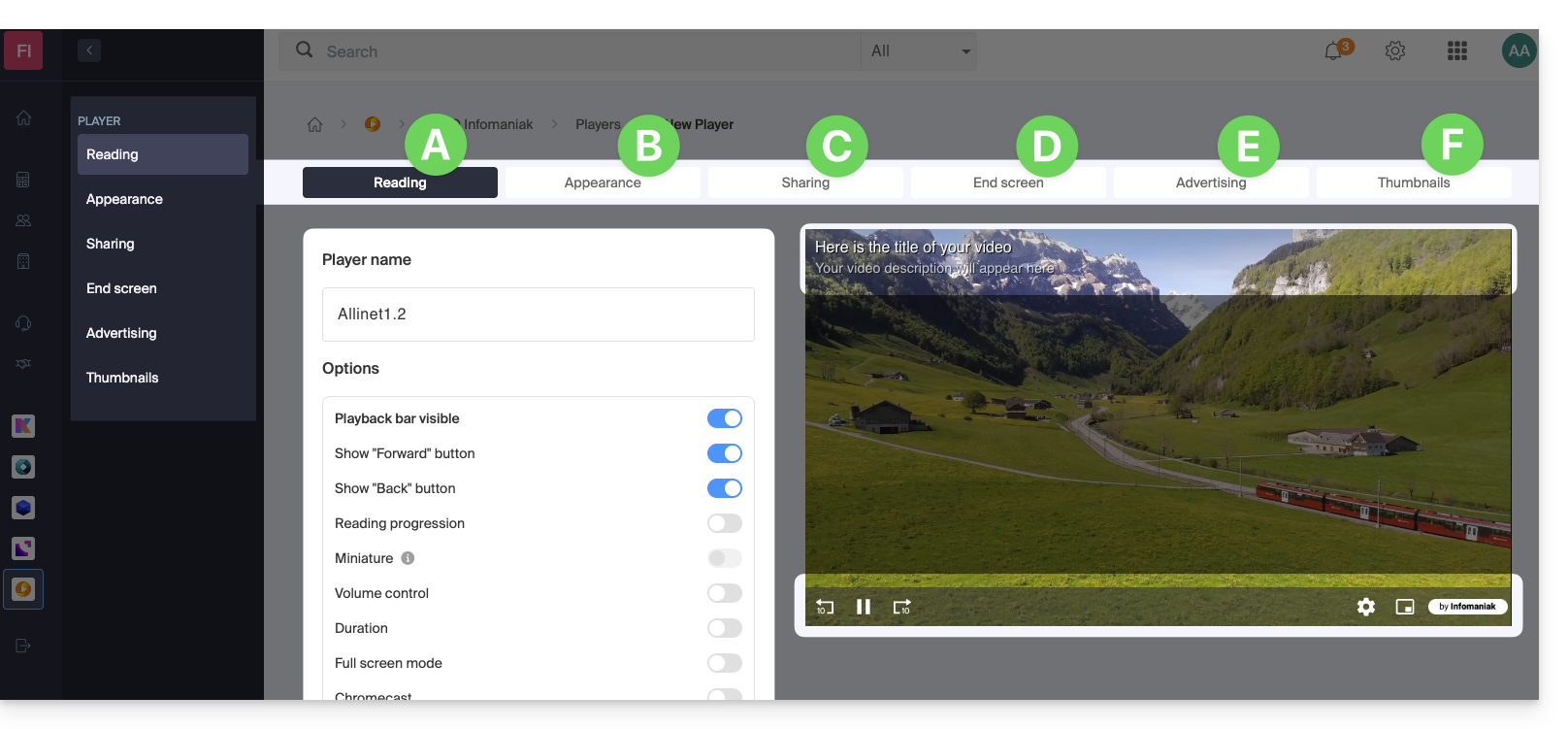
A. Playback tab
This is where you can name the Player and customize the elements that should or should not be included:
- playback bar (with or without disappearing after X seconds of inactivity)
- Forward and Back buttons
- display of the playback progress and, if so, display of thumbnails on the playback bar
- volume control
- media duration
- display full screen
- Chromecast (if displayed, the option can be activated by a viewer using the Chrome browser and having a Chromecast on the same network)
- Infomaniak logo
- “Skip introduction” button, and if so, the timecode to which the viewer should be sent.
It is also possible to choose MPEG-DASH playback mode instead of the default HLS, to automatically start playback (autoplay) when the media is loaded, and to force the display of subtitles (which the viewer can always disable if they wish).
B. Appearance tab
This is where you can choose the colors and styles for the Player's theme, as well as a logo and the display of the media's title and description.
C. Share tab
This is where you can choose the permissions regarding sharing and embedding the Player on other sites.
D. End screen tab
This is where you can define the overall behavior of the player for the end screen (e.g., suggesting the next video to play based on the content in the same folder). You can also adjust these settings individually for each video.
E. Advertising tab
Pre-roll, mid-roll, and post-roll ads are managed here. Please refer to this other guide for more information.
F. Thumbnails tab (media preview)
This is where you can modify the preview image (thumbnail) that is displayed on the player when the media is loading, or unavailable/restricted (this does not replace the video thumbnail).
Edit a Player
To modify and access the settings of an existing Player:
- Click here to access your product management in the Infomaniak Manager (need help?).
- Click directly on the name assigned to the product in question.
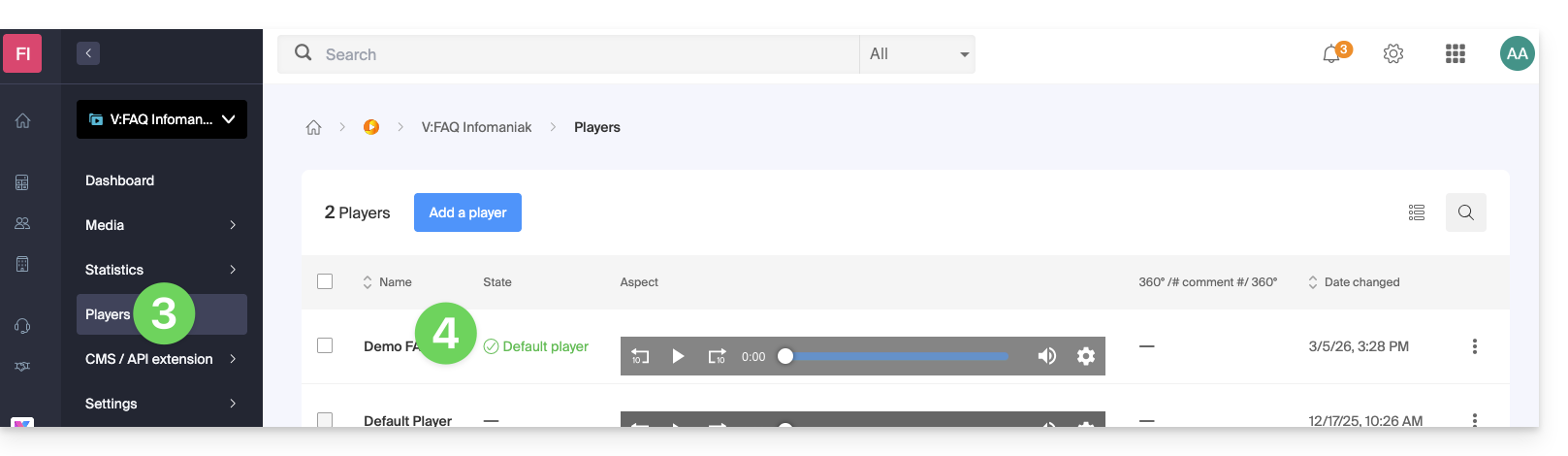
- Click on Players in the left-hand menu.
- Click directly on the name assigned to the Player in question:
Full-screen button
It is not possible to automatically display the media directly in full-screen mode when playback starts.
Click to start playback, then click the button corresponding to full screen mode, after having added it to your Player in the Playback tab: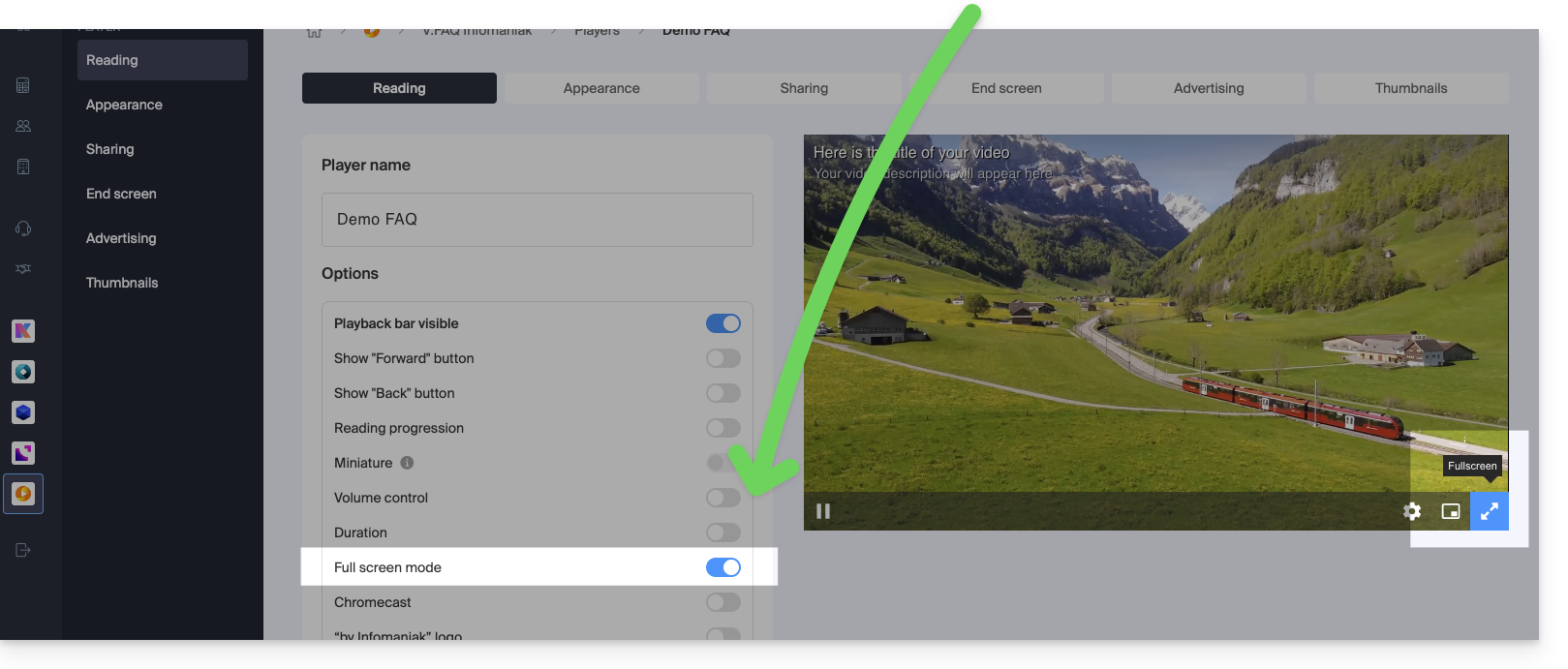
Link to this FAQ: https://faq.infomaniak.com/2561
Has this FAQ been helpful?