Knowledge base
1000 FAQs, 500 tutorials and instructional videos. Here, there are only solutions!
Manage the Organization Directory
This guide details how to manage the Organization Directory, which is a special address book available within the Infomaniak Contacts web app (online service ksuite.infomaniak.com/contacts).
Introduction
- The Organization directory is "automatically created" by the various users that make up one of the Organizations to which your user is linked.
- If Groups are created within the Organization, they will be visible in the Organization directory:
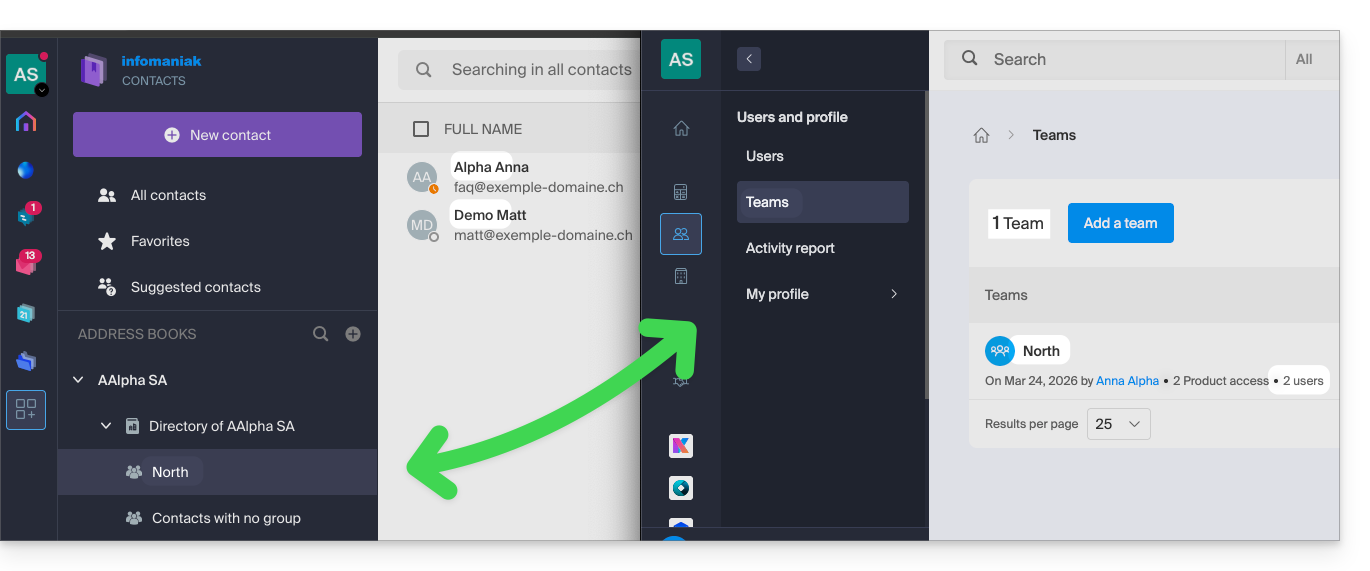
- This address book is automatically synchronized with all internal users of your Organization.
- An administrator of the Organization can make certain entries in the directory private, thereby hiding them from users with fewer permissions:
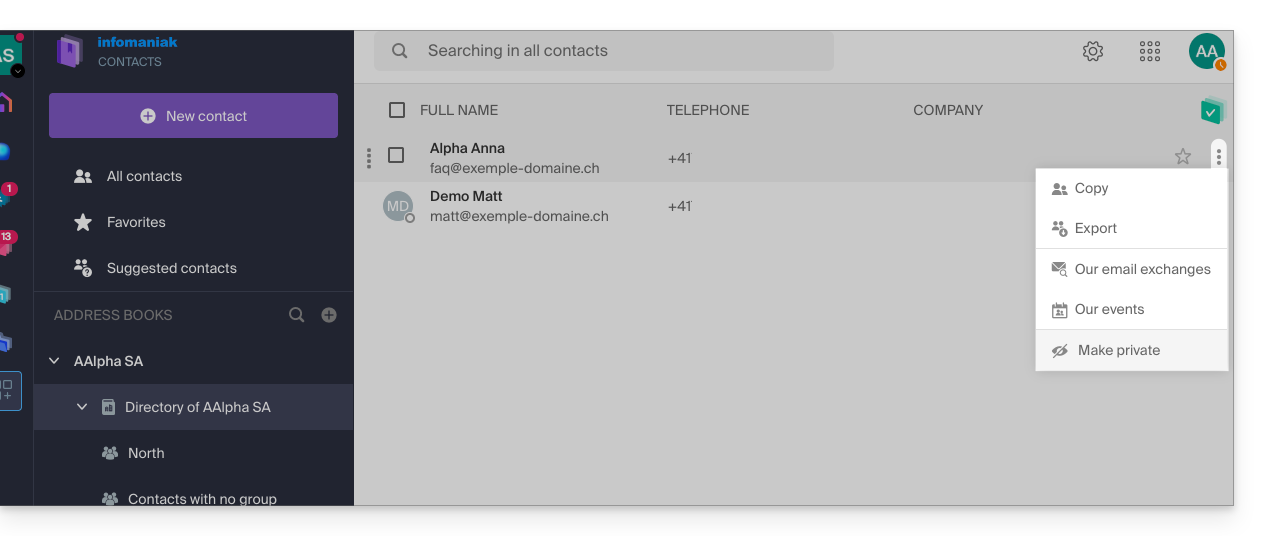
- It is not possible to export or rename it.
- You can change its display color:
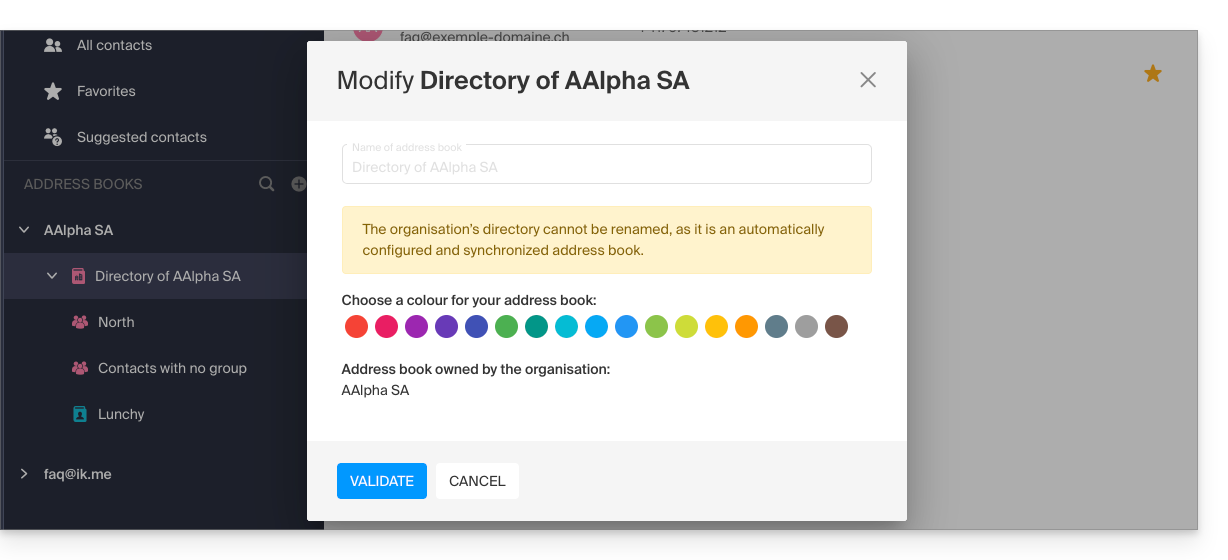
- You can change its display color:
Access the directory
If your login ID matches and belongs to one or more Organizations, you can access the various directories of these Organizations:
- Click here to access the Infomaniak Contacts web app (online service ksuite.infomaniak.com/contacts).
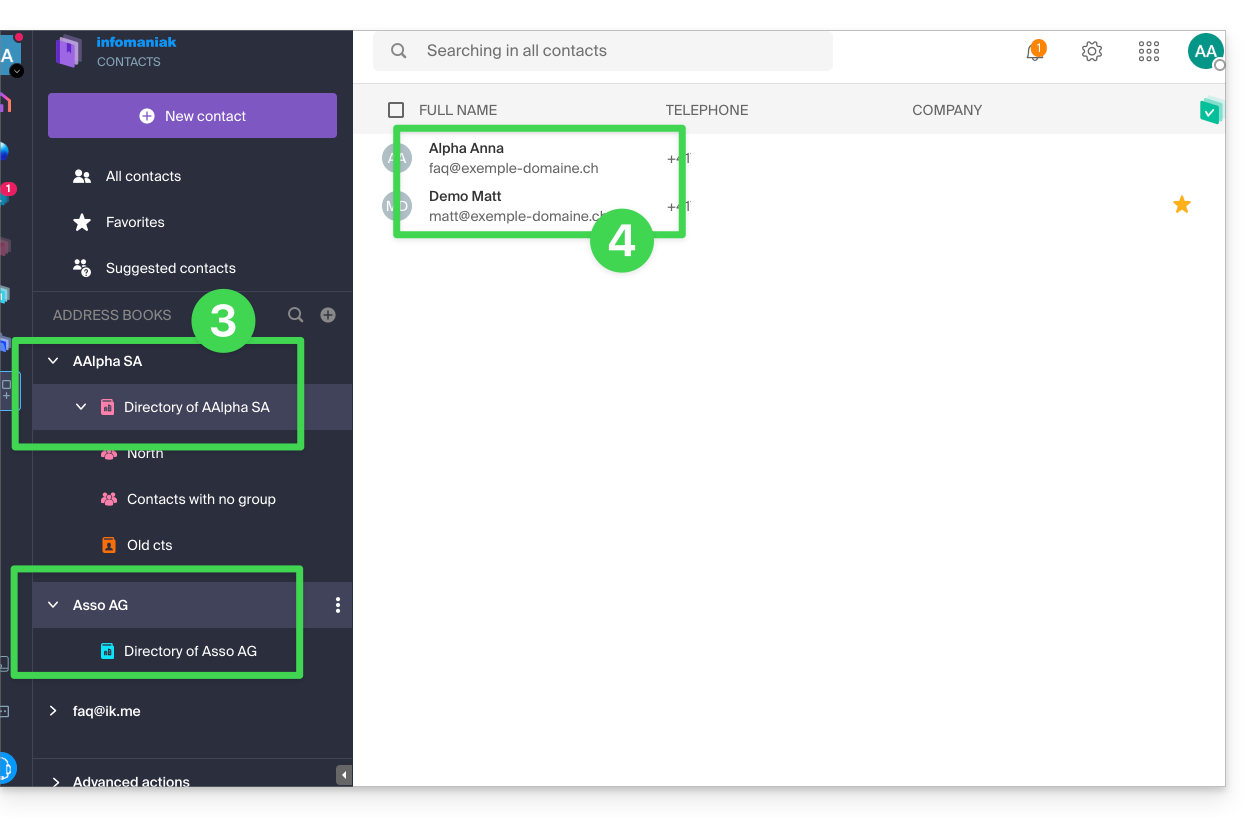
- Click on the chevron to the left of the name of the Organization in question.
- Click on {Organization name} Directory…
- The contacts of the selected Organization are displayed on the right:
Modify the contact details of a contact in the directory
You can do many things (copy, export the contact information, view the email exchanges or calendar events, add to favorites, call, etc.) by clicking on a contact in the Organization Directory address book.However, you will not be able to modify the contact details on behalf of the person.: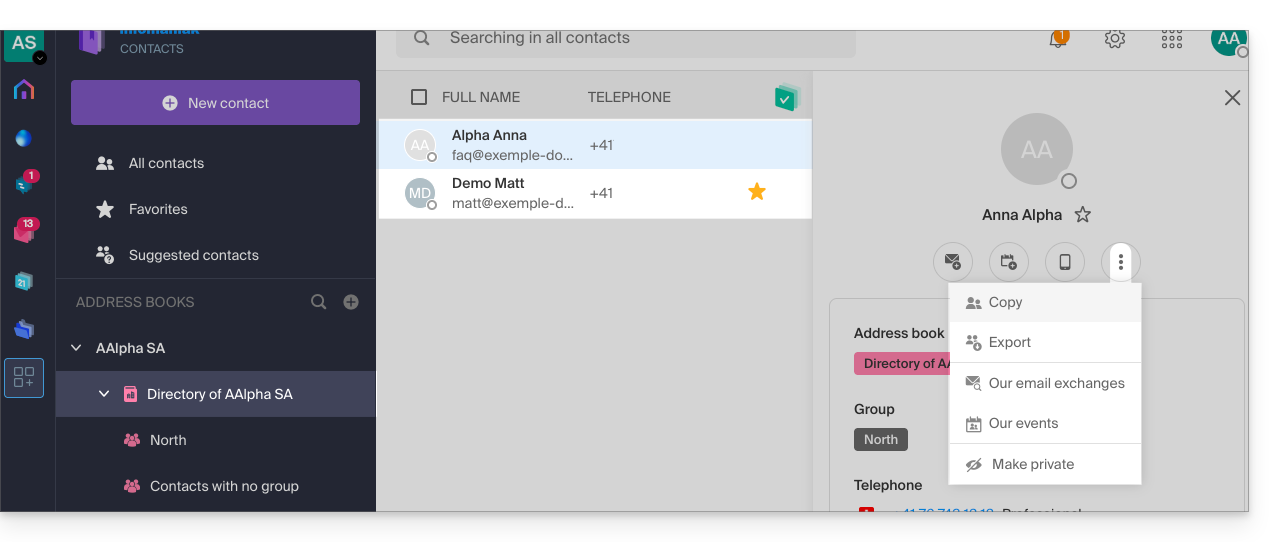
To modify the main information, the person concerned (the person for whom a change needs to be made) must log in to his/her profile and modify it (see below):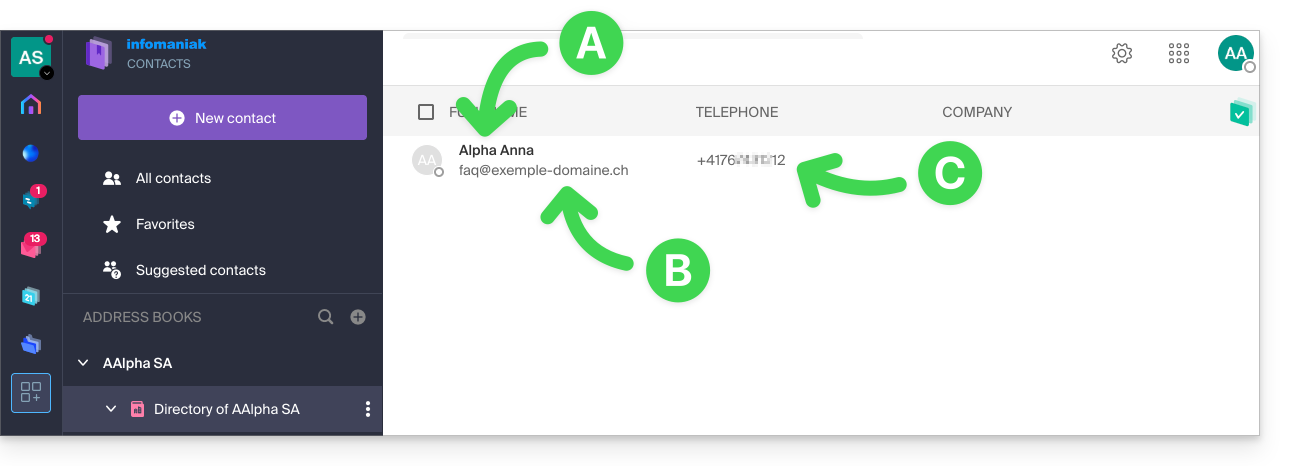
A. First name & Last name
To change the first name and last name displayed in one of the Organization notebooks, the user in question (here, faq@exemple-domaine.ch) must log in to their account and modify their contact information. Please refer to this other guide for more information.
B. Email address
To change the email address displayed in an organization's directory, the user in question must log in to their account and modify their contact details. Please refer to this other guide for more information.
C. Phone number
To change the phone number displayed in an organization's directory, the user in question must log in to their account and modify their contact information. Please refer to this other guide for more information.
Link to this FAQ: https://faq.infomaniak.com/2558
Has this FAQ been helpful?