Knowledge base
1000 FAQs, 500 tutorials and instructional videos. Here, there are only solutions!
Send files using SwissTransfer (Infomaniak)
This guide details how to use SwissTransfer, the free and secure platform for transferring large files.
Introduction
- SwissTransfer, powered by Infomaniak, allows you to send files up to 50 GB in a simple, efficient, and completely confidential manner, in compliance with data protection standards; however, some limitations apply (❓: help).
- You can go further by customizing your transfers and keeping a history of them using kSuite / SwissTransfer Pro (❓: help).
Transfer data quickly with SwissTransfer
To send files via SwissTransfer without an account:
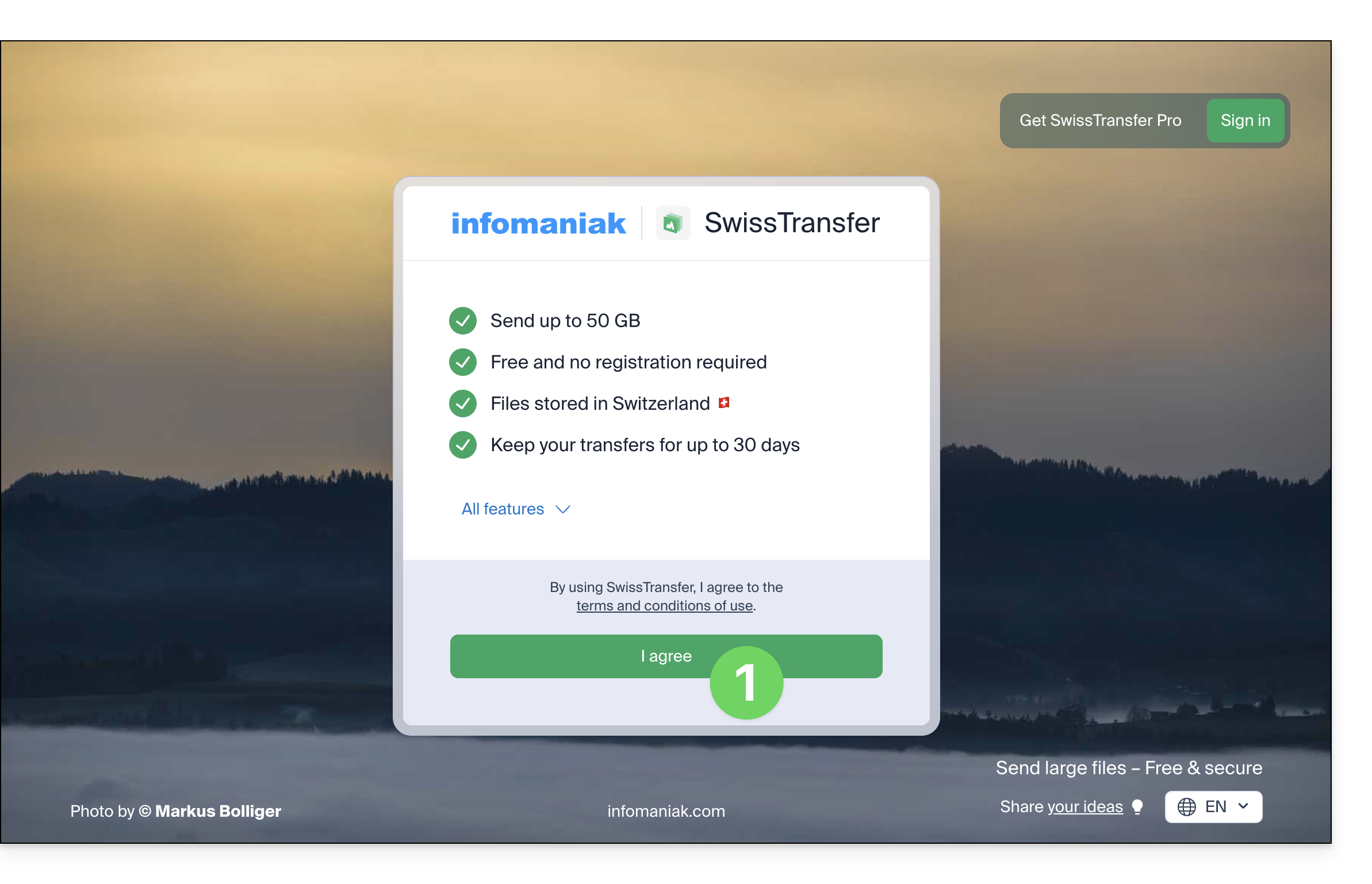
- Click here to access the Infomaniak SwissTransfer web app (online service swisstransfer.com) and accept the terms:
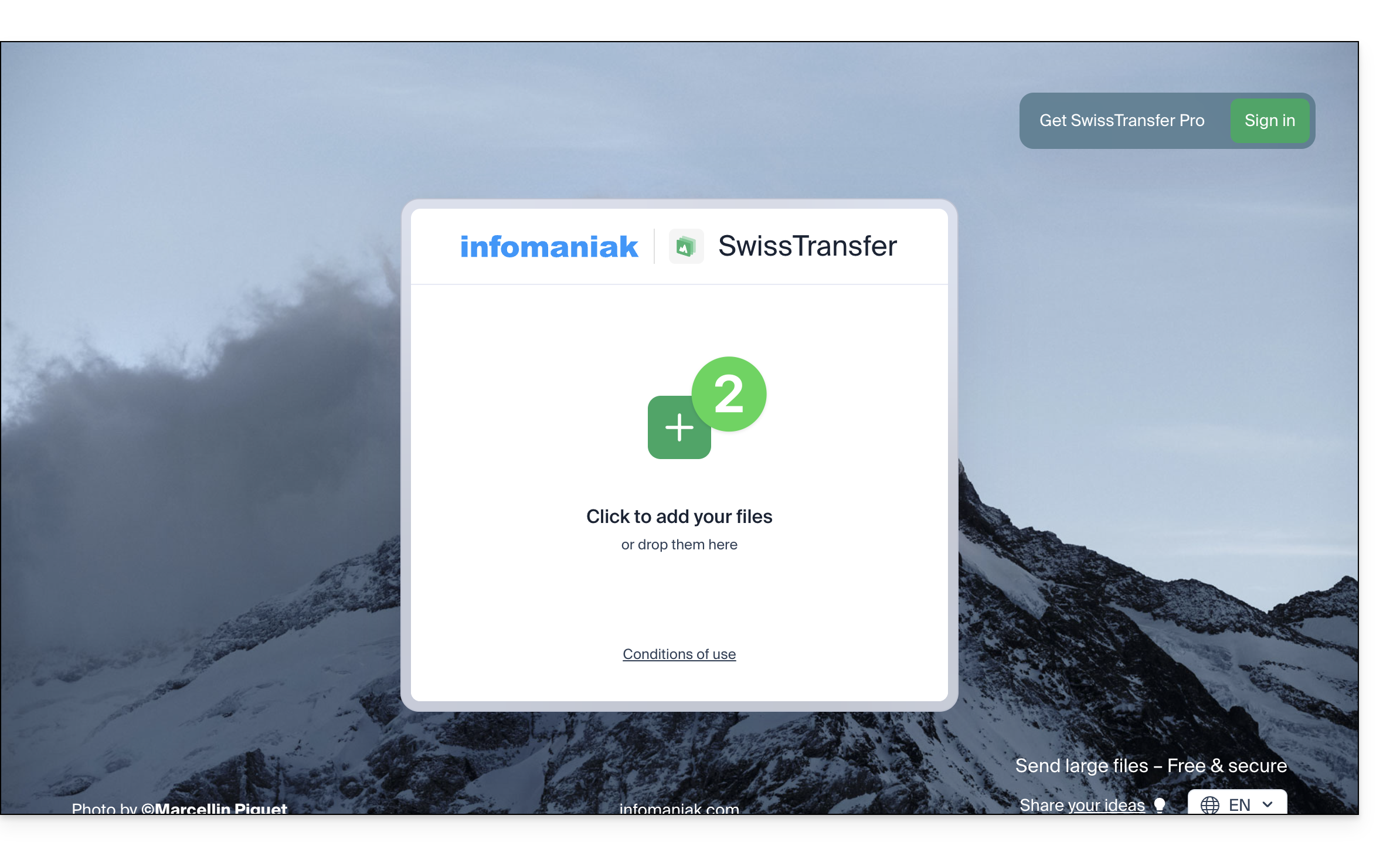
- Click the button to add the documents to transfer (the service accepts large files up to 50 GB); you can also drag and drop your data into this area:
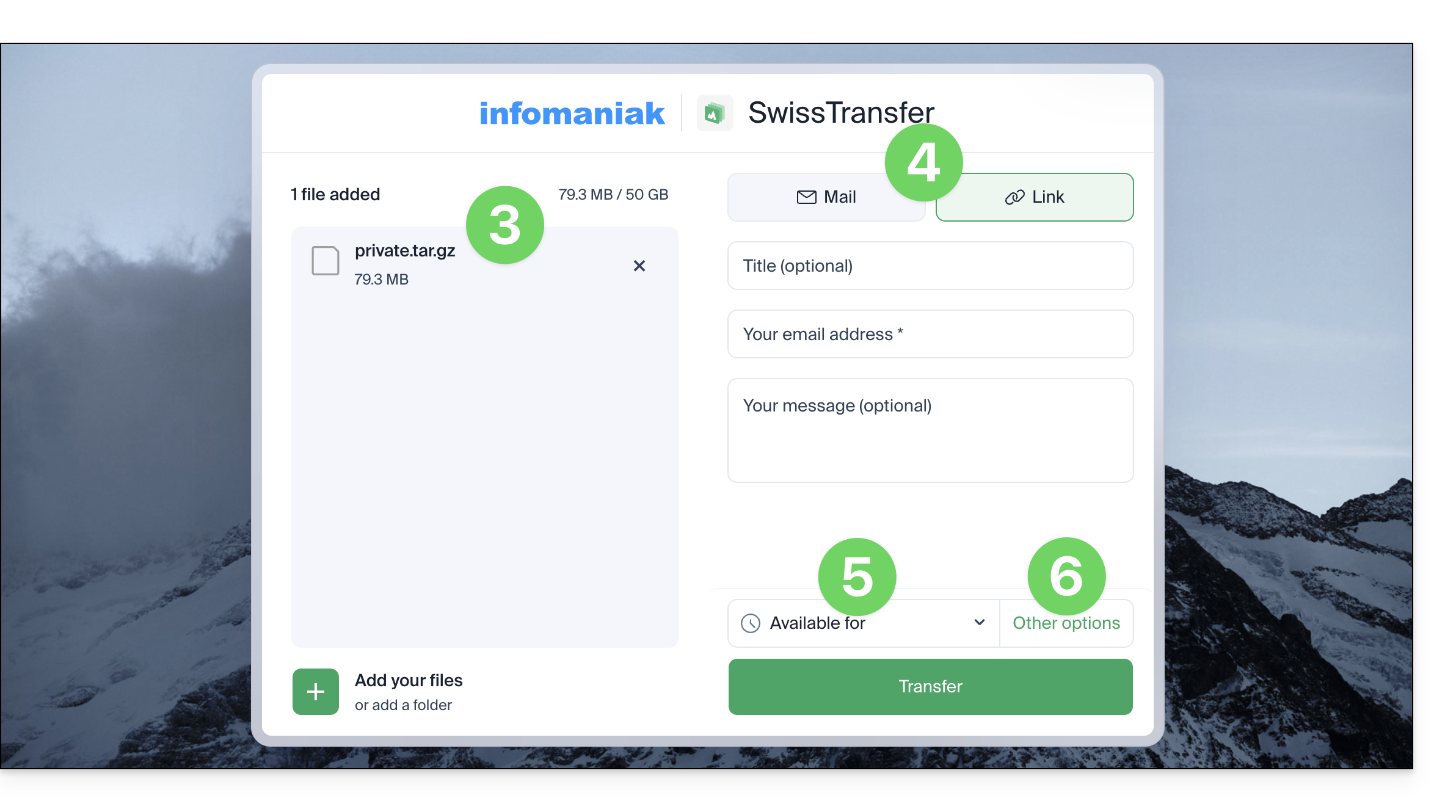
- Your files are ready to be transferred.
- Then decide if you want to create an email to the address of your choice, or get a link leading to your transfer (without sending it to anyone).
- Also, choose the duration for which your data will be available for download (between 1 and 30 days).
- In the options, you can also choose the maximum number of times your recipients can download the content (between 1 and 250) and add optional password protection:
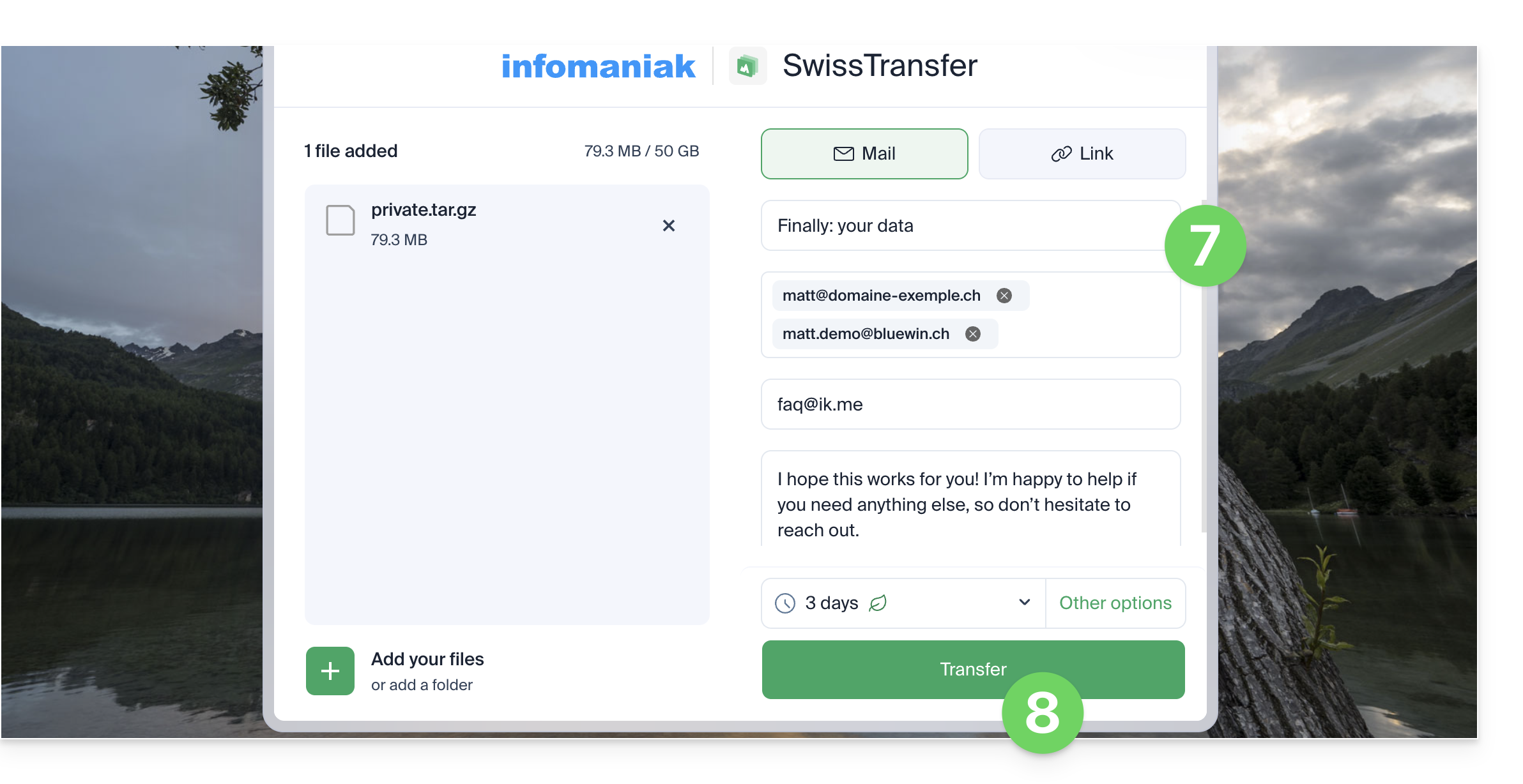
- Complete your information:
- Title, message, and your email address (which you will need to validate in the next step).
- Sending by email requires adding one or more destination email addresses.
- Click the button to Transfer:
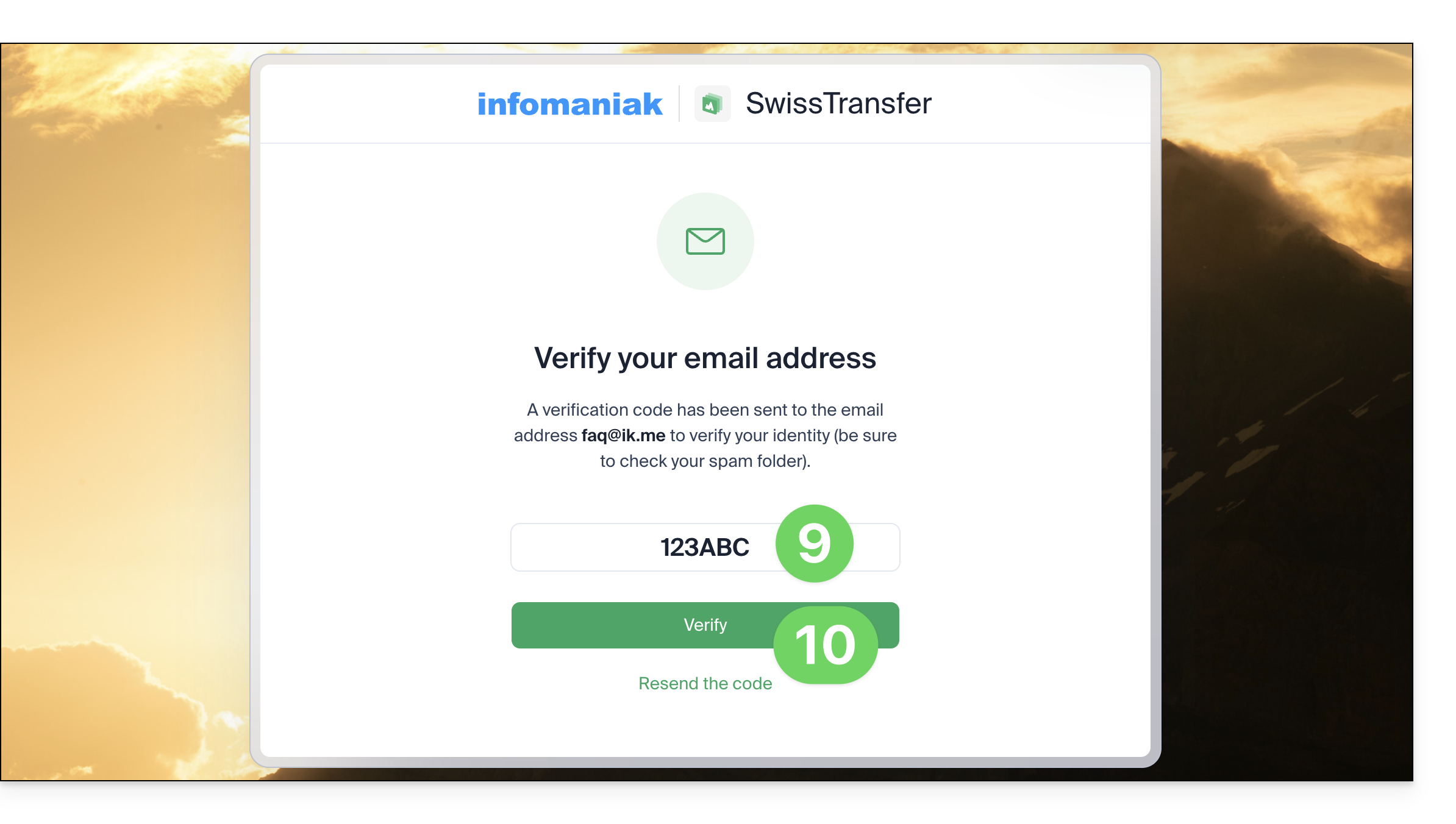
- Confirm the sender's email address by retrieving the code sent to that address:
- This verification is only performed once per device (it is saved in your browser).
- Check your SPAM folder if you haven't received anything in your inbox.
- Enter the code you received (before it expires after 15 minutes) and click the button to start the transfer:
- Do not close the browser window until you see the confirmation message:

When a recipient downloads the file, an email is sent to the sender to notify them.
Optional: Compress files
You can transfer multiple files with SwissTransfer by selecting them on your device, even if the data to be sent includes folders.
- To facilitate sending, nothing is required, but it is easy to compress your files into a format such as ZIP.
- These operations will create a new compressed
.zipfolder that can be sent more quickly with SwissTransfer because the total size will generally be reduced.
macOS and Linux
- From your computer, select the folder(s) you want to send.
- Right-click on the folder(s) you want to archive.
- Choose the “Compress” option:
Windows
- From your computer, select the folder(s) you want to send.
- Right-click on the folder(s) you want to archive.
- Select the "Send to" option.
- Click on the "Compressed archive" option.
Send the compressed files
All you have to do is drag and drop your compressed file(s) to SwissTransfer:
Difference between transmission methods: LINK vs EMAIL
SwissTransfer offers you the possibility to choose between two distinct transmission methods:
- EMAIL option:
- You enter the email address(es) of the recipient(s) directly, as well as your own sender address.
- As soon as the file upload is complete, the platform automatically sends an email containing the download link to the relevant recipients.
- This method is ideal for instantly notifying your contacts in an automated way without any additional steps.
- LINK option:
- The system generates a unique direct download link (URL) as soon as your files are online.
- No email is sent automatically: you must copy this link manually and share it via your preferred channel (instant messaging application, SMS, corporate chat, social network, etc.).
- This mode is preferred if you would rather share the download link using your own communication tools.
Using the mobile app
You can also use the mobile app iOS / Android; thanks to its integration, it offers quick file sharing options for your files, photos, PDFs, etc., directly from the file explorer: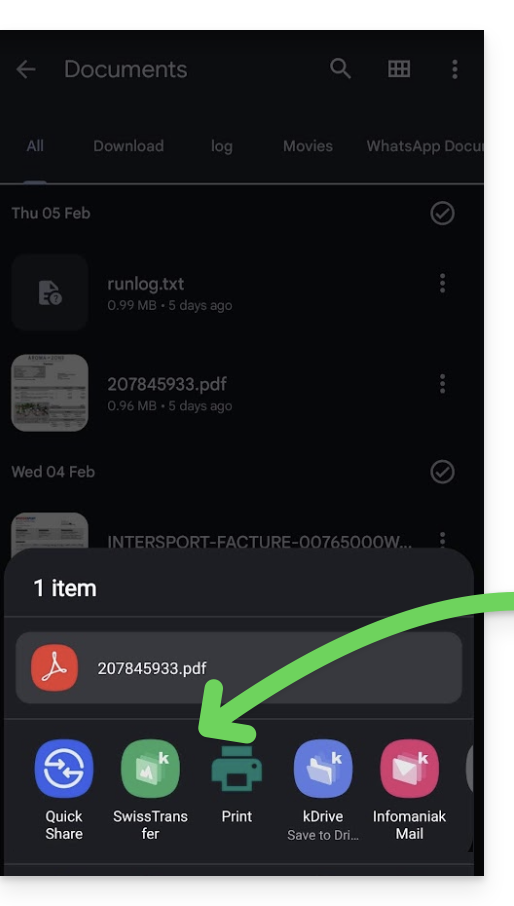
- Refer to this other guide if you encounter any issues installing the app.
Link to this FAQ: https://faq.infomaniak.com/2557
Has this FAQ been helpful?