Knowledge base
1000 FAQs, 500 tutorials and instructional videos. Here, there are only solutions!
Import data to kDrive via WebDAV
This guide explains how to import external data (files, folders, etc.) to your kDrive using the WebDAV protocol provided by your Cloud host.
Preamble
- Refer to this other guide if you are looking for information on copying specific data from one kDrive to another when your user has access to both kDrives concerned.
- Refer to this other guide if you are looking for information about subsequent use of your kDrive via the WebDAV protocol.
Import external data via WebDAV
Prerequisites
- Have a kDrive or kSuite offer (WebDAV not required)
- Have sufficient permissions within kDrive or kSuite.
- Do not change your password until the import is complete!
To access the import tool, where the data needs to be imported:
- Click here to access the Infomaniak kDrive web app (online service ksuite.infomaniak.com/kdrive).
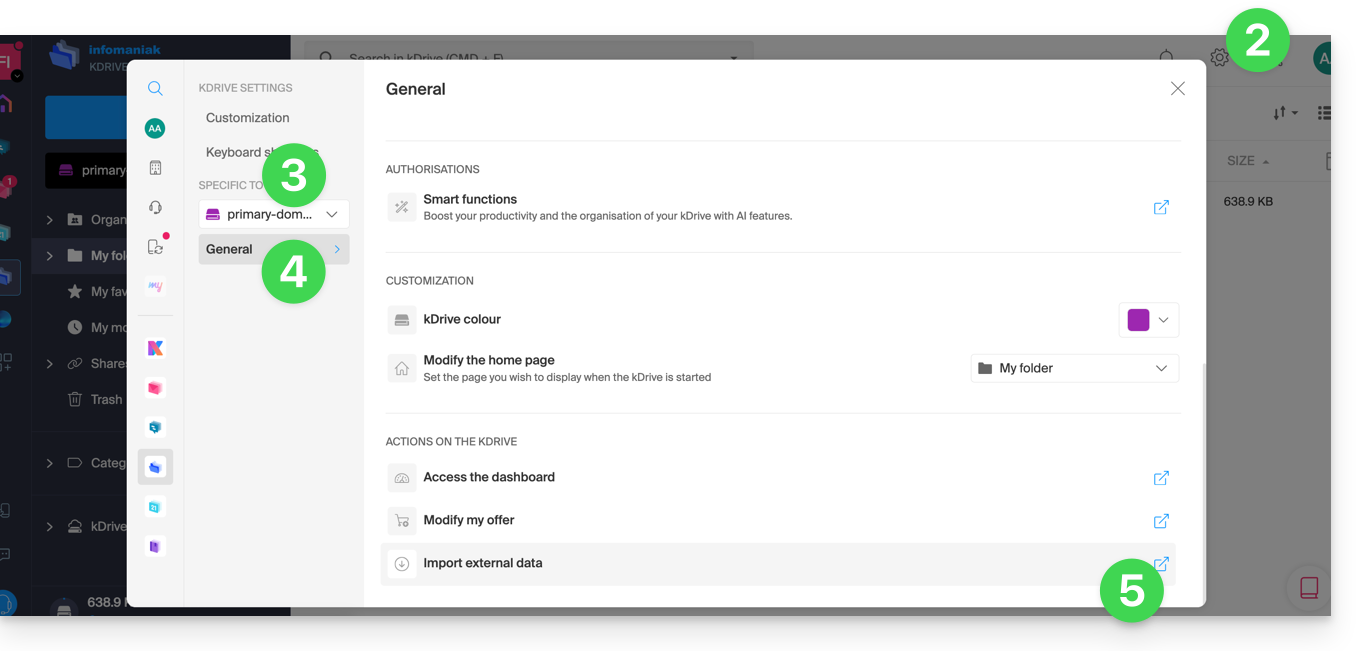
- Click on the Settings icon at the top right.
- Check or select the kDrive concerned in the left sidebar dropdown menu.
- Click on General in the left sidebar menu.
- Click on Import external data:
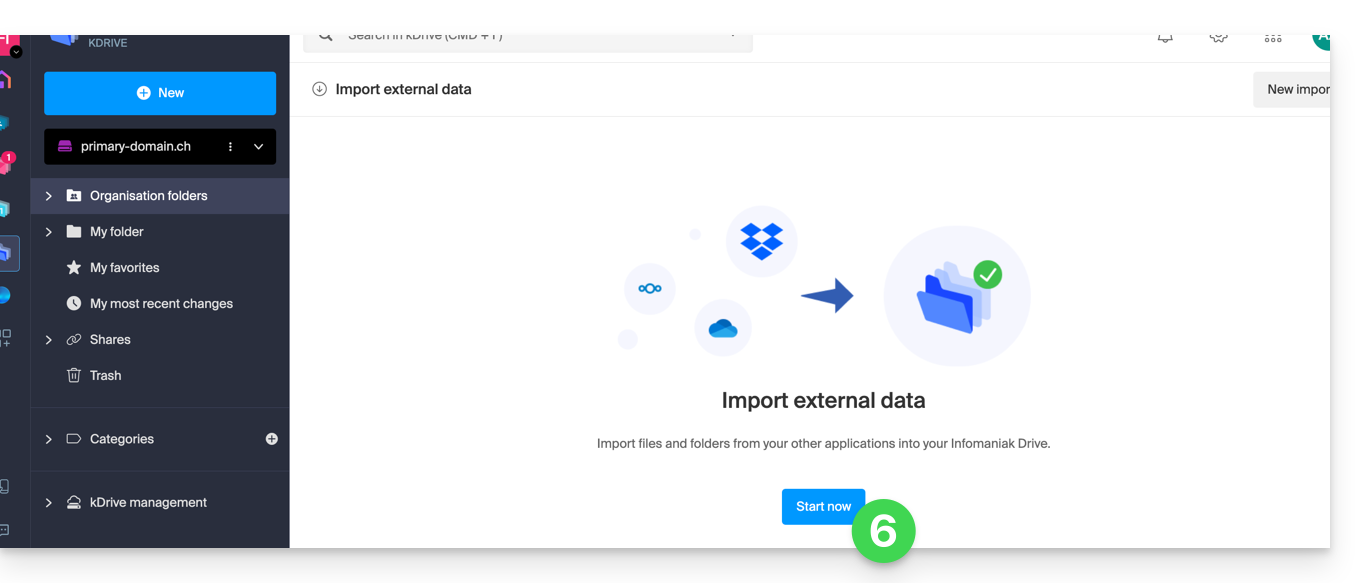
- Click the blue Start button:
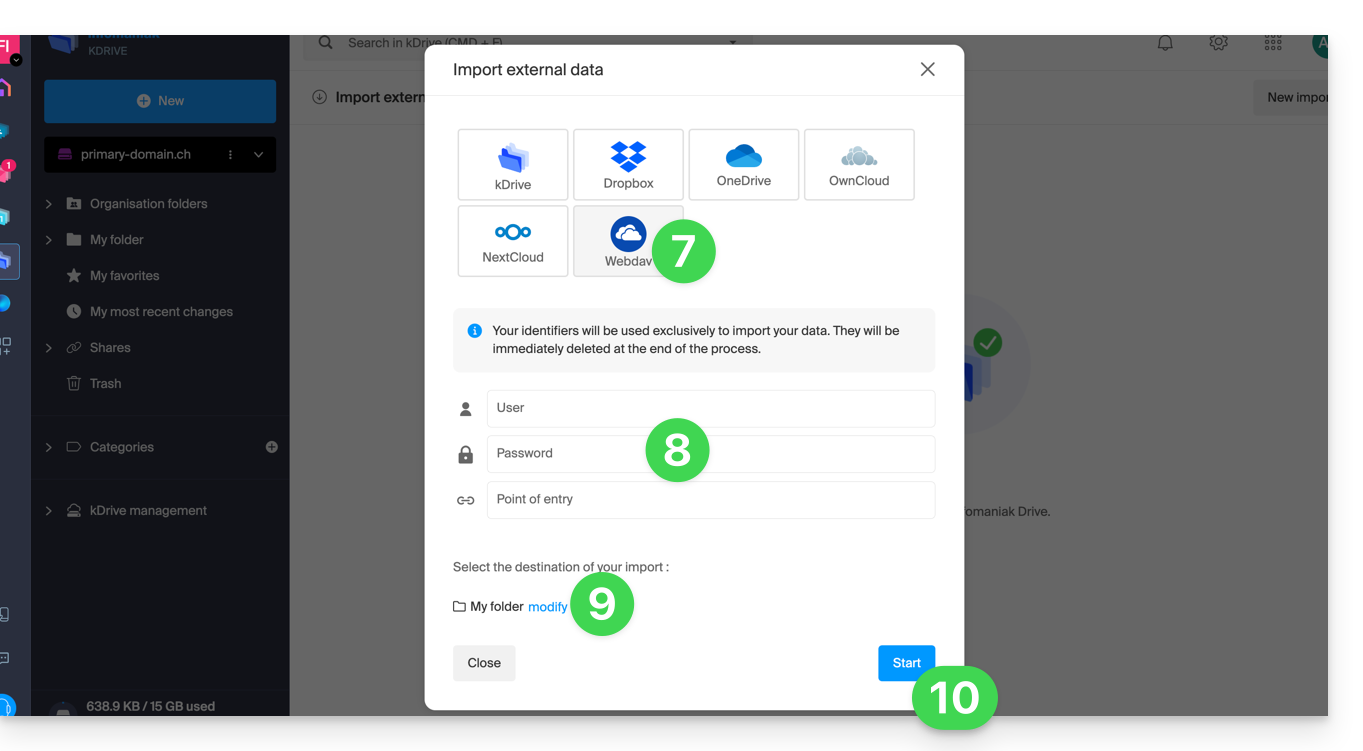
- Click on WebDAV.
- Complete the requested information based on the source (including the WebDAV address you have - obtained from the source).
- Choose the destination kDrive and the desired location to accommodate the imported data.
- Click on Start:
Example: copying data from an external kDrive to the Organization
To import a kDrive that would be outside the Organization in which your destination kDrive is located, you need to enter the following information at point 9 above (your credentials will be used exclusively to import your data; they will be immediately deleted at the end of the process):
- Username: email address to log in to the Infomaniak account
- Password: create an application password for this specific use.
- Entry point: the WebDAV login URL with the source kDrive ID (starting disk) — refer to this other guide regarding the kDrive ID
- Example:
https://123456.connect.kdrive.infomaniak.comif the ID is “123456” to obtain the entire kDrive; but it is also possible to import only part of it (see below).
- Example:
Specify the name of a specific subfolder
It is possible to choose a subfolder as a source folder, by combining the kDrive ID and the folder path.
Example address for a specific folder in the shared space of the Organization Folders (= "Common documents") — replace Folder Name with the name of the folder concerned in the path:
https://IDkDrive.connect.kdrive.infomaniak.com/Common documents/Folder Name
Example for a folder/subfolder that would be in the personal folders (therefore outside the Organization Folders) — replace Folder Name and Sub-folder Name with the names of the folders concerned in the path:
https://IDkDrive.connect.kdrive.infomaniak.com/Folder name/Sub-folder Name
Link to this FAQ:
Has this FAQ been helpful?