Knowledge base
1000 FAQs, 500 tutorials and instructional videos. Here, there are only solutions!
Update the password on Thunderbird
This guide explains how to update the password of an email address on your device after changing it from an Infomaniak Mail Service.
Preamble
- There may be an upstream general password; refer to official Mozilla help on this topic.
Access the password menu
To do this:
- Open the Thunderbird email client.
- Click on the menu icon at the top right.
- Click on Preferences:
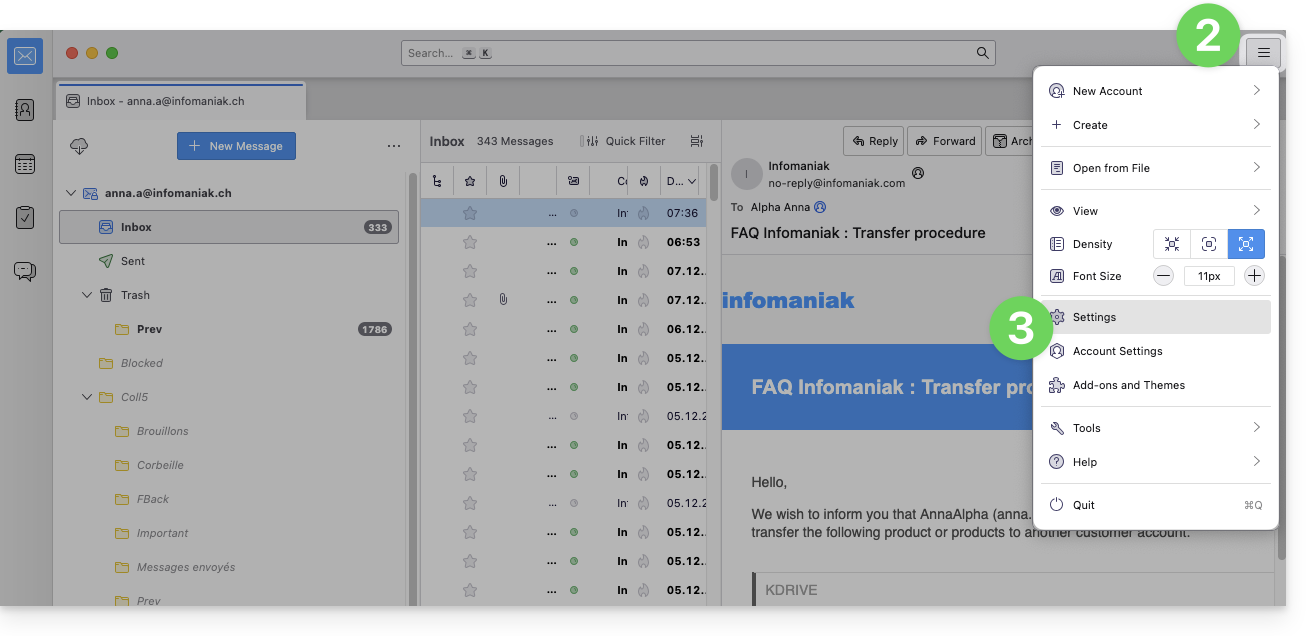
- Click on Privacy & Security in the left sidebar menu.
- Click on Saved Passwords:
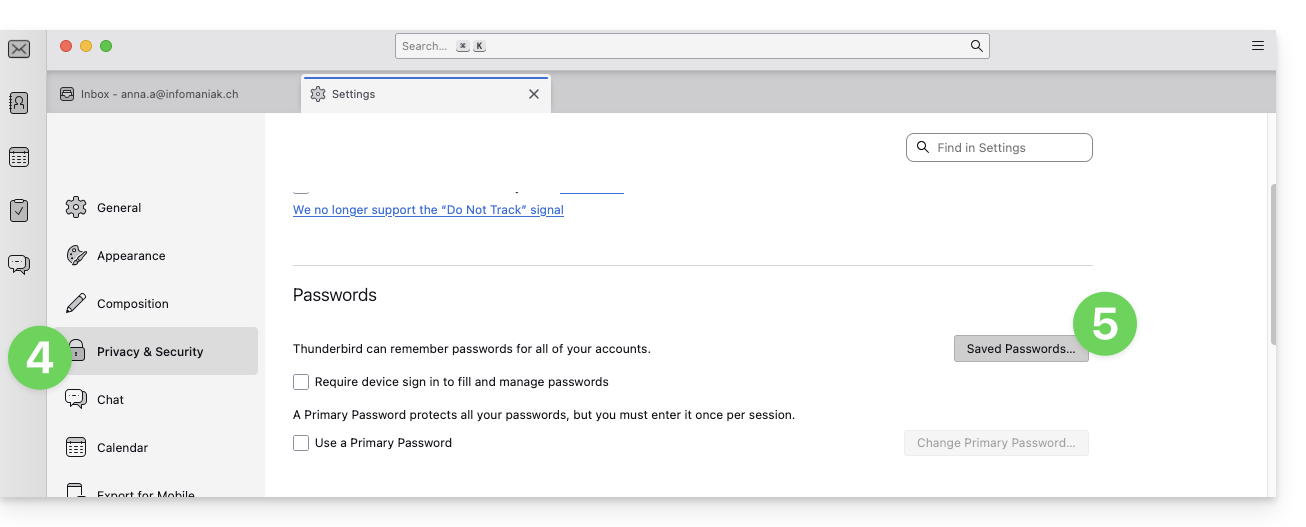
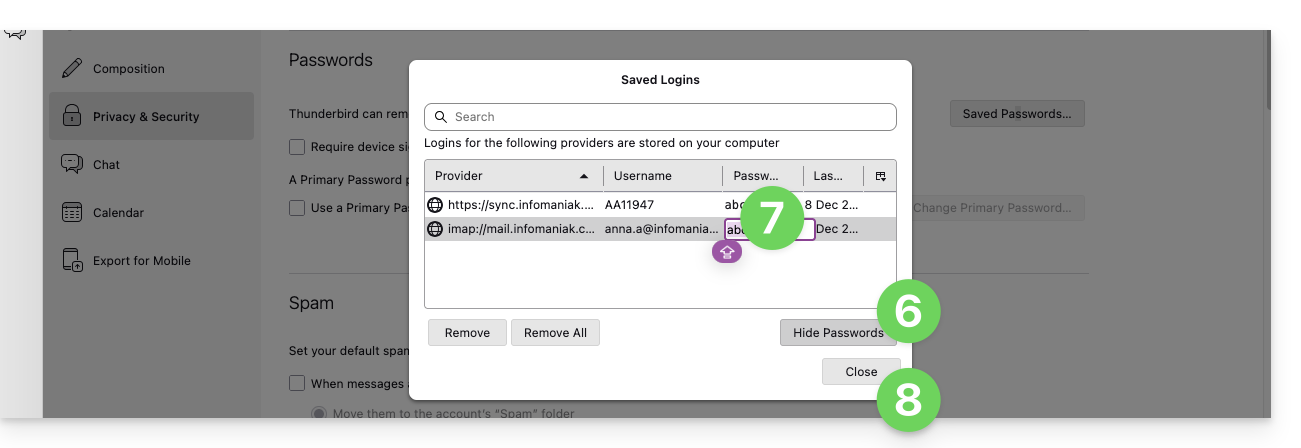
- Click on Show Passwords at the bottom right.
- Double-click on the password associated with the email address (IMAP and possibly SMTP if necessary), and enter the new password:
Link to this FAQ: https://faq.infomaniak.com/2553
Has this FAQ been helpful?