Knowledge base
1000 FAQs, 500 tutorials and instructional videos. Here, there are only solutions!
Update the password in Thunderbird
This guide explains how to update the password for a mail address on your device after you have changed it from an Infomaniak Mail Service.
Introduction
- There may be a master password in place; refer to the official Mozilla help for more information.
Accessing the password menu
To do this:
- Open the Thunderbird email client.
- Click on the menu icon in the top right corner.
- Click on Preferences:
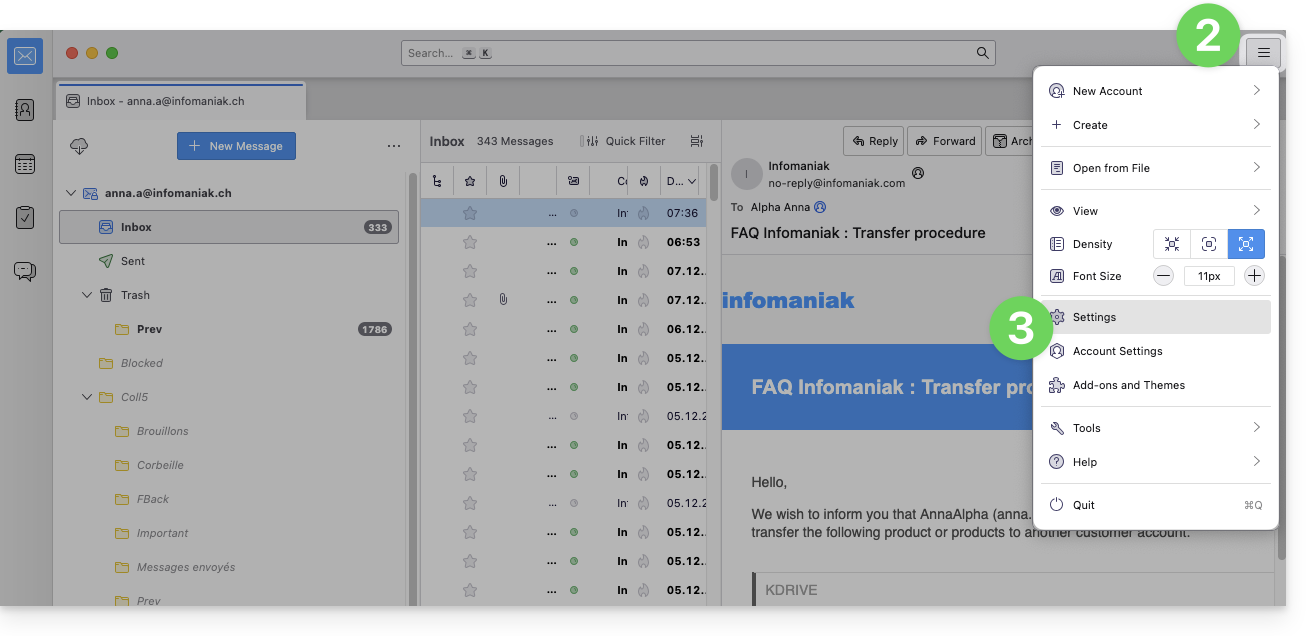
- Click on Privacy & Security in the left-hand menu.
- Click on Saved Passwords:
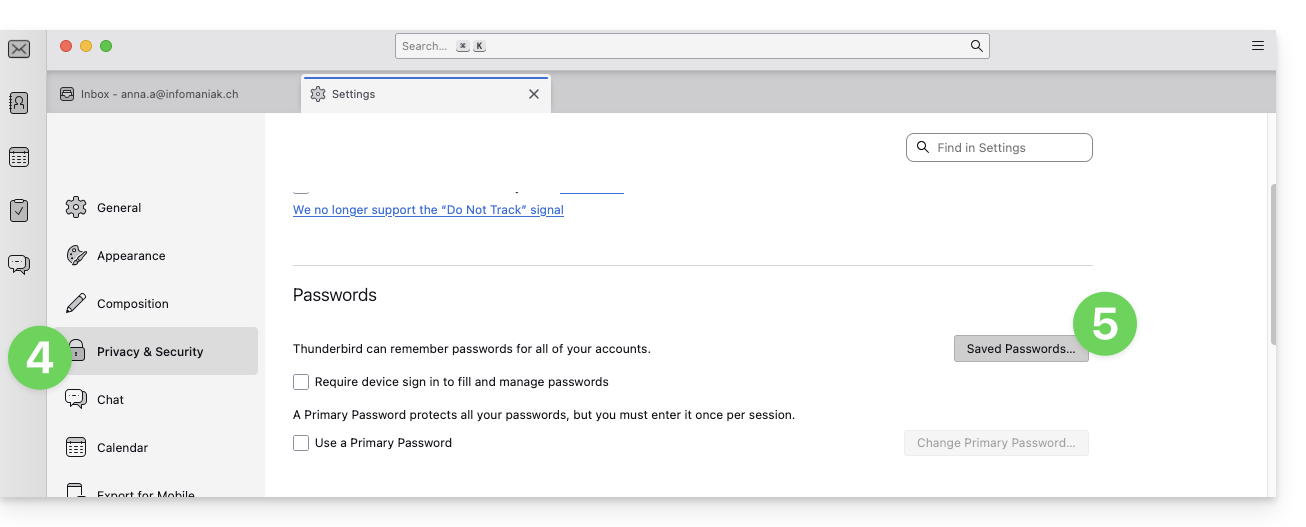
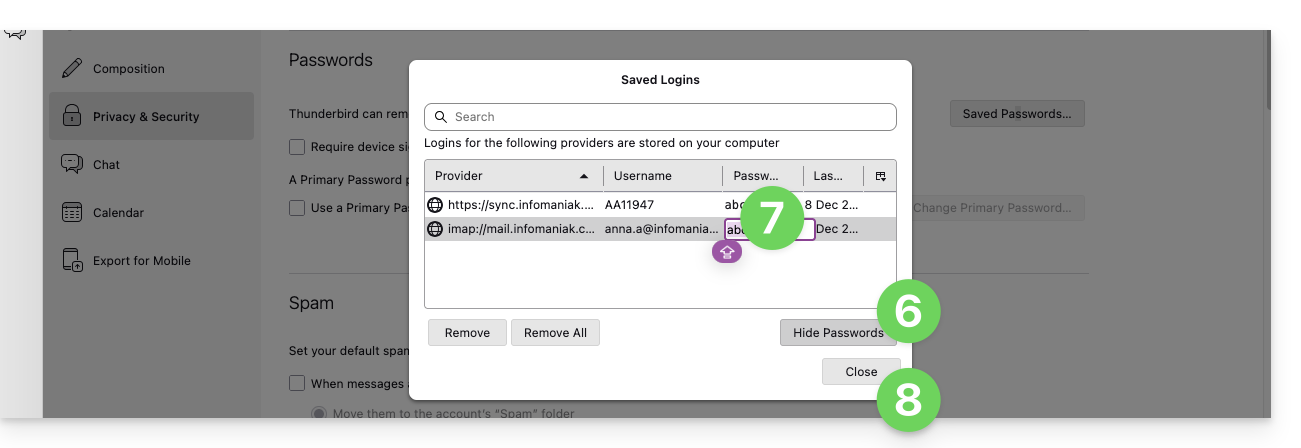
- Click on Show passwords in the bottom right corner.
- Double-click on the password associated with the email address (IMAP and possibly SMTP if necessary), and enter the new password:
Link to this FAQ: https://faq.infomaniak.com/2553
Has this FAQ been helpful?