Knowledge base
1000 FAQs, 500 tutorials and instructional videos. Here, there are only solutions!
Back up data with FileZilla to Swiss Backup (SFTP)
This guide details how to manually back up data using the FileZilla application (macOS / Windows / Linux) via the SFTP protocol to Swiss Backup, the backup solution in a Swiss independent cloud.
Introduction
Configure FileZilla
Prerequisites
- Have an Swiss Backup Infomaniak account with an available device quota (minimum 1) for a Cloud backup.
- Add 1 device of type Cloud to obtain the SFTP parameters.
- Download and install FileZilla (macOS / Windows / Linux).
To configure a new backup:
- Fill in the fields according to the information specific to your device (refer to this other guide):
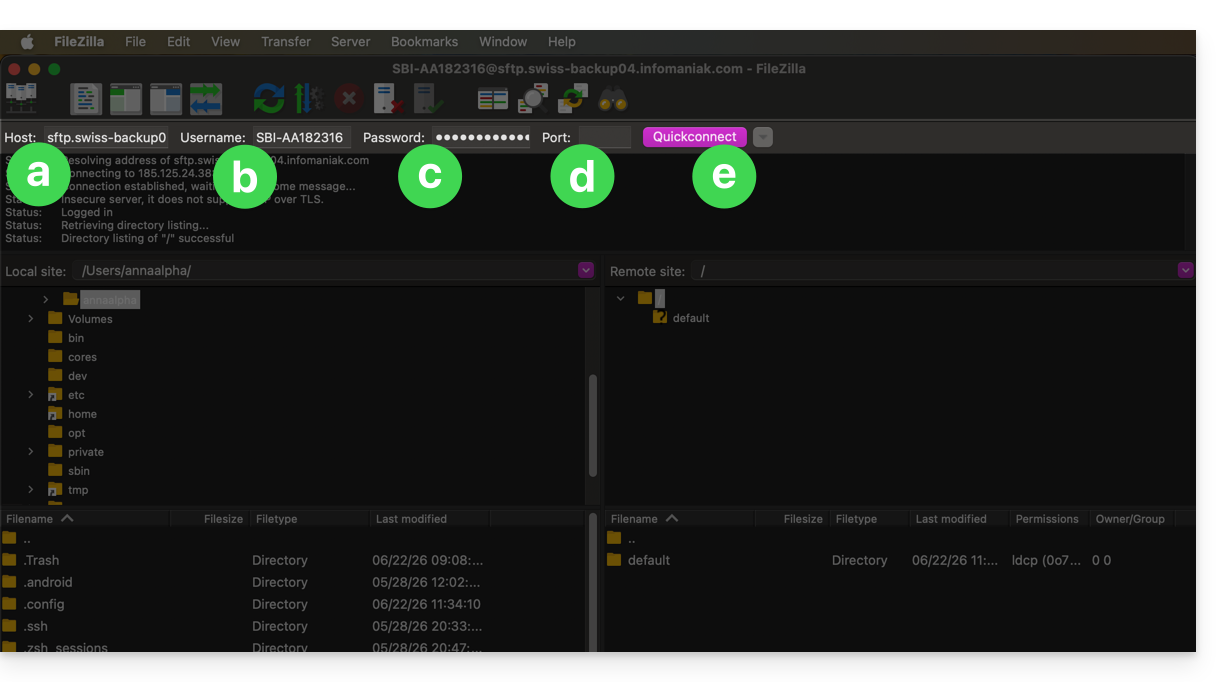
- Host:
sftp.swiss-backup02.infomaniak.com - Username: Swiss Backup device name (e.g.
SBI-MS0020) - Password: Password generated via the email received after creating the Swiss Backup device
- Port:
22 - Click on Connect
- Host:
FileZilla also allows you to configure connections so that you don't have to re-enter your login credentials:
- Click on the Site manager icon.
- Click on New site:
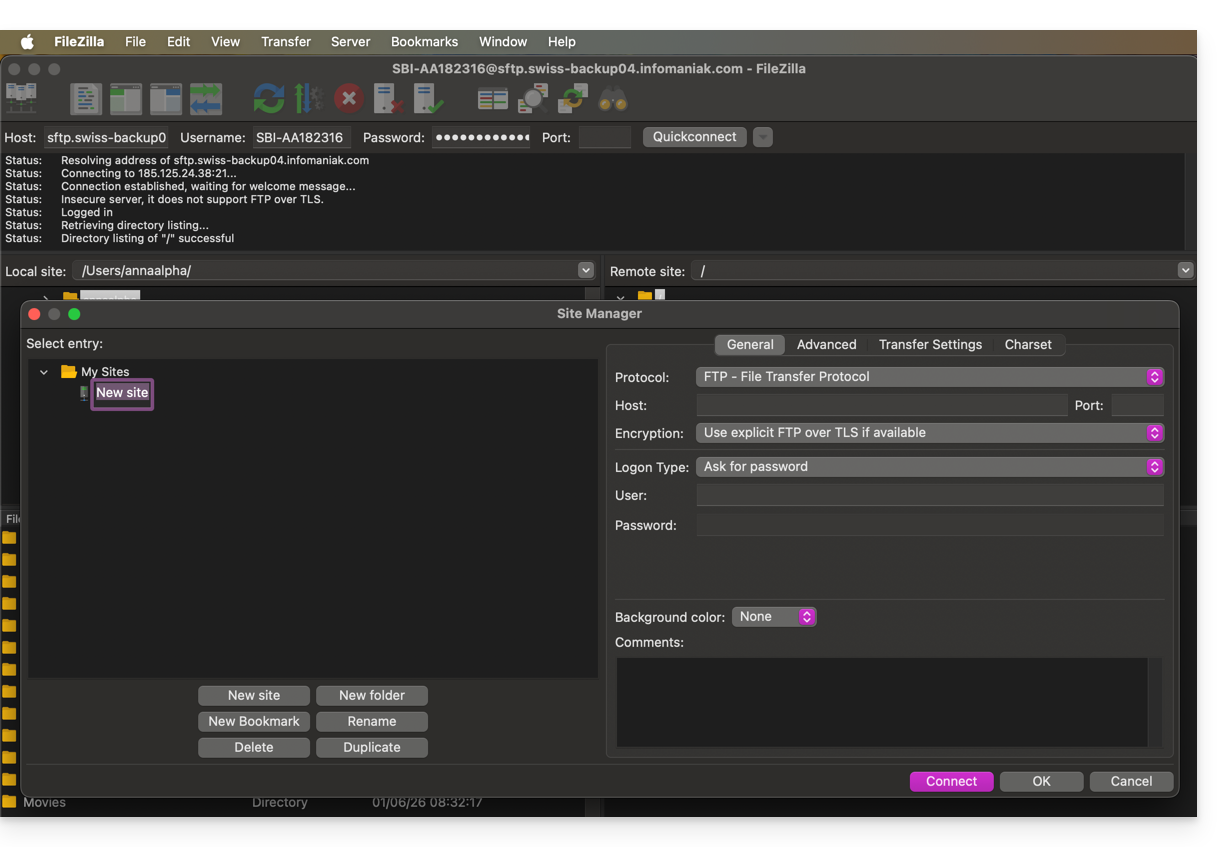
- Fill in the fields according to the information specific to your device.
The SFTP connection is recommended to ensure that data is transmitted securely.
- Cliquez sur l'icône Site manager.
- Cliquez sur Nouveau site:
- Renseignez les champs selon les informations propres à votre appareil.
La connexion SFTP est recommandée pour que les données soit transmises de façon sécurisées.
Link to this FAQ: https://faq.infomaniak.com/2547
Has this FAQ been helpful?