Knowledge base
1000 FAQs, 500 tutorials and instructional videos. Here, there are only solutions!
Create an SFTP location on Swiss Backup
This guide explains how to create a new device (Cloud backup via FTP / SFTP) on Swiss Backup, the cloud backup solution in an independent Swiss cloud.
Prerequisites
- Order an Infomaniak Swiss Backup space.
- During the order process, define the available quota for device(s) to be backed up using the Cloud backup type (minimum 1):
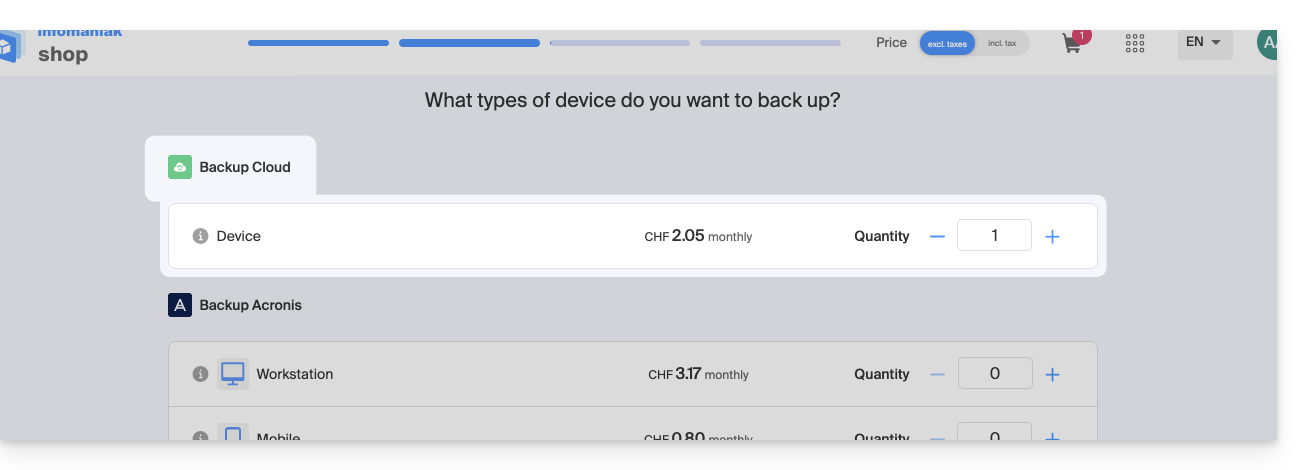
- If necessary, increase the device quota according to your needs.
- Note: for a file transfer from an FTP/SFTP connection to be successful, the file size must not exceed 10 TB.
- It is recommended to check and adjust the timeout settings of your FTP software/client if necessary.
Add a device (for FTP/SFTP connection)
To access Swiss Backup and configure a new backup:
- Click here to access the management interface for your product in the Infomaniak Manager (need help?).
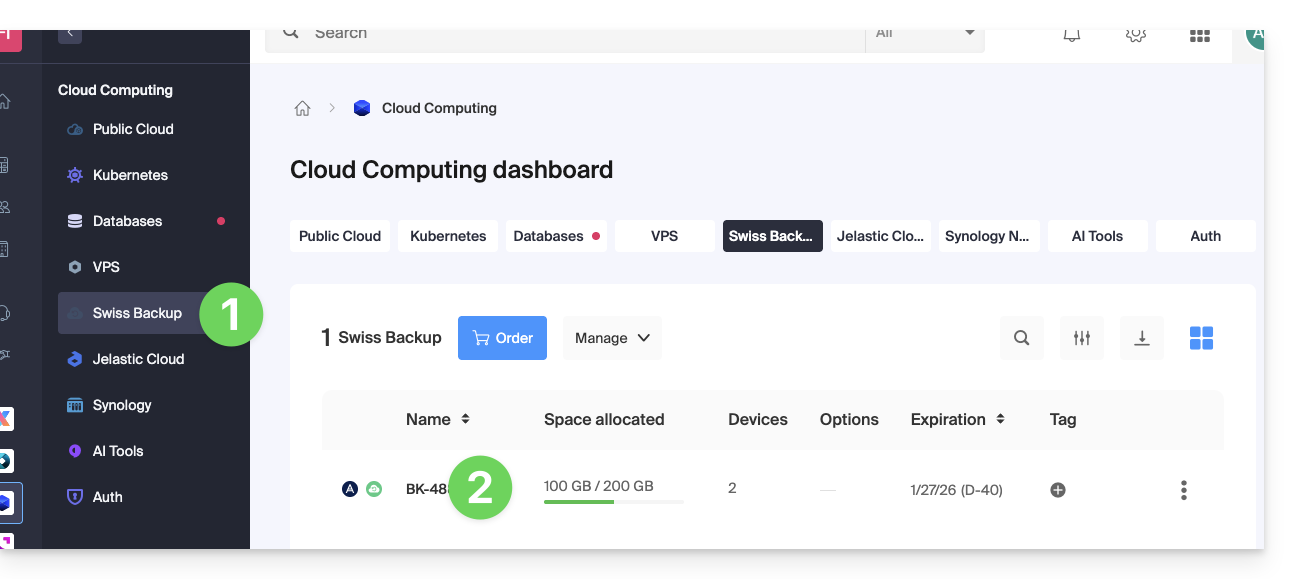
- Click directly on the name assigned to the product in question:
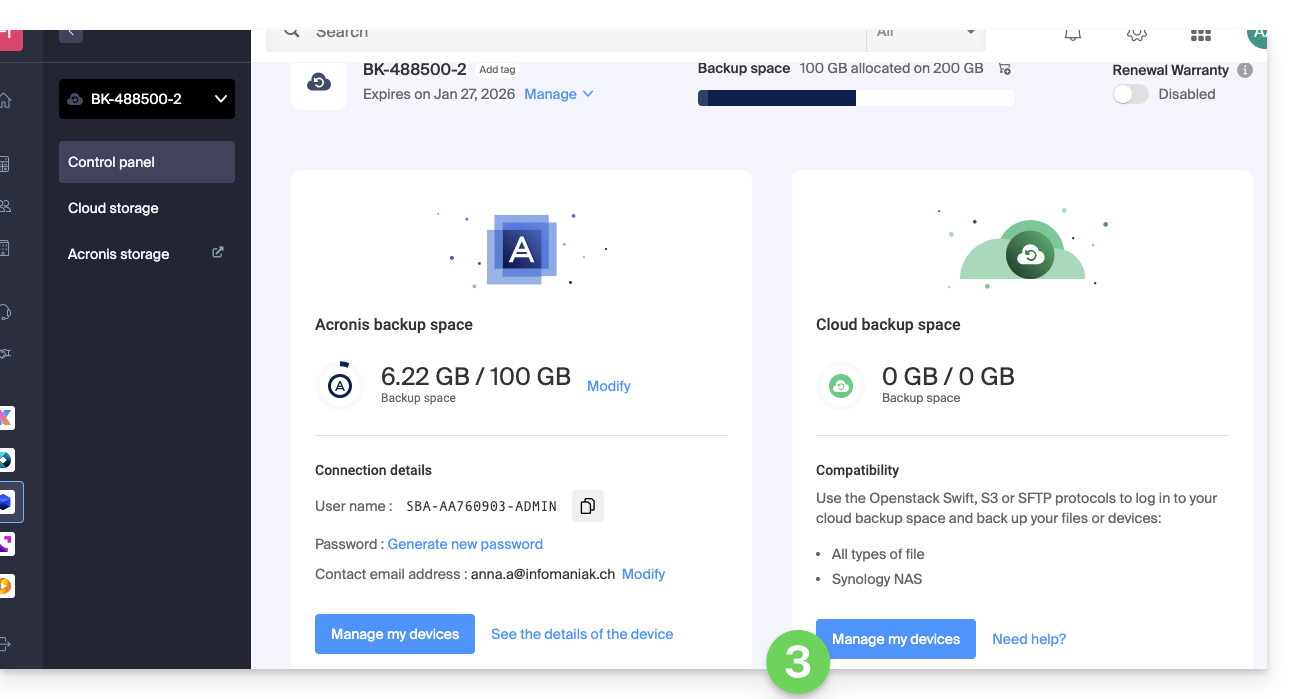
- Click on the blue Manage my devices button (in the Cloud storage space section):
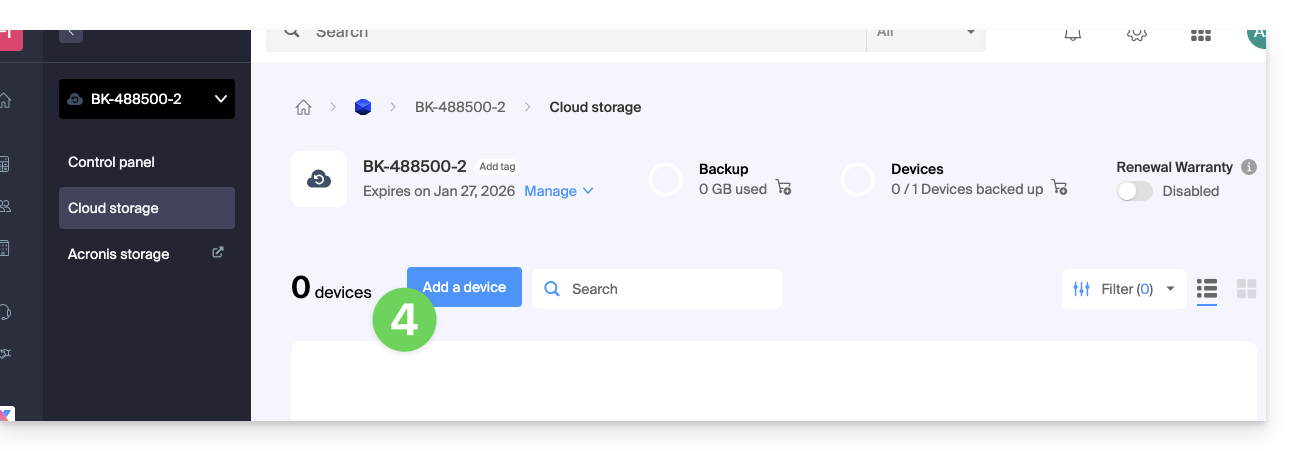
- Click on the blue Add a device button:
- Choose the type/protocol for the free backup: FTP/SFTP.
- Click on the blue Continue button:
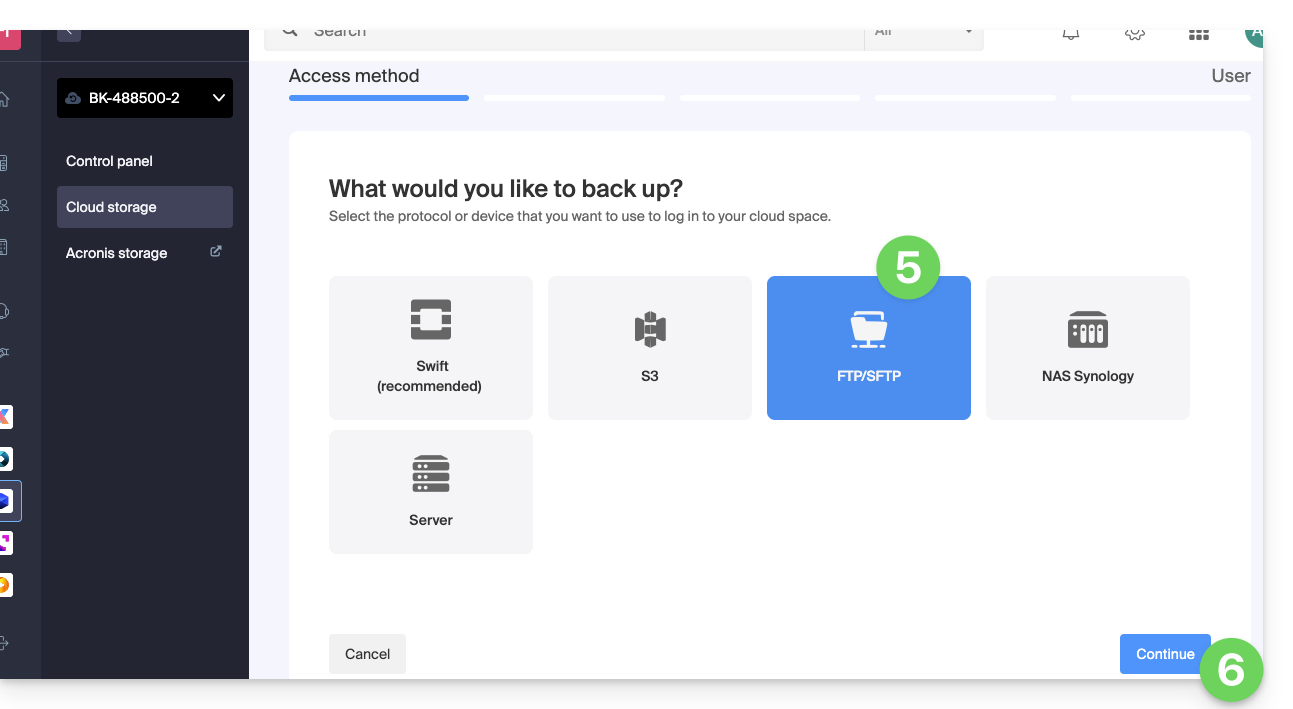
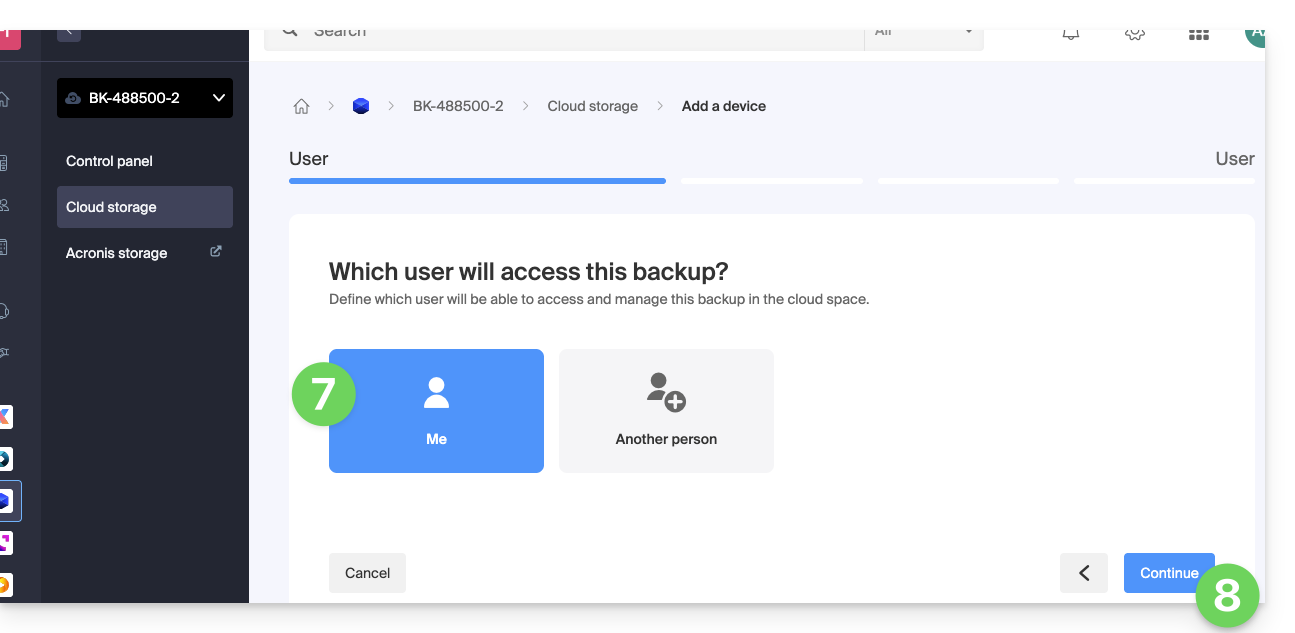
- Choose the user who will receive the login information (if necessary, choose a different user than yourself and provide the person's contact details in the next step).
- Click the blue Continue button:
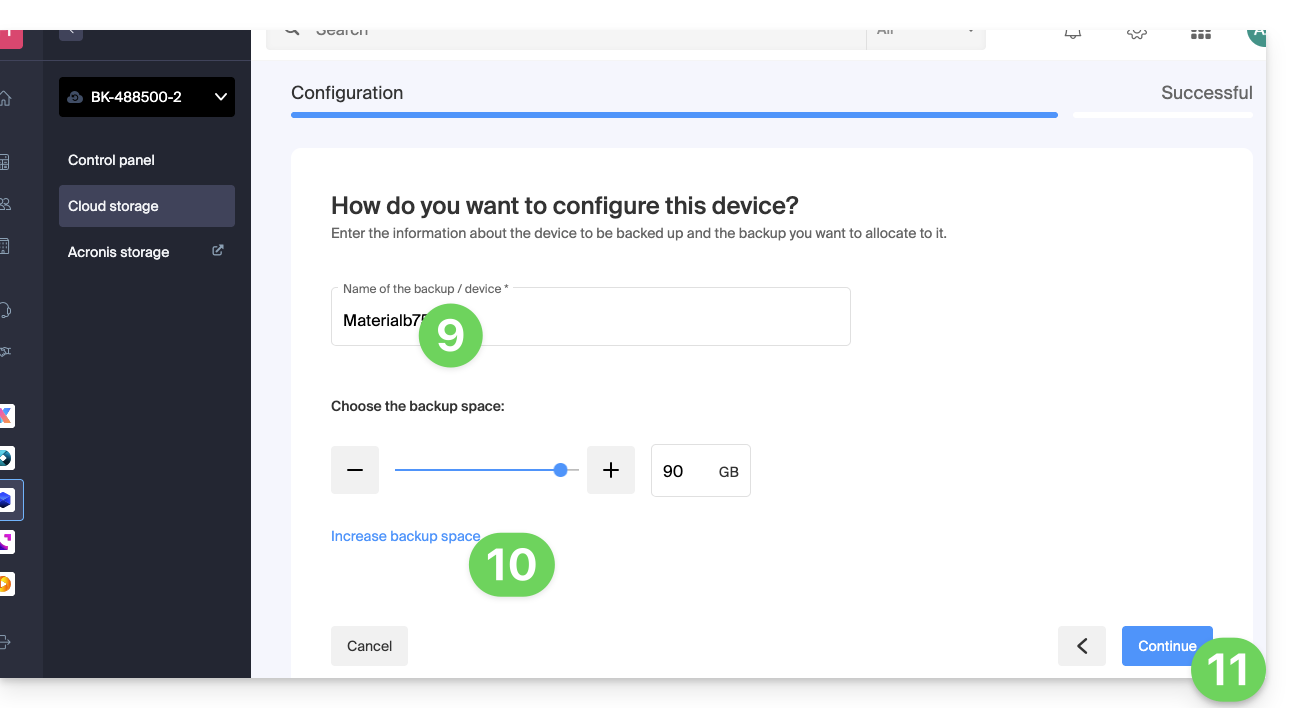
- Give the backup a name.
- Define the maximum disk space that this backup space should represent, based on the total volume of the Swiss Backup plan you have subscribed to, and increase the total size if necessary using the blue link.
- Click the blue Continue button:
- Click the blue button to display the login details:
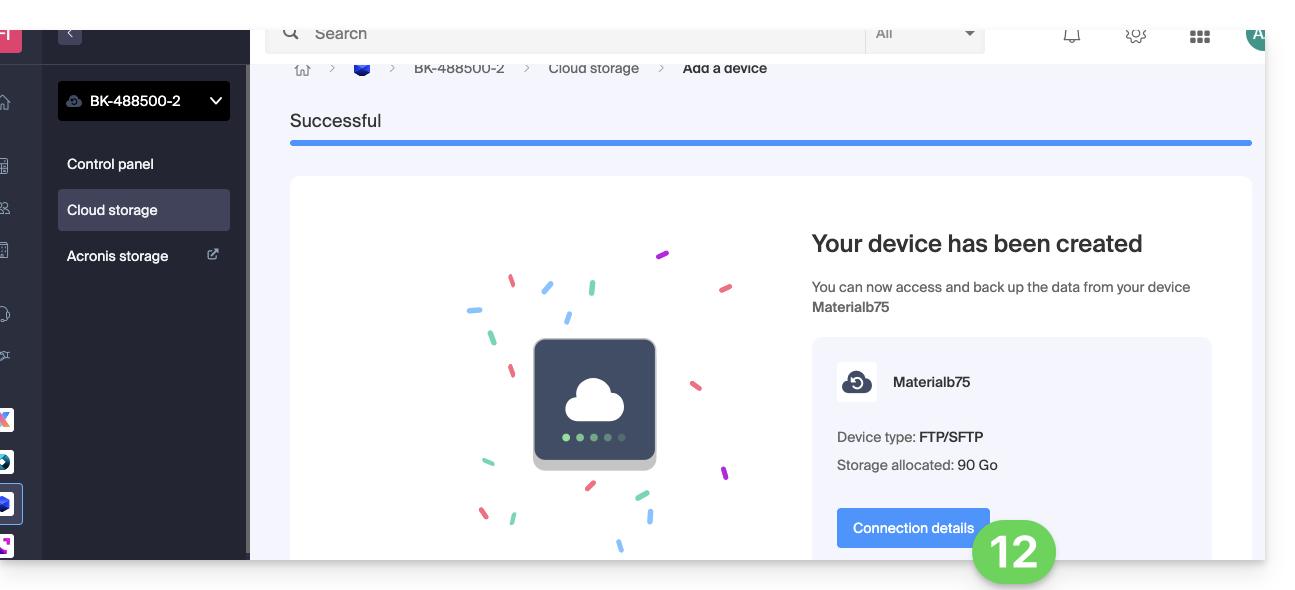
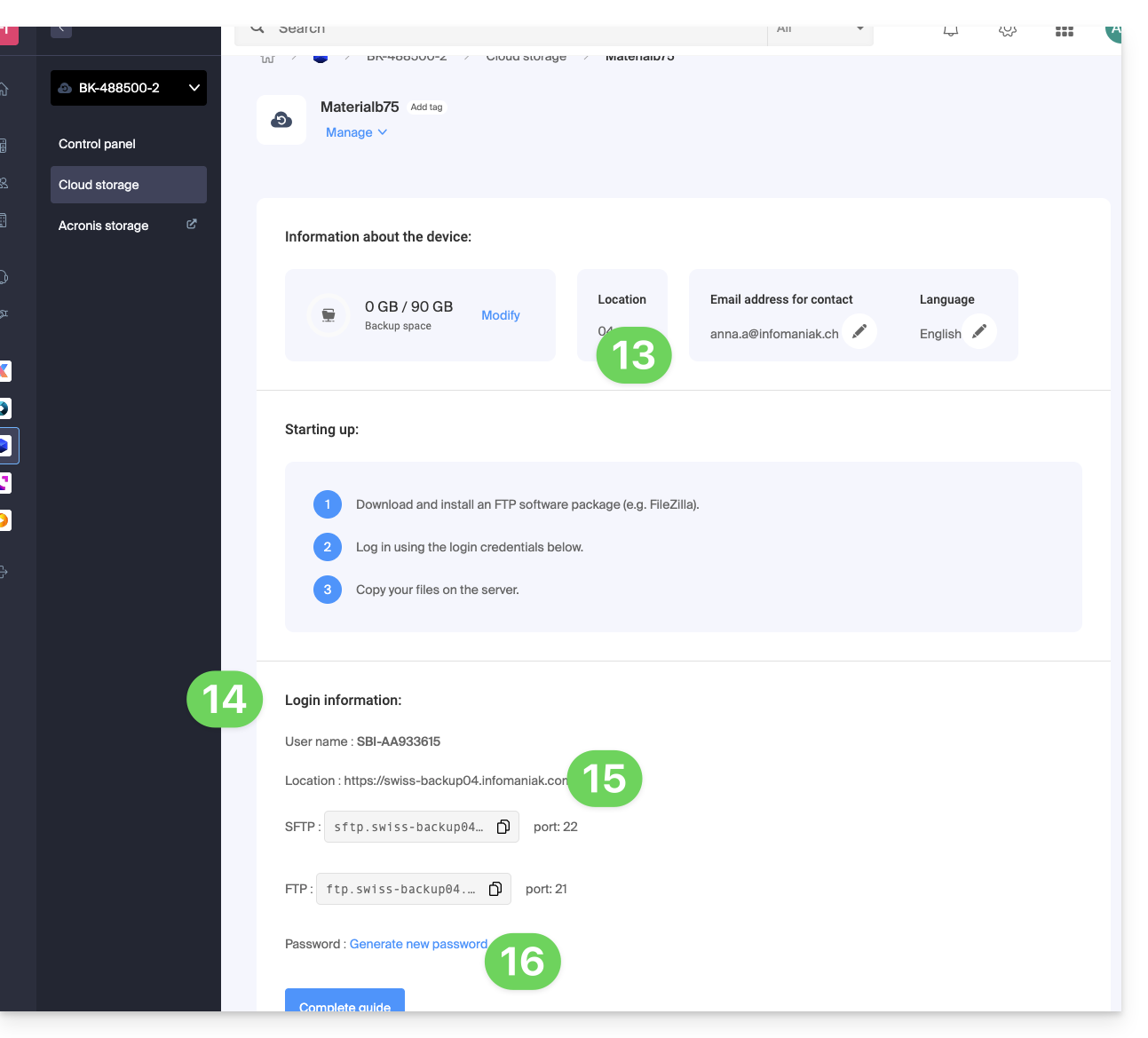
- This section includes the number representing the location, which is useful for completing some of the information you will need to provide when configuring your backup application.
- This section provides all the connection information.
- The location or host server name for the SFTP and FTP connection below, along with the port number (default ports for these protocols).
- The password (to be generated using the blue link, which will open the wizard in a browser popup, or via the link received by email):
What's next?
Once the device has been added to the Swiss Backup interface within the Infomaniak Manager, you can configure the application of your choice to start your Cloud backups using the protocol mentioned in this guide.
Link to this FAQ: https://faq.infomaniak.com/2545
Has this FAQ been helpful?