Knowledge base
1000 FAQs, 500 tutorials and instructional videos. Here, there are only solutions!
Manage your my kSuite signature in Mail Infomaniak
Update 08/04/2026
This guide details the Signature section found in the emails you send from the web app Mail in Infomaniak's my kSuite (online service ksuite.infomaniak.com/mail).
Introduction
- It is not possible to remove the automatic addition of the Infomaniak mention in the lower part of your my kSuite emails.
- It is possible to delete the Infomaniak mention that is automatically inserted when composing a new message.
- You can also add your contact details or any other information of your choice to the signature that is automatically inserted into each new message.
- If needed, my kSuite+ offers even greater flexibility.
Manage your email signature
To add your name or any other information above the Infomaniak mention at the bottom of each of your messages:
- Click here to access the Infomaniak Mail web app (online service ksuite.infomaniak.com/mail).
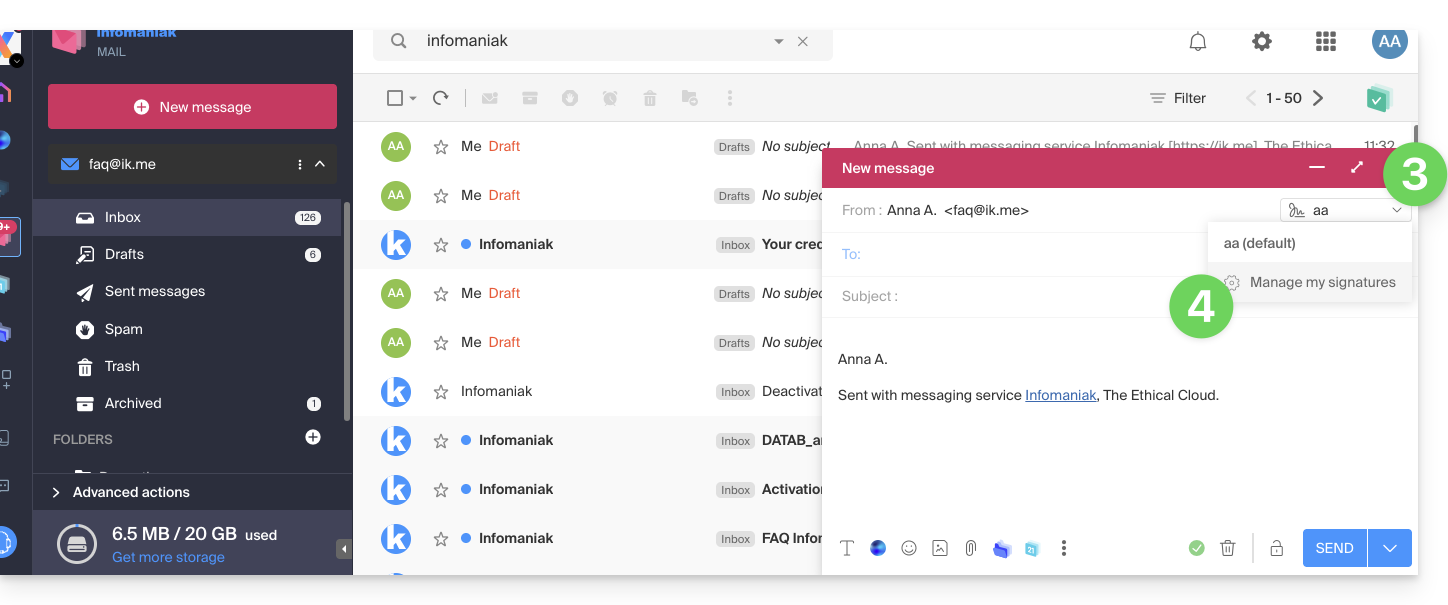
- Click on New message; the composition window will open with a pre-written signature that cannot be removed or modified without upgrading your plan (my kSuite+).
- Click on the chevron to the right of the signature selection menu.
- Click on Manage my signatures:
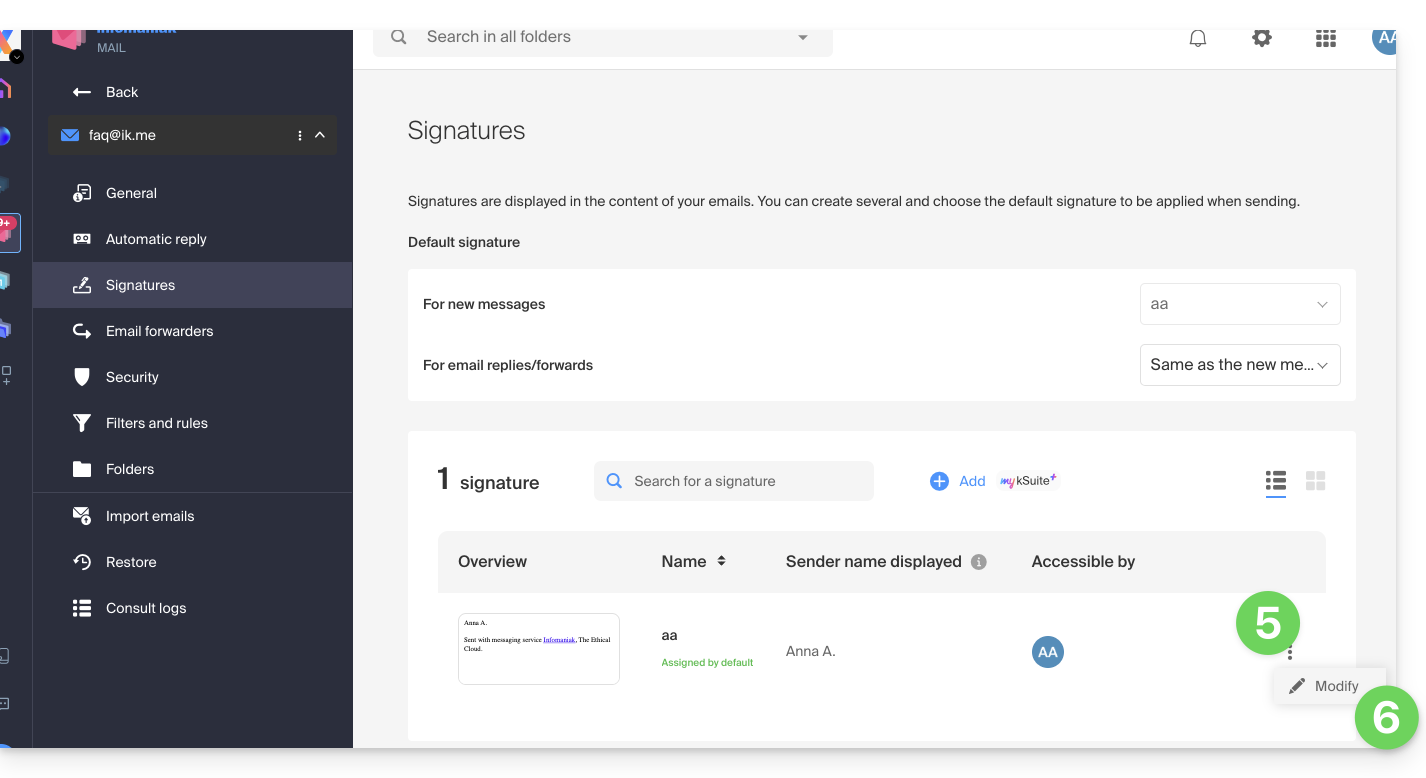
- Click on the action menu ⋮ located to the right of the signature in question.
- Click on Edit:
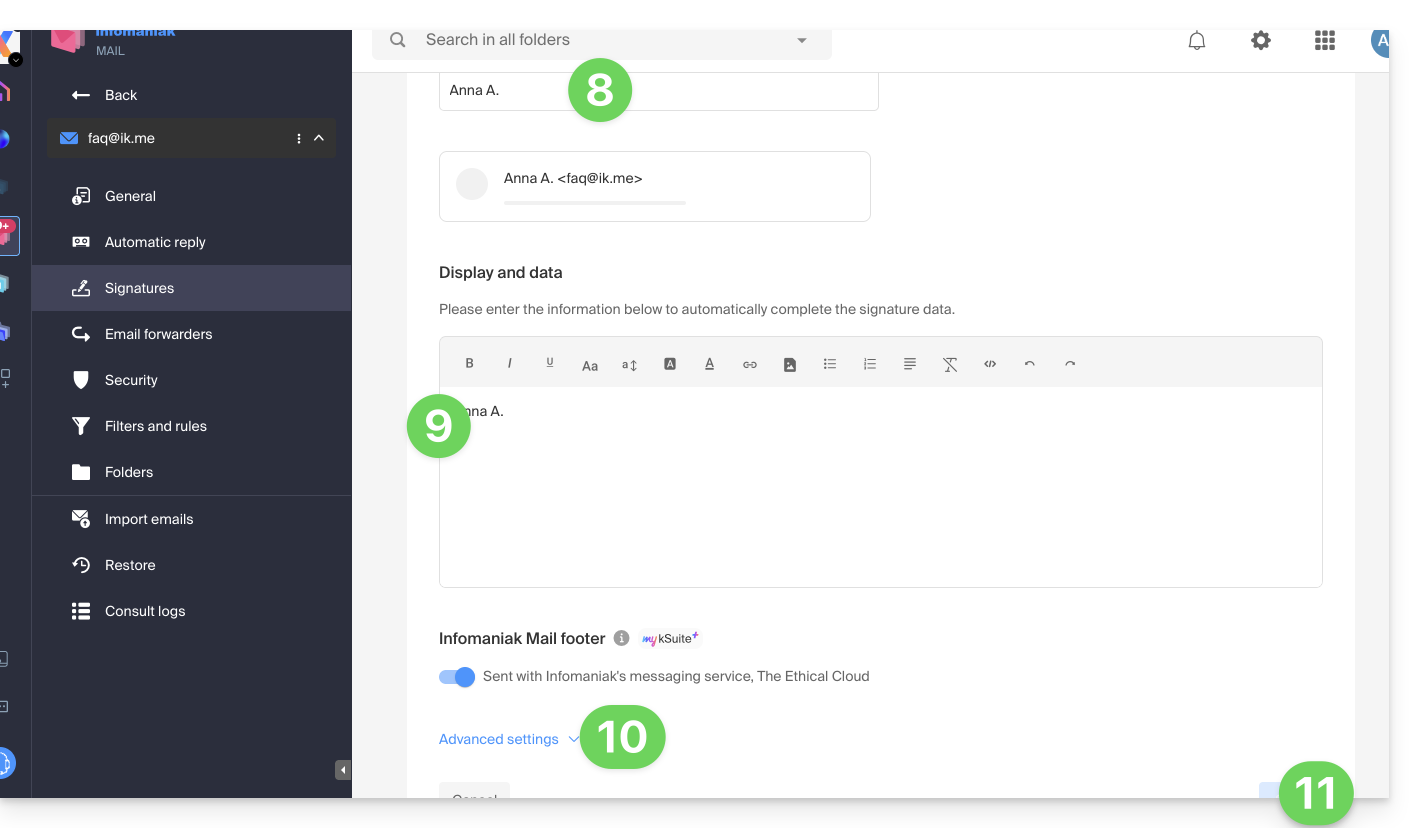
- Enter a name for your custom signature.
- Enter the name you want to display for your message when it reaches your recipients' inbox.
- Enter the content of your signature (formatted text, image, etc.).
- Manage the advanced settings if necessary (signature position).
- Click the button to save:
That's it, every new message you write will now include your new signature, in addition to the mandatory Infomaniak mention, and you can remove it on hover if needed: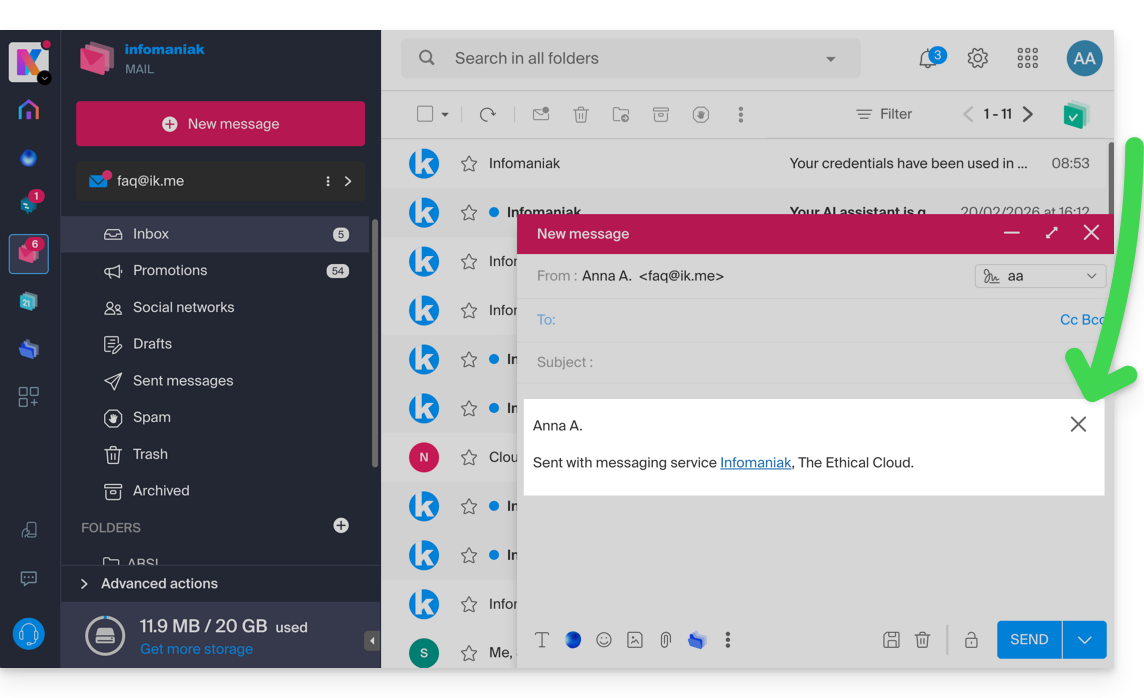
Link to this FAQ: https://faq.infomaniak.com/2538
Has this FAQ been helpful?