Knowledge base
1000 FAQs, 500 tutorials and instructional videos. Here, there are only solutions!
Edit an Office file on kDrive
This guide explains how to create, save, and edit an Office file (text, spreadsheet, presentation, etc.) on the web app kDrive (online service ksuite.infomaniak.com/kdrive) and on the mobile app kDrive (application for smartphone or iOS/Android tablet).
Note for LibreOffice users: to avoid display or formatting issues on kDrive, always convert your LibreOffice files (ODF: .ods, .odt, .odp) to their Microsoft Office XML equivalents (.xlsx, .docx, .pptx) before editing online.
Using the native editor
kDrive natively integrates the Docs, Grids, and Points applications, which allow you to create, edit, and collaborate online on Word .docx, Excel .xlsx, and PowerPoint .ppsx documents. This allows you to work with:
- text document
- spreadsheet
- presentation
- notes
- draw.io document for diagrams, schematics, and wireframes
A feature allows you to add a bookmark (a shortcut to your favorite section of your document, or the equivalent of a web page anchor) that you can easily share with your contacts. You can also easily notify a user in your organization directly on the document.
Please refer to the guide on this topic.
Using Microsoft Office Online
Another editing solution is available to you (kDrive Pro or kSuite Business / Enterprise required): the Microsoft Office Online editor.
Consult the guide on this topic.
Define the default editor
✘ UNAVAILABLE with
kSuite Free / kSuite Standard
my kSuite / my kSuite+ (ik.me, etik.com, ikmail.com)
kDrive Solo / kDrive Team / kDrive Pro
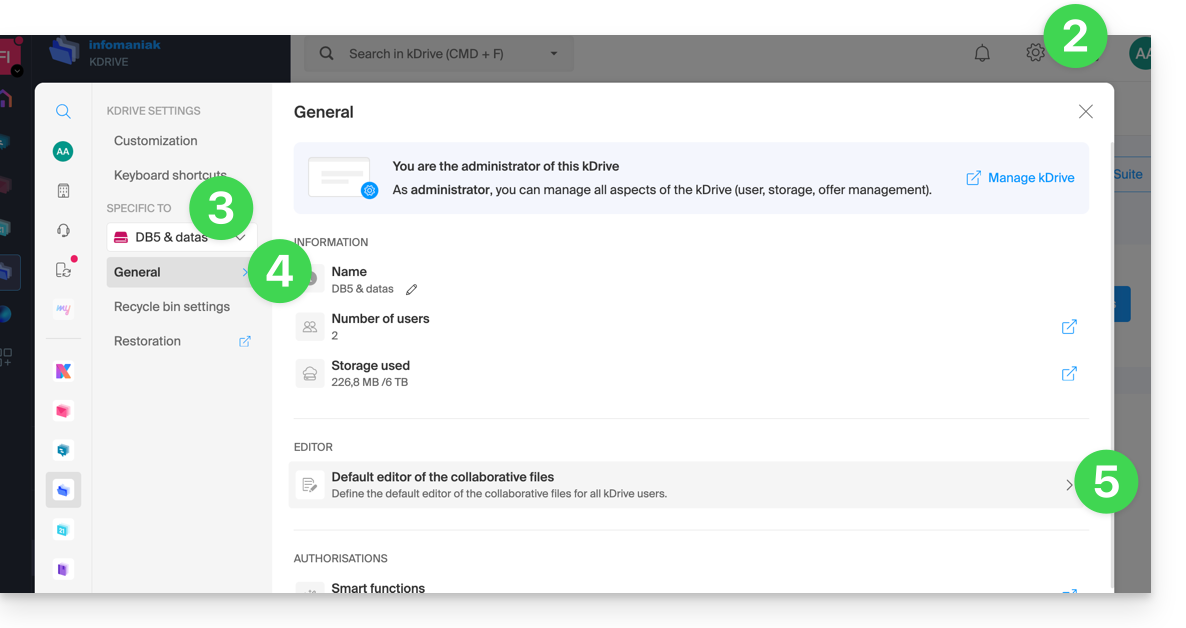
To specify which editor should always be used by default to open your collaborative Office files (text documents, spreadsheets, presentations, etc.) from the two options presented above:
- Click here to access kDrive on your Infomaniak kSuite (❓: help).
- Click on Settings in the top right corner.
- Check or select the relevant kDrive from the drop-down menu in the left-hand menu.
- Click on General in the left-hand menu.
- Click on Default editor:
- Choose the default editor for the following file types:
.docx/.doc.xlsx/.xls.pptx/.ppt
Link to this FAQ: https://faq.infomaniak.com/2531
Has this FAQ been helpful?