Knowledge base
1000 FAQs, 500 tutorials and instructional videos. Here, there are only solutions!
Use the "t3ext-infomaniak-auth" extension for Typo3
Update 10/09/2026
This guide concerns the Typo3 module t3ext-infomaniak-auth, which allows users to log in to your Typo3 site (whether hosted by Infomaniak or not) using their Infomaniak credentials (❓: help).
Introduction
- Allowing login via an Infomaniak account on your Typo3 site enables your visitors to comment, register for courses, or access any content reserved for members with a single click, without having to create a new account.
- This saves them time and provides a more secure method for you, as you don't have to manage additional passwords.
- This external module functions identically to the "Log in with Google", "Log in with Facebook", or “Log in with Apple” options; it uses the standard OAuth2 and OpenID Connect protocols to enable single sign-on (SSO).
A. Create an application with Auth Infomaniak
To do this:
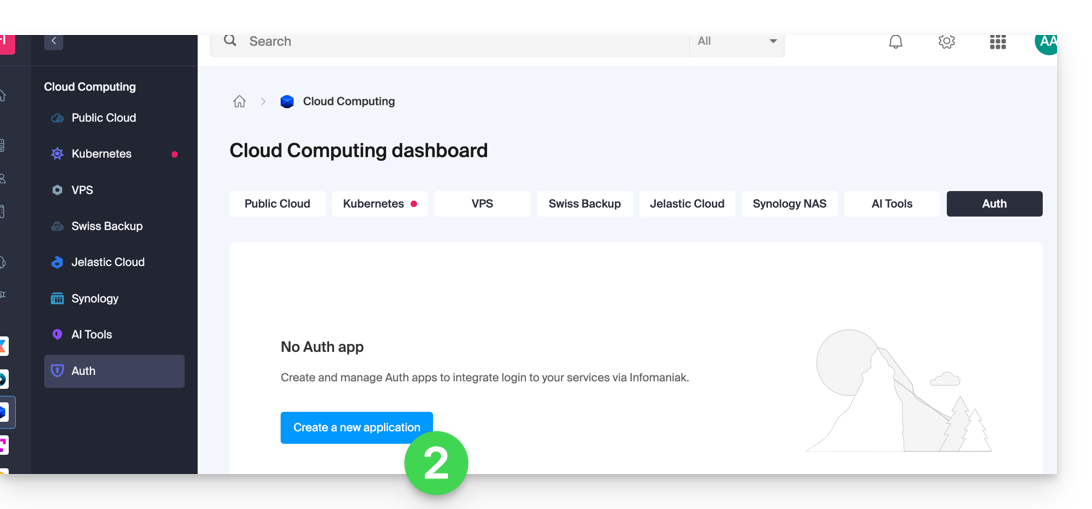
- Click here to access the Auth service management in your Infomaniak Manager (❓: help).
- Click on the button to Create a new application:
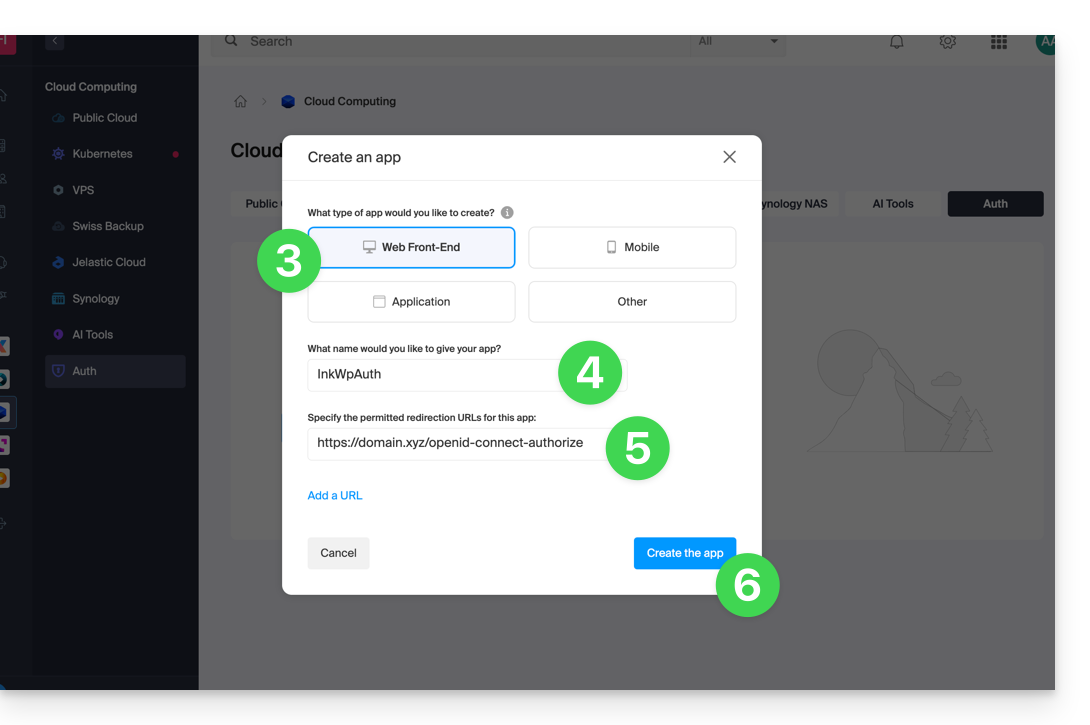
- Choose the “Web Front-End” type.
- Give your application a name.
- In the URL field, enter the domain name corresponding to your WordPress site followed by
/openid-connect-authorize(❓: help). - Click the button to complete the app creation:
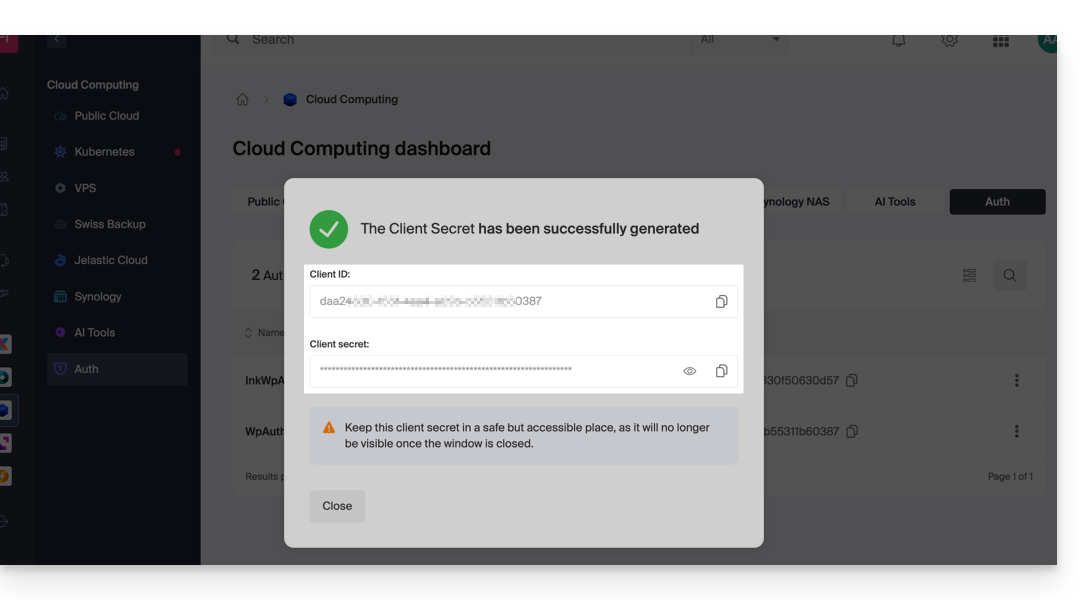
- Carefully note the 2 pieces of information obtained when finalizing your OAuth2 application:
B. Configure the Typo3 extension
Via SSH, deploy Composer if necessary to install the t3ext-infomaniak-auth extension (❓: help).
Next, in Typo3:
- Log in to your Typo3 administration interface.
- If necessary, check that the Infomaniak extension is enabled:
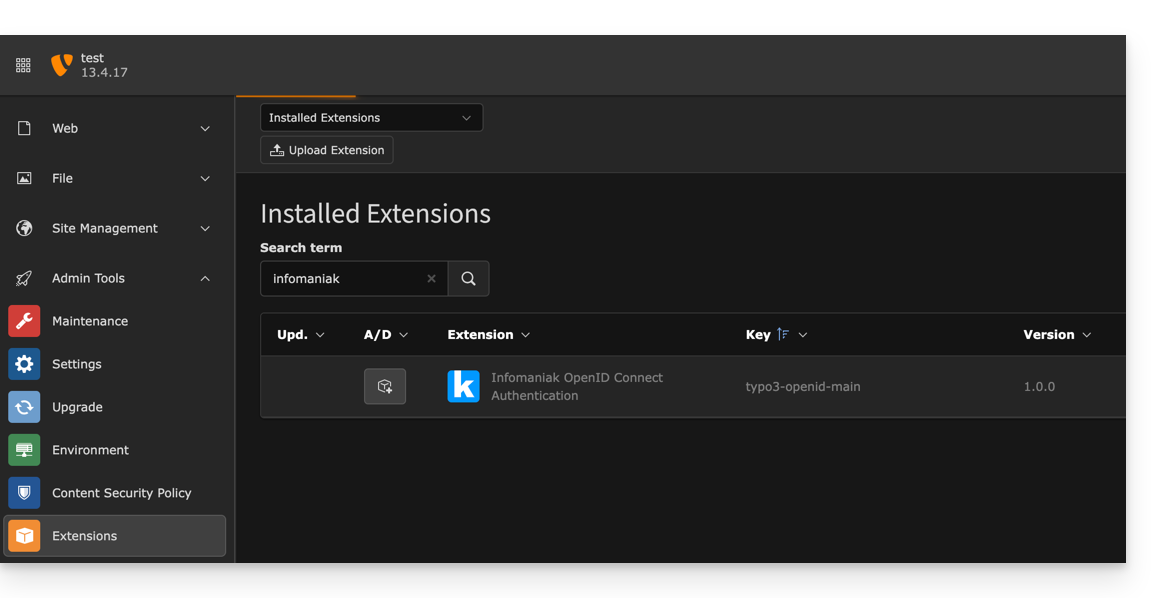
- If necessary, check that the Infomaniak extension is enabled:
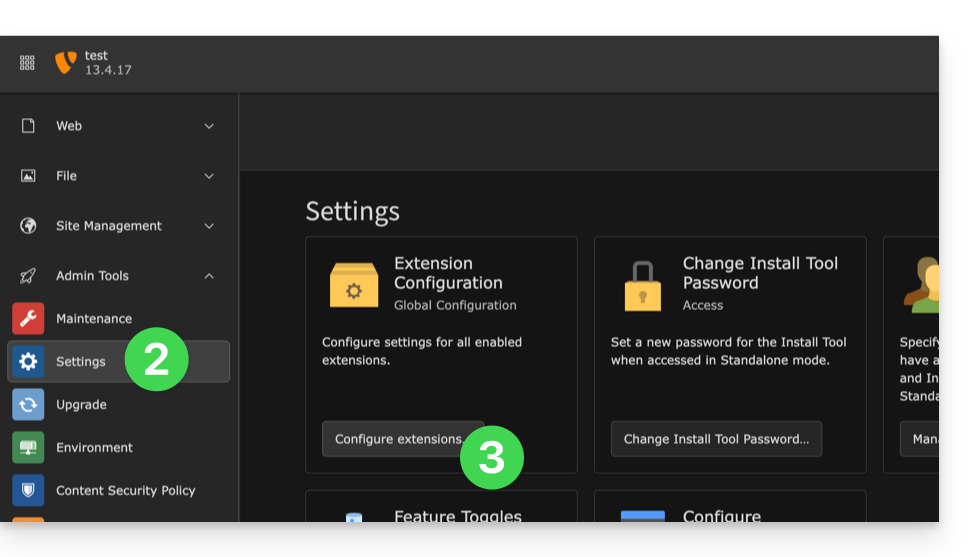
- Click on Settings in the left-hand menu.
- Click on Configure extensions:
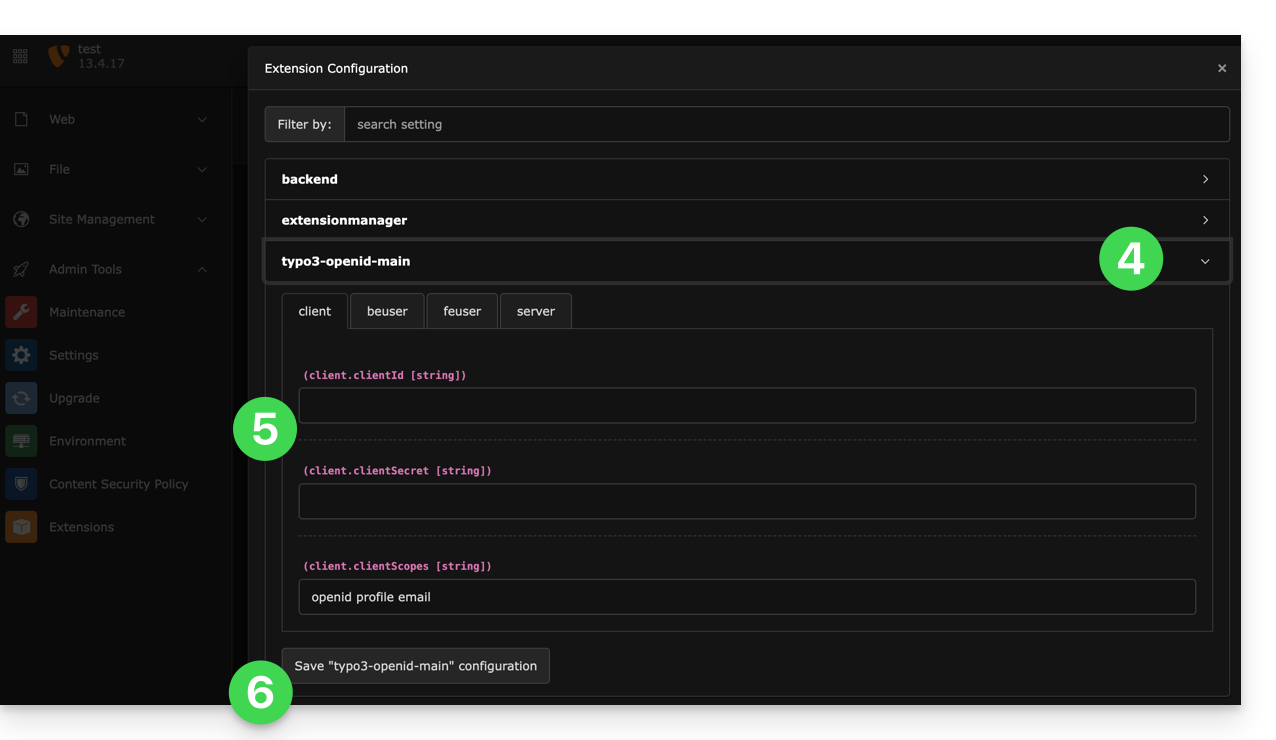
- Click on the chevron to the right of typo3-openid-main to expand the client tab.
- The only fields to fill in are clientID and clientSecret, and these values come from the information obtained in step A above.
- Remember to save the changes made to the extension settings:
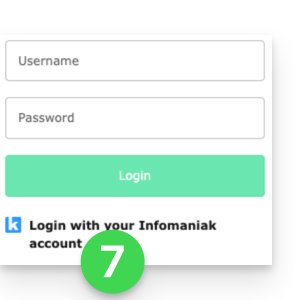
- An additional button for logging in with your Infomaniak credentials is now visible on your user login page:
Link to this FAQ: https://faq.infomaniak.com/2530
Has this FAQ been helpful?