Knowledge base
1000 FAQs, 500 tutorials and instructional videos. Here, there are only solutions!
Integrate VOD / AOD media
Update 03/24/2026
This guide explains how to embed video/audio files imported into an Infomaniak VOD/AOD service on web pages.
Preamble
- This VOD/AOD integration code is unique and corresponds to the parameters you are currently specifying on the page.
- It allows you to embed the same video with different display configurations according to your needs.
- Subsequently, you will be able to modify the parameters of this integration by adjusting them from the integration history page on the Infomaniak Manager.
- You can also share a media in different ways.
Generate and copy the integration code
The integration code is on your VOD interface; here is an example with a default Player:
- Click here to access the management of your product on the Infomaniak Manager (need help?).
- Click directly on the name assigned to the product concerned:
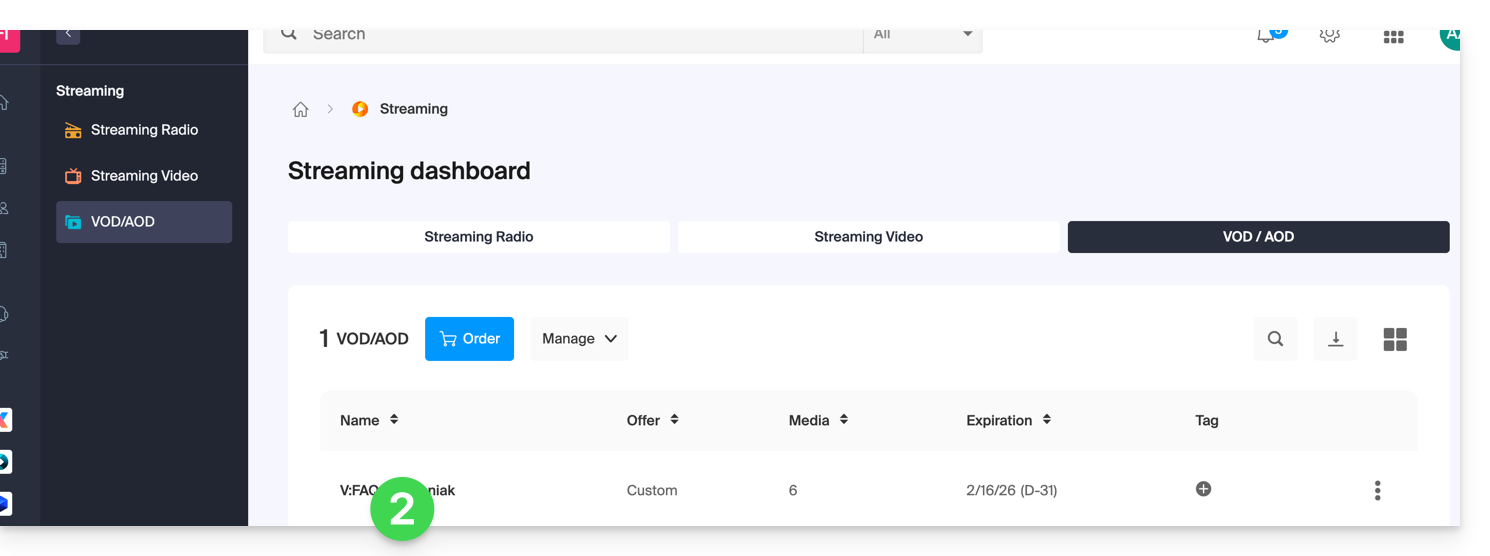
- Click on Media in the left sidebar menu.
- Click on Media Management in the left sidebar menu.
- Click on the media concerned in the displayed table:
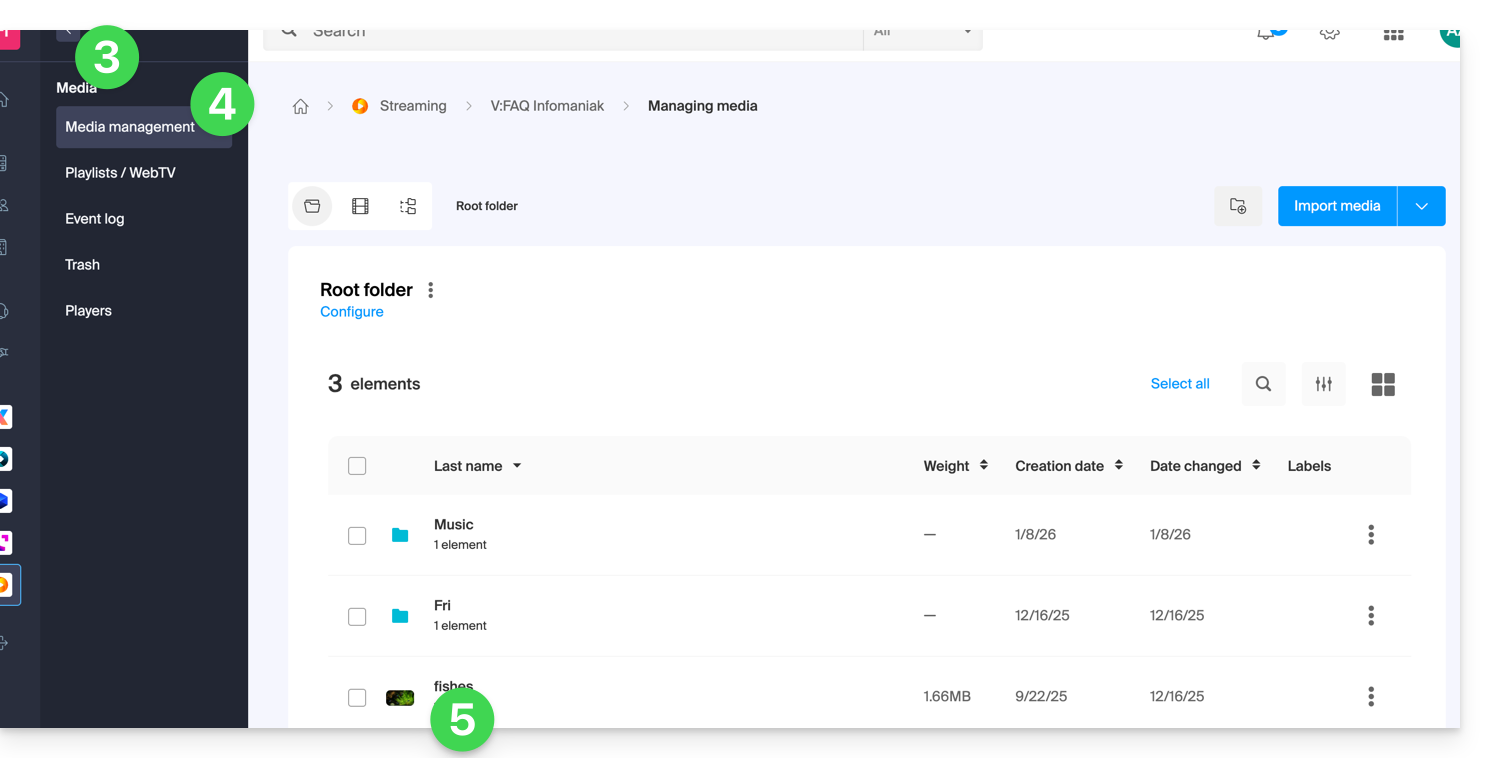
- Click on the blue Embed button.
- Click on Create an integration:
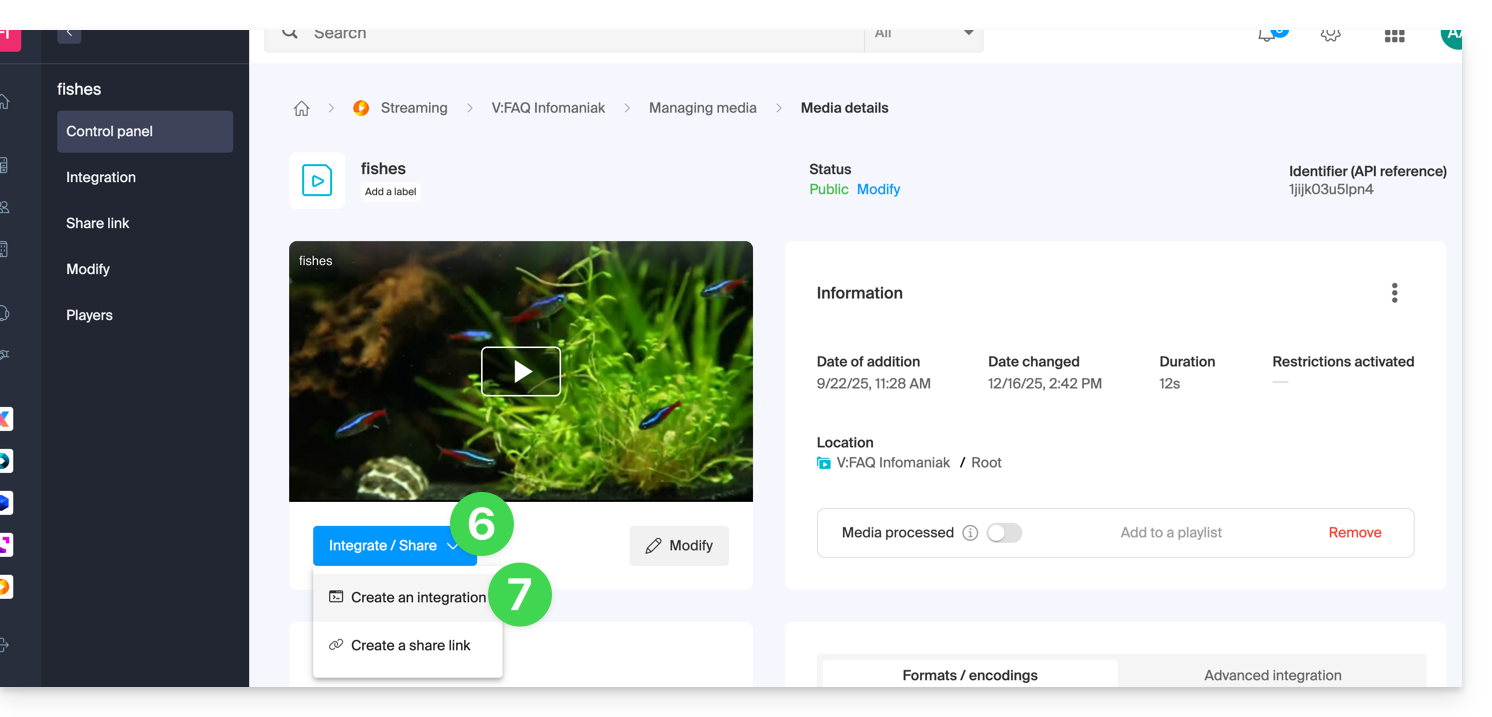
- Customize the media integration (Player to use, timestamp, loop playback, automatic start, …).
- Choose the thumbnail to display when the media is stopped.
- Click on the button to Generate the integration code:
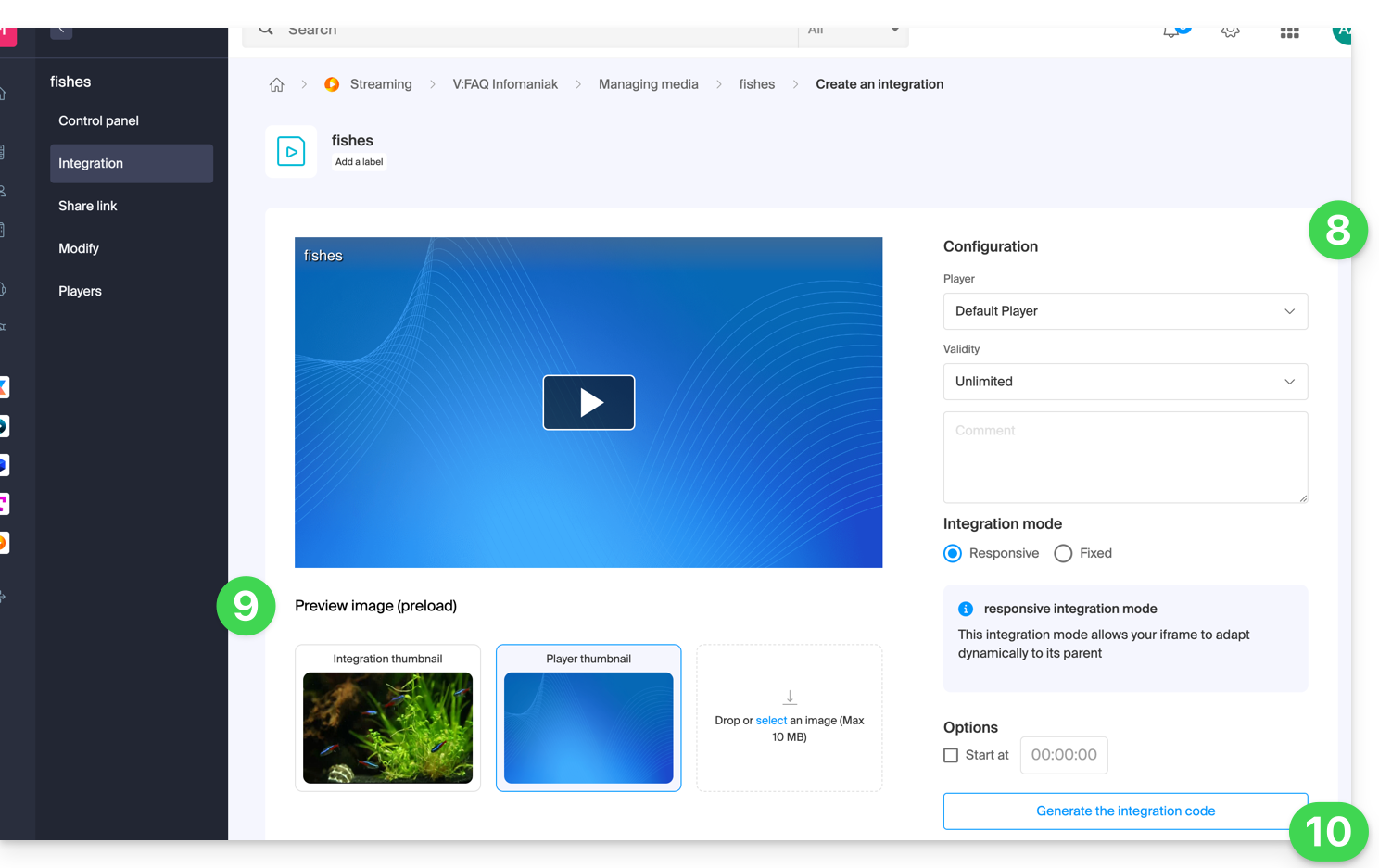
- Copy the code to embed it in the location of your choice:
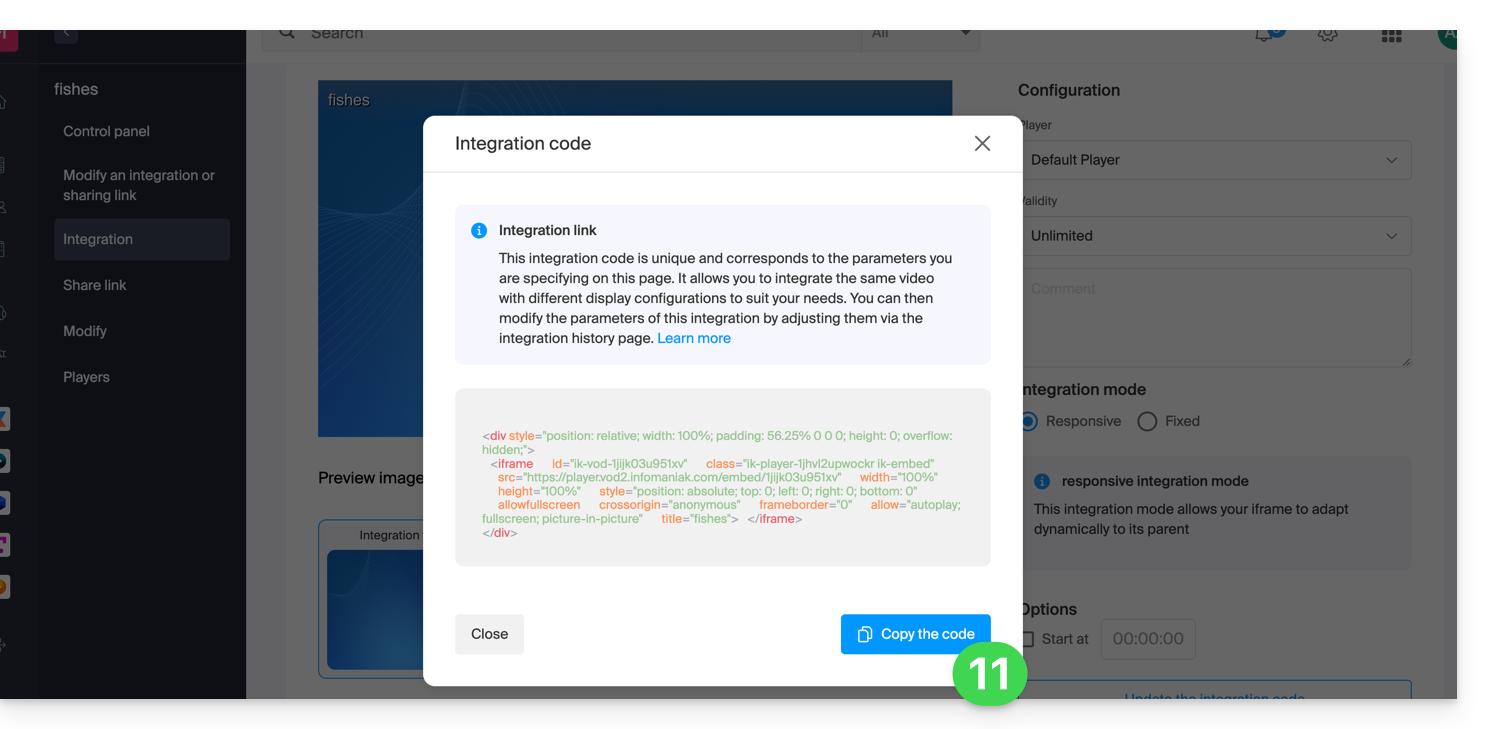
The media will be inserted with the default Player, but you have the option to choose from your created Players the one to be proposed during the integration.
Modify a previous integration
To customize the integration of your media that has already been done, and with the aim of keeping the corresponding code without having to insert it again:
- Click here to access the management of your product on the Infomaniak Manager (need help?).
- Click directly on the name assigned to the product concerned.
- Click on Media in the left sidebar menu.
- Click on Media Management in the left sidebar menu.
- Click on the media concerned in the table that appears.
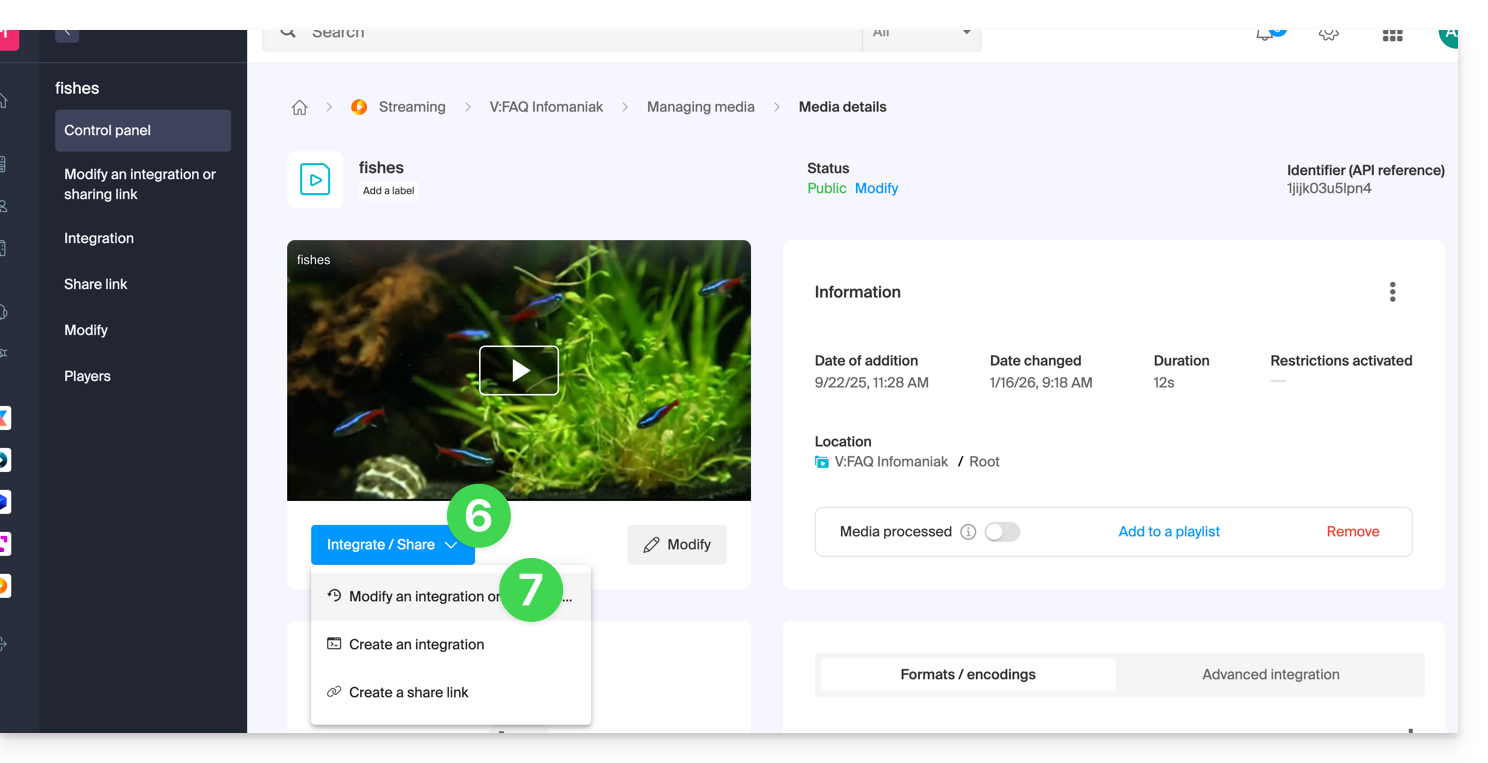
- Click on the blue button Integrate.
- Click on Modify an integration:
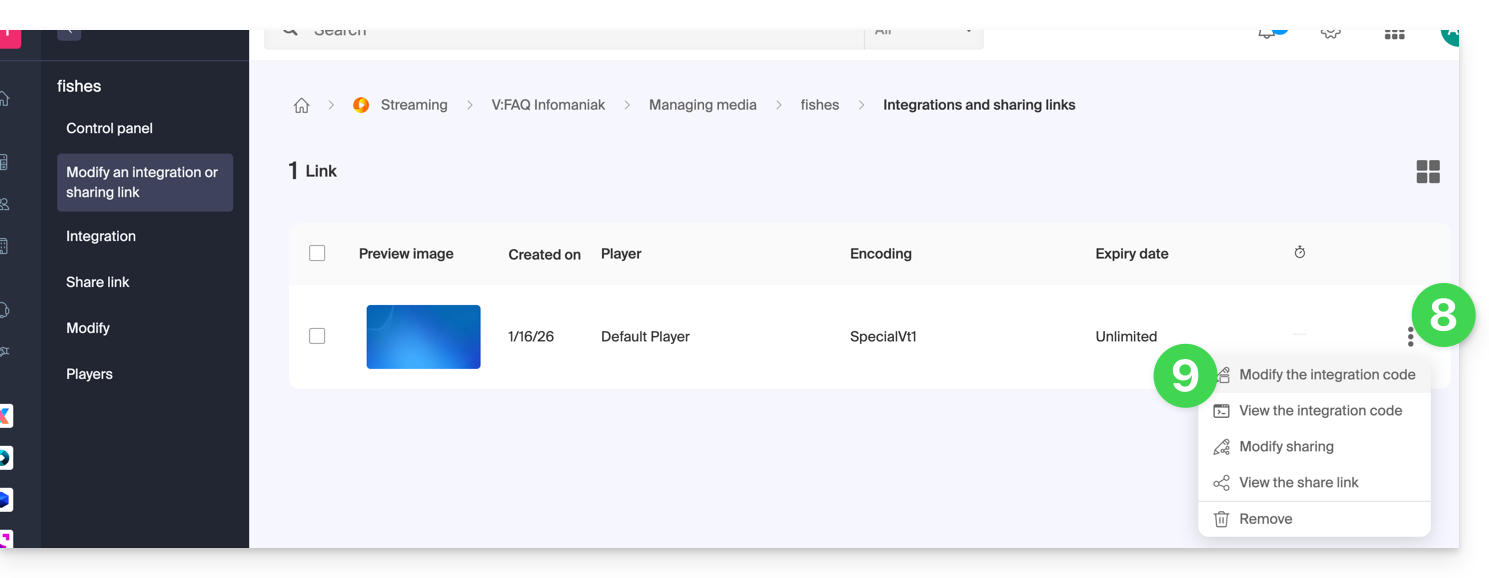
- Click on the action menu ⋮ to the right of the object concerned in the table that appears.
- Click on the desired element to obtain/modify the integration codes:
Paste the integration code…
On the web page of your choice, paste the HTML code where desired: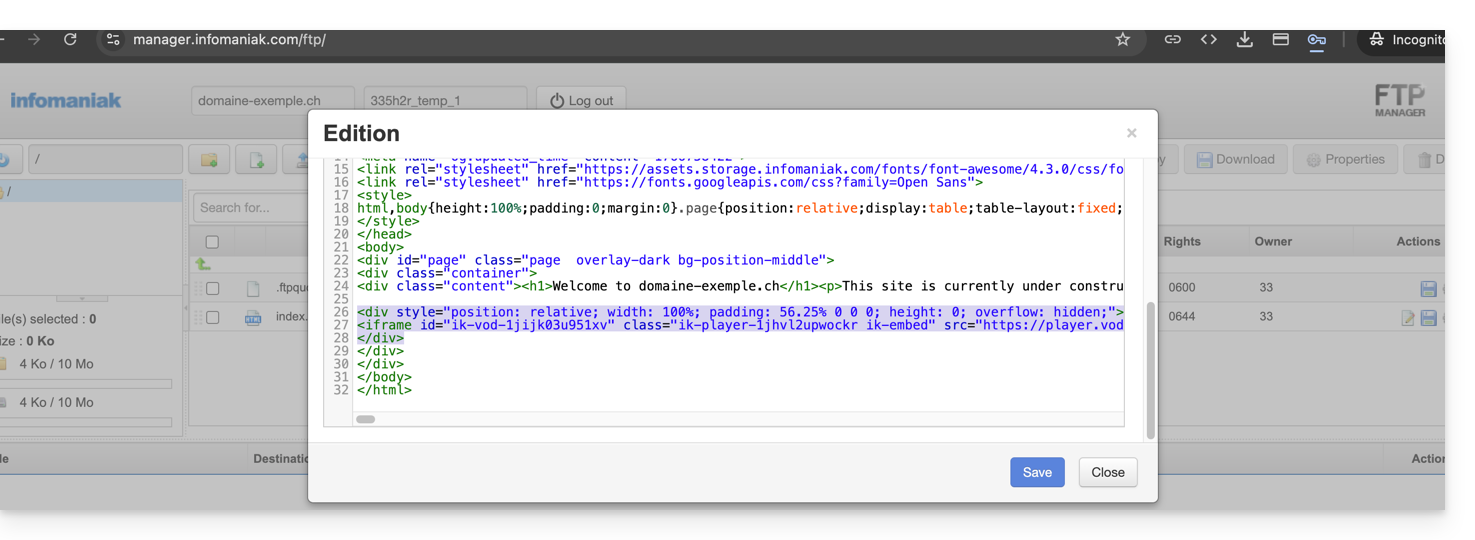
… on Infomaniak Site Creator
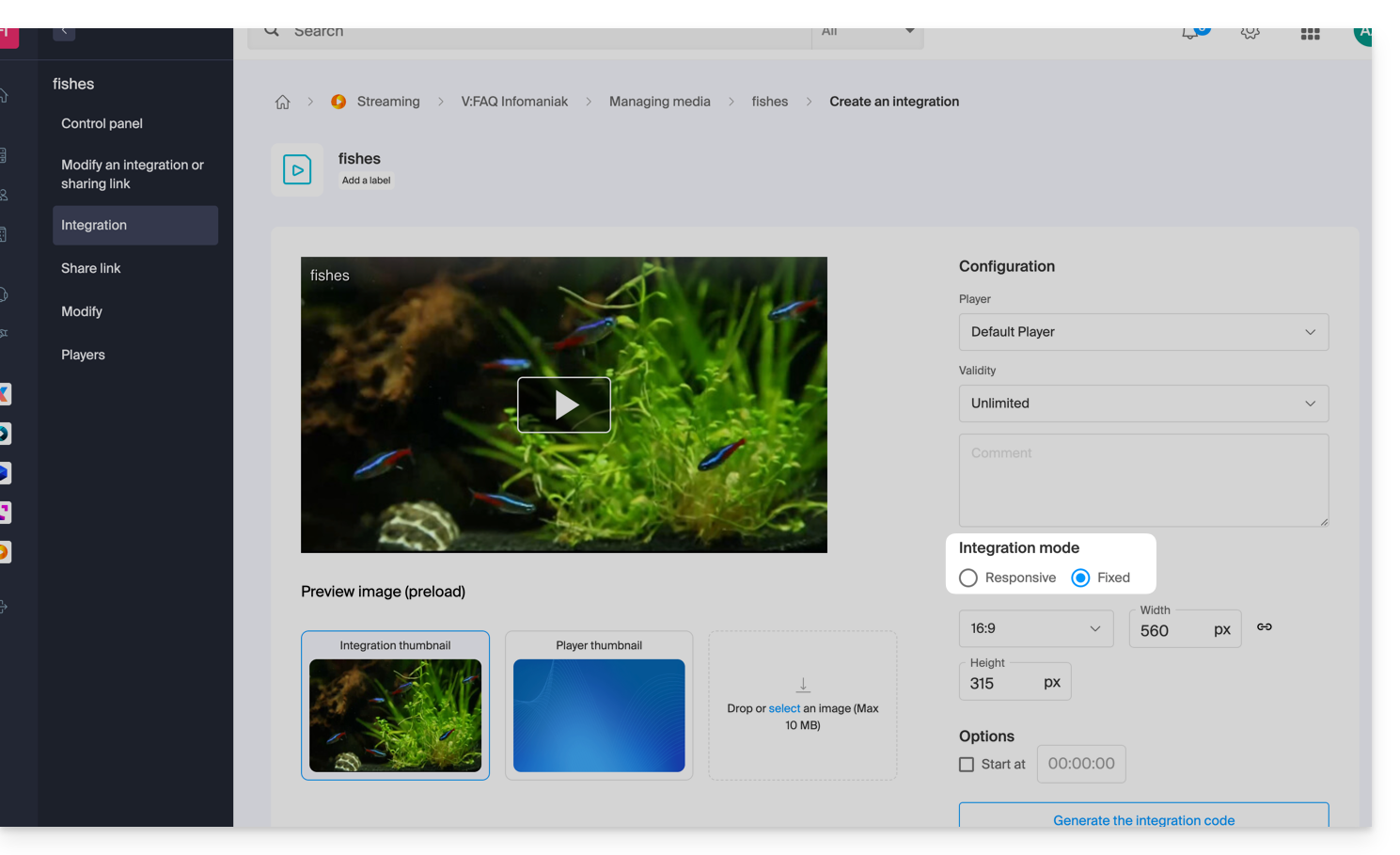
- For Site Creator, you need to generate a “Fixed” integration code (and not “Responsive / Reactive”):
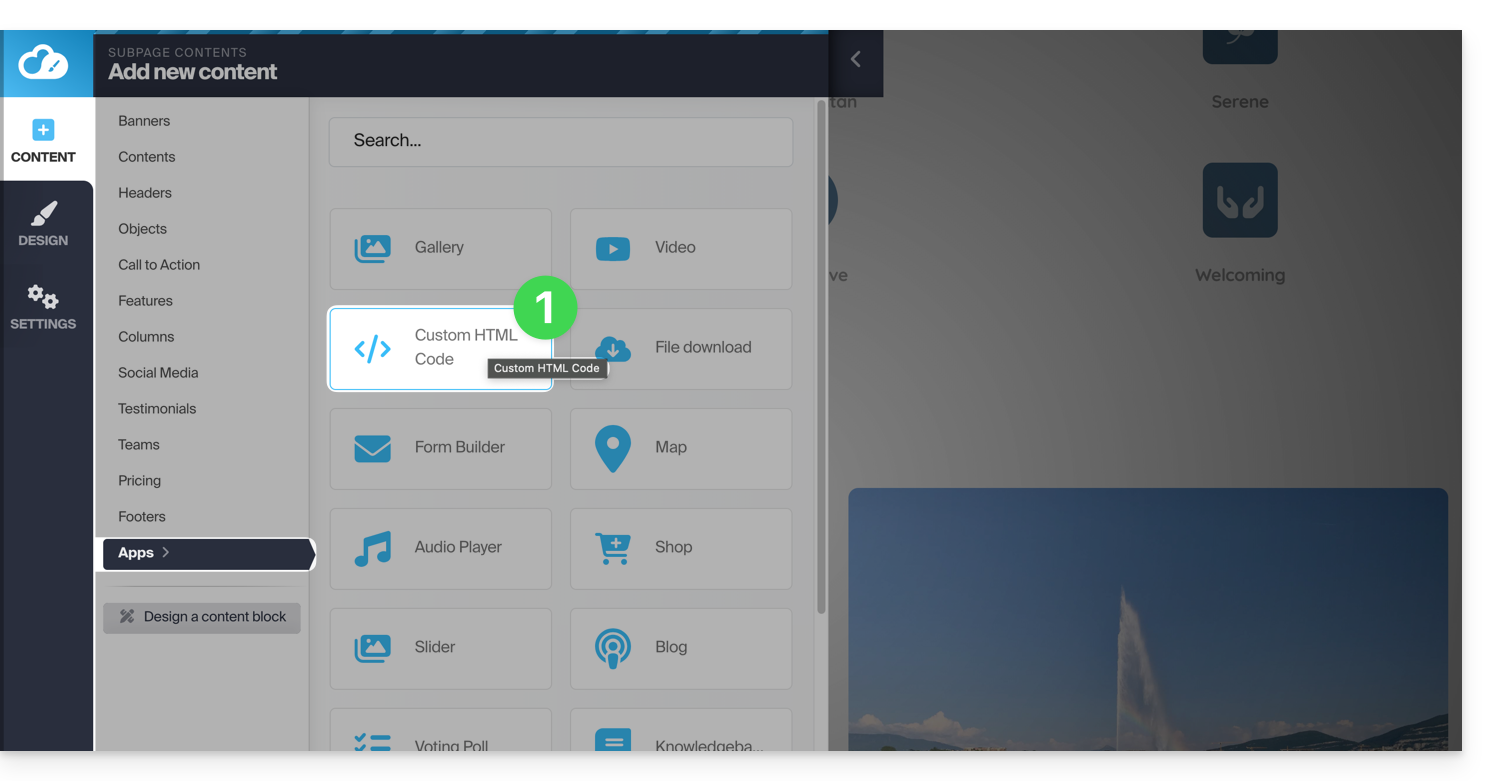
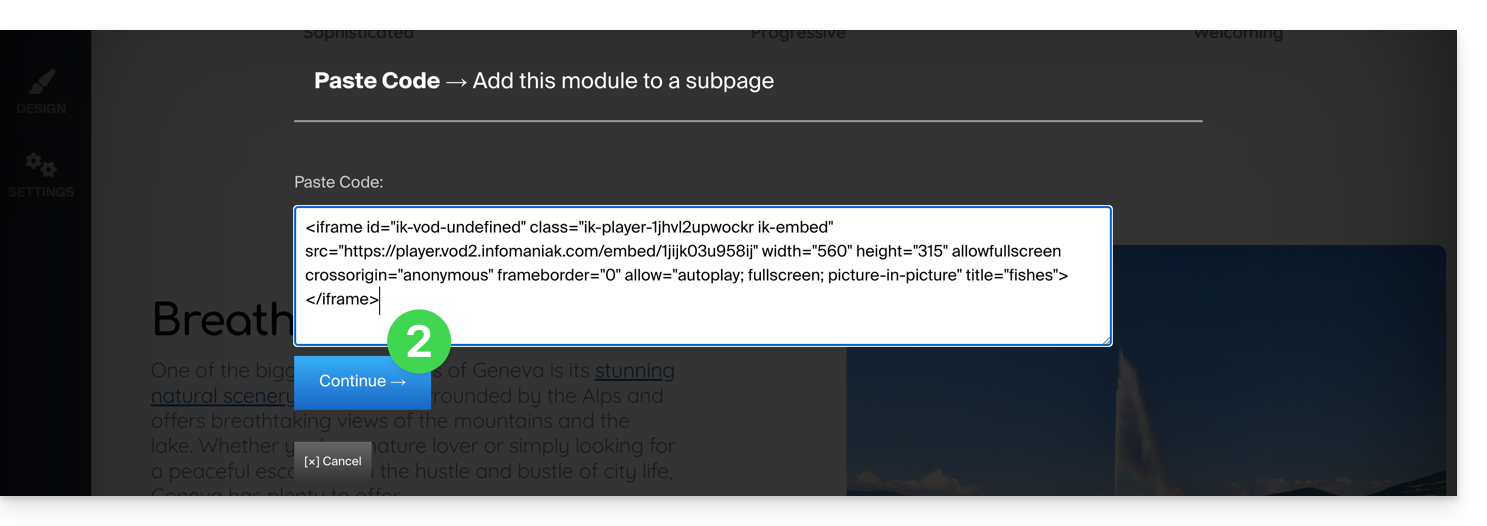
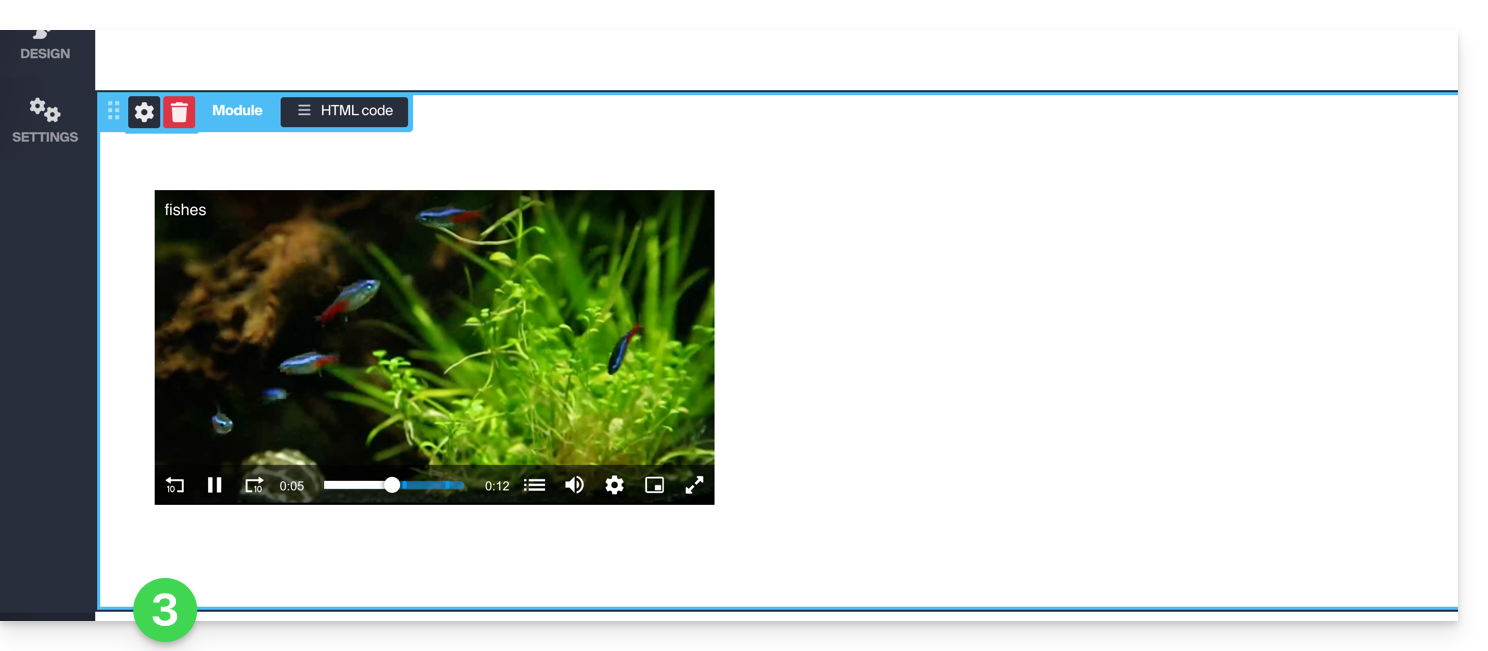
- Then paste this code on Site Creator within a “Custom HTML code” block:
Link to this FAQ:
Has this FAQ been helpful?