Knowledge base
1000 FAQs, 500 tutorials and instructional videos. Here, there are only solutions!
Install Ghost on Infomaniak hosting
This guide details the installation and maintenance of Ghost on an Infomaniak web hosting, in order to obtain a platform optimized for blogging and editorial publishing, a high-performance alternative to Substack or Medium.
Prerequisites
- A Node.js website (version 22 recommended).
- Active SSH access.
- A MySQL/MariaDB database.
- Stop the Node.js application from your Node.js site dashboard before performing any technical operations.
Ghost Installation
To do this:
- Connect to your server via SSH (need help?).
Run the following commands to launch the installer:
# Clone tools repo git clone {{URL_5}} cd hosting-tools/h3-ghost # Run installation script bash ./install.sh- The script will now:
- ask you a few questions (website URL, database information, SMTP, etc.)…
- download and configure Ghost automatically…
- take a few minutes — please be patient!
Answer the questions carefully, using the details you have noted.Do not close the terminal until it has finished!
Configuration du Manager (Node.js)
Once the script is complete, go to your Infomaniak Control Panel:
- Click here to access the hosting & website management section in your Infomaniak Manager (❓: help).
- Click on the name of the Node.js website in question.
- Click on Manage advanced settings:
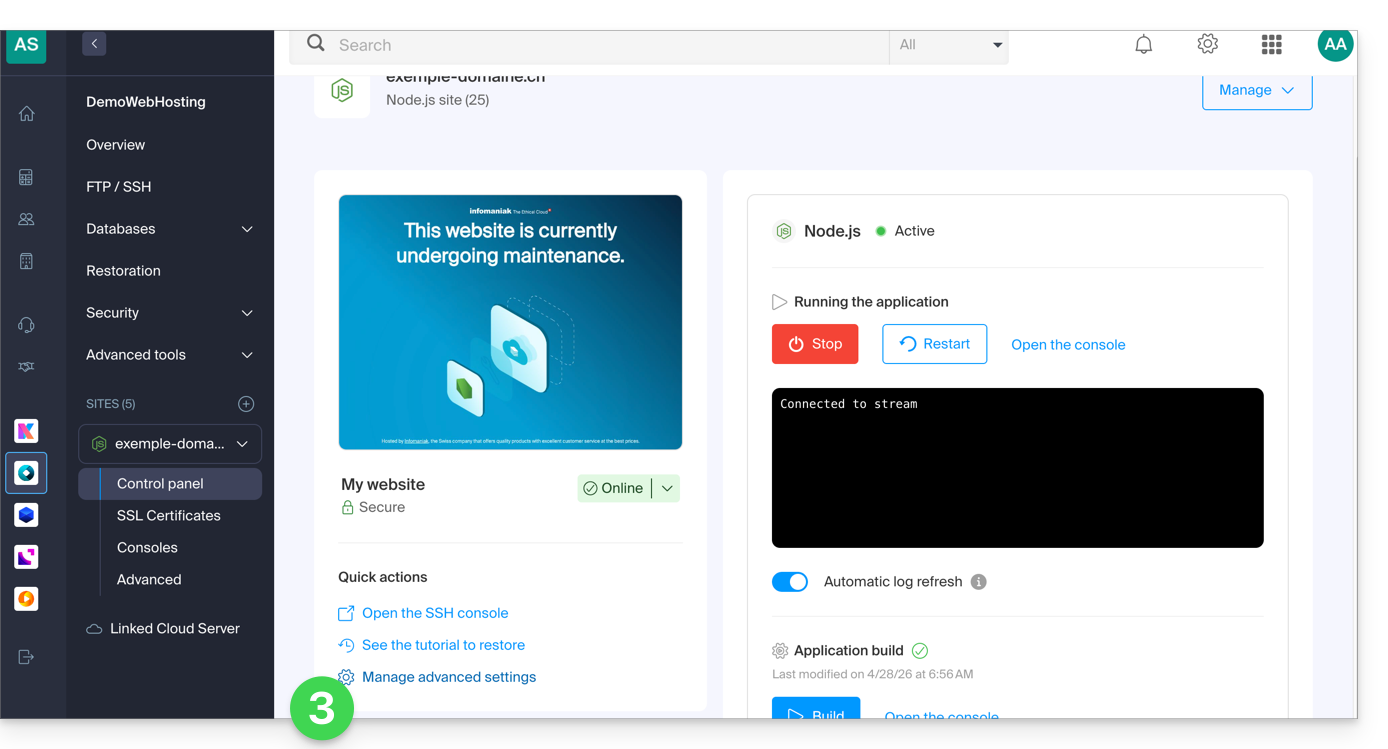
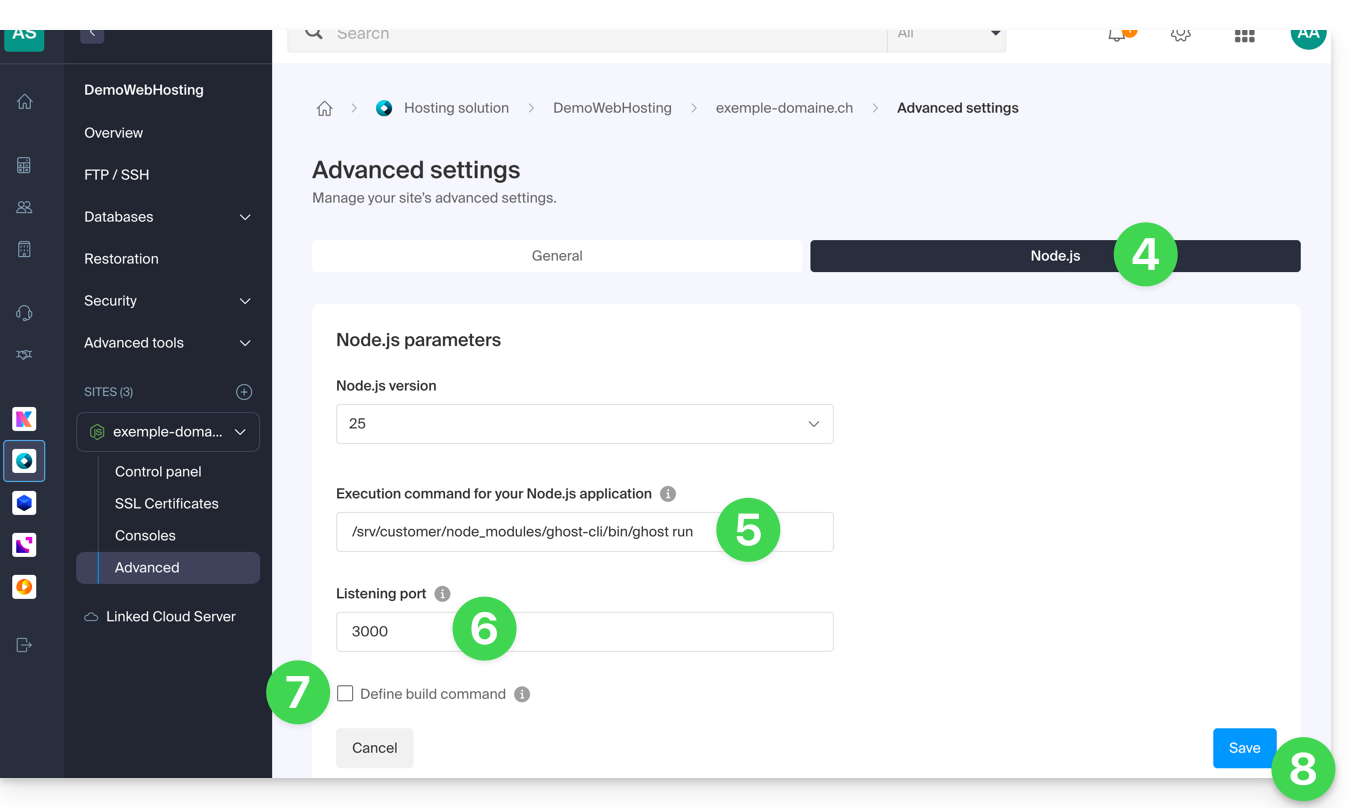
- Click on the Node.js tab to access the settings.
In the execution command field, enter:
/srv/customer/node_modules/ghost-cli/bin/ghost run- Make sure the port number is
3000. - Disable the build order case.
- Click the Save button at the bottom of the page:
- On the main page, click the Start button (or Restart if it is already running).
- Confirm the operation if necessary:
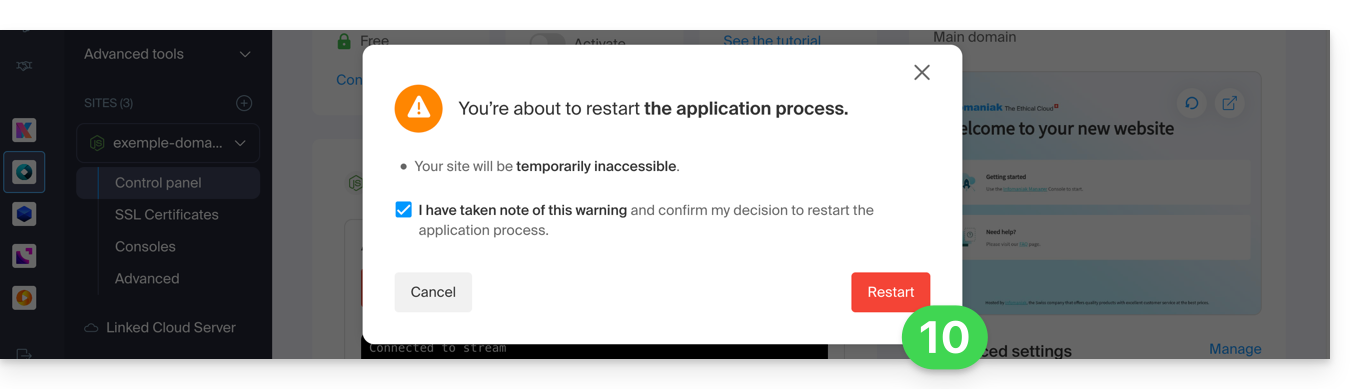
- Observe the logs showing the database creation and application startup.
Ghost Update
Before updating: do you want to back up your data? Please refer to this other guide.
To update Ghost CMS to the latest version or a specific version, follow these steps:
- Stop the Node.js application in the Infomaniak Manager.
Access the directory of your Ghost site
# Navigate to your Ghost site directory
cd ~/sites/ghost-site-name
Replace
ghost-site-namewith the actual name of your folder (e.g., blog, mysite, etc.).Make sure the file permissions are correct (this operation may take several minutes):
# Ensure file permissions are correct
find ./ -type d -exec chmod -v 00775 {} \;
Check for available updates:
# Check available ghost updates
/srv/customer/node_modules/ghost-cli/bin/ghost check-update
For the latest version (this operation may take several minutes):
# Update to the latest version
/srv/customer/node_modules/ghost-cli/bin/ghost update
For a specific version, such as v5 (this operation may take several minutes):
# Update to a specific version (e.g., v5) /srv/customer/node_modules/ghost-cli/bin/ghost update v5- Why go through v5? If you are using Ghost v4 and want to upgrade to v6, Ghost requires you to go through v5 as an intermediate step. This is essential for major version upgrades.
- Wait until the update is complete, then restart the application from the website dashboard to apply the update.
Done! Access your Ghost blog
Next, go to your website's URL to get started:
- Open your browser and go to
https://domain.xyz/ghost(replacedomain.xyzwith your current domain). - The first time:
- You will create an administrator account (your login for the blog)...
- Then, you can start writing articles!
User / mail configuration
To create the first user, add /ghost to your site's URL (e.g., https://ghost.domain.xyz/ghost) and follow the wizard.
You can also configure the "member portal support address": when new members wish to register, the portal sends the double opt-in confirmation from a specific address.
By default, this is the “noreply” address for your domain. To update it, navigate to “Settings”, “Membership”, “Portal Settings”, “Customize”, and “Account Page”: 
Troubleshooting technical incompatibility between Ghost and MariaDB
Certain SQL queries cause HTTP 400 errors on MariaDB, resulting in this type of error:
[2025-01-01 12:54:28] ERROR "GET /ghost/api/admin/posts/6834625e35802b06f1496305/?formats=mobiledoc%2Clexical&include=tags%2Cauthors%2Cauthors.roles%2Cemail%2Ctiers%2Cnewsletter%2Ccount.conversions%2Ccount.clicks%2Csentiment%2Ccount.positive_feedback%2Ccount.negative_feedback" 400 27ms
Could not understand request.
Error ID:
8f2b0d90-3a30-11f0-a25f-fd9c83e1cf02
Error Code:
ER_BAD_FIELD_ERROR
----------------------------------------
Error: select `posts`.*,
...
If needed, a patch exists to adapt Ghost's behavior.
To use this patch, enter the following command:
# Enter the current version folder and apply the MariaDB patch
cd current
curl -L {{URL_15}} | patch -p0
Link to this FAQ: https://faq.infomaniak.com/2519
Has this FAQ been helpful?