Knowledge base
1000 FAQs, 500 tutorials and instructional videos. Here, there are only solutions!
Reply to an email using kChat
Update 10/12/2026
This guide explains how to reply to an email visible in the Mail Infomaniak web app (online service ksuite.infomaniak.com/mail) by sending the reply directly in the kChat web app (online service ksuite.infomaniak.com/kchat) or the desktop app, as a private message to the email sender.
Introduction
- This feature allows you to reply to an email directly within kChat, with a reminder of the original message to facilitate understanding.
- It aims to streamline collaboration by enabling quick responses to emails without leaving the kSuite environment.
- It reduces the back-and-forth between traditional email and the collaborative workspace.
Reply to an email via kChat
Prerequisites
- The button providing access to the feature will only appear if the email was received from a sender associated with kSuite, and this within the same Organization as the user who wishes to reply.
- To display a shortcut to this feature, as in the first point 3 below, please refer to this other guide.
When you have received an email from a colleague and you want to reply to them directly on kChat:
- Click here to access your emails on your Infomaniak kSuite (❓: help).
- Open the message you want to reply to using kChat.
- Click on the kChat icon in the email toolbar:
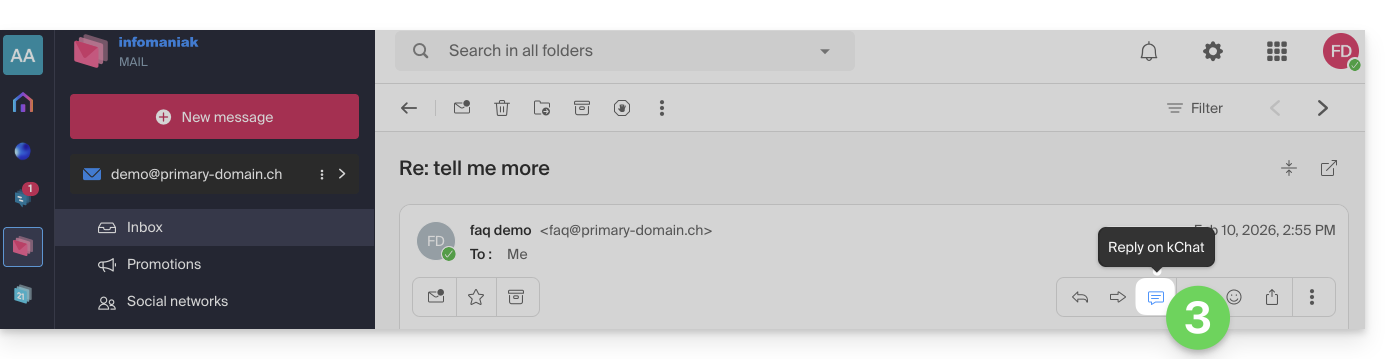
- You can also click on a button below the message:
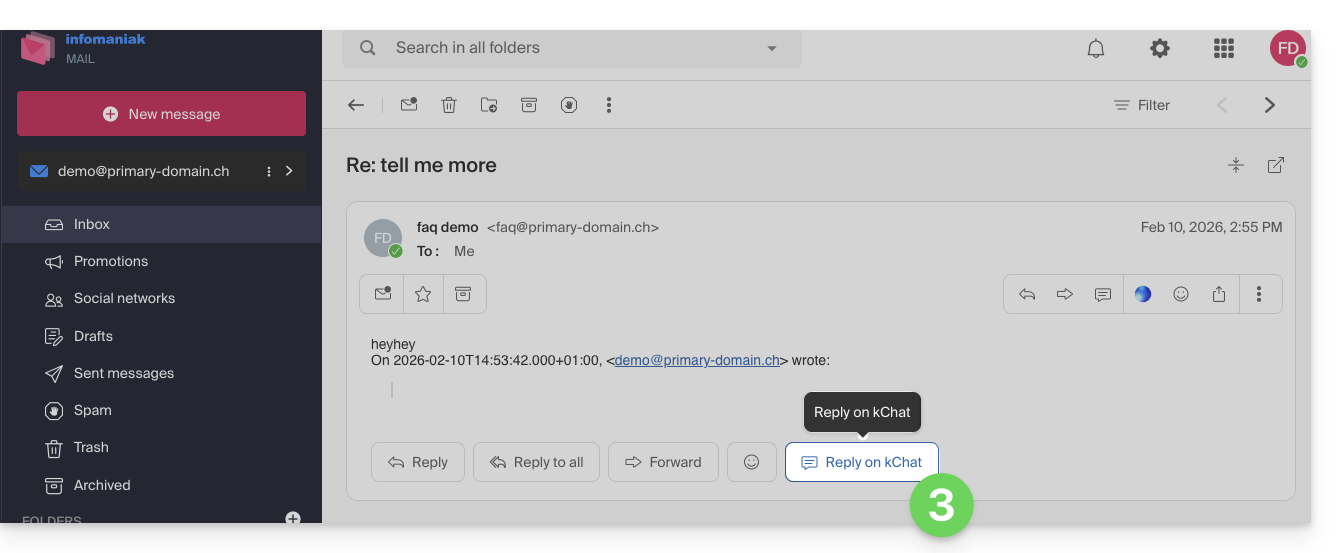
- You can also click on a button below the message:
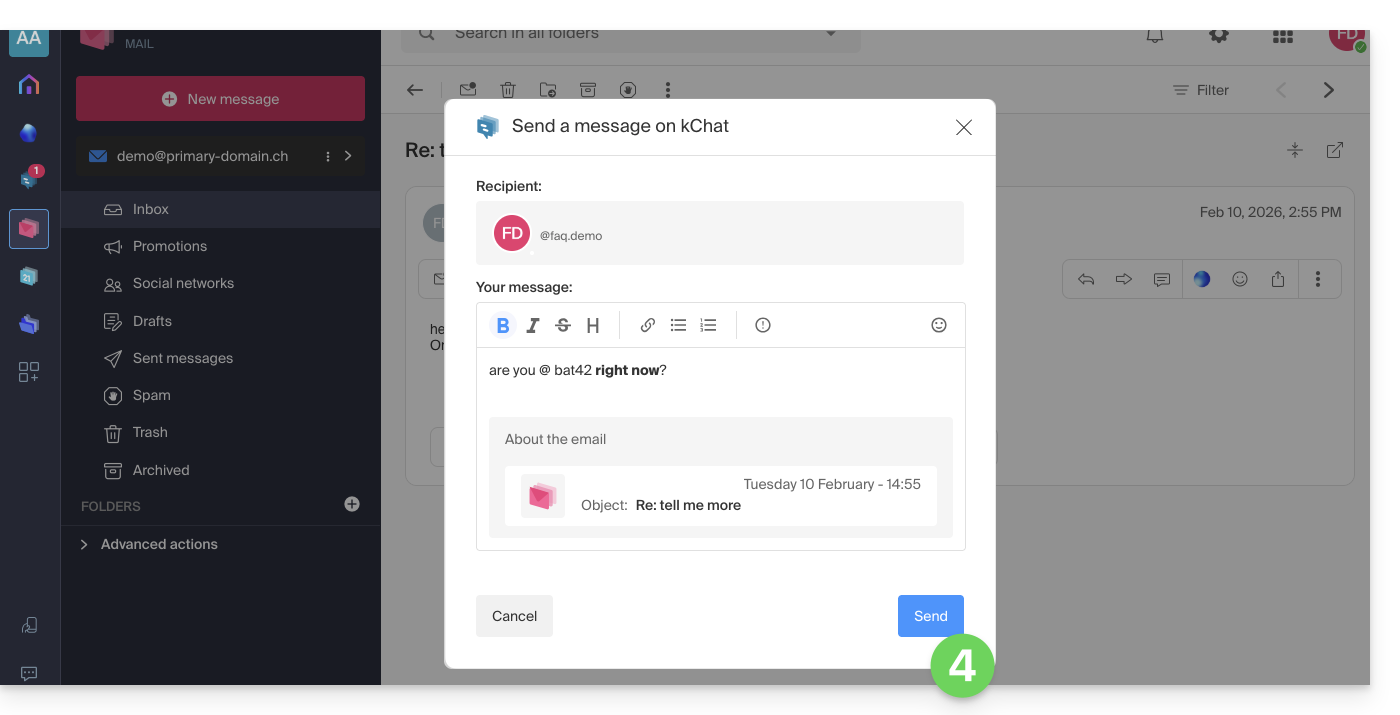
- Write your kChat message, format it if necessary, and click the Send button in the bottom right corner:
- Your contact receives the message on kChat, along with a box displaying the original email (date & time, subject):
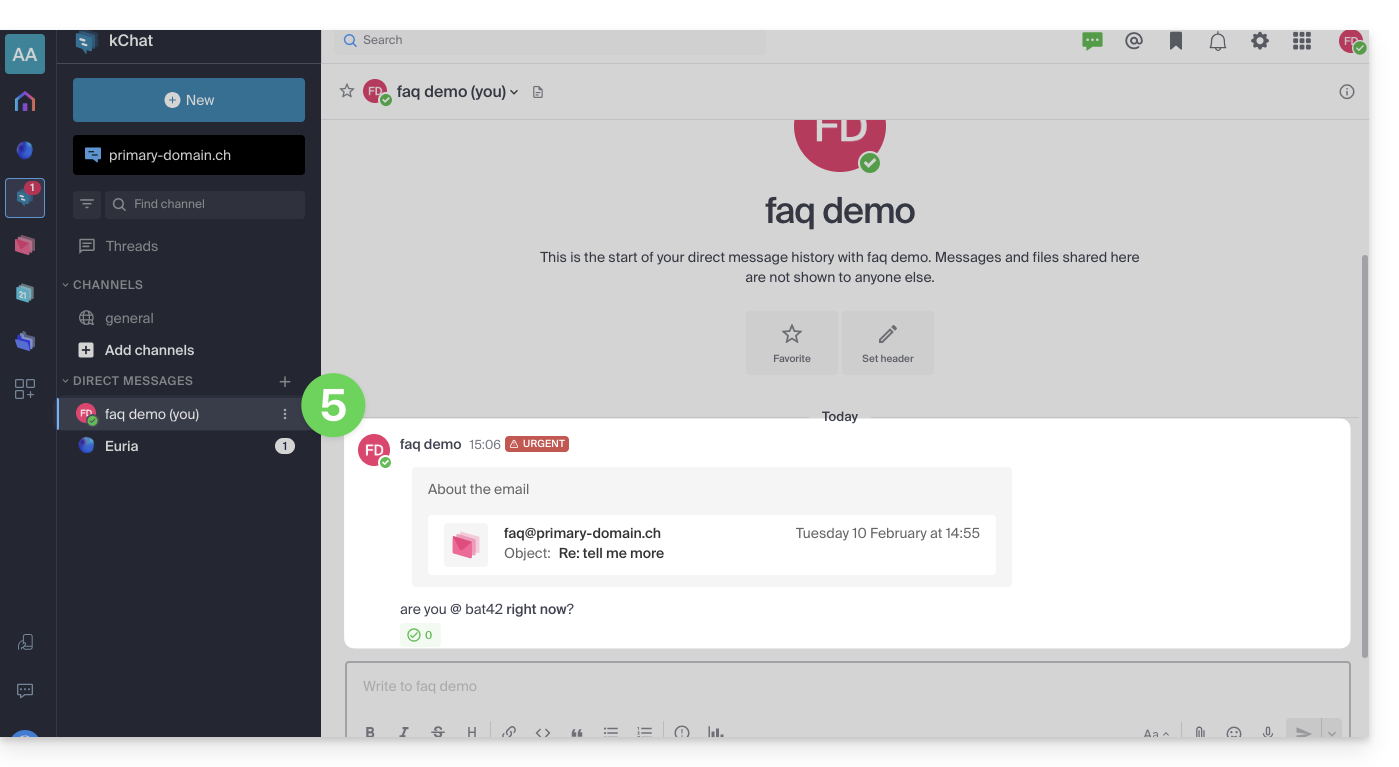
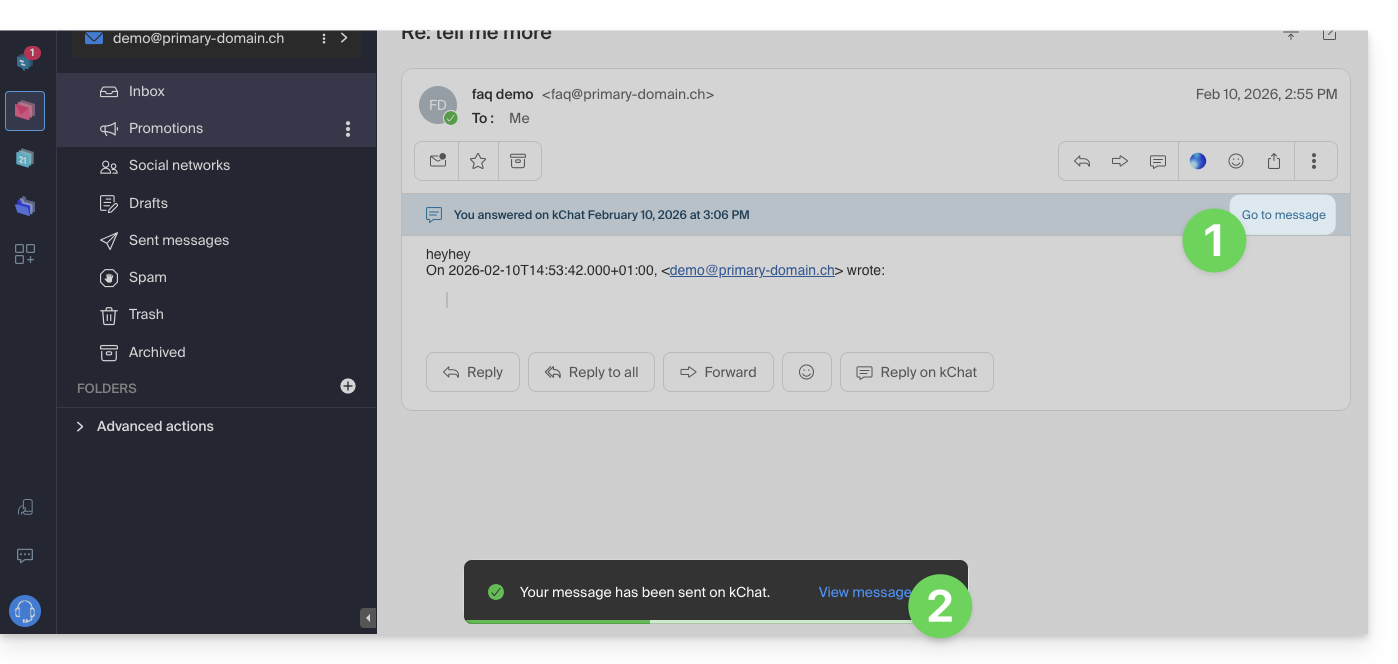
You can access this message on kChat (in the thread of private messages exchanged with your contact, as shown above), but also:
- in an information banner on the email conversation,
- in the confirmation message after sending:
Link to this FAQ: https://faq.infomaniak.com/2512
Has this FAQ been helpful?