Knowledge base
1000 FAQs, 500 tutorials and instructional videos. Here, there are only solutions!
Understanding kDrive Permissions and Inheritance
This guide details the different permissions and access rights to files/folders in Infomaniak's kDrive, including restoring the inheritance of rights to the content of folders and subfolders.
Introduction
- Refer to this other guide if you are looking for general information about sharing data on kDrive.
- Refer to this other guide for more specific information about sharing the shared folder.
- Refer to this other guide for information about the more general permissions for users within the Organization if they are part of it.
Types of access rights
A share (of a document, directory, etc.) on kDrive can be restricted: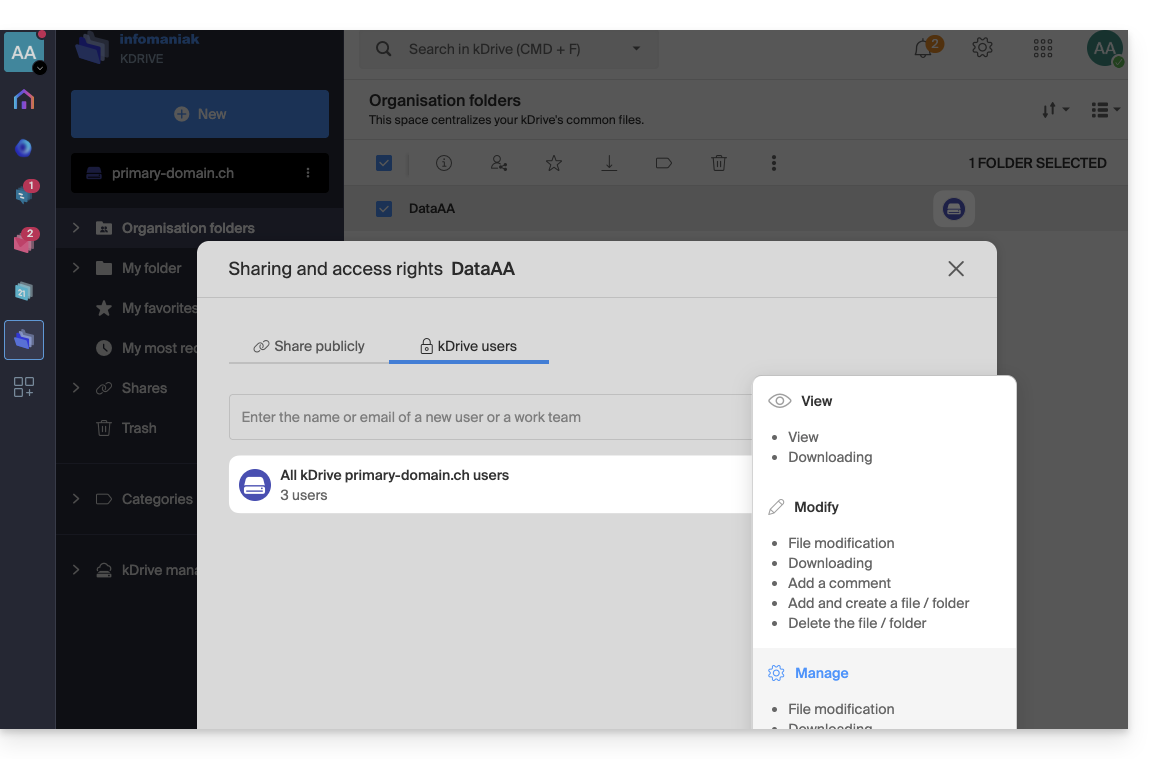
Choose whether the user…
- … can view:
- View only
- Download
- Add comment (if file is not an Office type)
- … can modify:
- Modify the file
- Download
- Add comment
- Add and create file/folder
- Delete file/folder
- … can manage (only if the sharing takes place within the shared folder and not in a folder within the personal file structure):
- File modification
- Download
- Adding a comment
- Adding and creating files/folders
- File deletion
- Sharing with other users
- Managing user permissions
The permissions granted, as well as information about the recipients of the shares, can be viewed in kDrive in the column “Who has access”: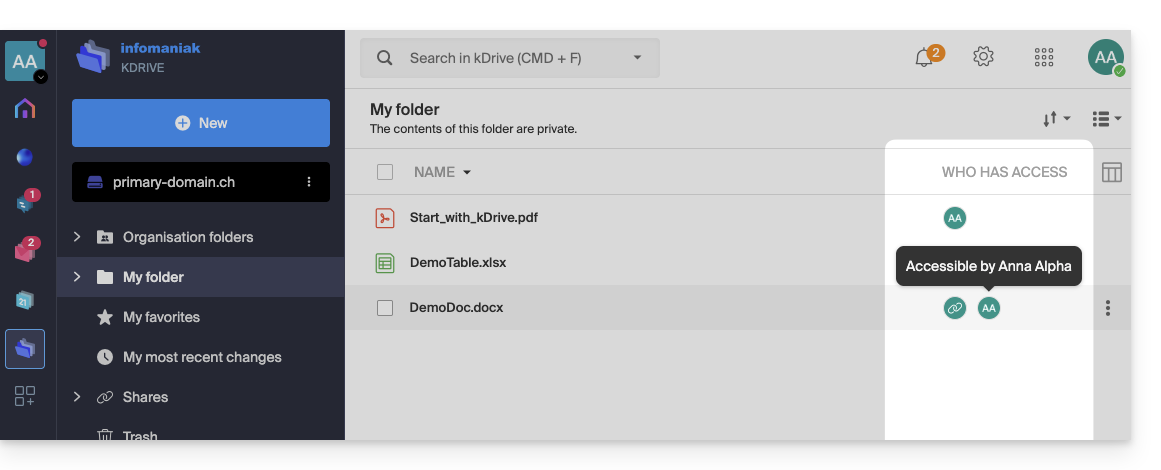
Any public link enabled for a file is indicated by a chain icon in this column: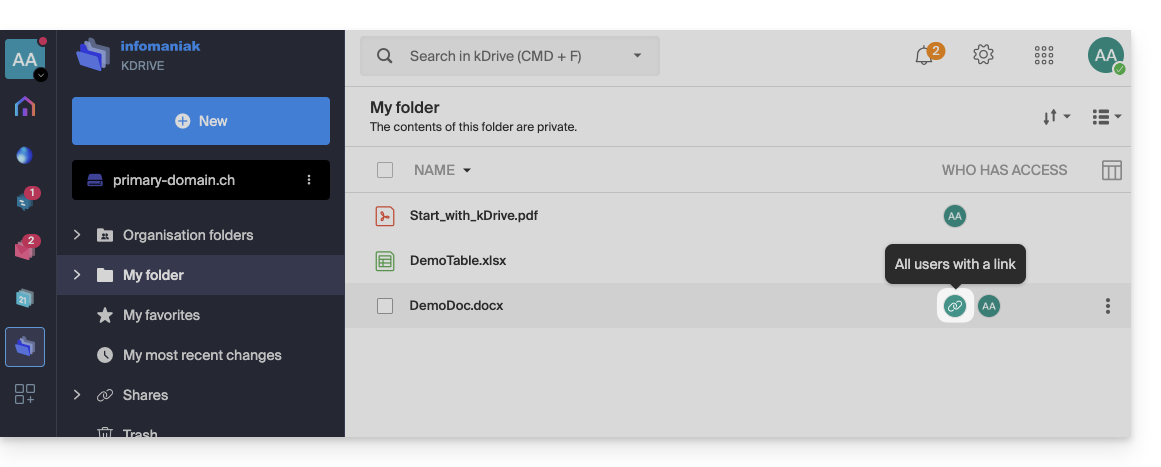
Assigning Permissions and Inheritance (Organization Folders)
The fact that a folder is located in "Organization Folders" does not necessarily mean that all kDrive users have access to it.
Sharing can be restricted to sub-levels: only a portion of the file structure may be shared with certain collaborators, while other folders remain private or limited.
Understanding Inheritance Break
By default, a "child" folder inherits the permissions of the "parent" folder. However, if you manually change the access to a sub-folder (e.g., by removing a user), the inheritance is broken.
From that point on, any subsequent changes made to the parent folder will no longer be reflected in that specific sub-folder.
Concrete example with your folders:
- Several users have access to the parent folder DataAA. By inheritance, they can all see the sub-folder 4All.
- If you manually remove a user from sharing on the child folder 4All, inheritance will stop for this folder.
- Later, you add a new collaborator to the parent folder DataAA.
- Problem: this new user will see the content of DataAA, but will not see the 4All folder (because inheritance was broken in step 2).
How to restore permission inheritance?
kDrive detects these permission discrepancies. When you open the sharing settings for the child folder (4All), a blue information banner appears: 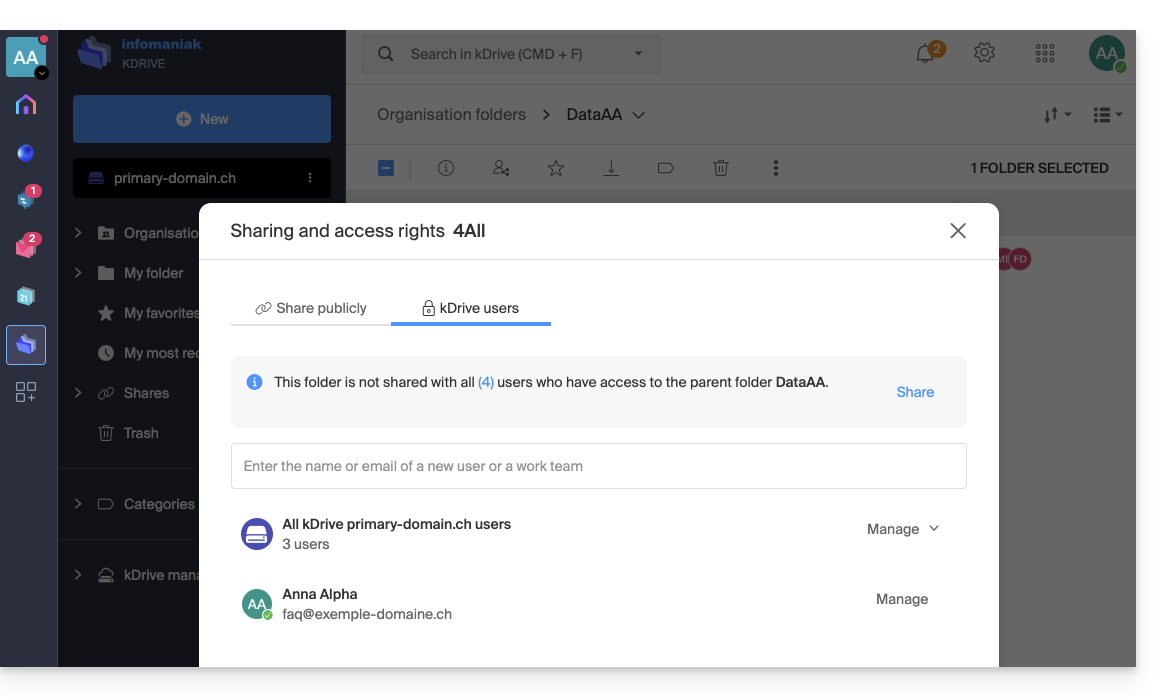
To resolve the problem:
- Click on the Share link in this blue banner.
- A confirmation window appears to inform you that "all future changes to user access for the parent folder DataAA will automatically apply to the 4All folder".
- Click on the blue Share button to validate:
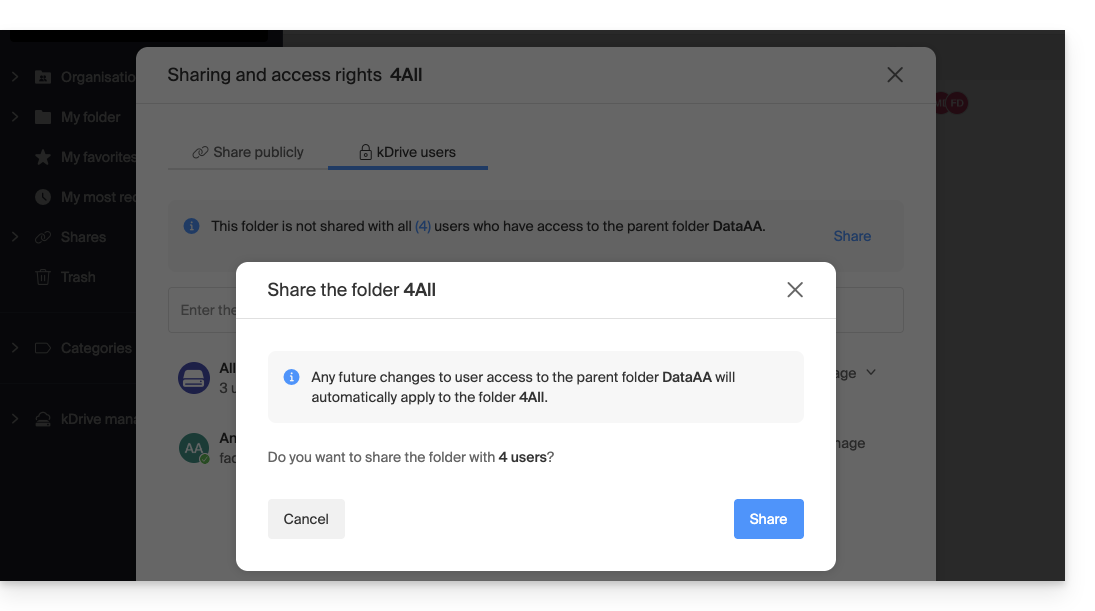
Inheritance is now restored: all current and future users of the parent folder will automatically regain access to the subfolder.
Link to this FAQ: https://faq.infomaniak.com/2501
Has this FAQ been helpful?