Knowledge base
1000 FAQs, 500 tutorials and instructional videos. Here, there are only solutions!
Send messages from a different email address
This guide explains how to set up a different sending and reply address than the email address used on the Infomaniak platform.
✘ NOT AVAILABLE with
my kSuite (ik.me, etik.com, ikmail.com)
Introduction
- This is useful for working with one of your email aliases (special aliases excluded) or synonymous domains.
- This will work with the Infomaniak Mail web app (online service ksuite.infomaniak.com/mail) but also with most email software/clients.
- However, please note: there is no link between the settings entered in the Signature section of Infomaniak Mail and the email software/clients.
- Each email software/client has its own settings, and you can, for example, define a different reply address within each of the respective tools (see the bottom of this guide).
- To manage the sender of out-of-office messages, please refer to this other guide.
Setting the sending address in the Infomaniak Mail web app
Prerequisites
- The secondary email address that can be used must have been added as:
- … either as an email alias (example:
aa@instead ofanna.alpha@) but excluding special aliases: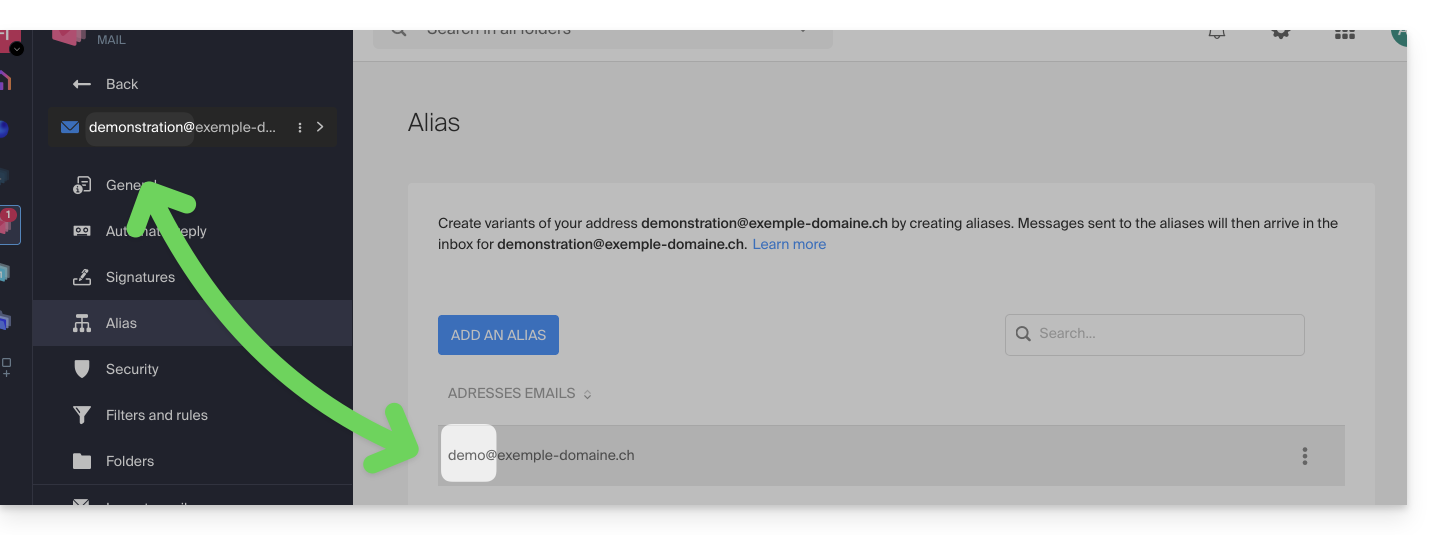
- … or as synonymous domains (example:
@short-dom.xyzinstead of@my-super-long-domain.xyz).
- … either as an email alias (example:
To access the options for sending addresses:
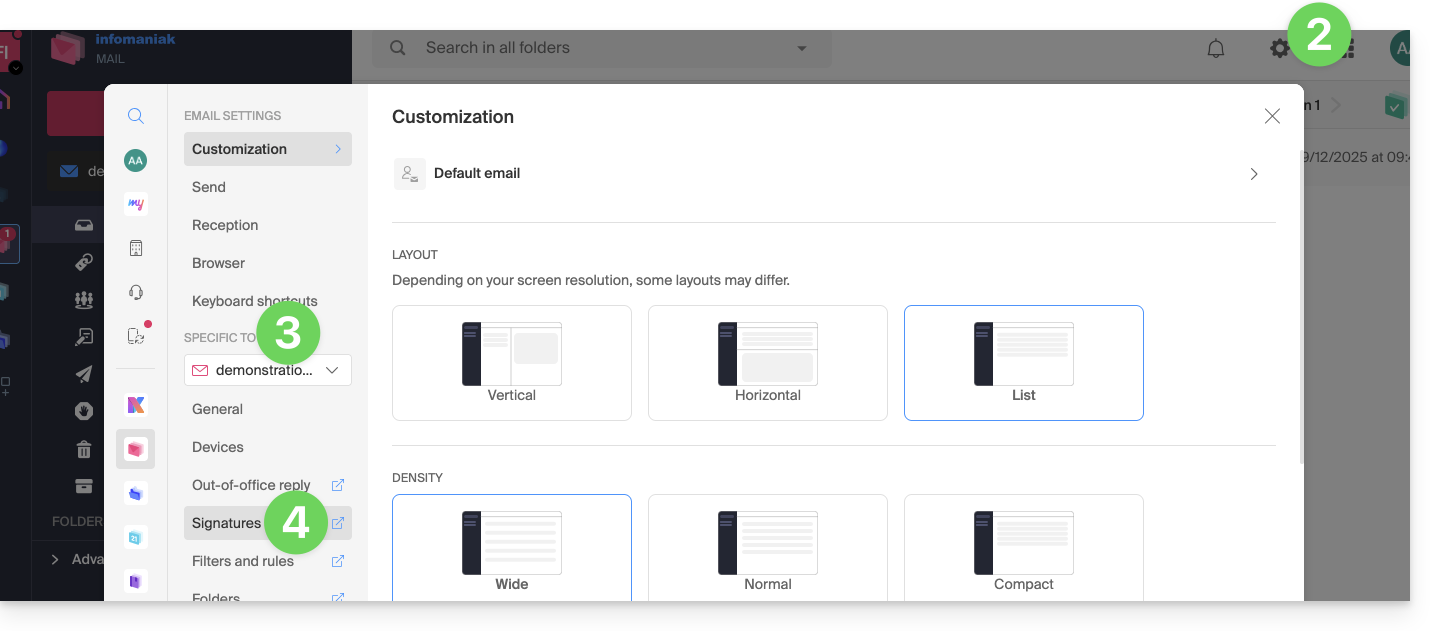
- Click here to access the Infomaniak Mail web app (online service ksuite.infomaniak.com/mail).
- Click on the Settings icon at the top right of the interface.
- Check or select the email address in question from the drop-down menu in the left-hand menu.
- Click on Signatures:
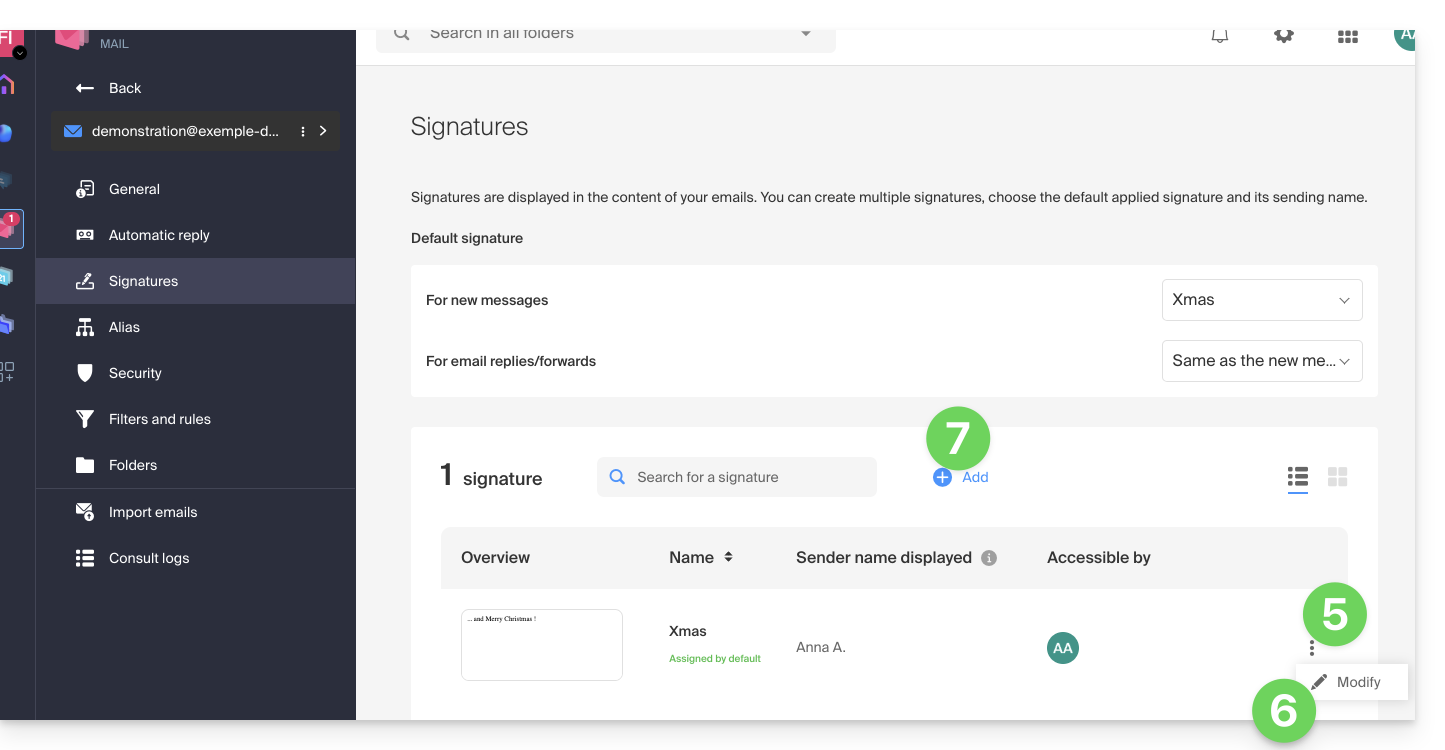
- Click on the action menu ⋮ to the right of the current signature.
- Click on the pencil icon ✎ to edit the current signature.
- OR create a new signature:
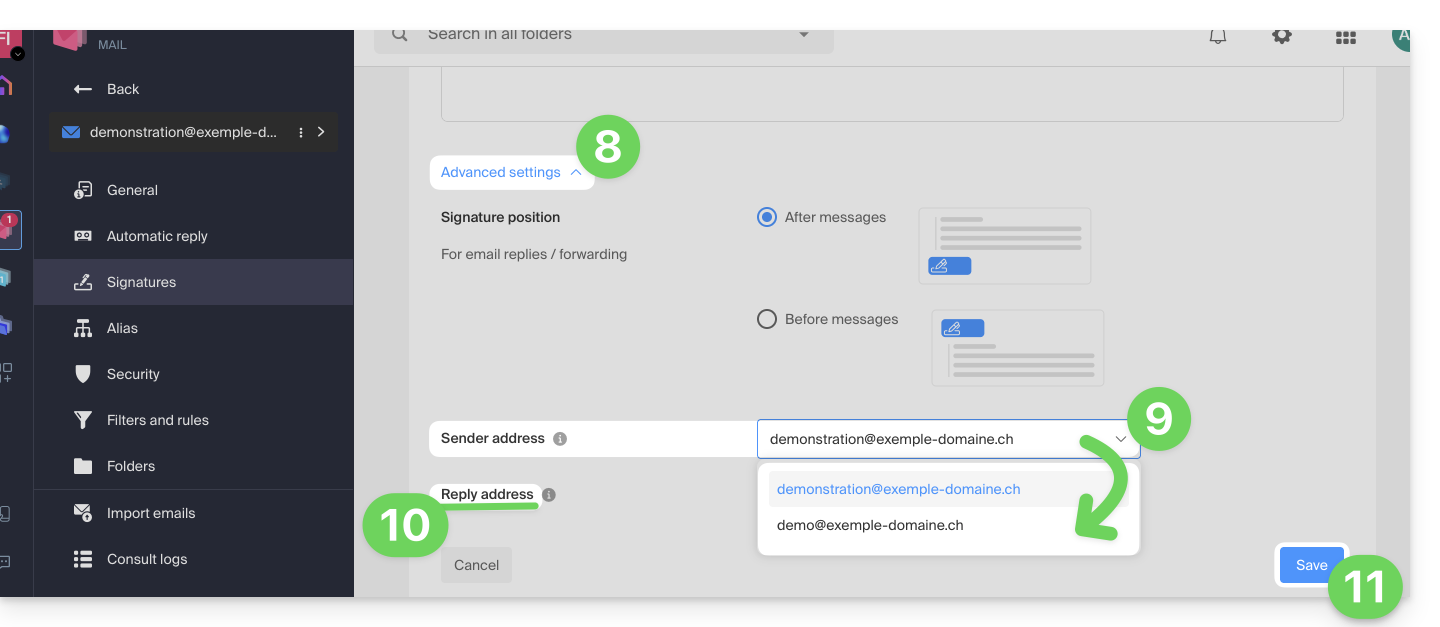
- Click on the chevron to expand the Advanced Settings section at the bottom of the page.
- The sender address allows you to specify, if available, the address that will be displayed as the sender in your recipients' inboxes.
- The reply-to address allows you to receive future replies to your messages (return-path) on a different address (from the options specified in the prerequisites above)…
- …and if you compose a message in response to a reply received on this alias, the signature that enables sending with this alternative identity will be applied instead of the signature defined by default.
- Save your changes by clicking the Save button (if the button remains grayed out, make sure all fields are filled in, especially the full name field):
- Compose a new message and select the corresponding signature:
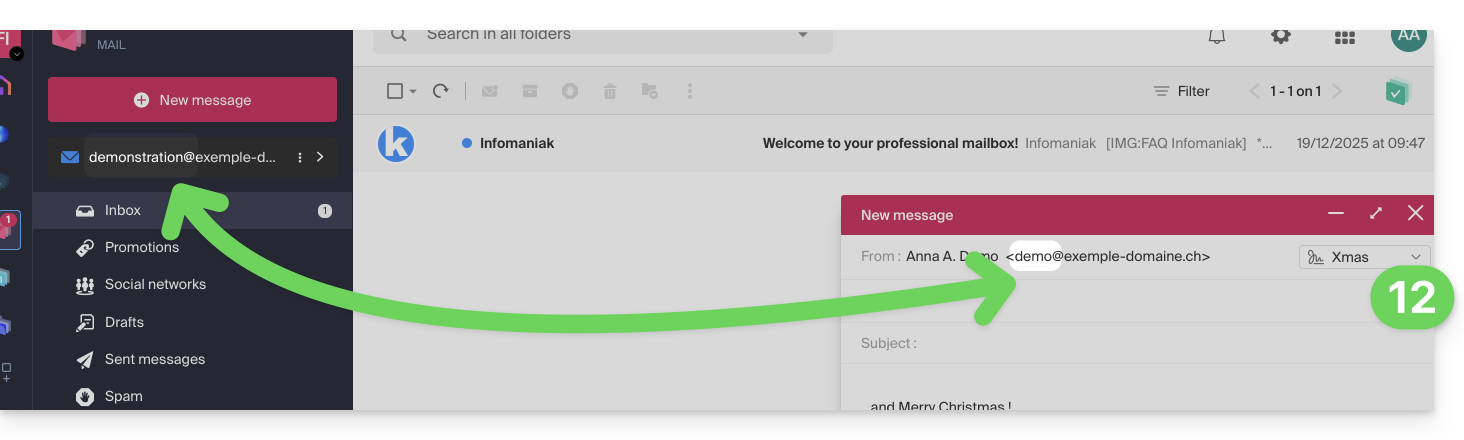
In the example above, the sender address has been modified, but not the reply-to address. This produces the expected result for the recipient (simply check the headers of the received message to confirm).
Now, add the same secondary address to a mail client/application; the effect will be the same.
Configure the sender address in a mail client/application
Prerequisites
- The secondary email address that can be used must have been added as:
- … either as a mail alias (example:
aa@instead ofanna.alpha@) including special aliases. - … or as synonymous domains (example:
@short-dom.xyzinstead of@my-super-long-domain.xyz).
- … either as a mail alias (example:
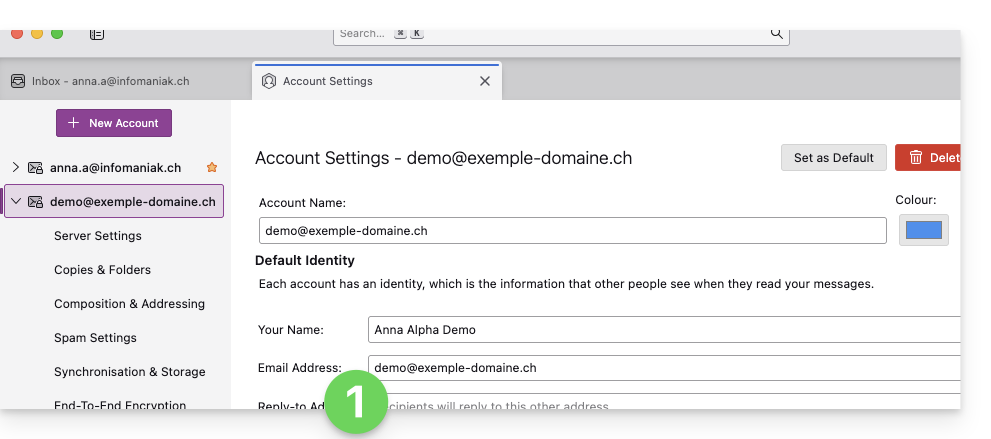
It is possible to configure an email client with any existing email address, even if it exists as an alias in your Mail Service. Sending will be done in the same way as with an address defined as a "primary" email.
Example in the Thunderbird software:
- Add an account with the correct email settings for the alias:
- Compose a new message from the email client.
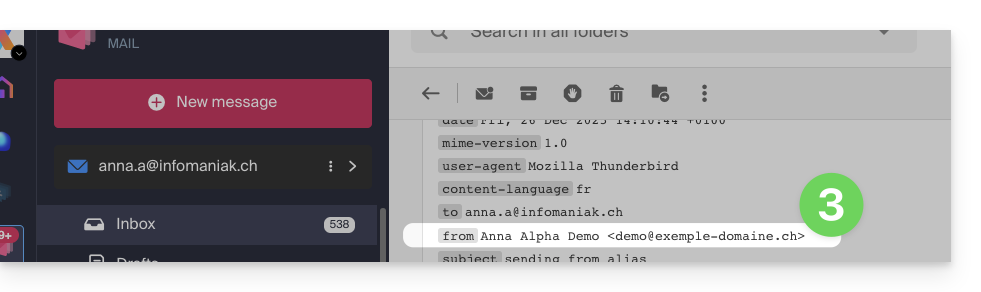
- Once received, the message is correctly displayed, even in its headers, as being sent from an address that you know is an alias:
Link to this FAQ: https://faq.infomaniak.com/2490
Has this FAQ been helpful?