Knowledge base
1000 FAQs, 500 tutorials and instructional videos. Here, there are only solutions!
View and share kDrive logs
Update 10/19/2026
This guide explains how to retrieve and transmit debugging information (logs, reports, and error logs) from the desktop app kDrive (desktop application on macOS / Windows / Linux) in case of an issue between the app and your device.
Introduction
- If the kDrive app synchronization with your device is blocked, which may have various causes (file type, name length, etc.), enabling the logs allows you to record the application's activity from that point on, in order to facilitate the analysis of the problem by Infomaniak Support.
Record and share the logs with Support
Desktop app v4.x
When requested by Infomaniak Support:
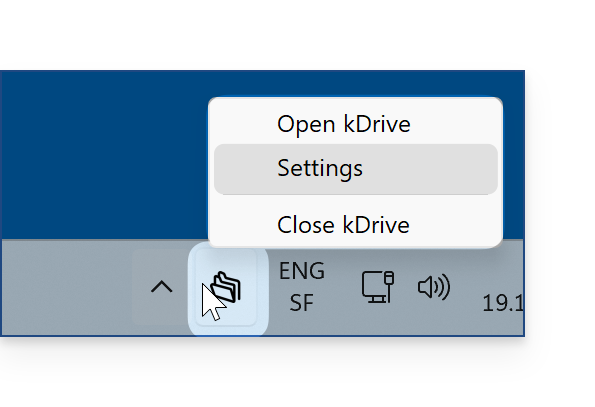
- Launch kDrive on your device: the app icon should be visible in the top right corner on macOS/Linux, and in the bottom right corner on Windows (❓: help).
- Right-click on the icon and choose Settings:
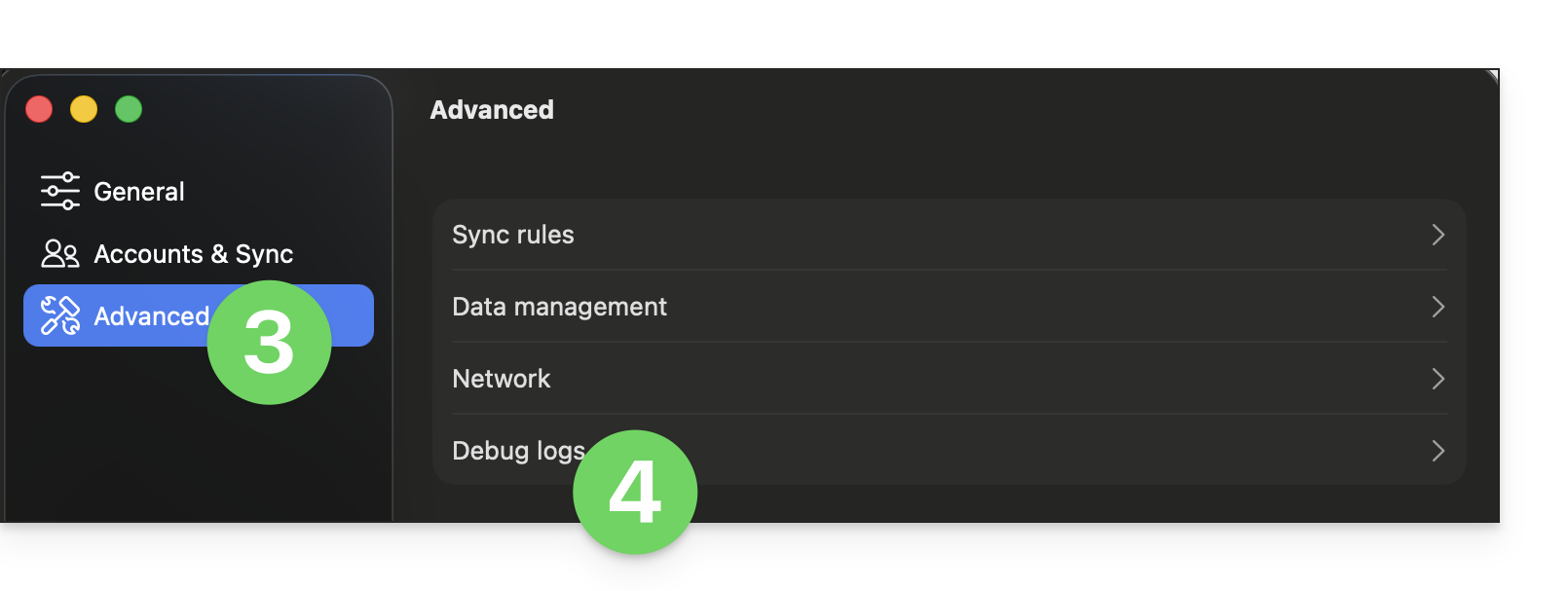
- Go to Advanced.
- Click on Debug information:
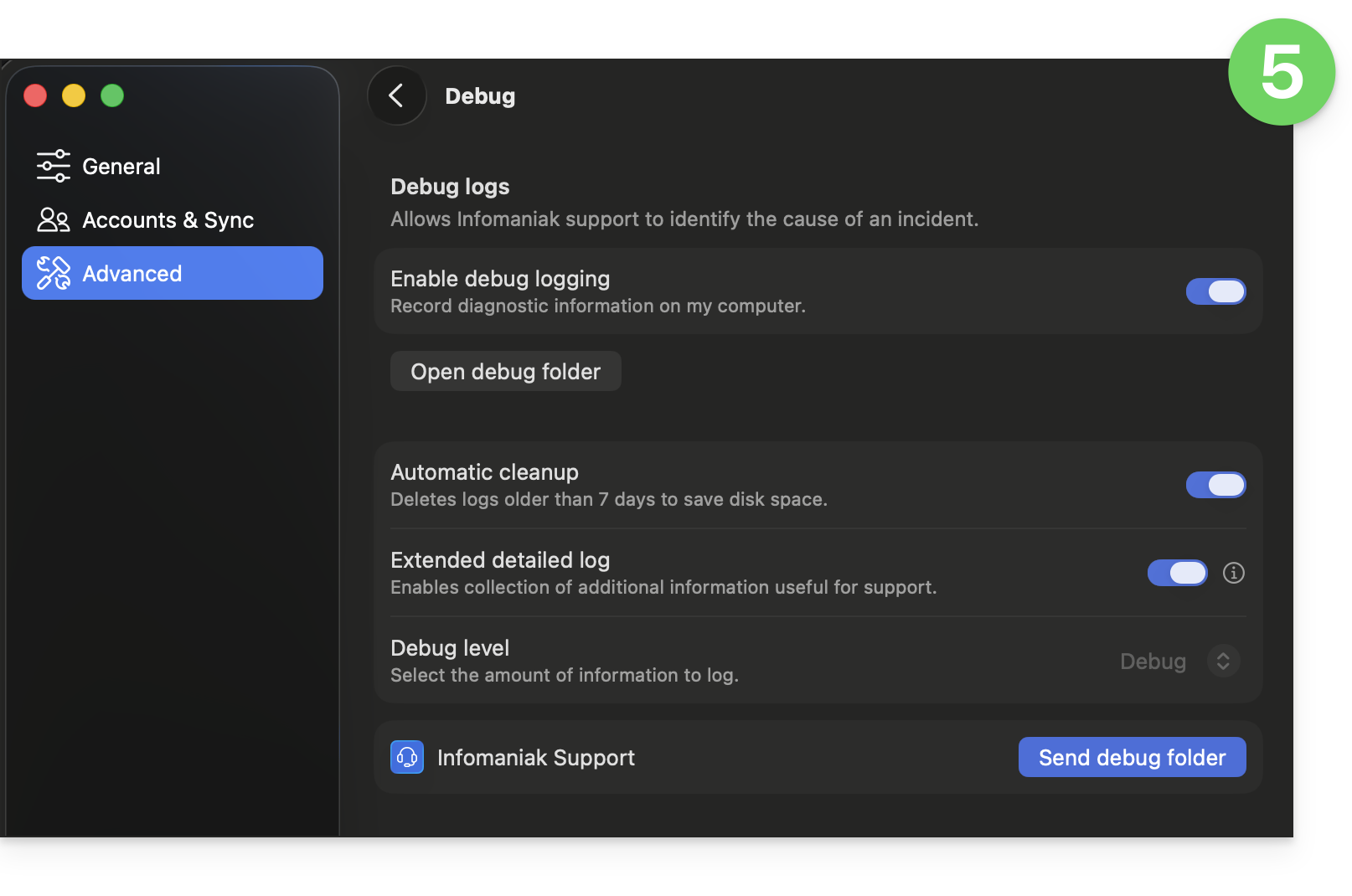
- Activate the various toggle switches as shown in the image below:
- Let the application run for at least 10 minutes.
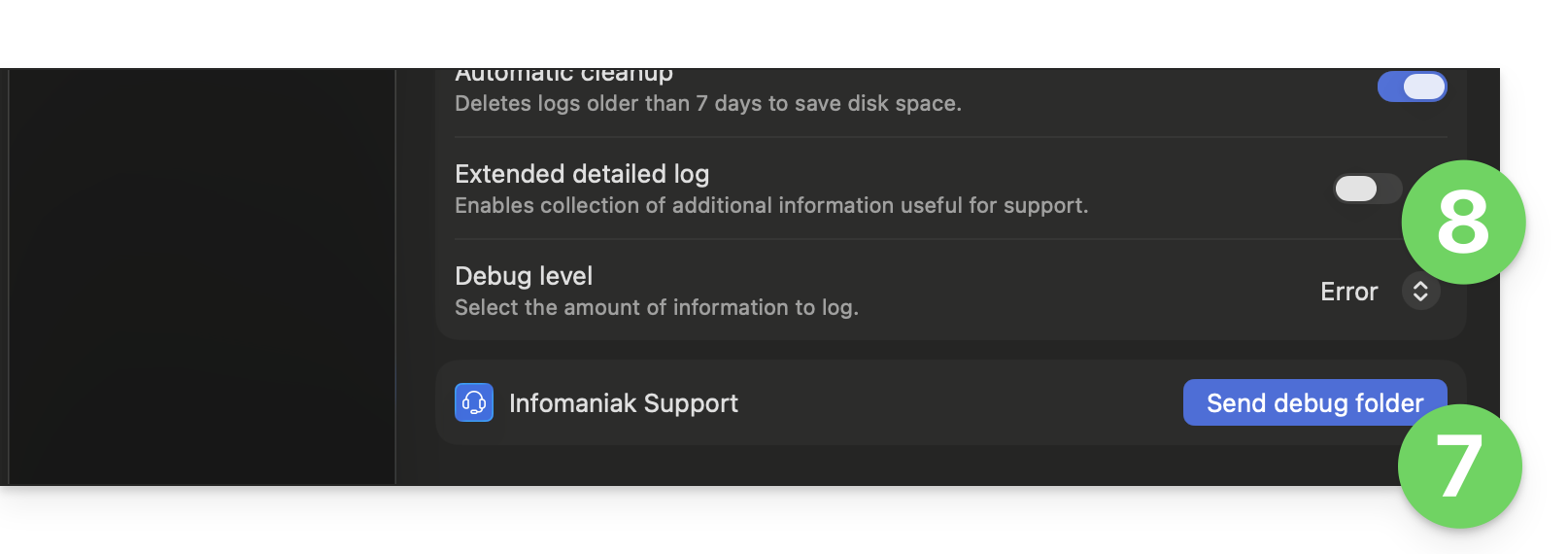
- Return to the same location 10 minutes later, then click the blue button to share your debugging information with Infomaniak Support, and inform them of this action within the current exchange.
- Disable extended logs and the Debug level:
Desktop app v3.x
When requested by Infomaniak Support:
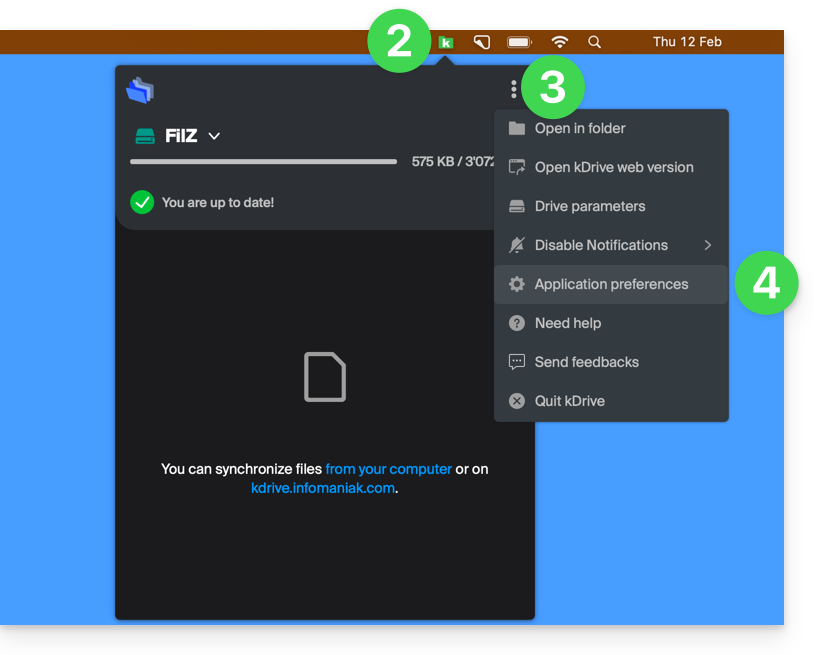
- Open the kDrive application on your computer.The app icon should be visible in the notification area..
- Left-click on the app icon in the notification area of your computer (top right on macOS, bottom right on Windows, and double left-click in the taskbar on Linux).
- Click on the action menu ⋮ to the right of the application window.
- Select App Preferences:
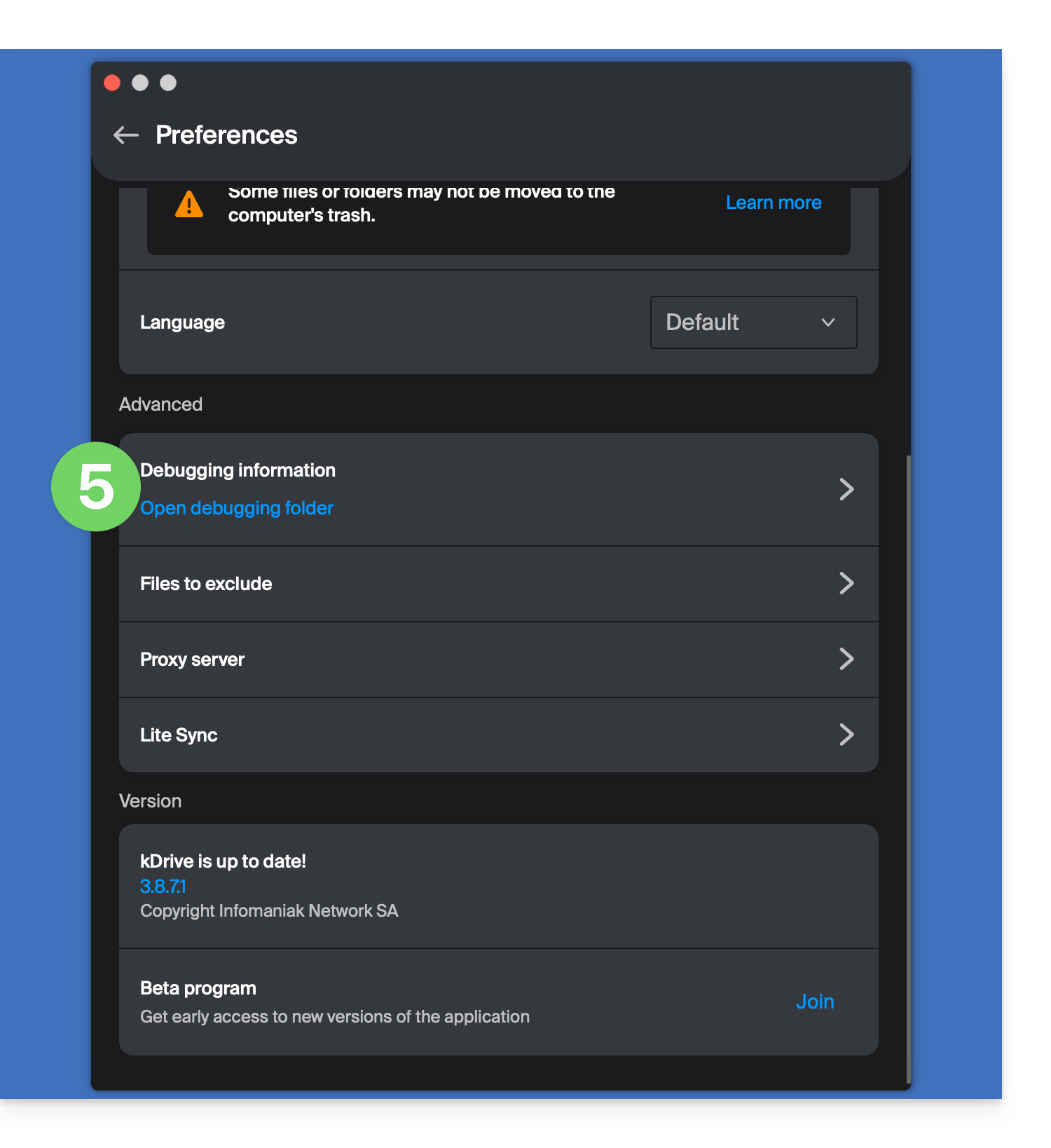
- Scroll down to the Advanced section and click the arrow to the right of Debugging information:
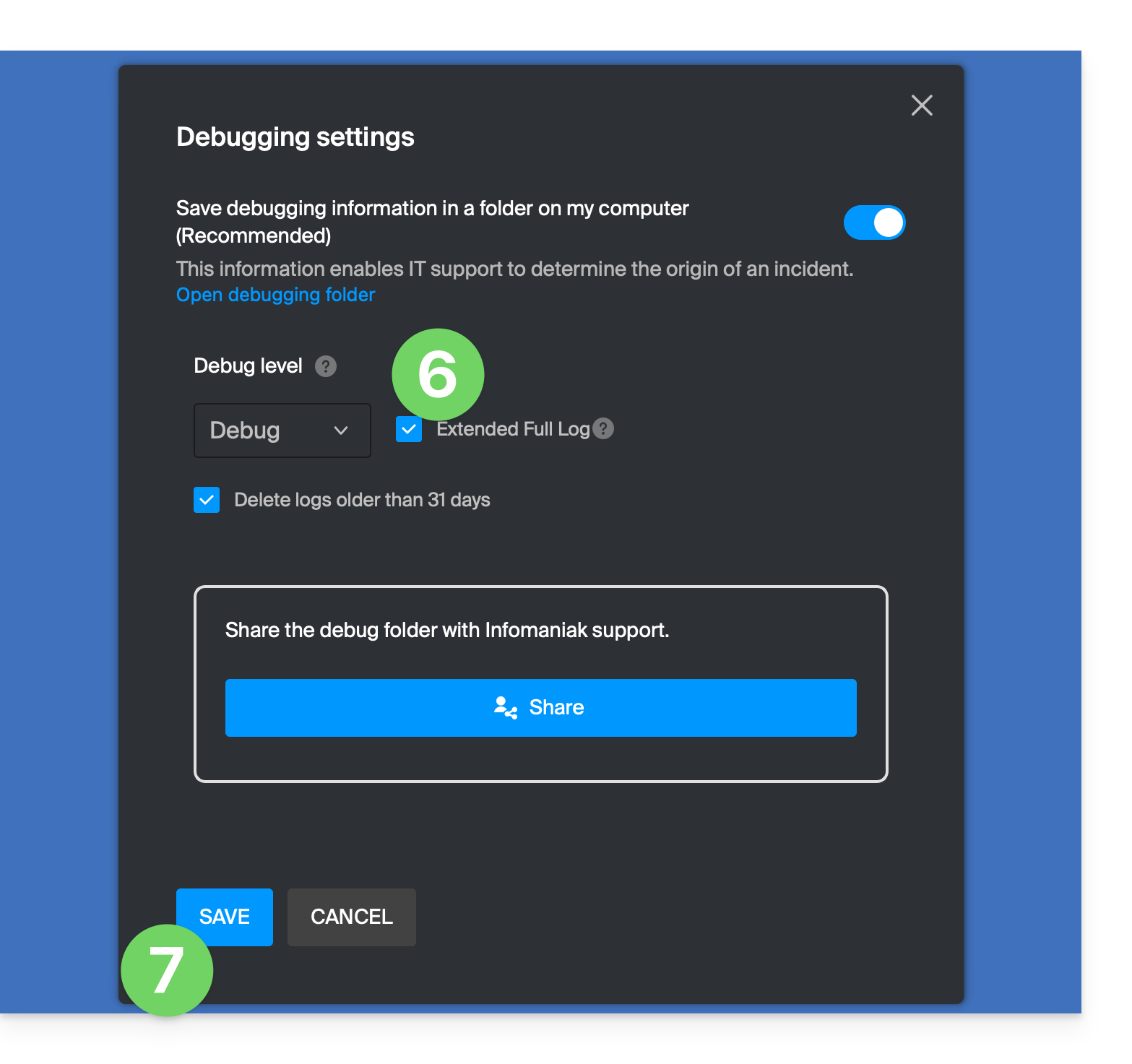
- Check the box for extended logs as shown in the image below.
- Click the SAVE button andlet the application run for at least 10 minutes:
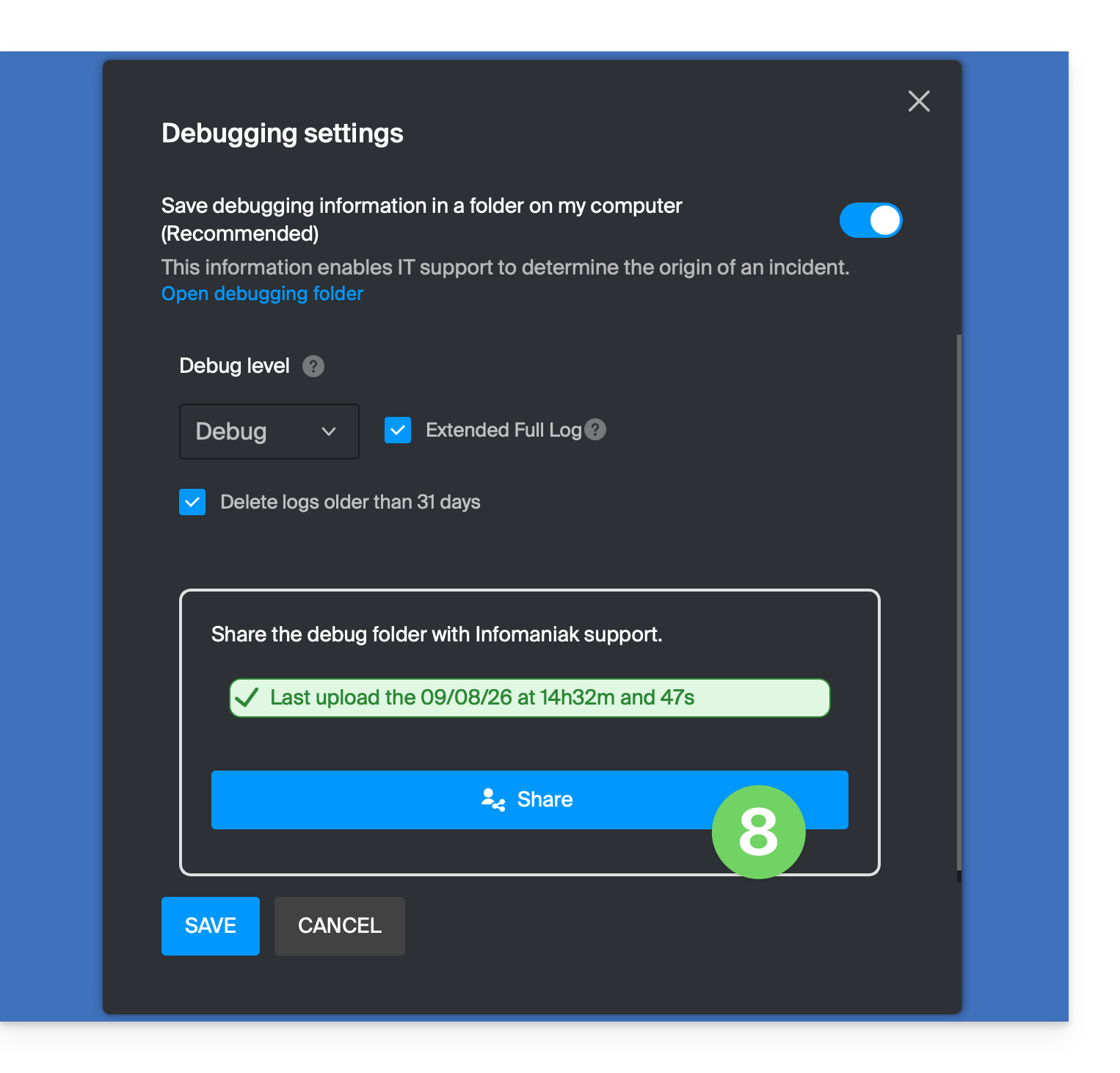
- Return to the same location 10 minutes later (steps 1-6 above) and then click the blue button to share your debugging information with Infomaniak Support:
- Inform Infomaniak Support about this action within the current exchange.
Alternative methods
If you encounter any issues with the method above:
- Click on the blue link on the left to Open the debugging folder.
- From this folder, you will have access to all bug reports for the kDrive application on your device:
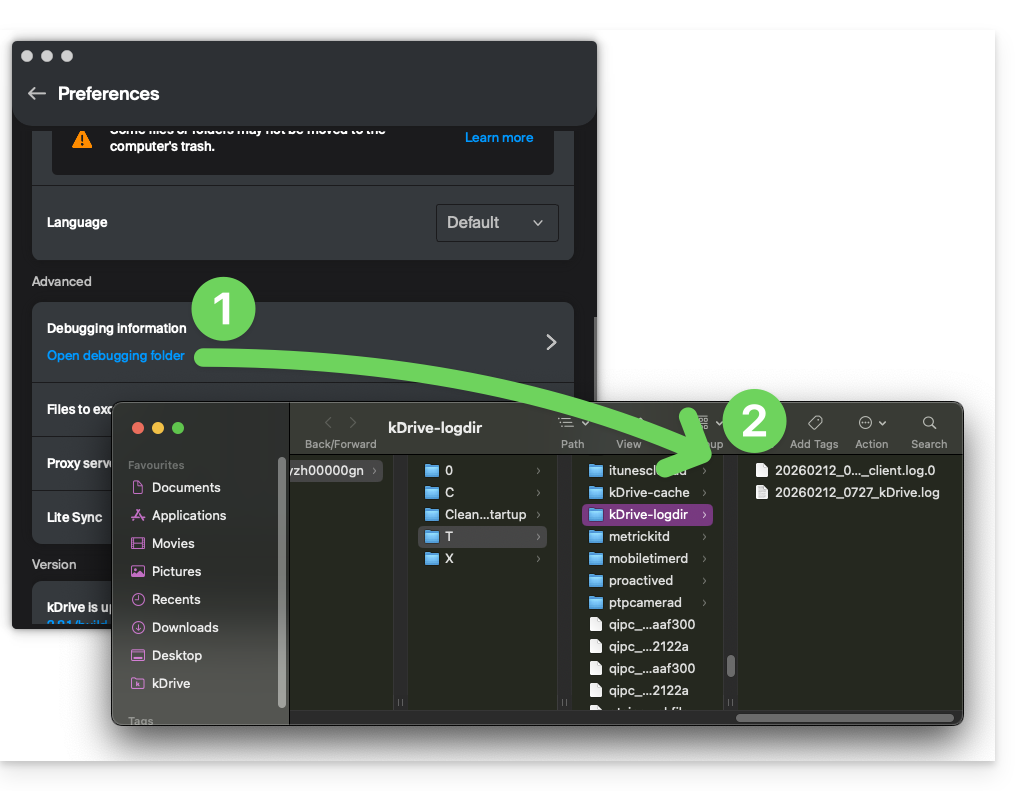
The same applies to v4.x: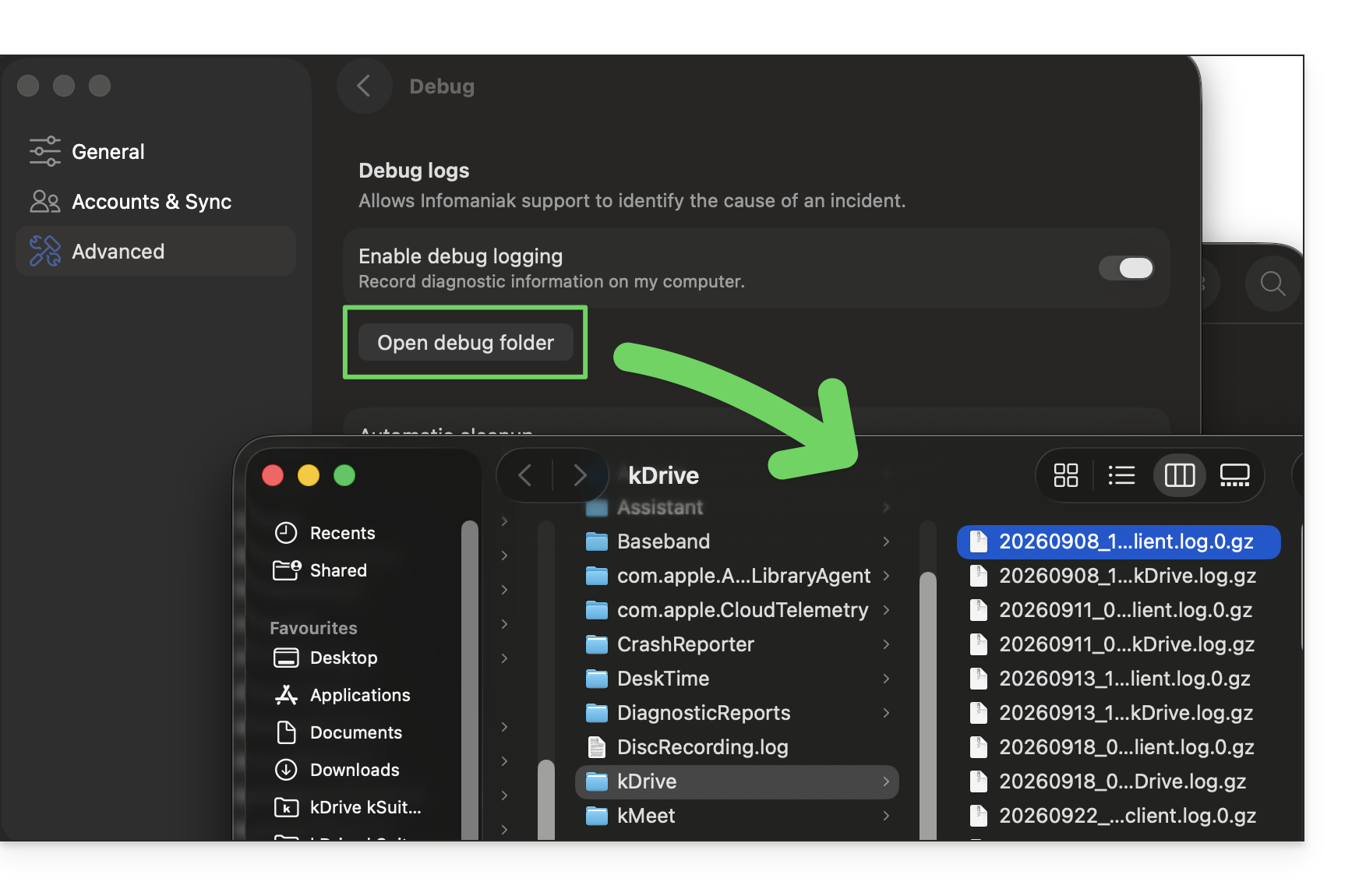
If the application does not open, you can also access the logs using these paths:
- macOS:
/Users//Library/Logs/kDrive - Windows (copy and paste into the file explorer):
C:\Users\%USERNAME%\AppData\Local\Temp\kDrive-logdir(if necessary, enable hidden files and folders in Windows Explorer) - Linux:
/home//.local/state/kDrive/logs
To manually send the collected files:
- If the files are not large, send them directly to Infomaniak Support within the current exchange.
- If the files are large, compress them in .zip format and send them to Infomaniak Support within the current exchange.
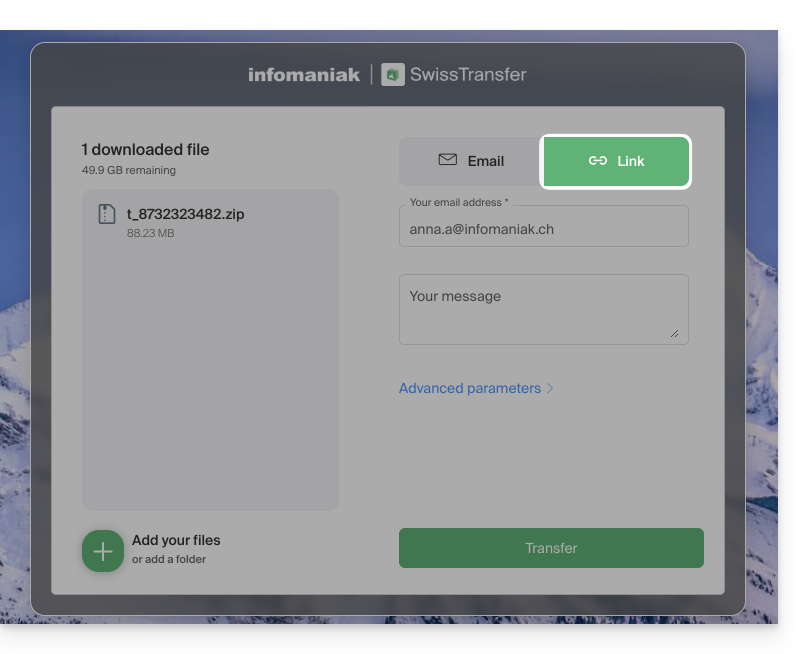
- If they are still too large to send by email, upload the .zip archive to swisstransfer.com to obtain a sharing link, which you will need to communicate to Infomaniak Support within the current exchange:
Link to this FAQ: https://faq.infomaniak.com/2488
Has this FAQ been helpful?