Knowledge base
1000 FAQs, 500 tutorials and instructional videos. Here, there are only solutions!
Manage my kSuite Mail storage
Update 08/06/2026
This guide explains how to check the storage space of your free Infomaniak email plan and how to free up space.
Introduction
- The storage space for my kSuite emails is limited to a maximum of 20 GB (paid Infomaniak Mail plans (including my kSuite+) offer unlimited disk space).
- If you reach this limit, you will no longer be able to receive new emails; in this case, you will need to free up some space.
Display the total storage space used
To do this:
- Click here to access the Infomaniak Mail web app (online service ksuite.infomaniak.com/mail).
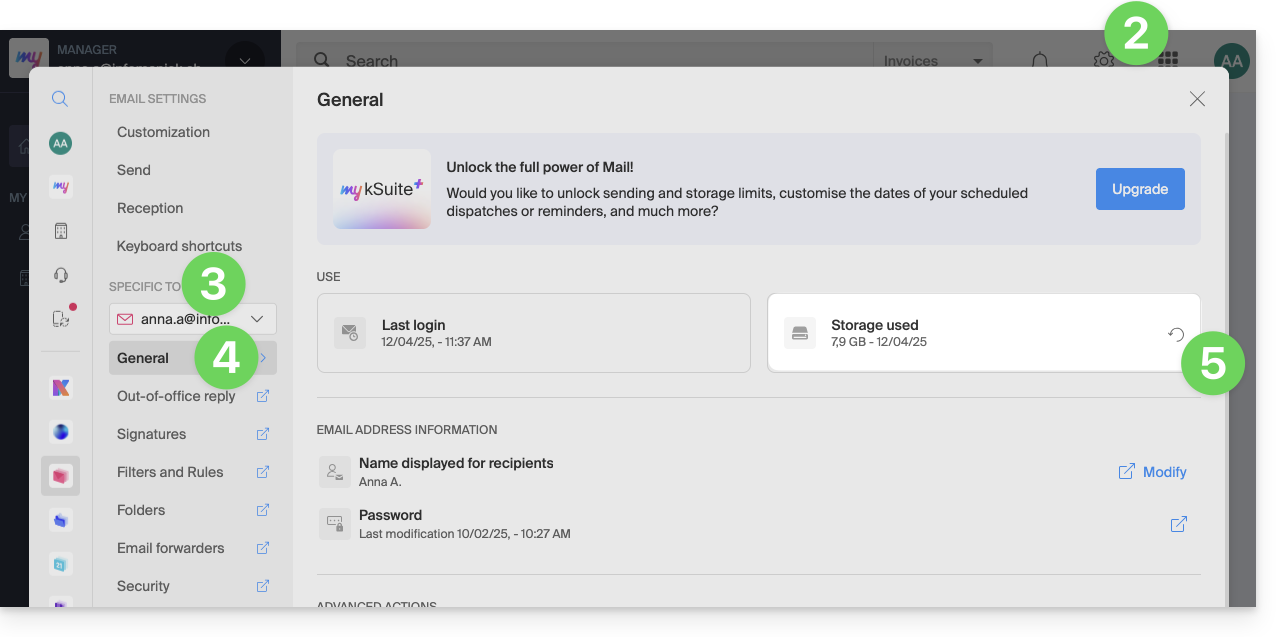
- Click on the Settings icon in the top right corner.
- Check or select the relevant email address from the dropdown menu in the left-hand sidebar.
- Click on General below.
- Click the button to refresh the disk space:
Free up storage space
When your mailbox is full, it is crucial to free up space so you can continue to receive messages. Here are some effective solutions to achieve this:
1. Delete non-essential emails
- Search for the largest messages. Delete messages with unnecessary attachments or download them to your computer before deleting the emails.
- Sort your emails by date and delete those that are too old or that you no longer need.
- After deleting emails, remember to empty the trash to actually free up space.
- Unsubscribe from newsletters and mailing lists that you no longer read to avoid receiving unnecessary emails in the future.
2. Use an email management application
- There are applications like Clean Email, Unroll.me, or Mailstrom that can help you quickly and efficiently clean up your inbox (however, be sure to check the terms of use and privacy policies of these applications).
3. Increase storage capacity
- Paid Infomaniak Mail plans (including my kSuite+) include unlimited disk space.
Link to this FAQ: https://faq.infomaniak.com/2484
Has this FAQ been helpful?