Knowledge base
1000 FAQs, 500 tutorials and instructional videos. Here, there are only solutions!
Manage kMeet participants
This guide explains how to manually allow or refuse participants in a kMeet meeting.
Preamble
- To approve participants, you must have the status of moderator.
- To be a moderator, you must either be the first connected or designated later.
- Generally, a person generates a kMeet and will therefore be the moderator throughout the meeting.
- However, if a meeting is created from the Infomaniak calendar, a kMeet link can be added, which will be accessible to all event participants; it is therefore recommended that the event initiator connect a little before the participants to configure their meeting (add a waiting room or a password, etc.).
Approve or refuse participants
To be a moderator:
- Start kMeet via kmeet.infomaniak.com or from one of the apps for computers or mobile devices.
- Click the button to start a new meeting:
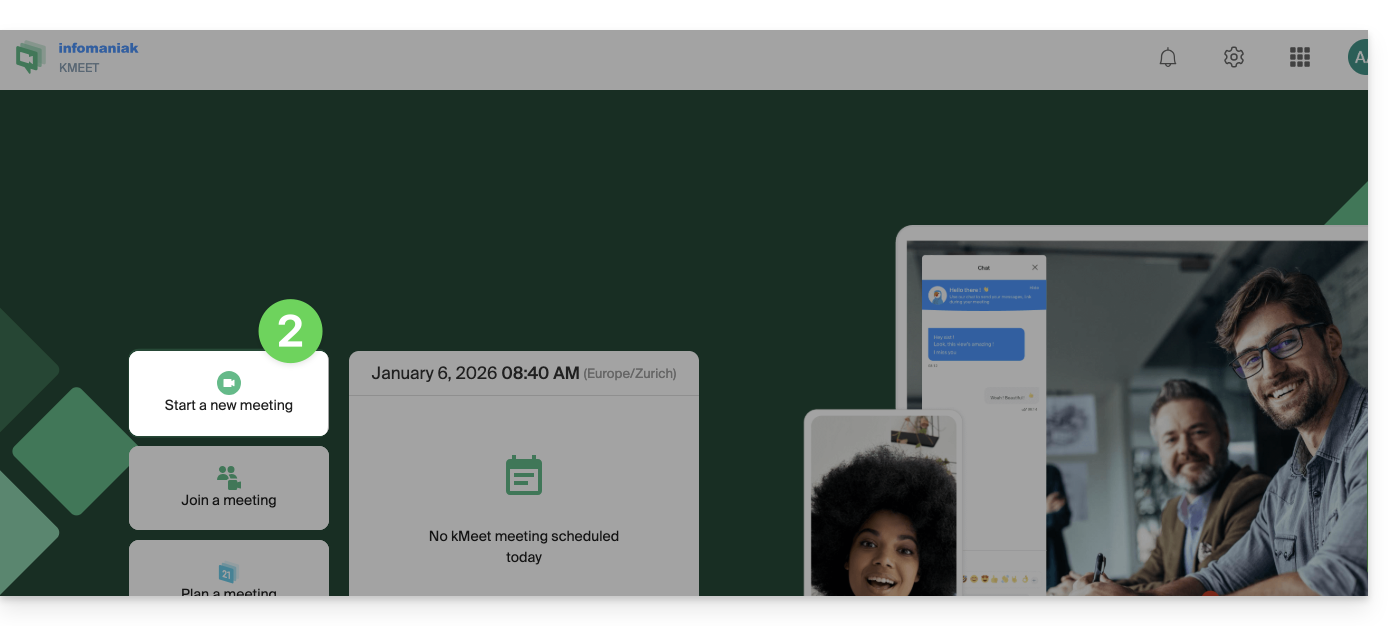
- Click the chevron below the meeting name to expand the advanced options.
- Enable participant control:
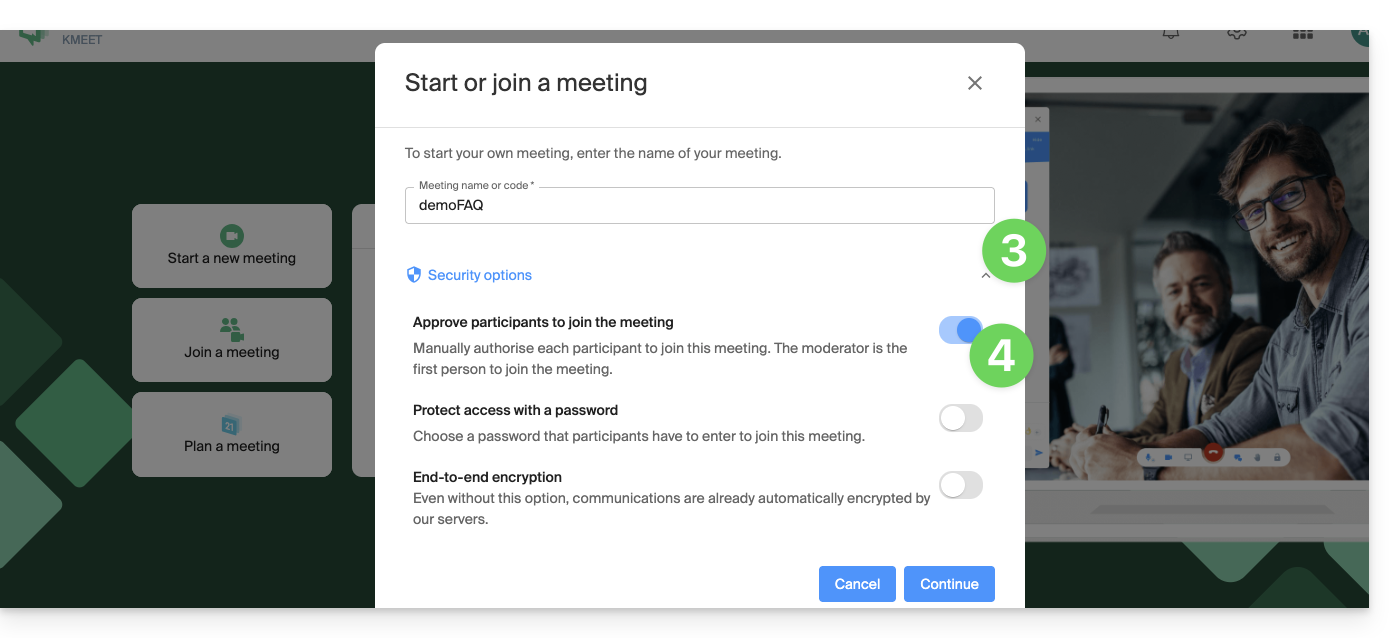
- Start the meeting.
- Share the meeting link or code and if necessary the password and or the encryption key with your participants.
- When your participants try to join the meeting, an audio notification invites you to authorize or not authorize them to join the room:
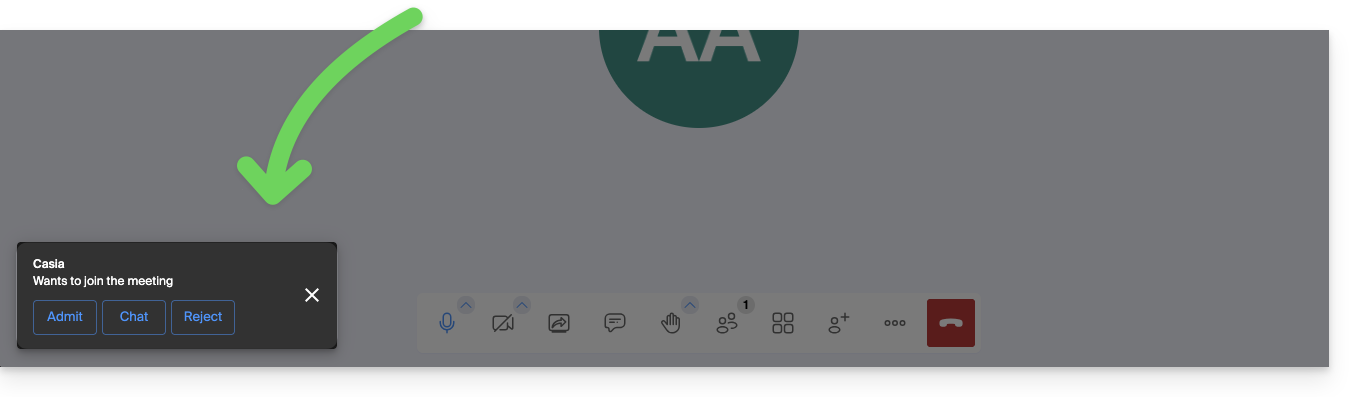
- You can also set a participant as a new moderator during the meeting, or just below, exclude them from the meeting:
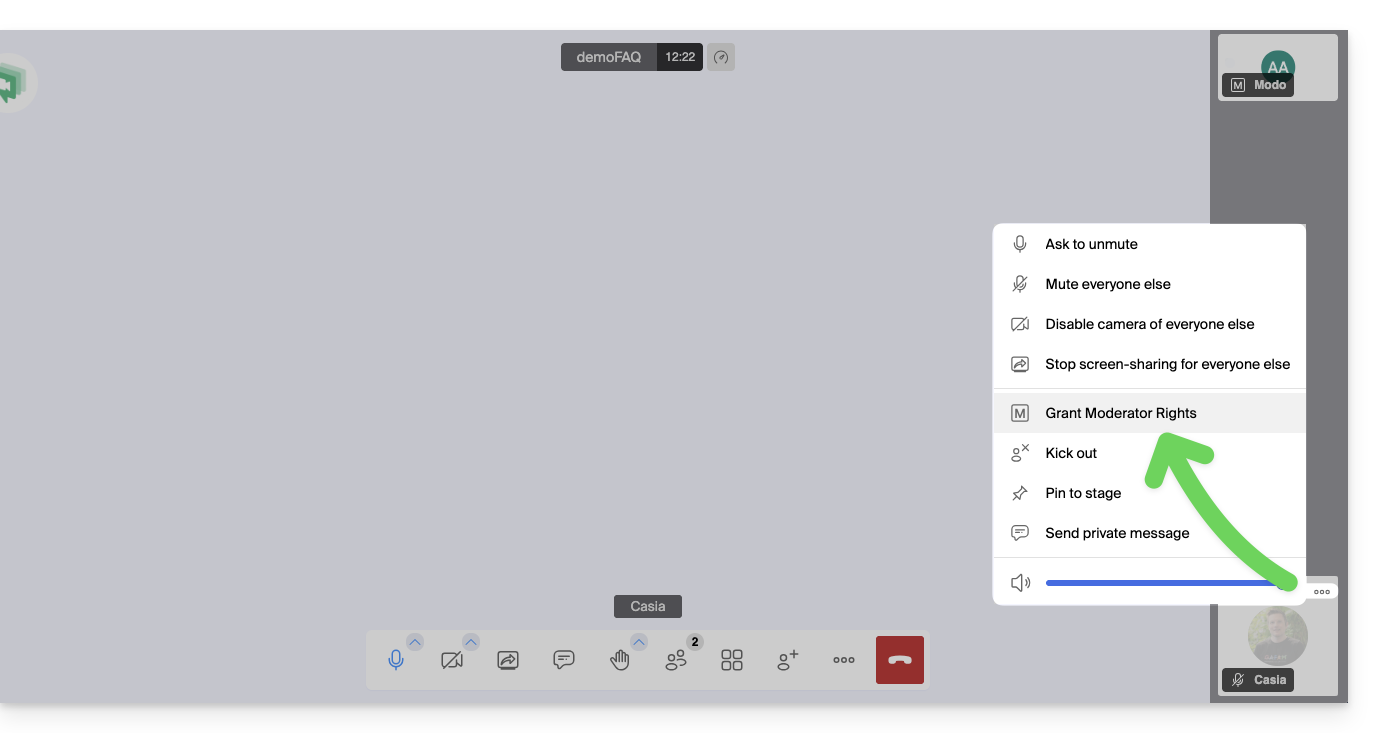
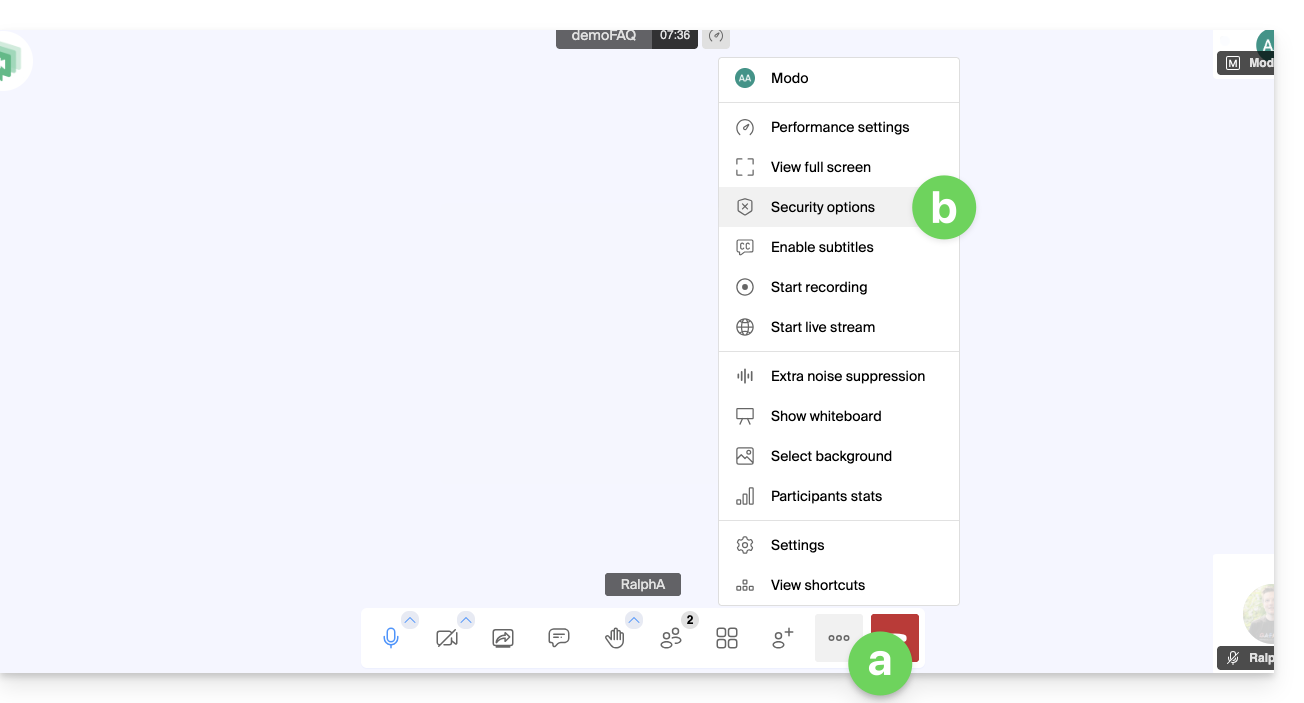
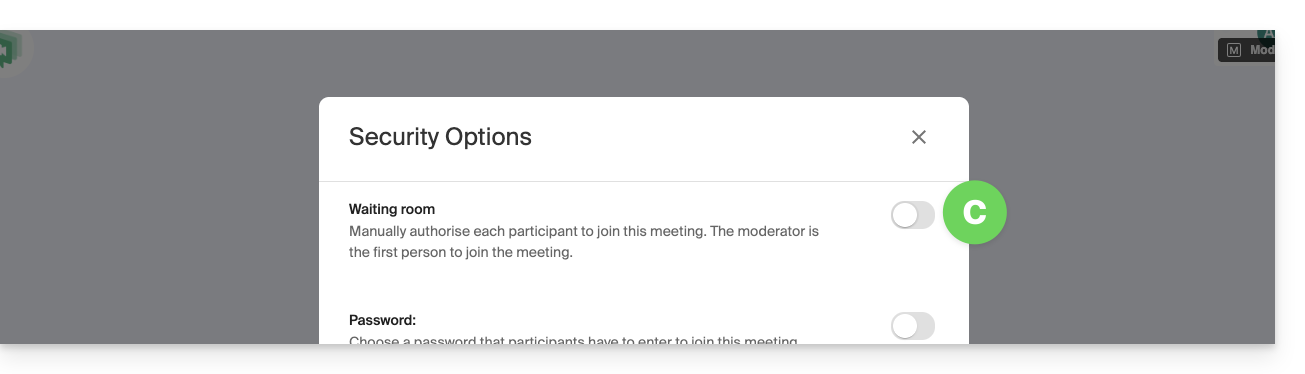
- The moderator can also disable the "waiting room" enabled in point 4 above once the meeting has started:
- Click on the icon ○○○ in the toolbar.
- Click on Security options:
- Disable the option to no longer have to manage new arrivals in the meeting:
Moderation options
Other moderation options are available:
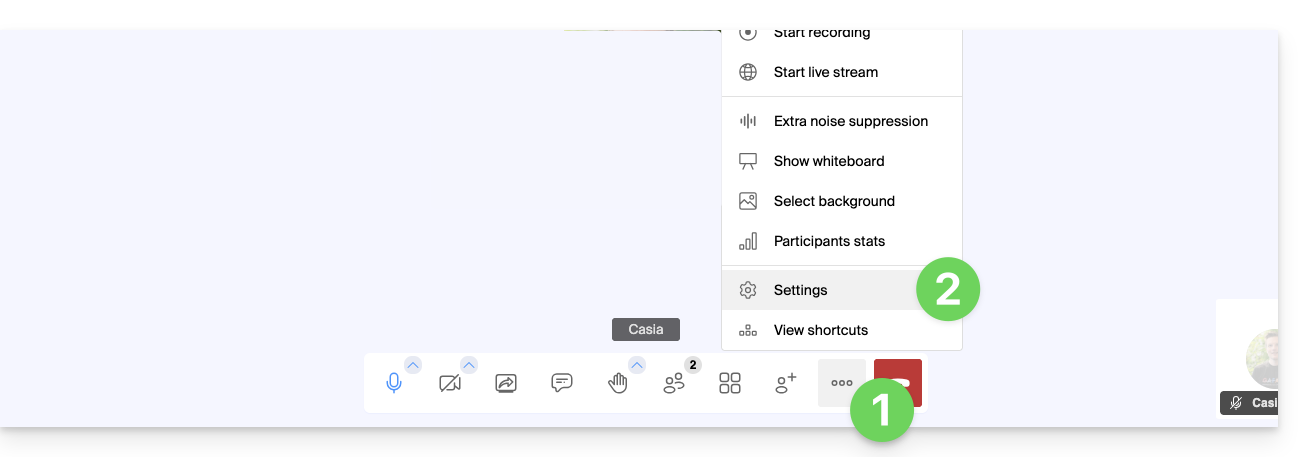
- Click on the icon ○○○ in the toolbar.
- Click on Settings:
- Click on Moderation.
- The options allow you to manage the expected behavior when new participants connect:
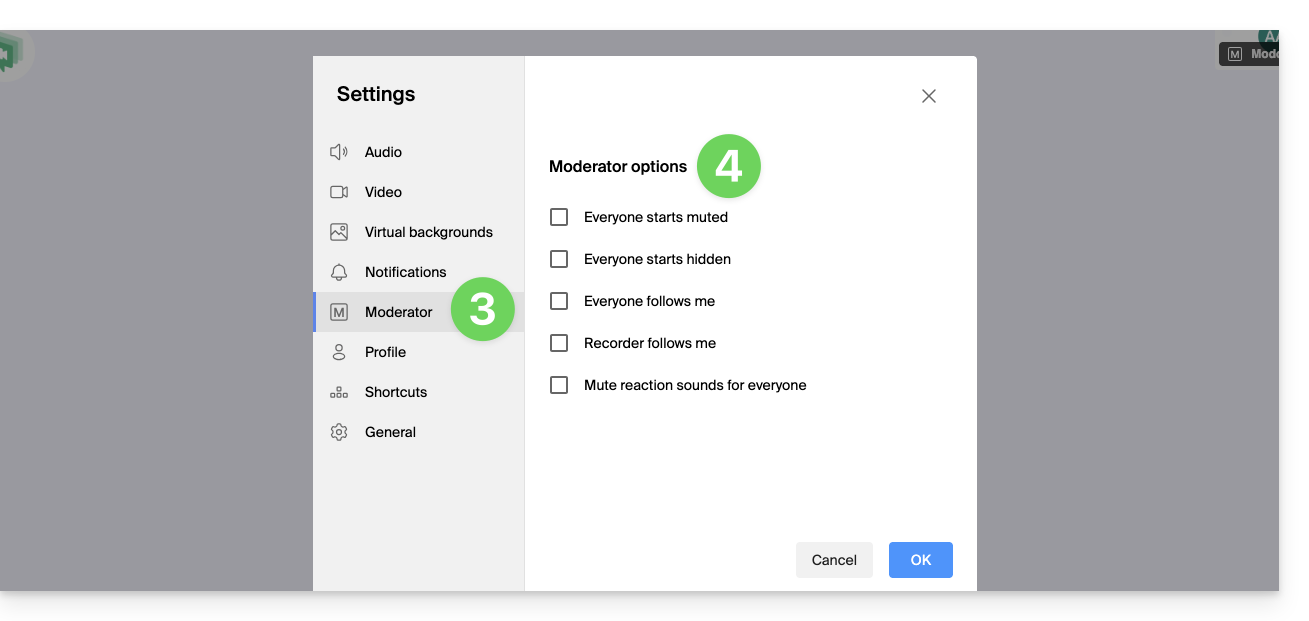
- all participants start with the microphone muted
- all participants start with the camera off
- all participants have the same interface display as the moderator (display of such participant in large on the layout, etc.), modifiable at any time by the users but the moderator can update at any time to enforce compliance
- recording will use the same interface display as the moderator (display of such participant in large on the layout, etc.)
- reaction emojis do not produce any sound
Link to this FAQ: https://faq.infomaniak.com/2476
Has this FAQ been helpful?