Knowledge base
1000 FAQs, 500 tutorials and instructional videos. Here, there are only solutions!
Manage kMeet participants
Update 10/13/2026
This guide explains how to manually allow or deny participants to a kMeet meeting.
Introduction
- Once the option is enabled, each participant can approve the arrival of subsequent participants.
- If a meeting is created from the Infomaniak calendar, a kMeet link can be added, which will be accessible to all event participants; it is therefore recommended that the event initiator log in a little before the participants if they wish to configure their meeting (add a waiting room or a password, etc.).
Approve or reject participants
To do this:
- Click here to access kMeet in your Infomaniak kSuite (or launch the mobile/desktop app — ❓: help).
- Start a meeting (❓: help).
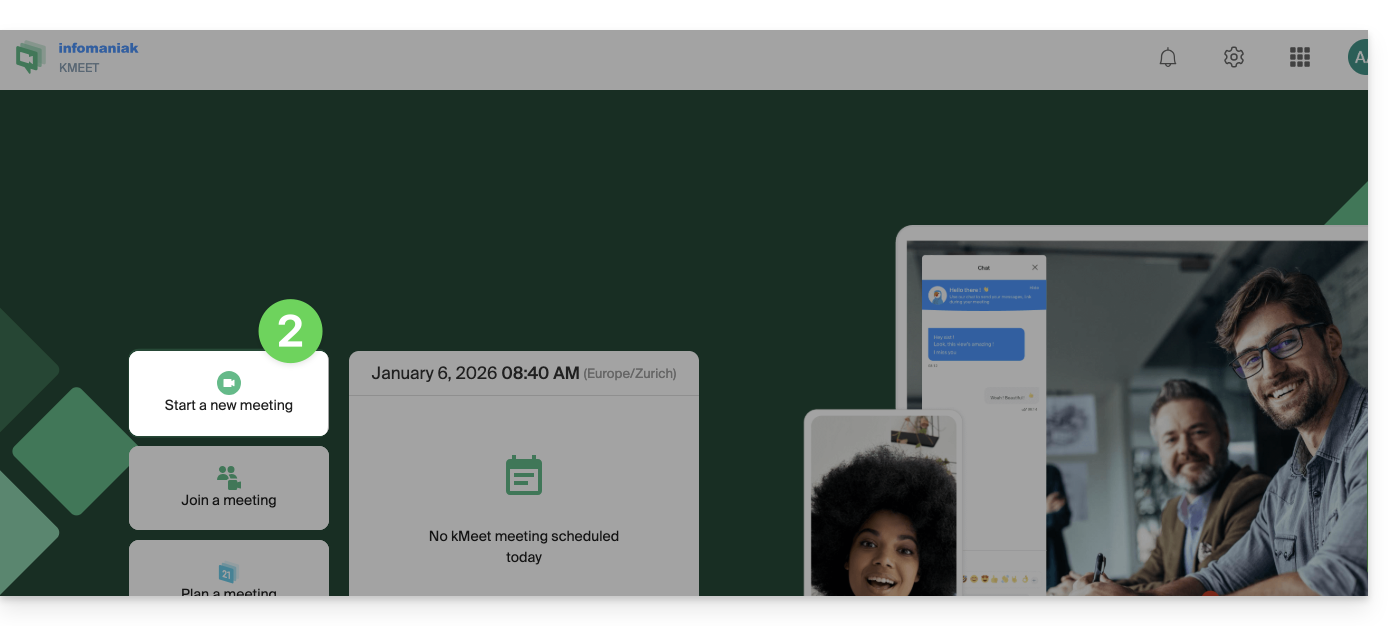
- Click on the chevron below the meeting name to expand the advanced options.
- Enable participant control:
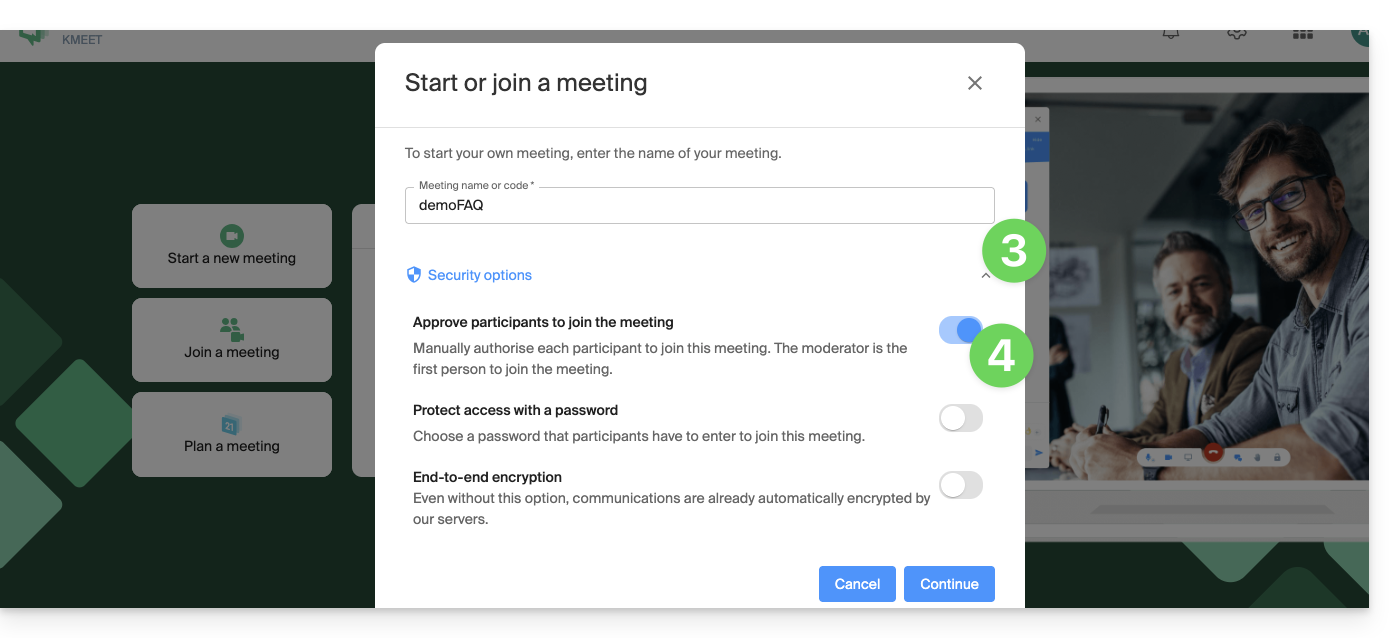
- Start the meeting.
- Share the meeting link or code, and if necessary, the password and/or encryption key with your participants.
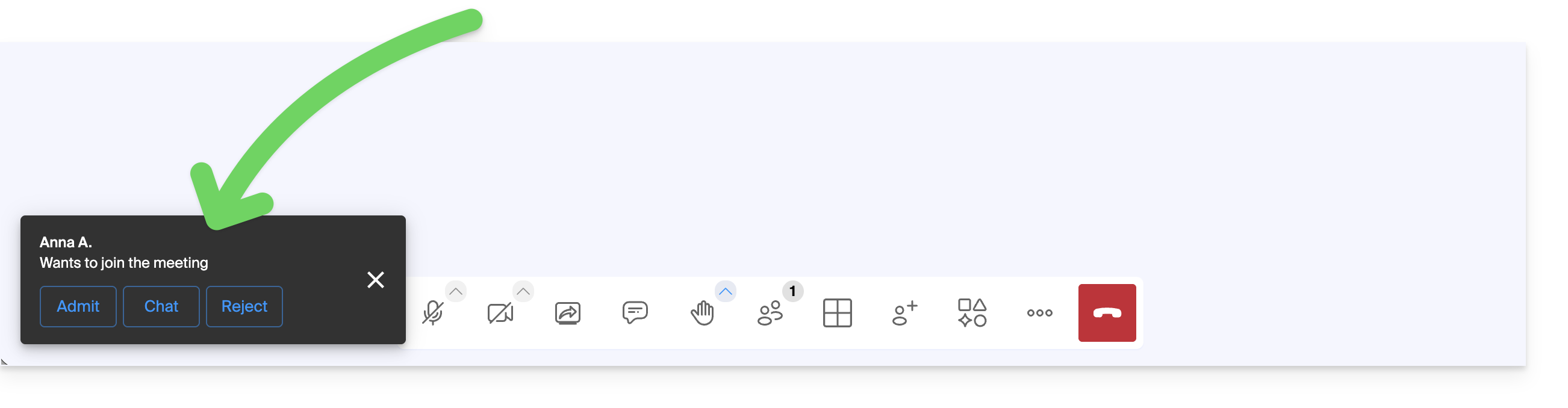
- When your participants try to join the meeting, an audible notification prompts you to allow or deny them access to the room:
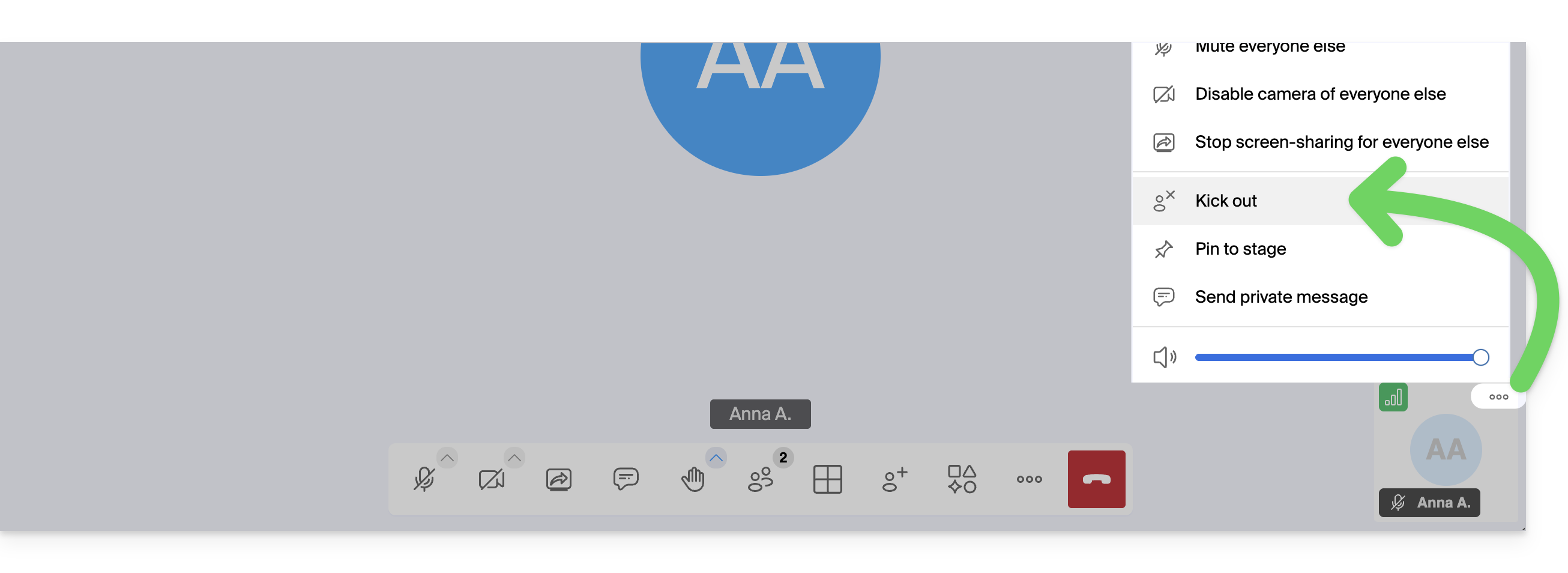
- You can exclude a participant, who was previously accepted, during the meeting:
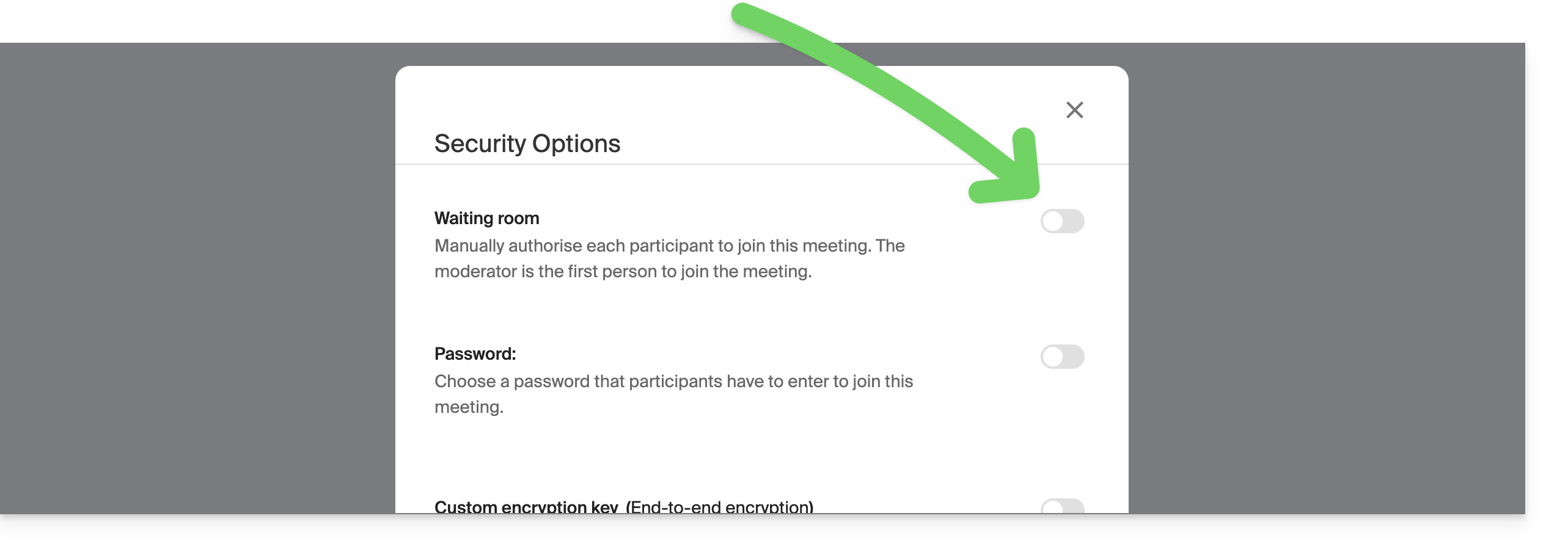
- The moderator can also disable the "waiting room" activated in step 4 above once the meeting has started:
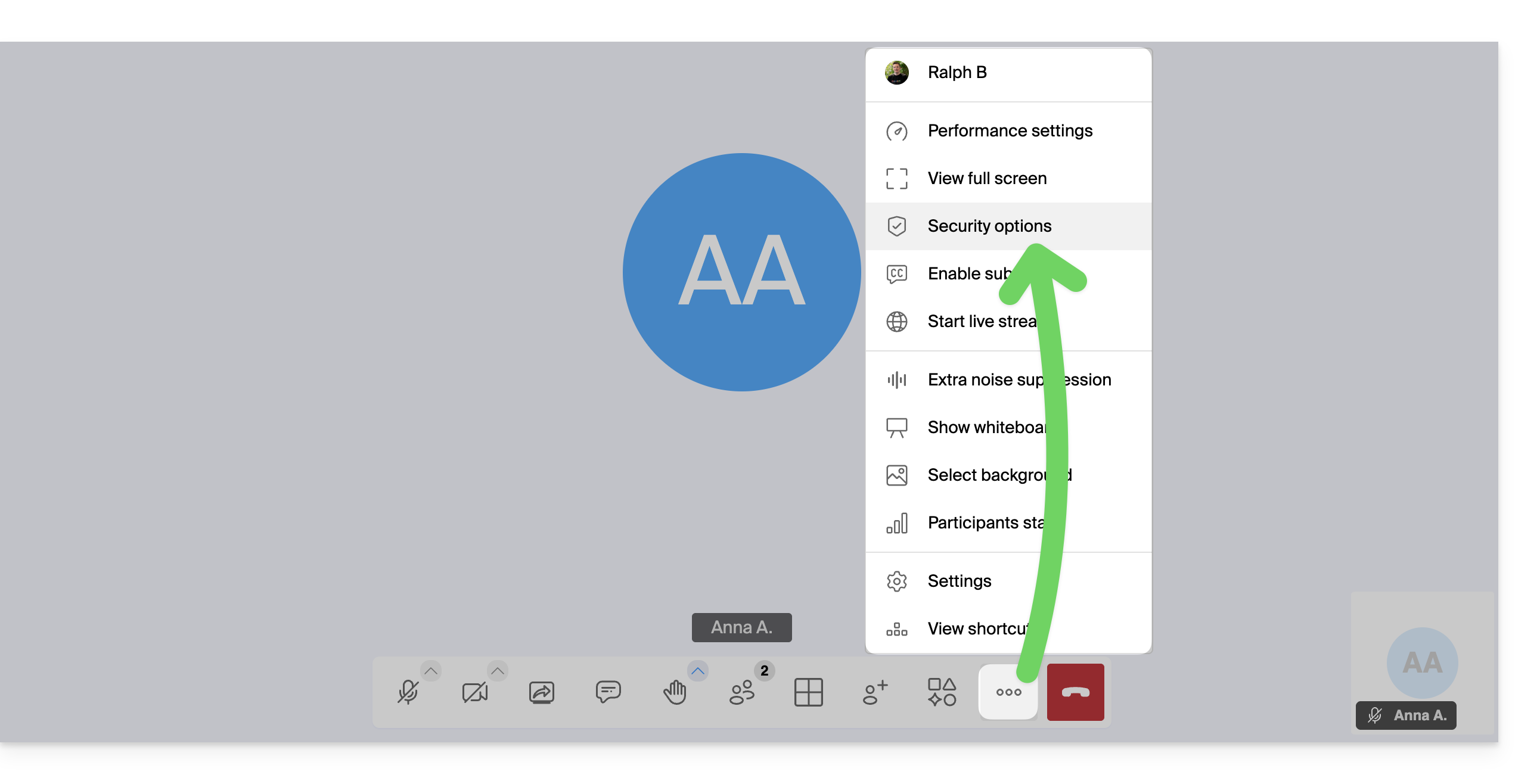
- Click on the ○○○ icon in the toolbar.
- Click on Security options:
- Disable the option to no longer have to manage new arrivals in the meeting:
Moderation options
Other moderation options are available:
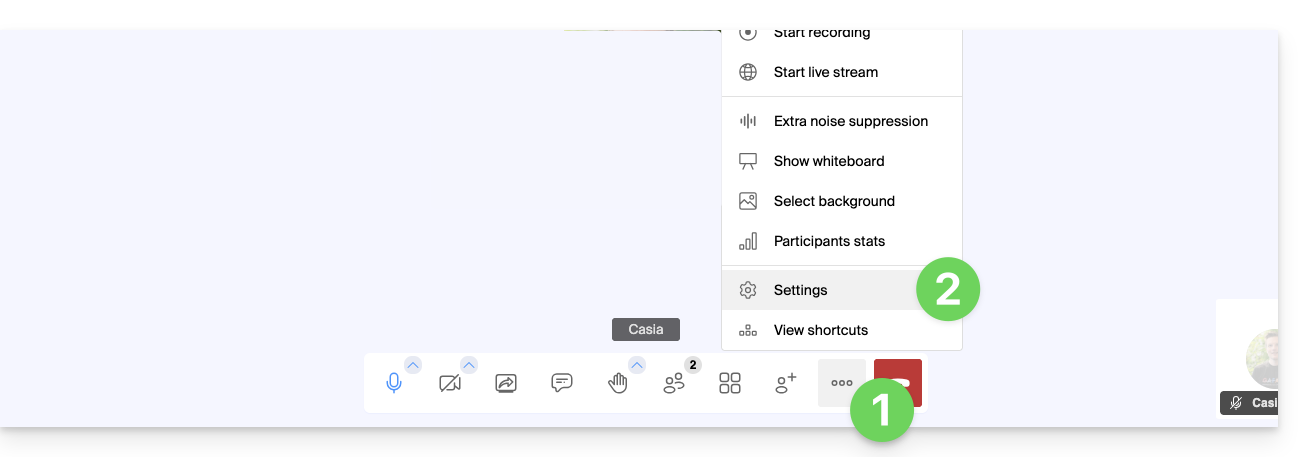
- Click on the ○○○ icon in the toolbar.
- Click on Settings:
- Click on Moderation.
- The options allow you to manage the expected behavior when new participants join:
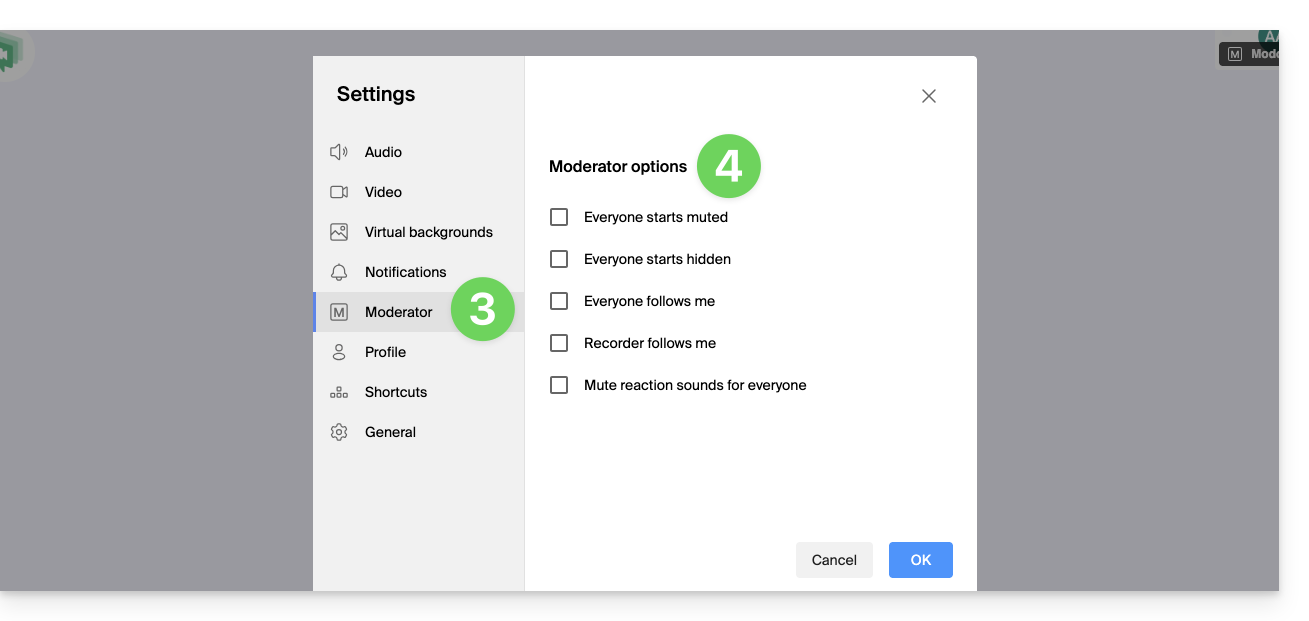
- all participants start with their microphone muted
- all participants start with their camera turned off
- all participants have the same interface display as the moderator (a specific participant is displayed in large format on the layout, etc.), which can be modified at any time by the users, but the moderator can update it at any time to enforce the setting
- the recording will use the same interface display as the moderator (a specific participant is displayed in large format on the layout, etc.)
- reaction emojis do not produce any sound
Link to this FAQ: https://faq.infomaniak.com/2476
Has this FAQ been helpful?