Knowledge base
1000 FAQs, 500 tutorials and instructional videos. Here, there are only solutions!
Create a kMeet meeting
Update 10/13/2026
This guide explains how to start an online meeting with kMeet, Infomaniak's ethical and free video conferencing solution.
Introduction
- There is no limit to the number of participants with the paid kSuite plans.
- Participants can write in a common chat (❓: help), annotate a screen share (❓: help), and even control a remote device (❓: help).
- You can create a meeting room in advance and invite participants by creating an associated event in the Infomaniak calendar (❓: help).
- You can also share the video stream within a Streaming Video broadcast (❓: help), for example, to avoid relying on the connection to kMeet.
- Custom Brand: creating rooms on a specific domain (e.g., kMeet.domain.xyz) is not yet supported by the desktop application (especially under Linux).
Create a virtual meeting room
To do this:
- Click here to access kMeet in your Infomaniak kSuite (or launch the mobile/desktop app — ❓: help).
- Start a meeting (❓: help).
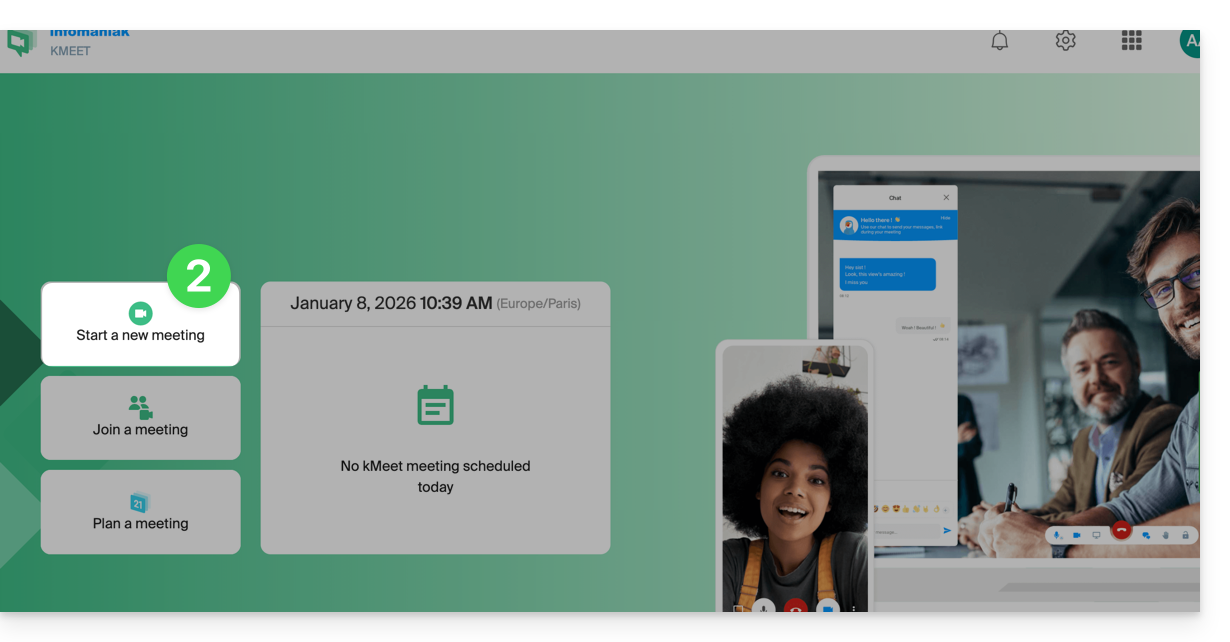
- Enter a name for your meeting room.
- Allow access to your webcam and microphone from your browser or from the application (❓: help).
- Enter a nickname or your first and last name.
- If necessary, enable participant control (❓: help), a password, or a custom encryption key (❓: help).
- Click Join the meeting.
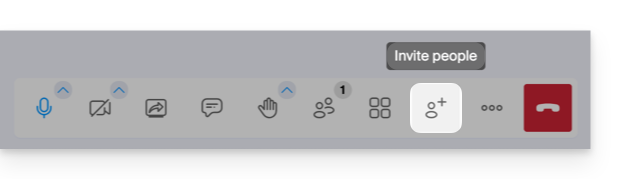
- Share the meeting link to invite participants to join you:
Link to this FAQ: https://faq.infomaniak.com/2475
Has this FAQ been helpful?