Knowledge base
1000 FAQs, 500 tutorials and instructional videos. Here, there are only solutions!
Join a kMeet meeting
Update 10/13/2026
This guide explains how to join a kMeet video conference, the free video conferencing solution by Infomaniak.
Introduction
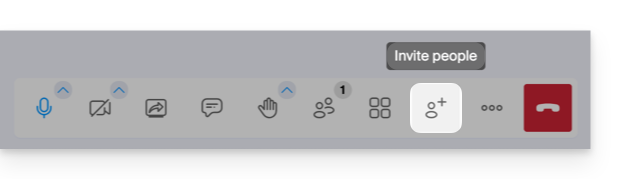
- To quickly obtain and share the link to the current meeting, the creator must click on the user icon with a plus sign (
+):
Join a meeting room
To join a kMeet that an administrator has already started:
- Click here to access kMeet on your kSuite Infomaniak (or launch the mobile/desktop app — ❓: help).
- Click the button to Join a meeting.
- Enter the code for the meeting (e.g.
001-0002-003) or its link (which you can also open directly) - see the introduction below if you can't find how to get the discussion link. - Click the OK button:
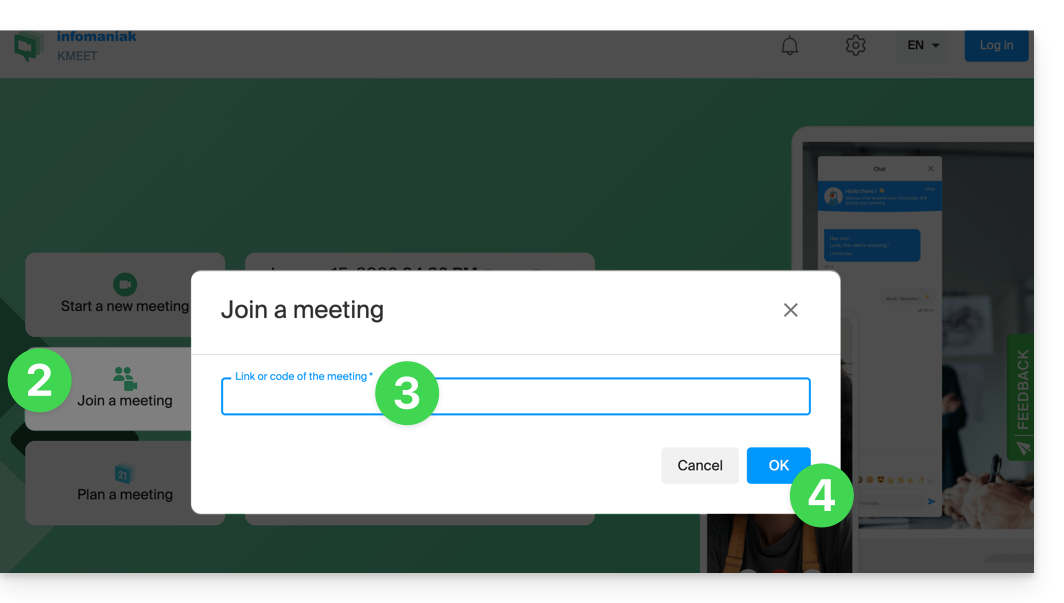
- If necessary, authorize access to your webcam and microphone from your browser or from one of the applications:
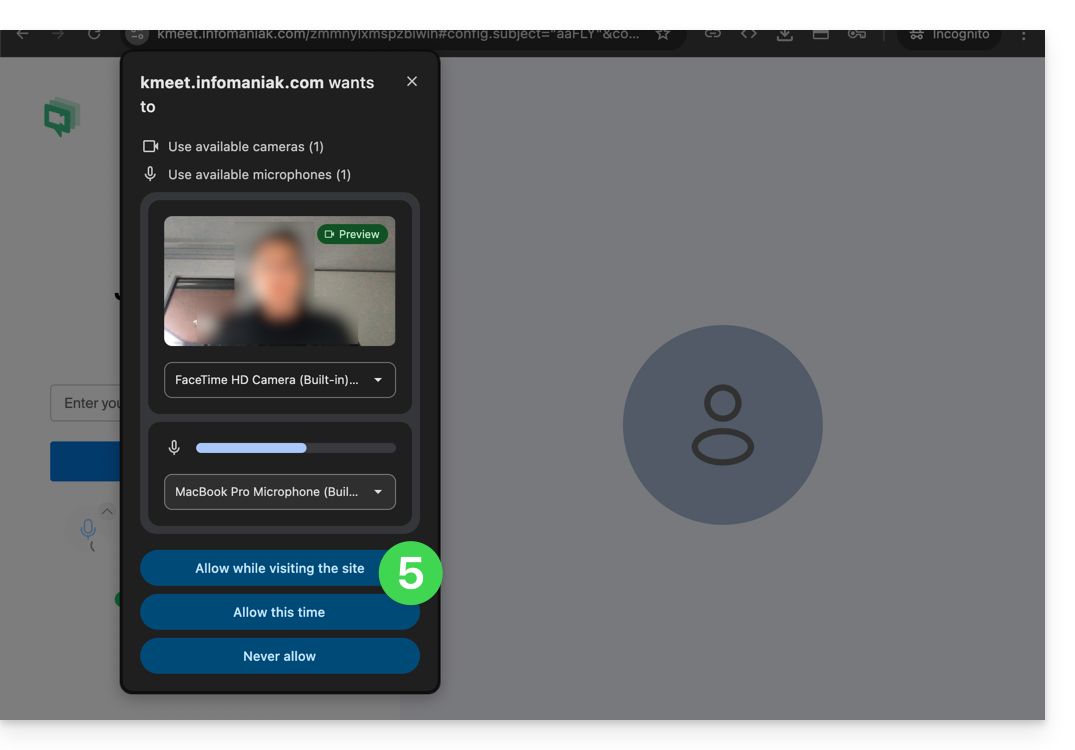
- Enter a username or your first and last name.
- Adjust the settings according to your preferences (e.g., if you want to disable the camera).
- Click the blue button to join the meeting:
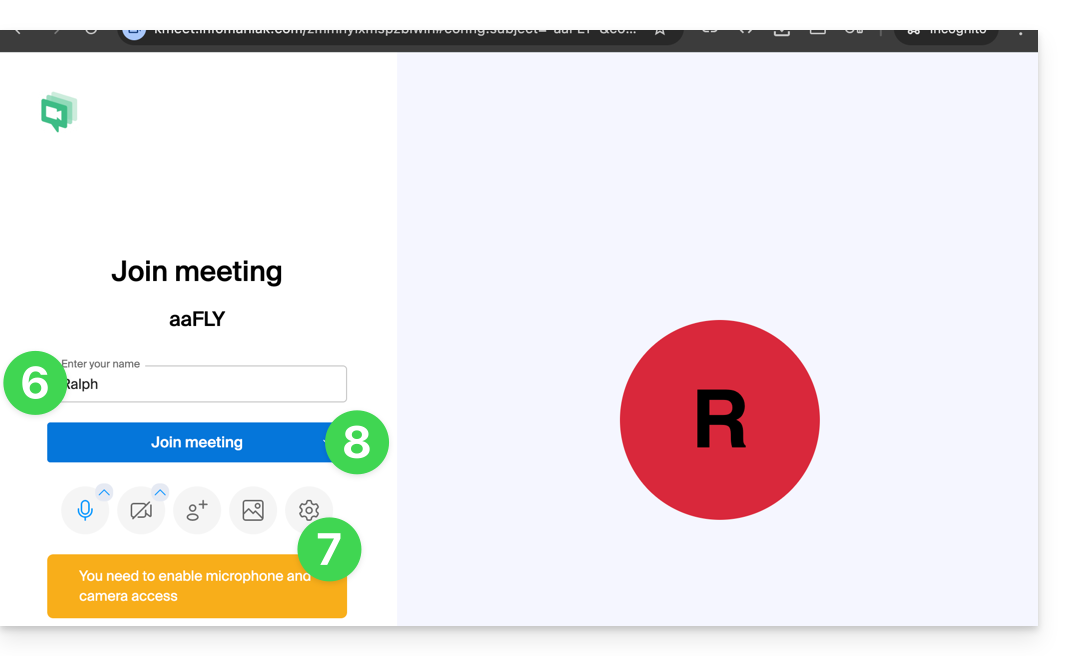
- If necessary, enter the access password and/or encryption key provided by the meeting organizer.
Link to this FAQ: https://faq.infomaniak.com/2473
Has this FAQ been helpful?