Knowledge base
1000 FAQs, 500 tutorials and instructional videos. Here, there are only solutions!
Secure a kMeet meeting with a password and encryption key
Update 08/31/2026
This guide explains how to add a password and an encryption key to a kMeet meeting, Infomaniak's ethical and free video conferencing solution.
Protect a meeting with a password
When creating your meeting room, you can protect it with a password, which you will need to share with all participants so they can connect:
- Start kMeet via kmeet.infomaniak.com or from one of the applications for desktop or mobile devices.
- Start a new meeting:
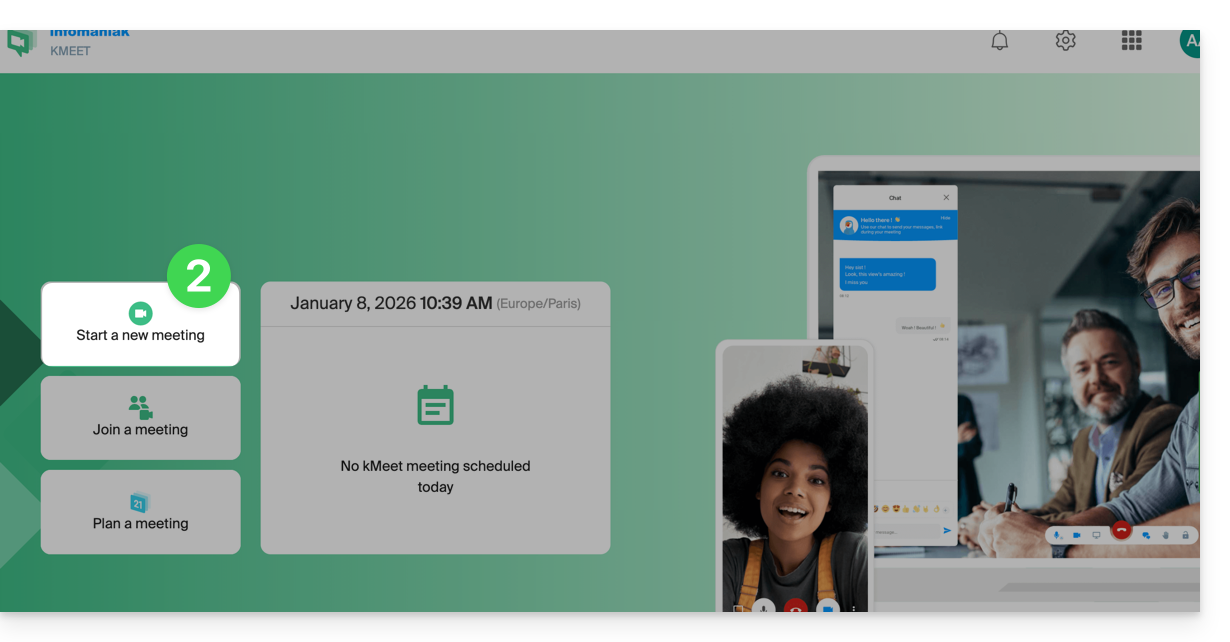
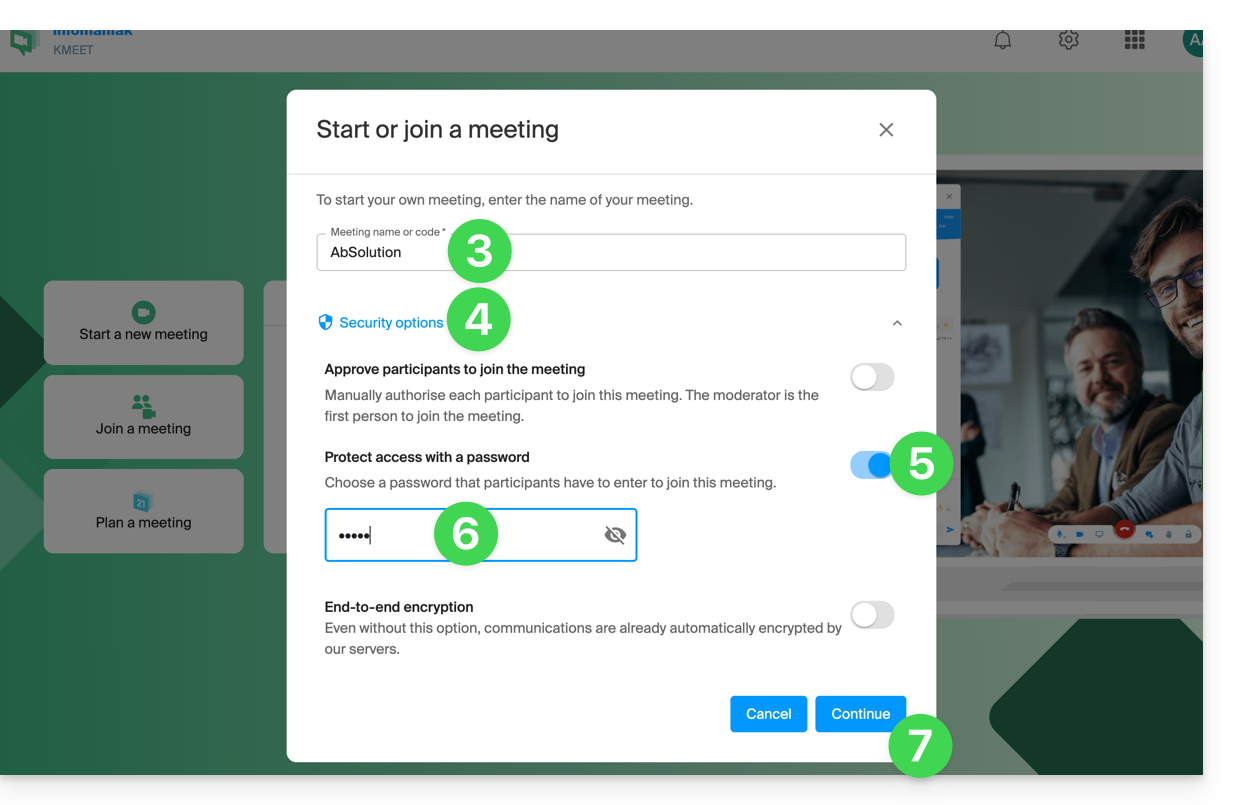
- Enter a name for your meeting room.
- Click on Security options.
- Activate the toggle switch for Protect access.
- Create the password.
- Continue to start the meeting:
- Specify the name you want to use as a meeting participant.
- Share the meeting link or code, as well as the password (which you can display again at this step), with your participants:
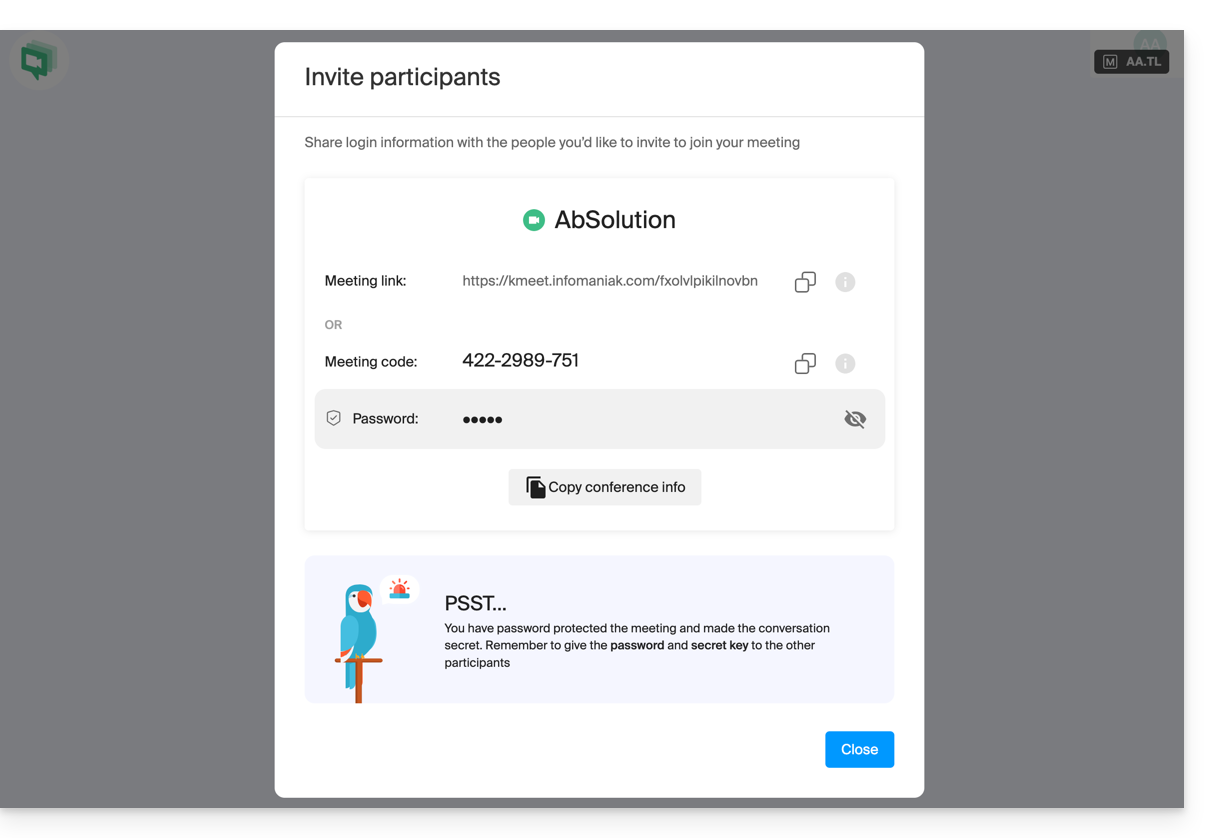
- You can review the password if necessary by inviting participants using the dedicated button:
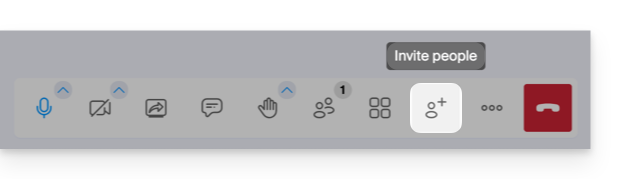
- You can review the password if necessary by inviting participants using the dedicated button:
Secure a meeting with an encryption key (E2E)
Prerequisites
- This feature works only with desktop apps and up-to-date browsers based on the Chromium (e.g., Opera, Brave, Google Chrome, etc.).
Then, follow the procedure above until step 4. Once in the security options:
- Activate the toggle switch to enable end-to-end encryption:
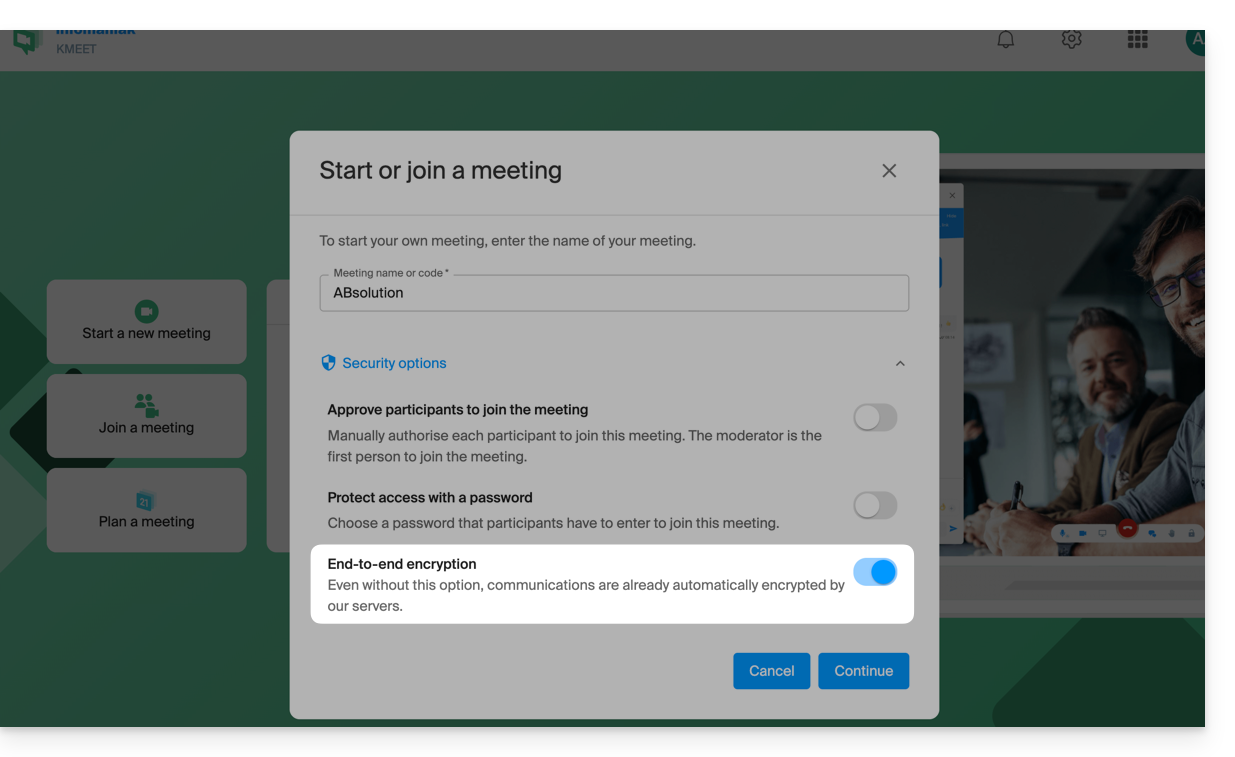
- When the video conference starts, an audio message will play to announce the end-to-end encryption.
Link to this FAQ: https://faq.infomaniak.com/2464
Has this FAQ been helpful?