Knowledge base
1000 FAQs, 500 tutorials and instructional videos. Here, there are only solutions!
Secure a kMeet meeting with a password and end-to-end encryption
Update 10/13/2026
This guide explains how to add a password and end-to-end encryption to a kMeet meeting, Infomaniak's ethical and free video conferencing solution.
Protecting a meeting with a password
When creating your meeting room, you can protect it with a password that you will need to share with all participants so they can connect:
- Click here to access kMeet in your Infomaniak kSuite (or launch the mobile/desktop app — ❓: help).
- Start a meeting (❓: help).
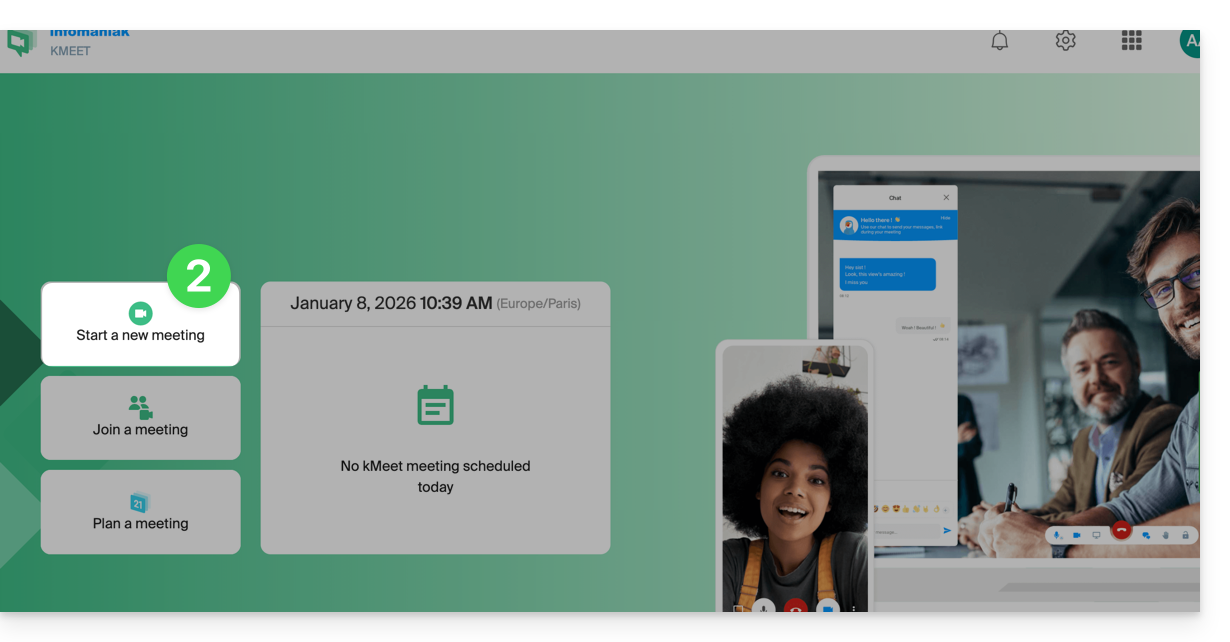
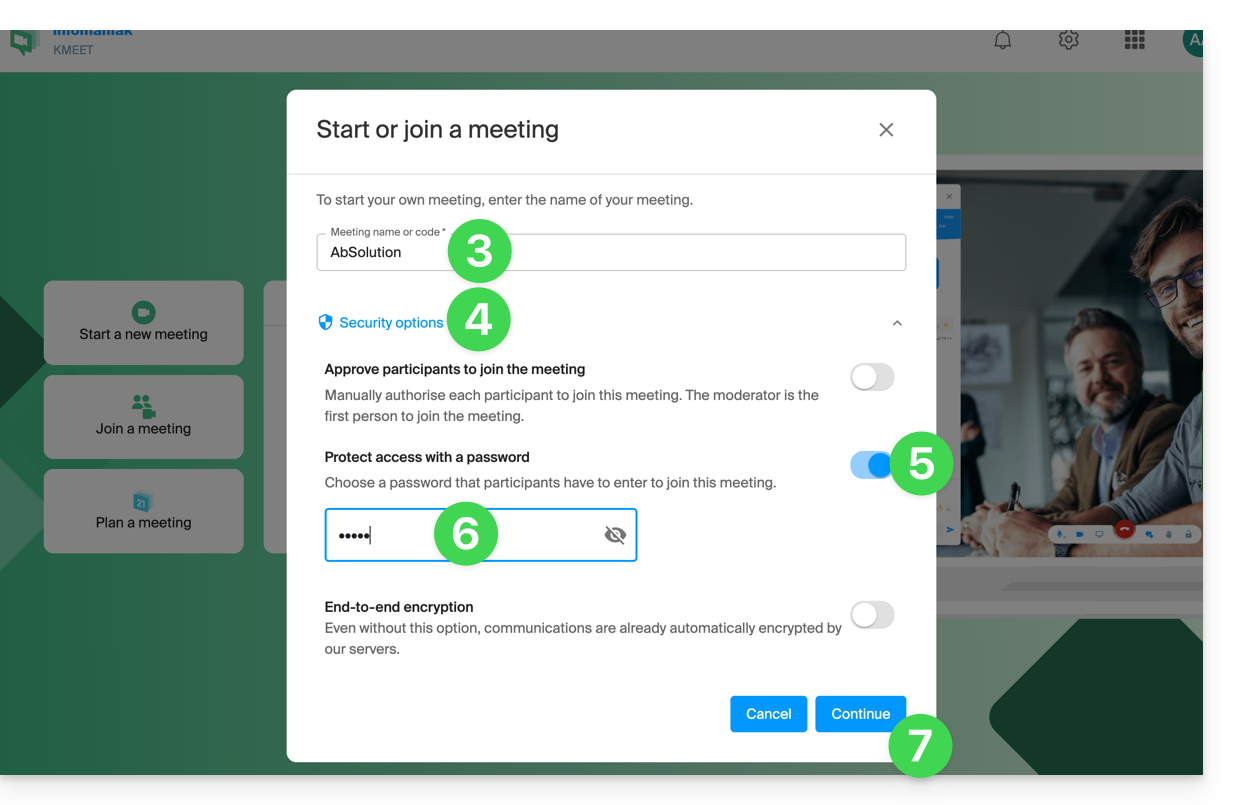
- Enter a name for your meeting room.
- Click on Security options.
- Activate the toggle for Protect access.
- Create the password.
- Continue to start the meeting:
- Specify the name you want to use as a meeting participant.
- Share the meeting link or code and the password with your participants:
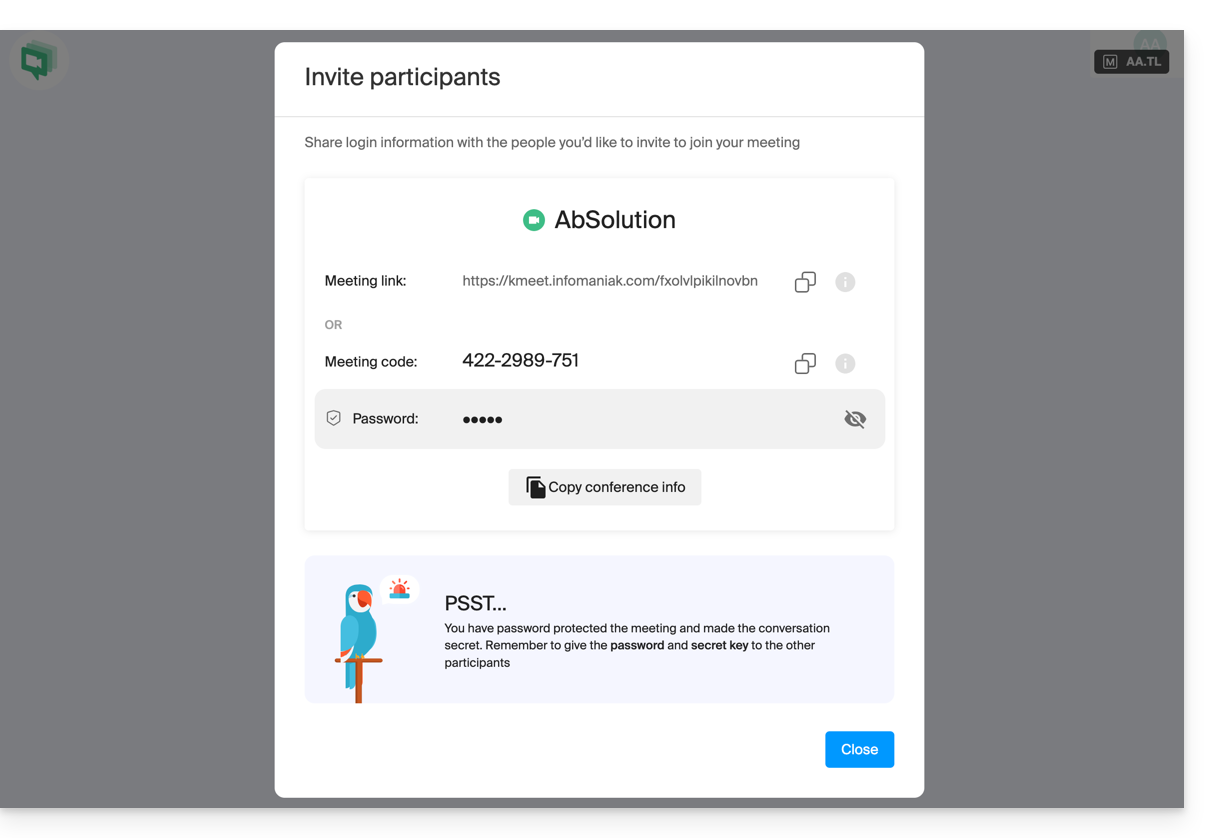
- You can review the password if necessary by inviting participants using the dedicated button:
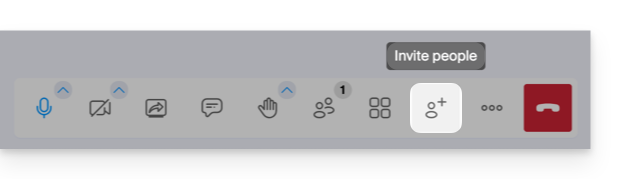
- You can review the password if necessary by inviting participants using the dedicated button:
Secure a conference room with end-to-end encryption (E2E)
Prerequisites
- Experimental feature: end-to-end encryption is currently in the experimental stage.
- Enabling it disables server-provided services, such as mobile device support.
- Compatible browsers: this option requires a Chromium 83 or later-based browser (Chrome, Edge, Opera, Brave) that supports insertable streams.
- End-to-end encryption does not work on Firefox, mobile applications, or the kMeet desktop application under Linux.
- People joining the meeting with an incompatible browser or device will not be able to see or hear you.
To enable encryption, follow the room creation procedure above up to step 4. Once in the security options:
- Activate the toggle switch to enable end-to-end encryption:
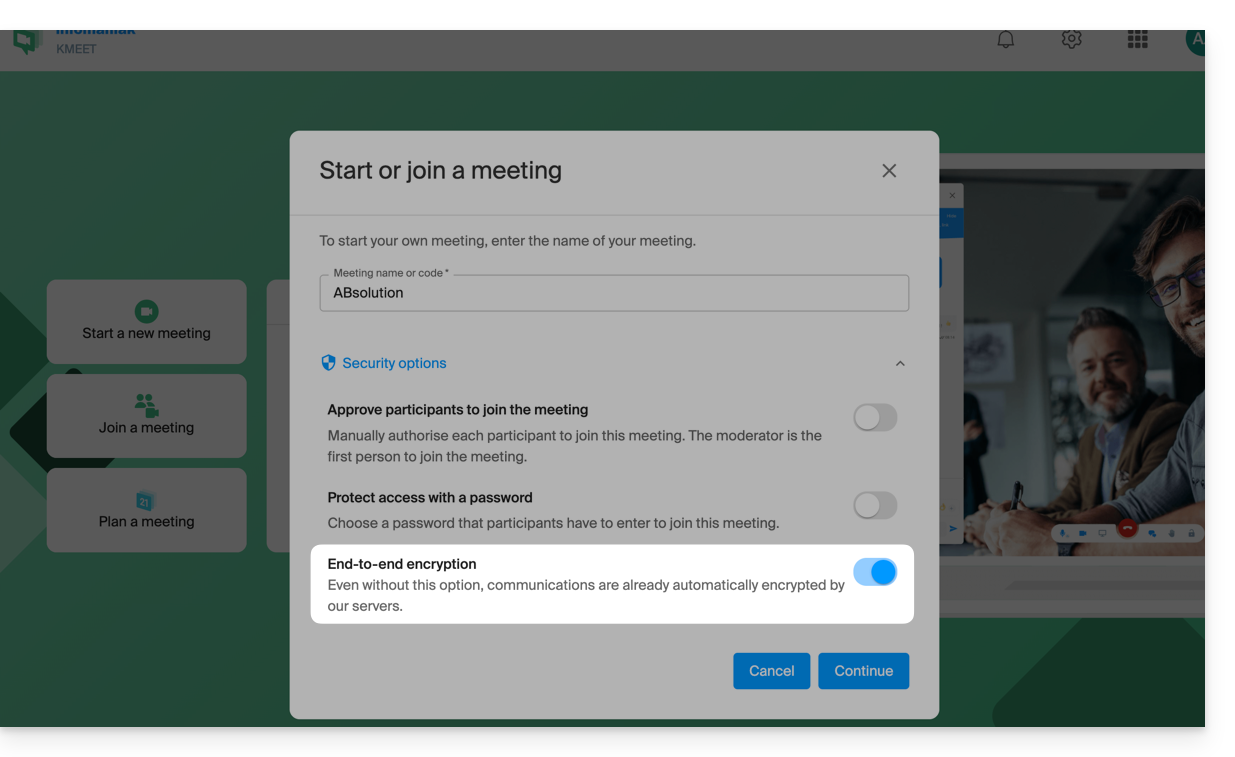
- When the video conference starts, an audio message will play to announce that end-to-end encryption has been activated.
Link to this FAQ: https://faq.infomaniak.com/2464
Has this FAQ been helpful?