Knowledge base
1000 FAQs, 500 tutorials and instructional videos. Here, there are only solutions!
Transfer files using SCP (secure copy command)
Update 10/05/2026
This guide explains how to securely transfer files between your computer and the server of your web hosting using the SCP (secure copy command) protocol.
Introduction
- To function, the
SCPcommand requires:- a source: a file/folder to transfer
- a destination: the address of the FTP server to perform the transfer
- Data is automatically encrypted by
SCPduring the transfer.
Copy a local file to the server
Prerequisites
- To obtain the FTP server address:
- Click here to access the hosting & site management section in your Infomaniak Manager (❓: help).
- Click on the name of the relevant hosting.
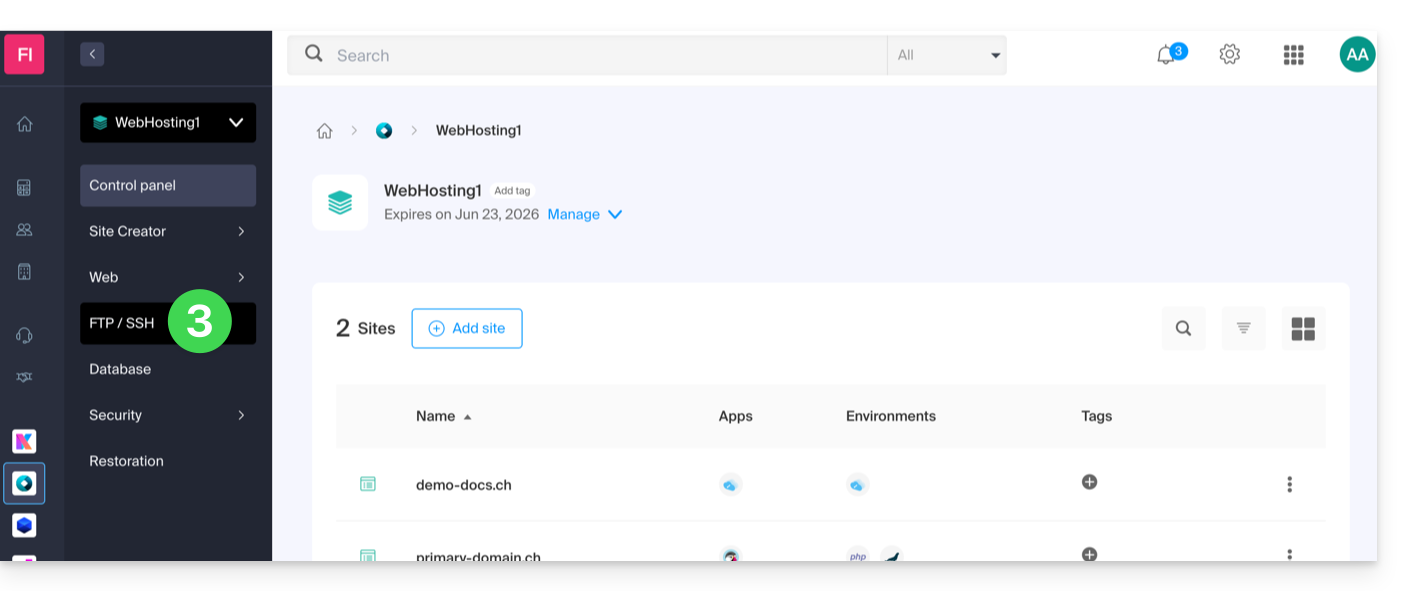
- Click on FTP / SSH in the left-hand menu:
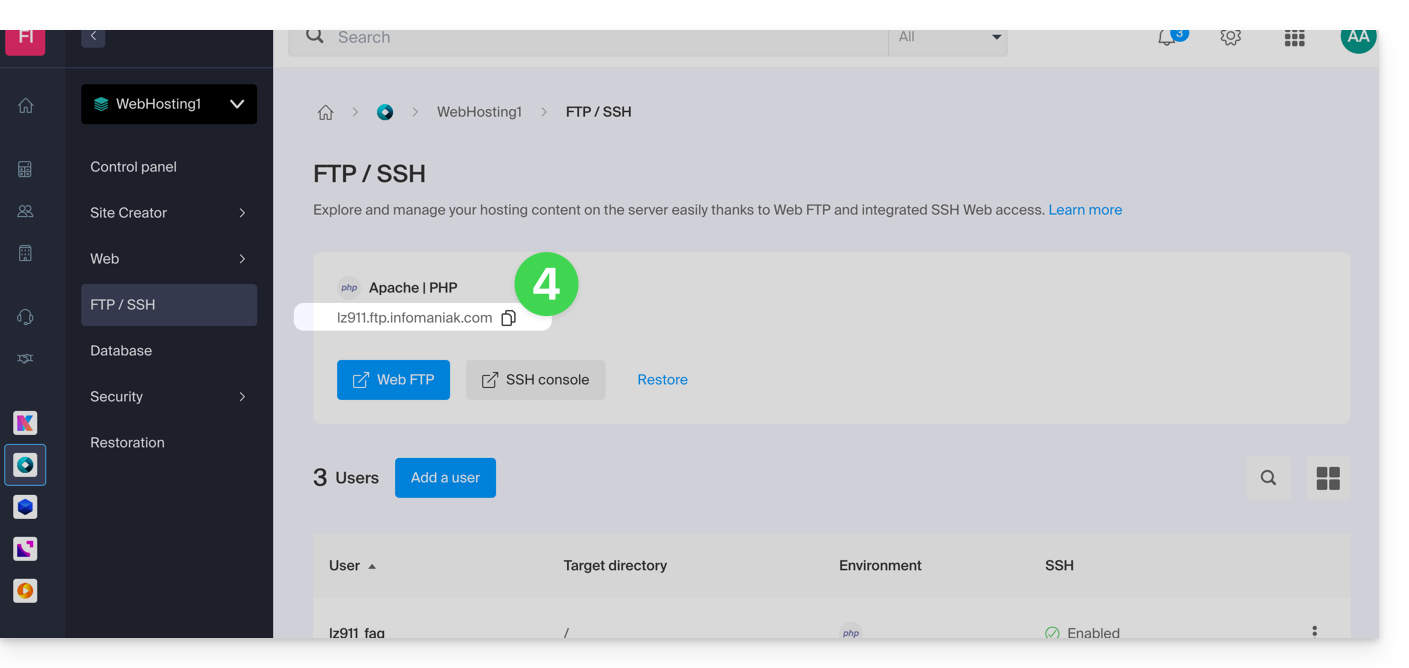
- The host server address is displayed in the top left corner and can be copied:
- To obtain the path to the destination folder:
- Click here to access the hosting & site management section in your Infomaniak Manager (❓: help).
- Click on the name of the hosting account in question.
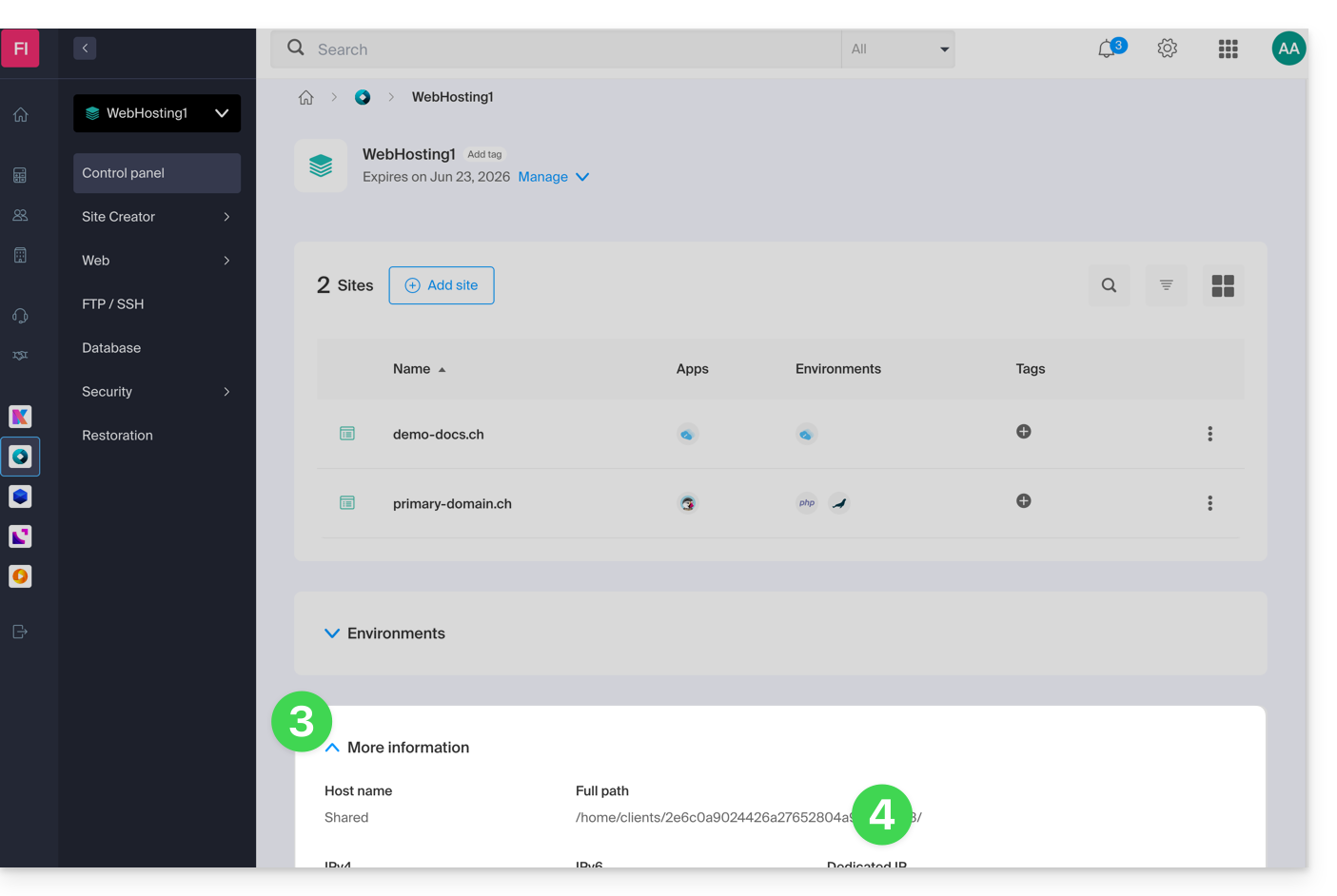
- Click on More information (in the Information section).
- Copy the absolute path:
- Complete the absolute path with the desired destination folder.
Next, to copy a file from your computer, the command is structured as follows:
scp localmachine/path_to_the_file username@ftp_server_adress:/path_to_remote_directory
To copy an entire directory from your computer, you need to adapt the command as follows:
scp -r localmachine/path_to_the_file username@ftp_server_adress:/path_to_remote_directoryThe entire folder will be transferred to your server.
To copy the entire contents of a directory from your computer, you need to adapt the command as follows:
scp -r localmachine/path_to_the_file/* username@ftp_server_adress:/path_to_remote_directoryLink to this FAQ: https://faq.infomaniak.com/2461
Has this FAQ been helpful?