Knowledge base
1000 FAQs, 500 tutorials and instructional videos. Here, there are only solutions!
Transfer files using SCP (secure copy command)
This guide explains how to securely transfer files between your computer and the server of your web hosting using the SCP (secure copy command) protocol.
Introduction
- To function, the
SCPcommand requires:- a source: a file/folder to transfer
- a destination: the address of the FTP server to perform the transfer
- Data is automatically encrypted by
SCPduring the transfer.
Copy a local file to the server
Prerequisites
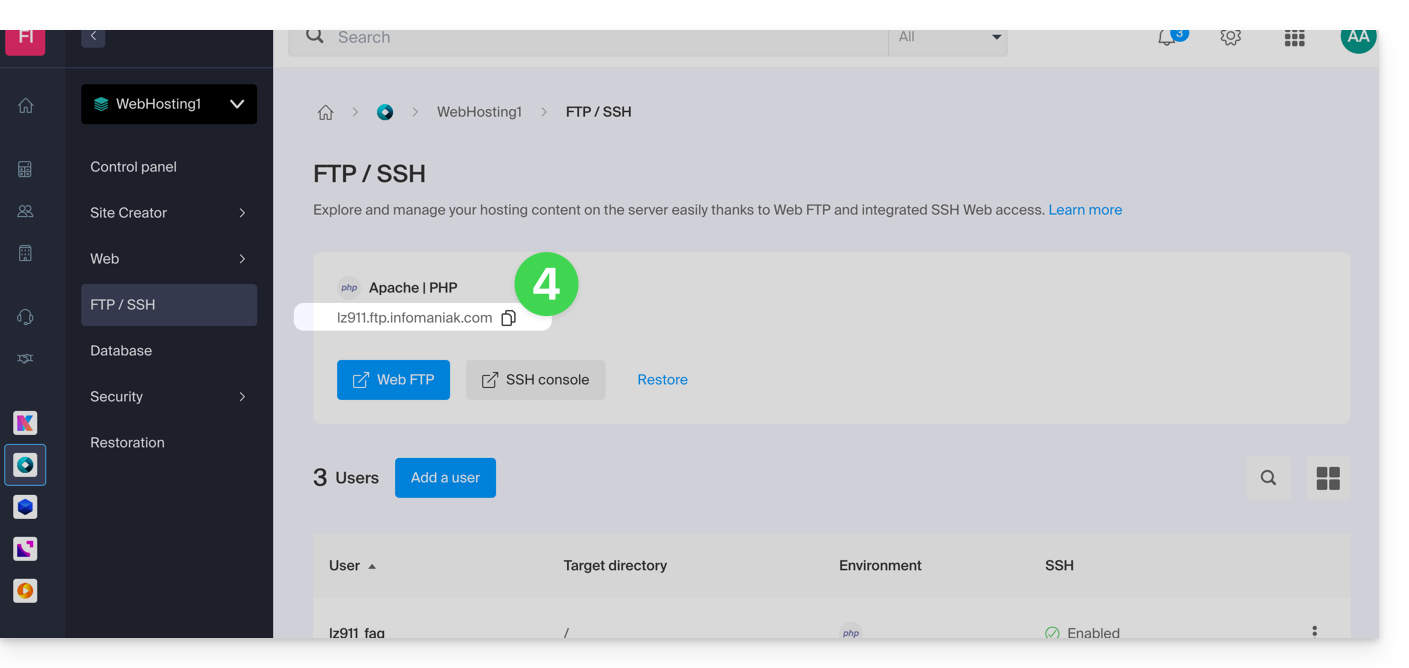
- To obtain the FTP server address:
- Click here to access the hosting & site management section in your Infomaniak Manager (❓: help).
- Click on the name of the relevant hosting.
- Click on FTP / SSH in the left-hand menu:
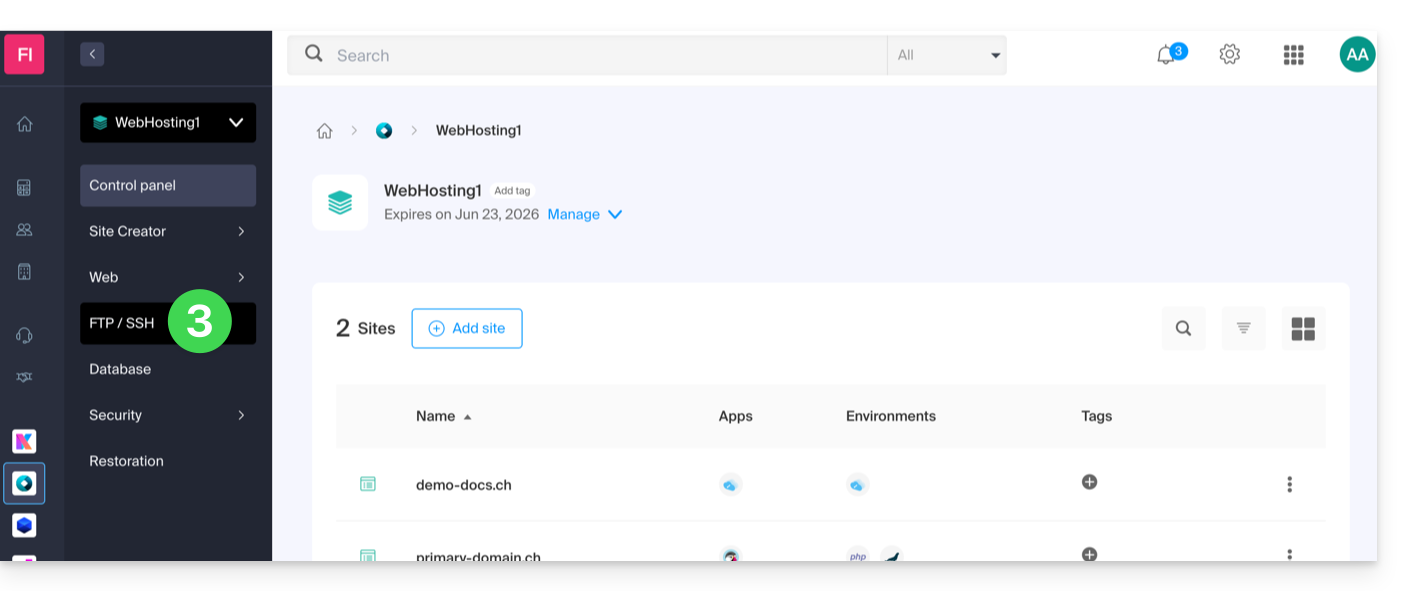
- The host server address is displayed in the top left corner and can be copied:
- To obtain the path to the destination folder:
- Click here to access the hosting & site management section in your Infomaniak Manager (❓: help).
- Click on the name of the hosting account in question.
- Click on More information (in the Information section).
- Copy the absolute path:
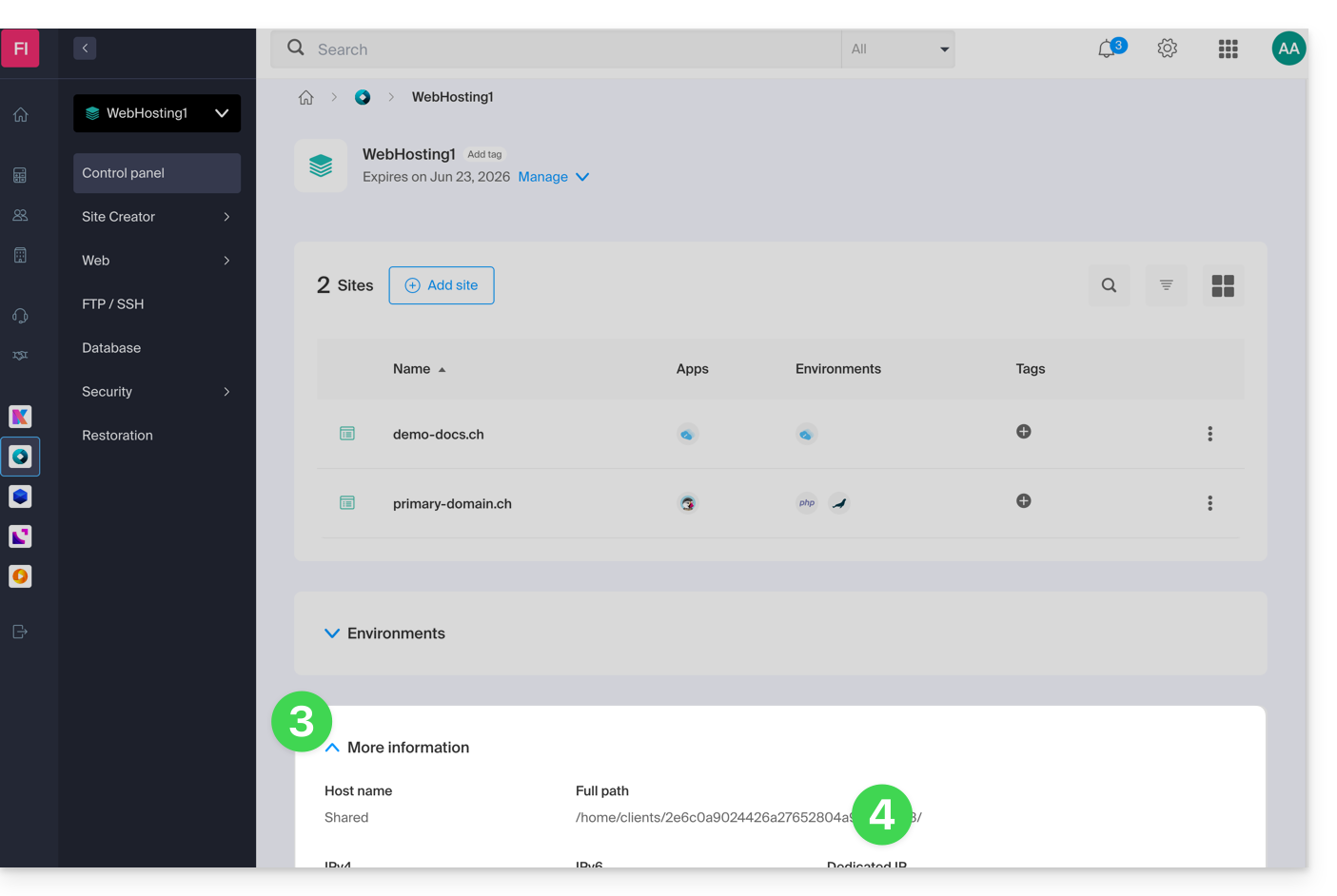
- Complete the absolute path with the desired destination folder.
Next, to copy a file from your computer, the command is structured as follows:
scp localmachine/path_to_the_file username@ftp_server_adress:/path_to_remote_directory
To copy an entire directory from your computer, you need to adapt the command as follows:
scp -r localmachine/path_to_the_file username@ftp_server_adress:/path_to_remote_directoryThe entire folder will be transferred to your server.
To copy the entire contents of a directory from your computer, you need to adapt the command as follows:
scp -r localmachine/path_to_the_file/* username@ftp_server_adress:/path_to_remote_directoryLink to this FAQ: https://faq.infomaniak.com/2461
Has this FAQ been helpful?