Knowledge base
1000 FAQs, 500 tutorials and instructional videos. Here, there are only solutions!
Manage multiple kDrive accounts (macOS / Windows)
This guide explains how to connect to and manage multiple kDrive accounts on your computer (macOS / Windows).
Introduction
- This feature allows you, for example, to access files from a personal kDrive and a professional kDrive.
- Each kDrive added to the application and synchronized has its own storage folder on the hard drive.
- The same principle applies to the mobile app (❓: help).
Access other kDrives linked to your login ID
In this example, the login ID guides@exemple-domaine.ch leads to the personal Organization “RB”, which has a kDrive, but also leads to an Organization “FAQ” that invited guides@exemple-domaine.ch to become a user of its kDrive.
This case is automatically managed in the Web app (online service ksuite.infomaniak.com/kdrive); the user guides@exemple-domaine.ch logs in and can switch between Organizations (and therefore between kDrives):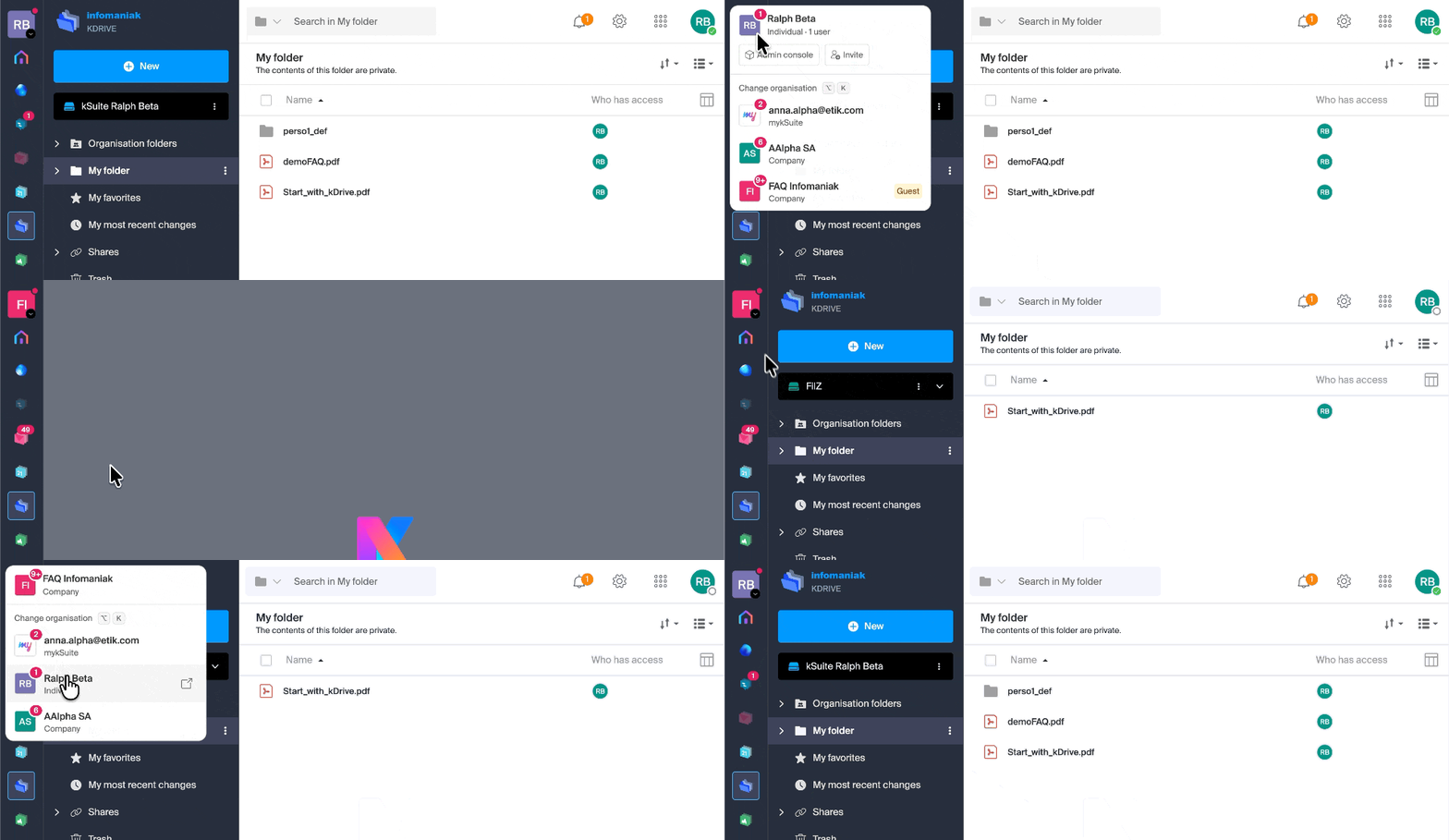
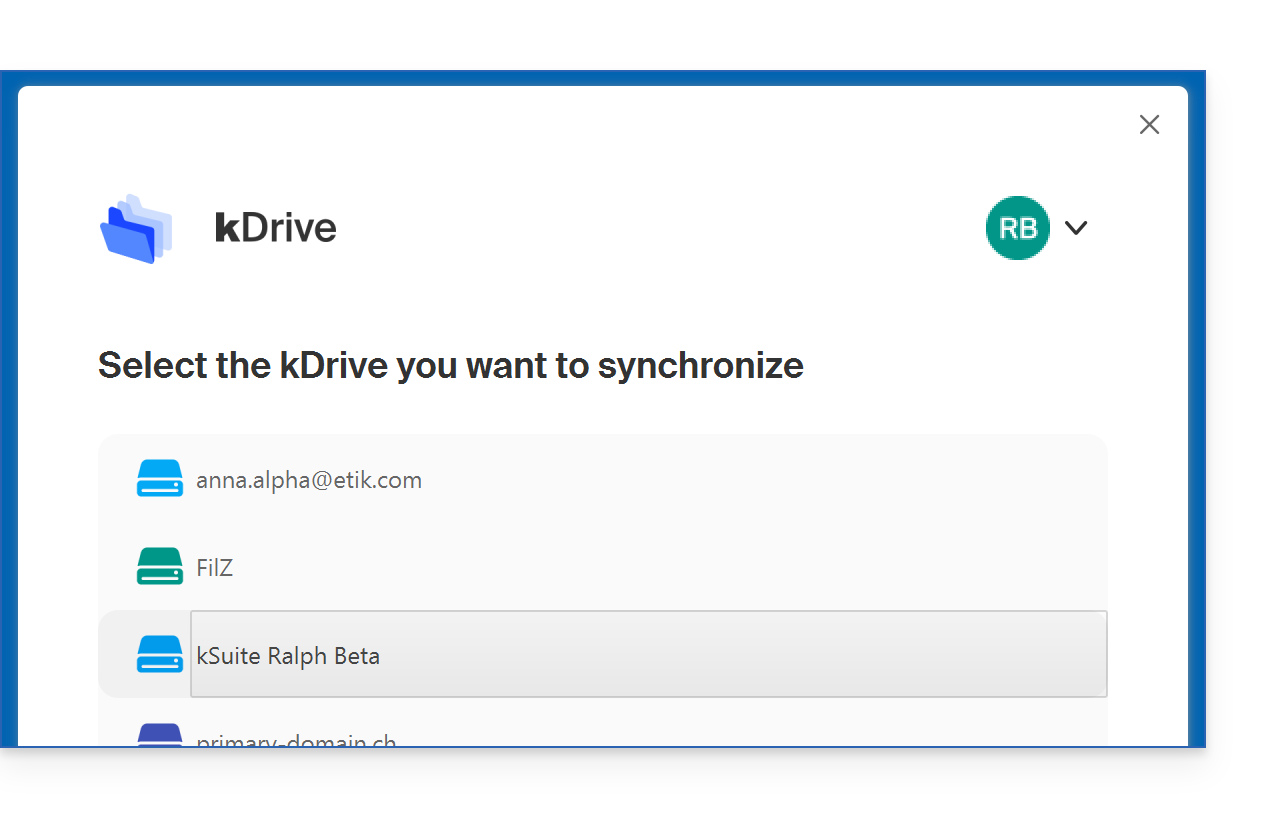
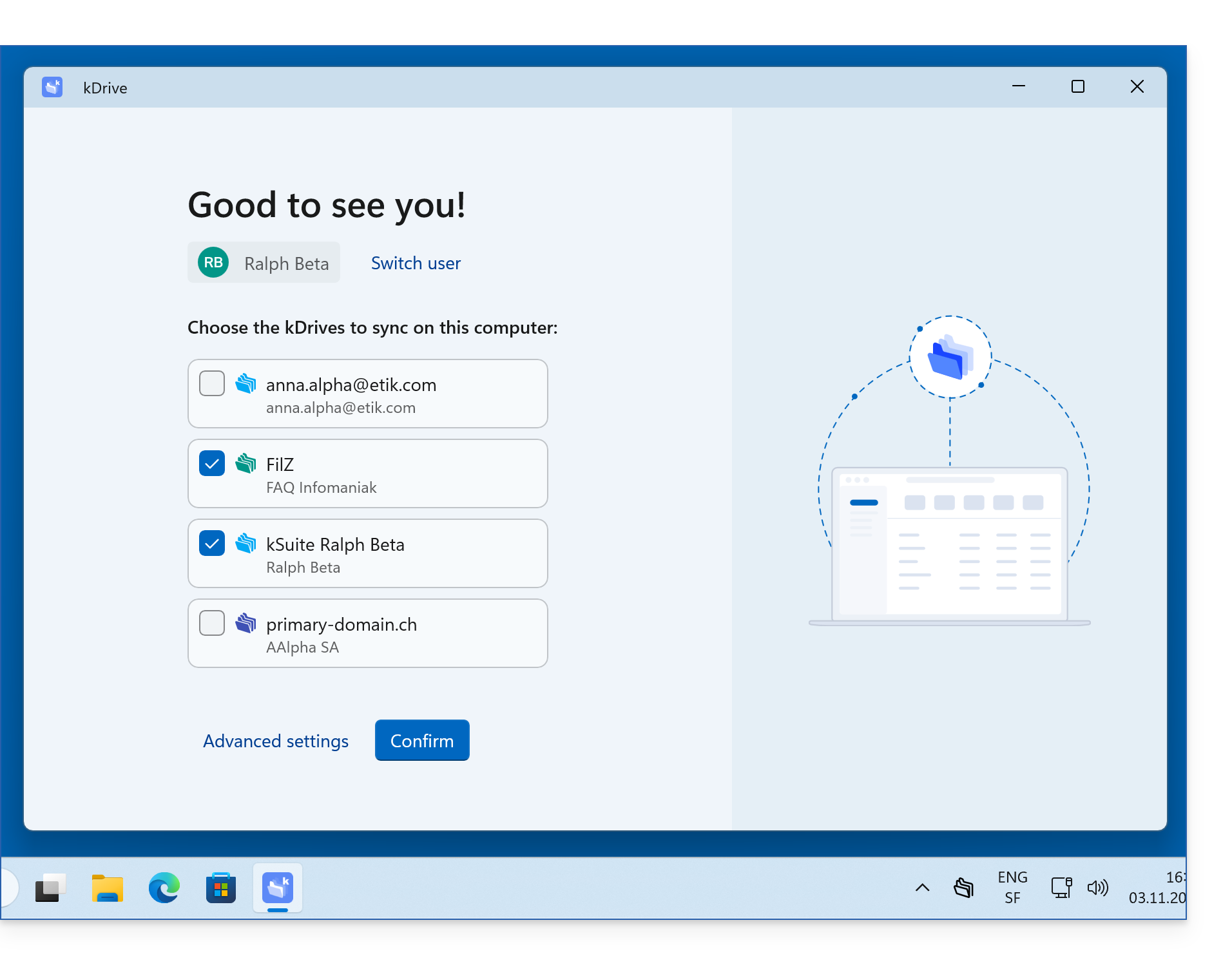
The same principle applies when installing the desktop app (desktop application on macOS / Windows / Linux); the user guides@exemple-domaine.ch logs in and selects one of the available kDrives (or even several with v4):
- app v3.x :
- app v4.x :
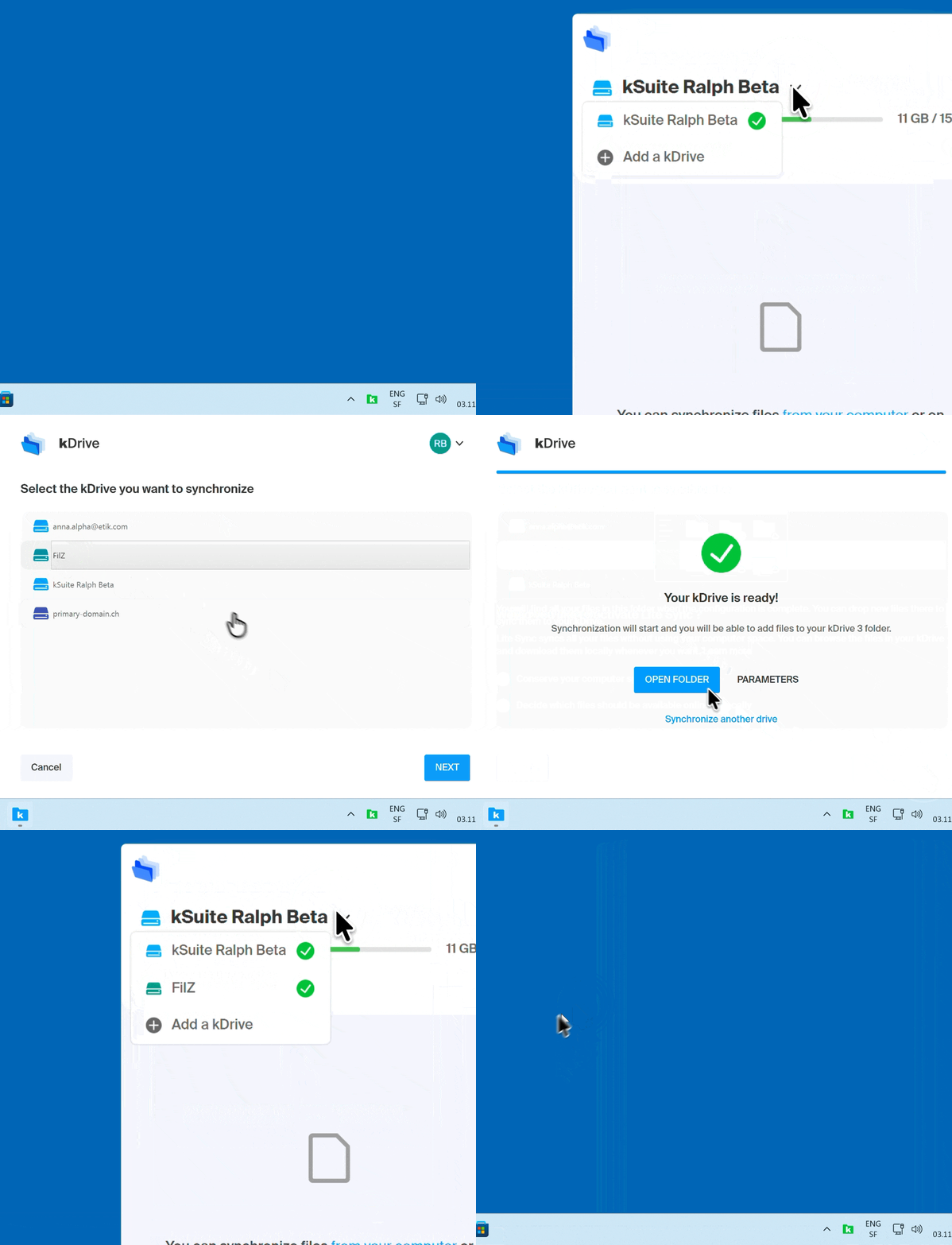
Subsequently, it can add and then access other kDrives to which its current login ID has access:
- app v3.x :
- app v4.x :
Access an additional & external kDrive
To connect with a different Infomaniak account and therefore access even more kDrives:
App v3.x
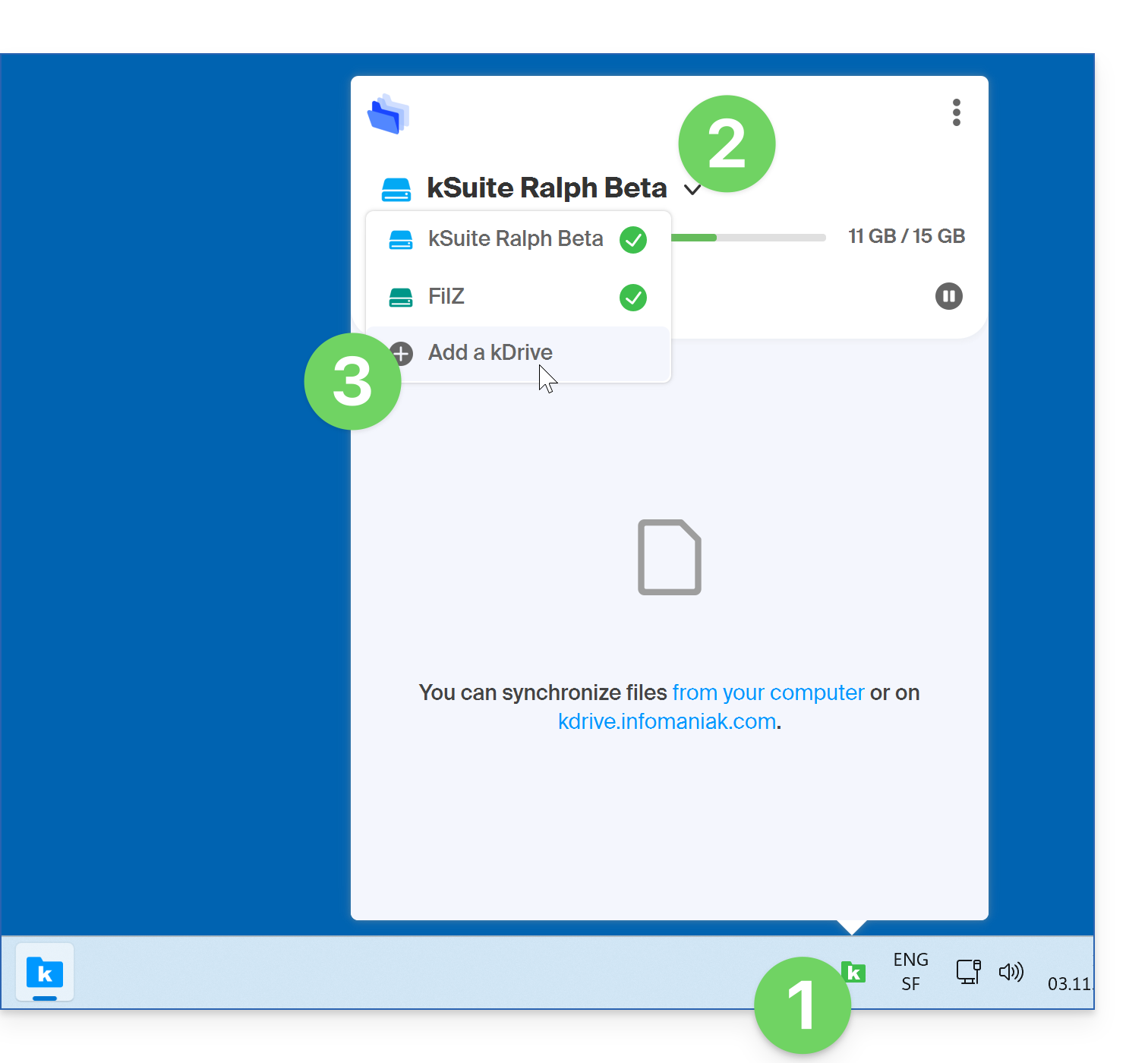
- Left-click on the desktop app icon in the notification area of your computer (top right on macOS, bottom right on Windows, and double-click in the taskbar on Linux).
- Click on the chevron to the right of the kDrive name (the kDrives you already have access to with your user account will be displayed).
- Click on Add a kDrive:
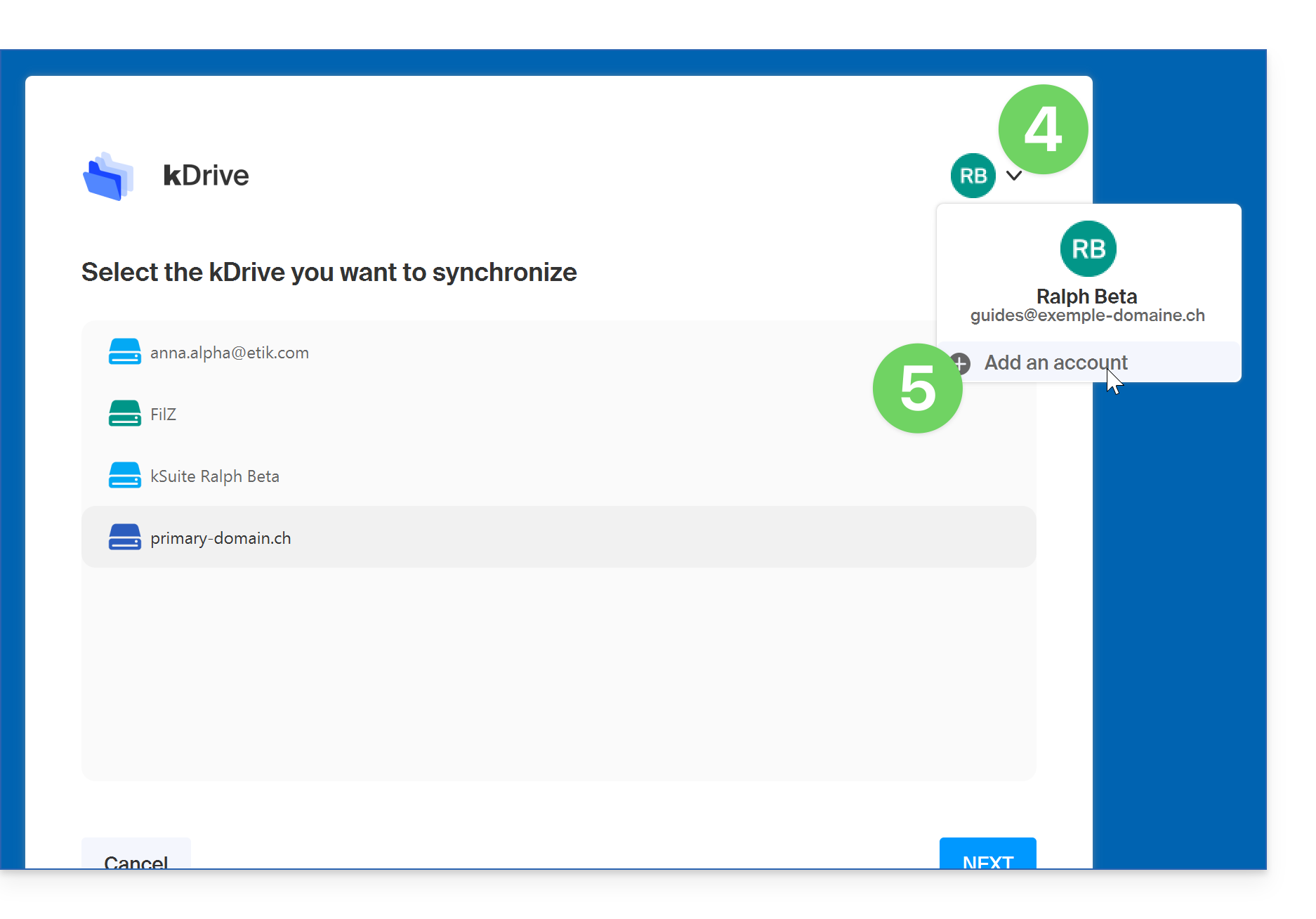
- Click on the badge with your initials or your avatar in the top right corner.
- Click on Add an account:
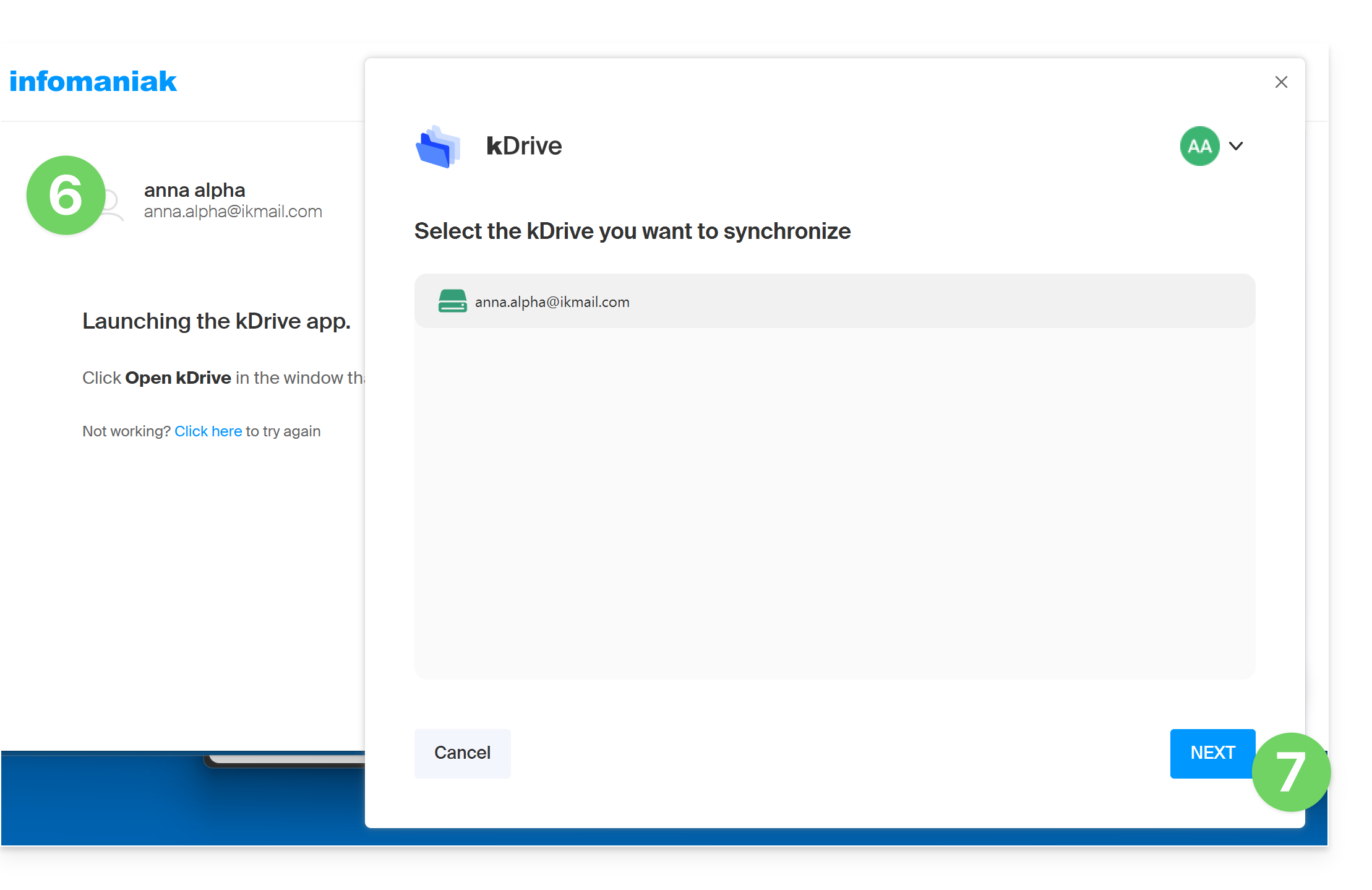
- Enter the credentials for the Infomaniak account associated with the kDrive you want to add (❓: help).
- Choose and configure the kDrive to add (Lite Sync, directory to be used on the computer, etc.):
- You can now switch between kDrives by clicking on the kDrive icon and then on the down arrow in the window that opens:
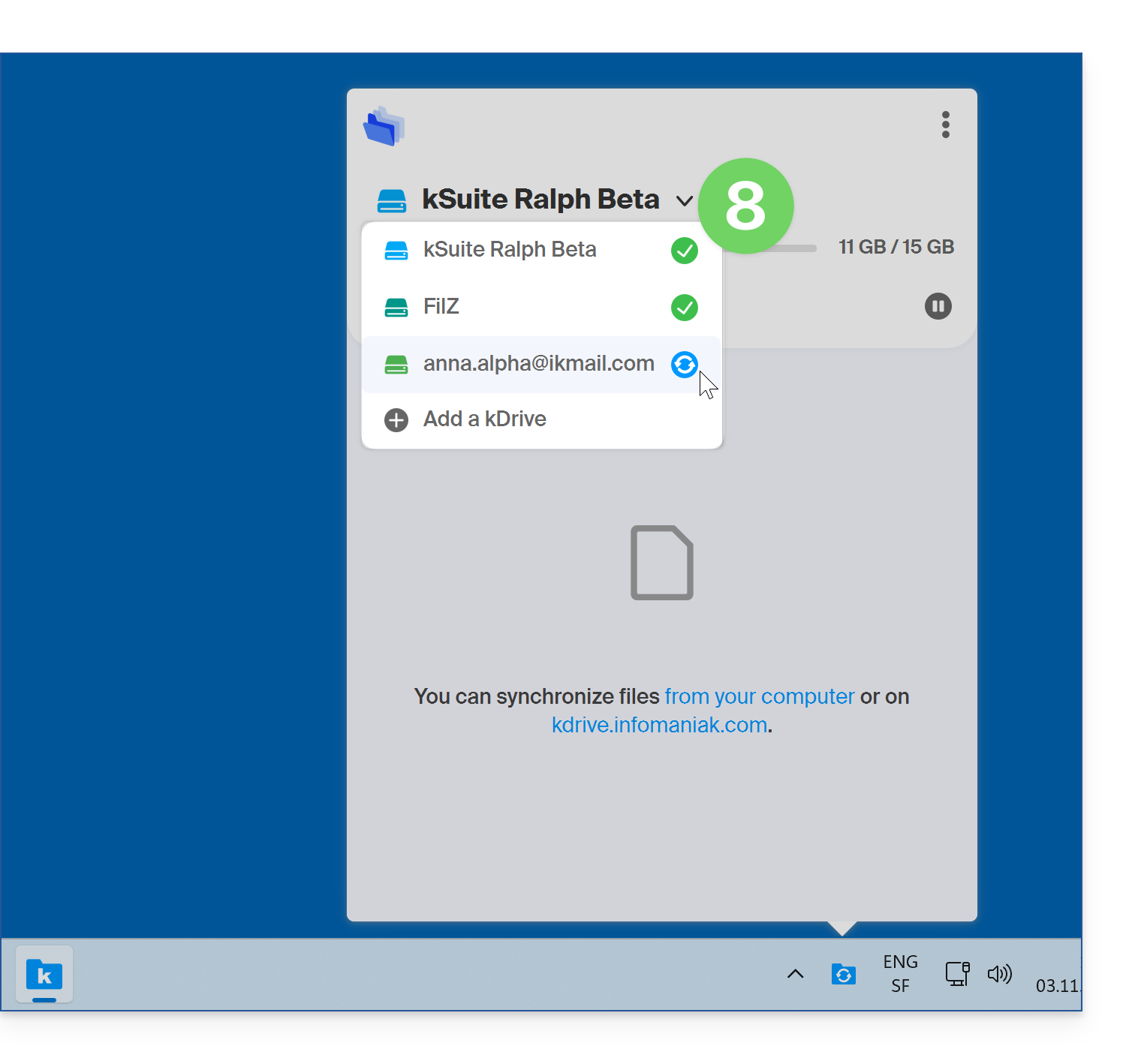
App v4.x
- Launch kDrive on your device: the app icon should be visible in the top right corner on macOS/Linux, and in the bottom right corner on Windows (❓: help).
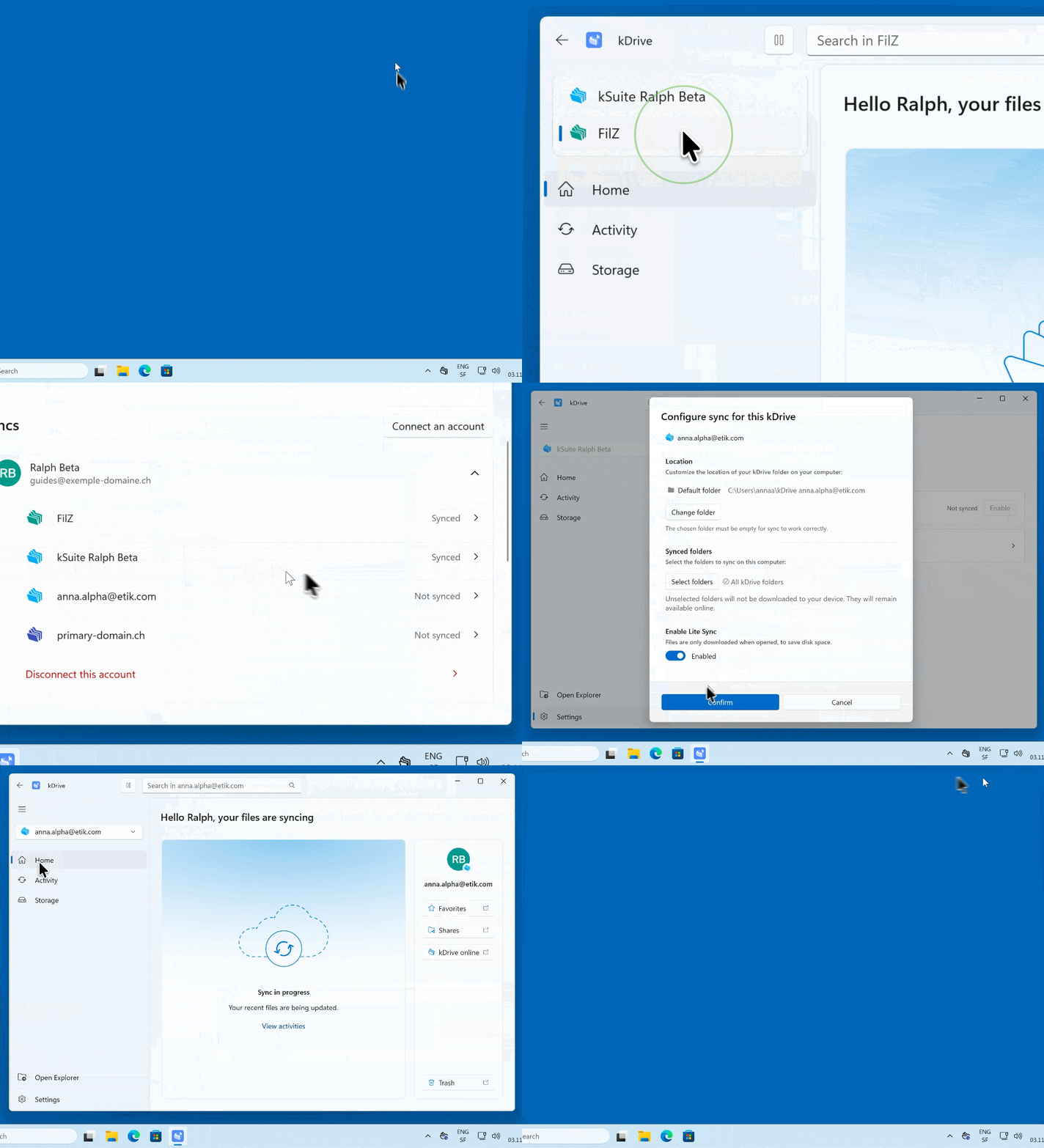
- Click on Settings.
- Click on Connect an account:
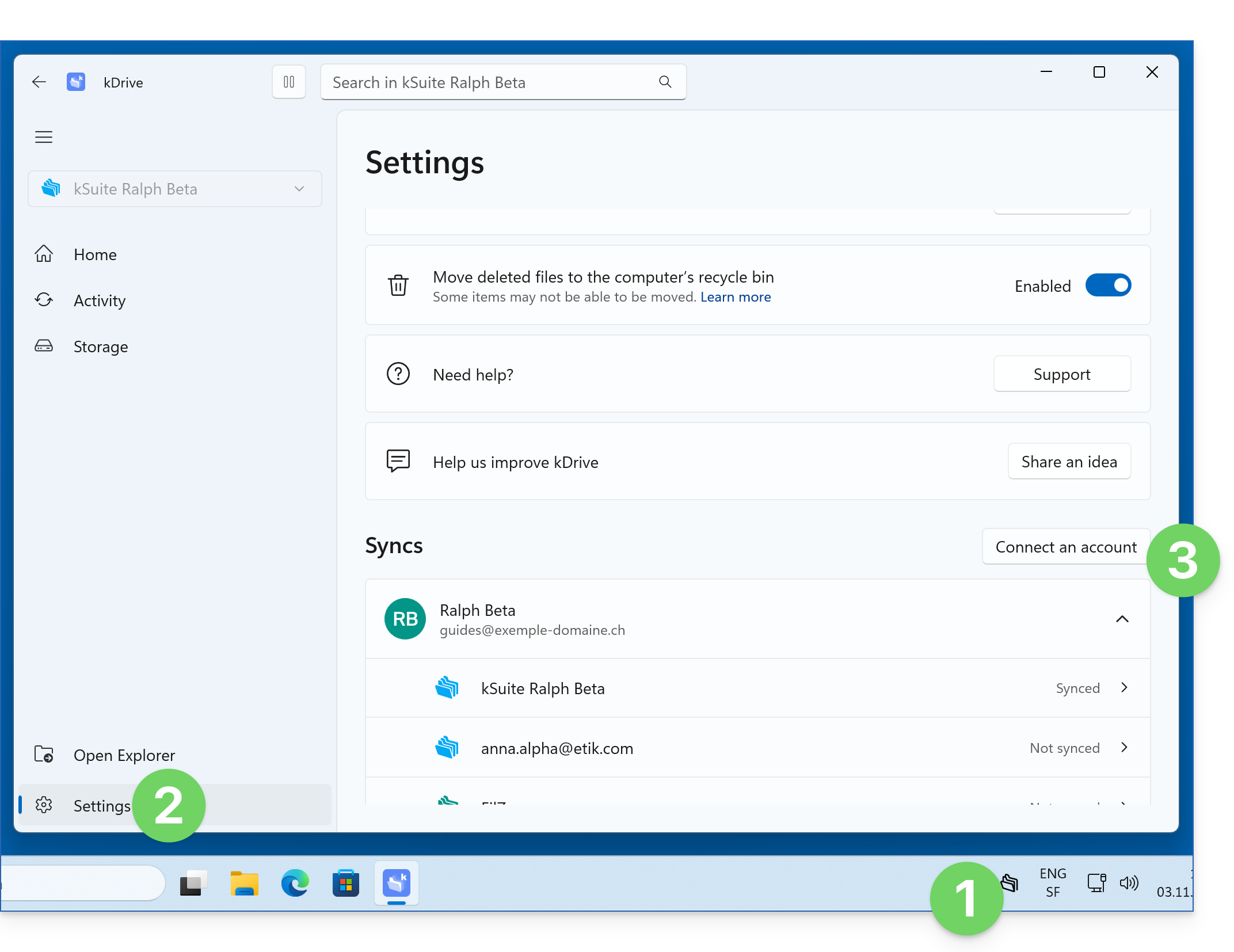
- Click to connect to the account:
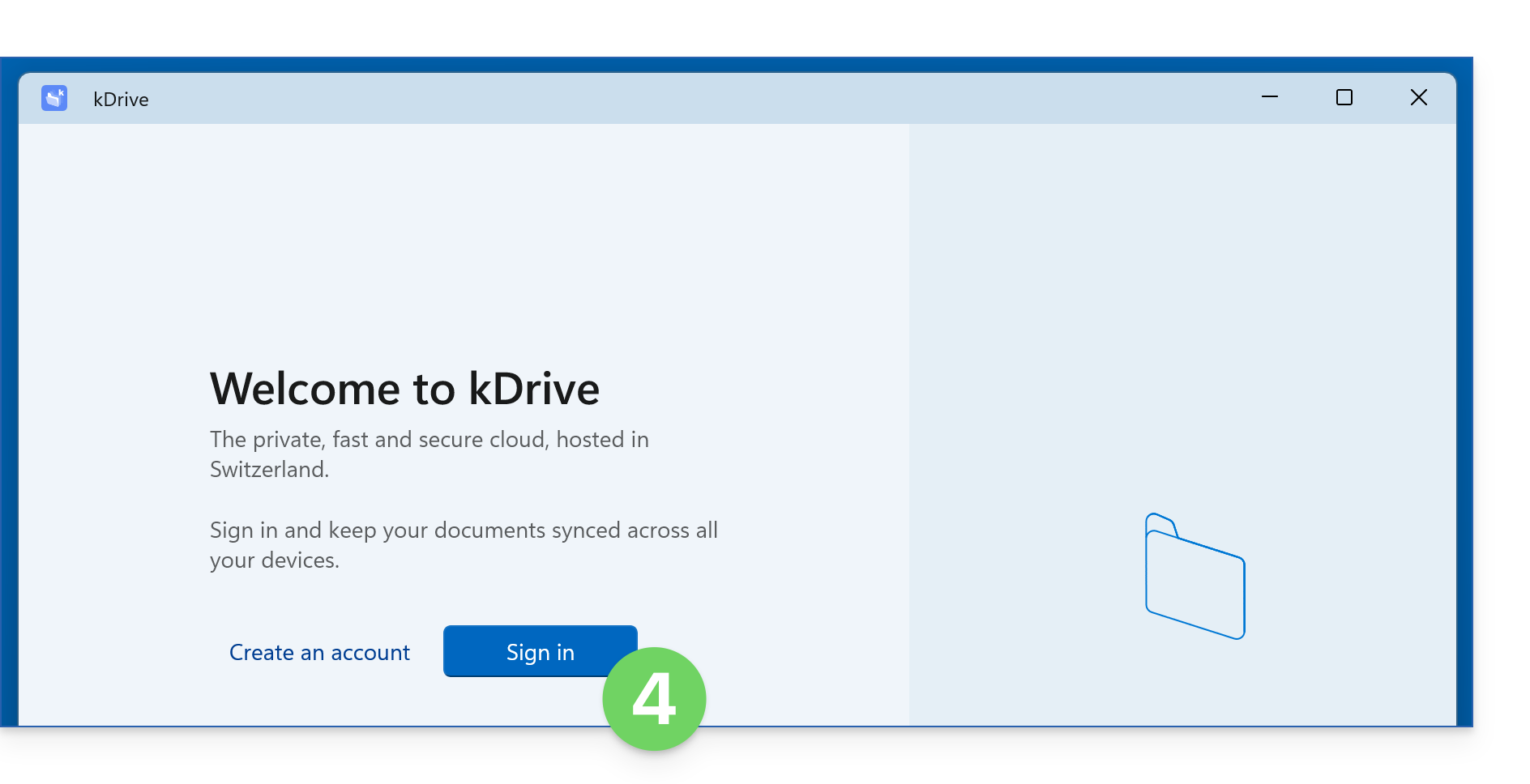
- Enter the credentials for the Infomaniak account associated with the kDrive you want to add (❓: help).
- Choose the kDrive to add (and any optional settings, such as Online / Offline mode (❓: help), the directory to be used on the computer, etc.).
- Click on Confirm:
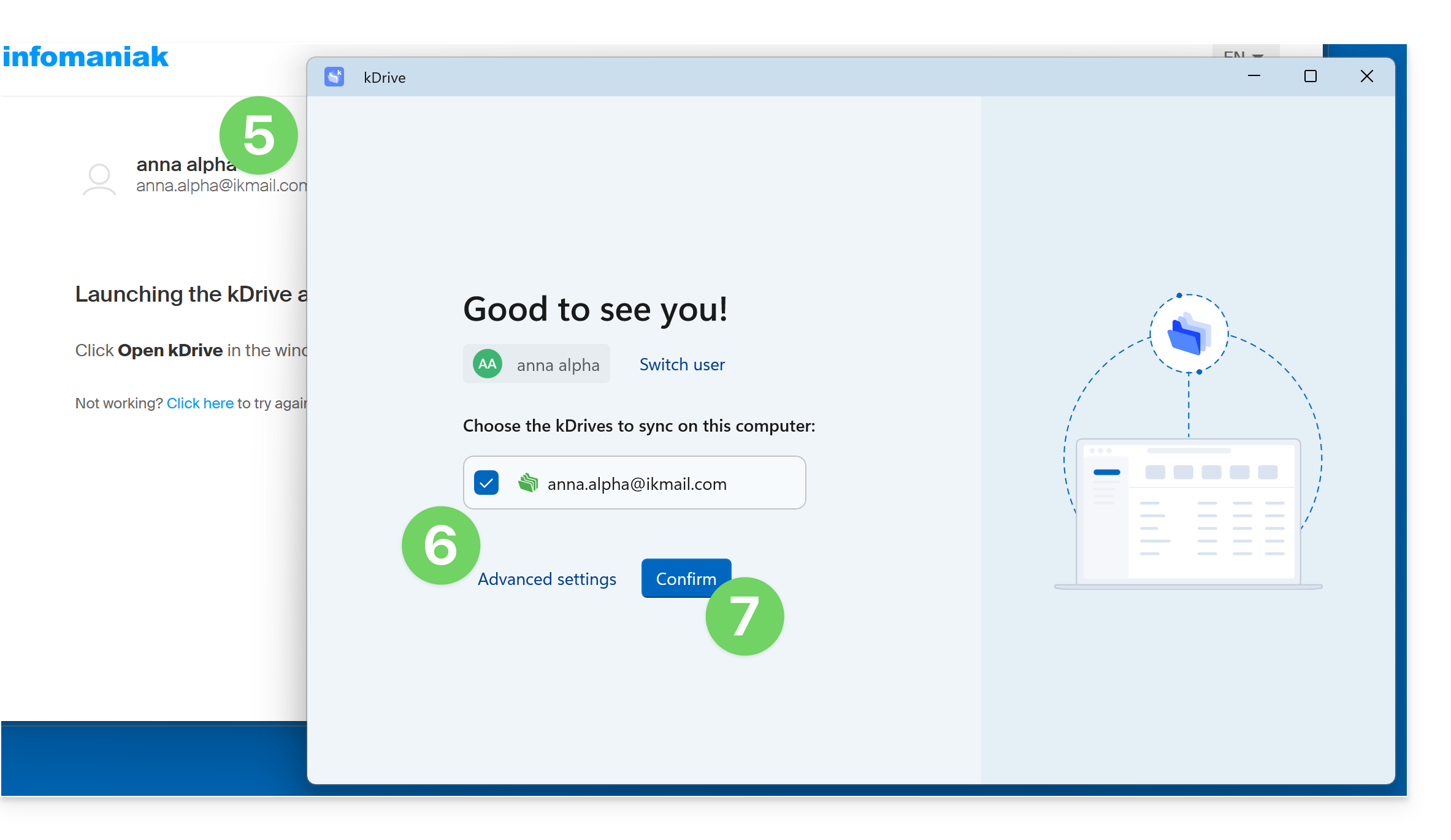
- You can now switch between kDrives when you click on the down arrow :
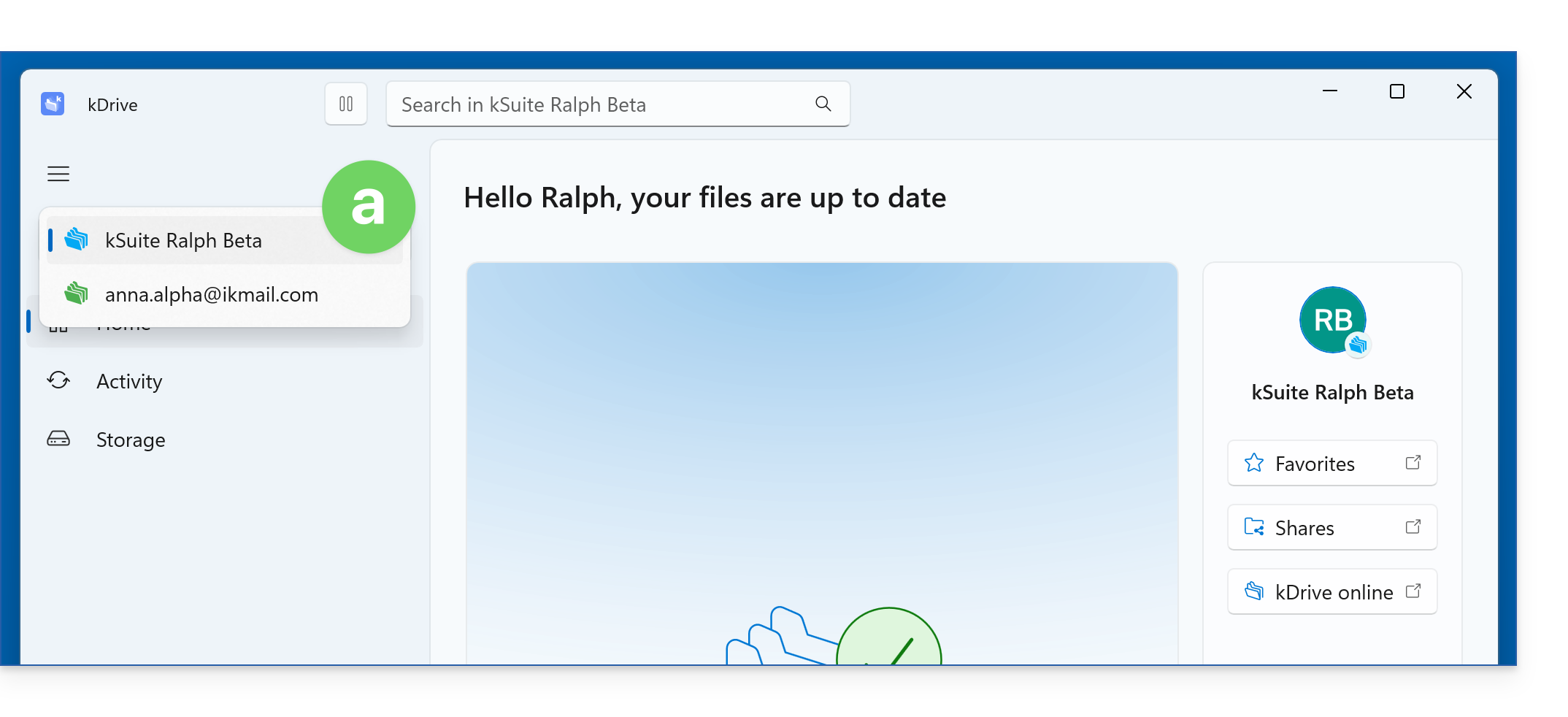
- and your settings also group together your different synchronizations:
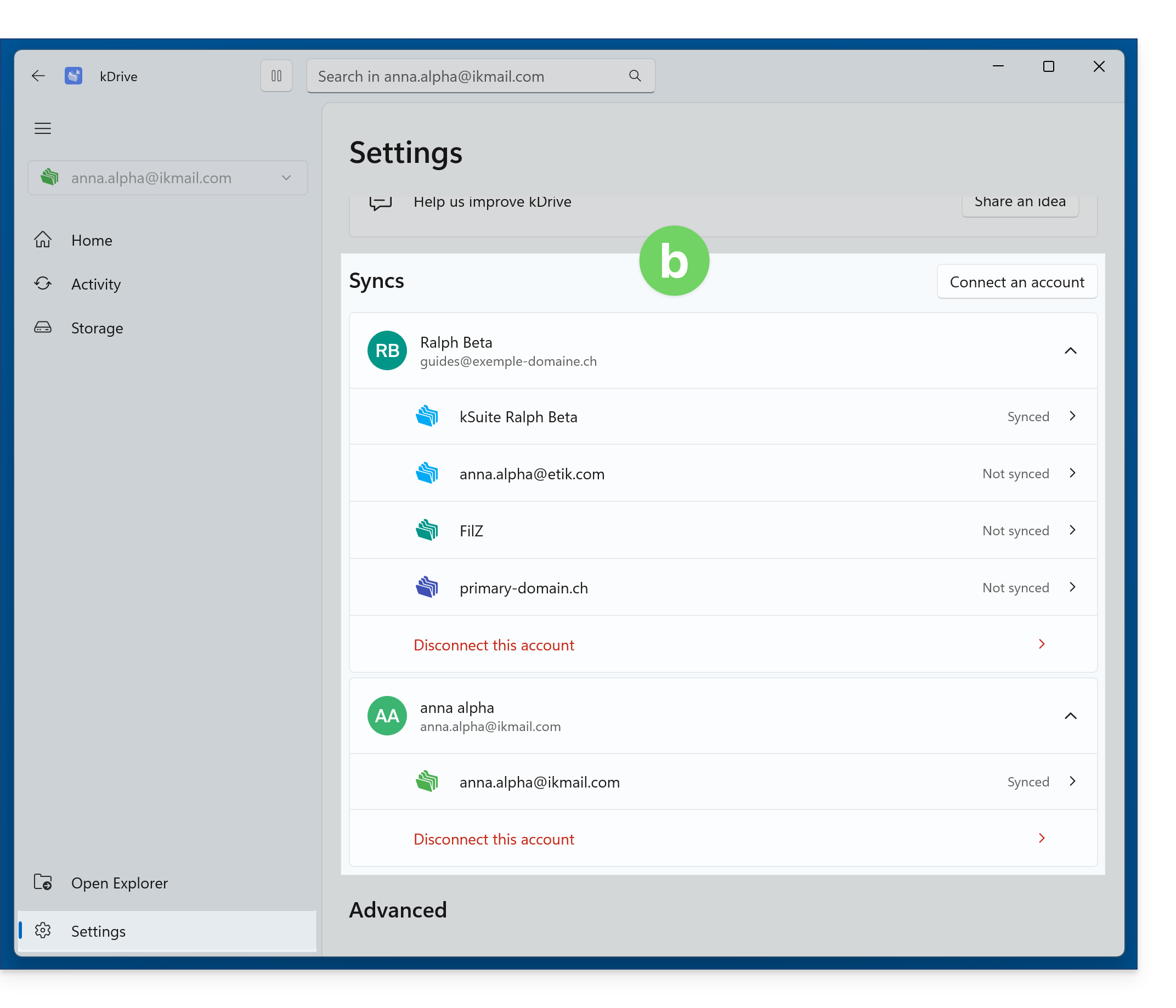
- You can now switch between kDrives when you click on the down arrow :
Disconnect a kDrive from the desktop app
To stop synchronizing a specific kDrive:
App v3.x
- Left-click on the desktop app icon in the notification area of your computer (top right on macOS, bottom right on Windows, and double-left-click in the taskbar on Linux).
- Click on the ⋮ icon on the right in the application.
- Click on kDrive Settings:
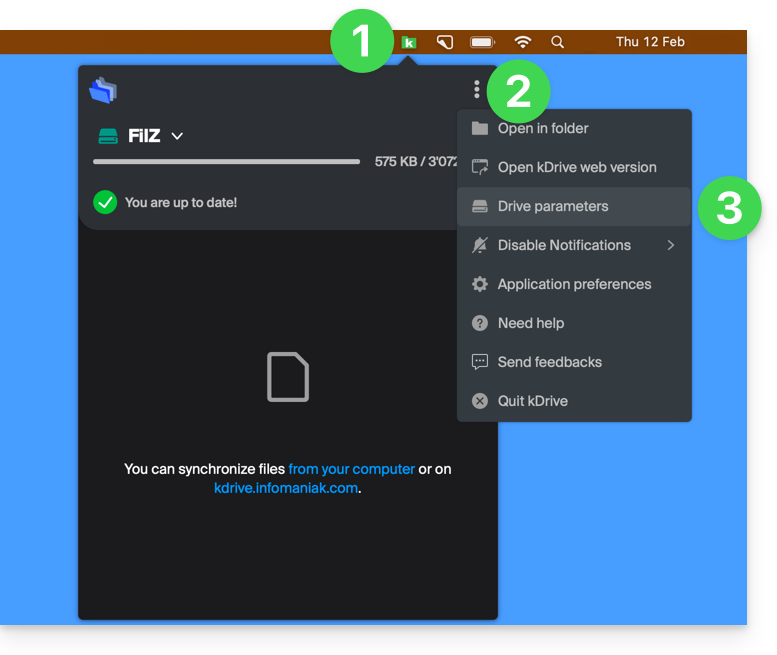
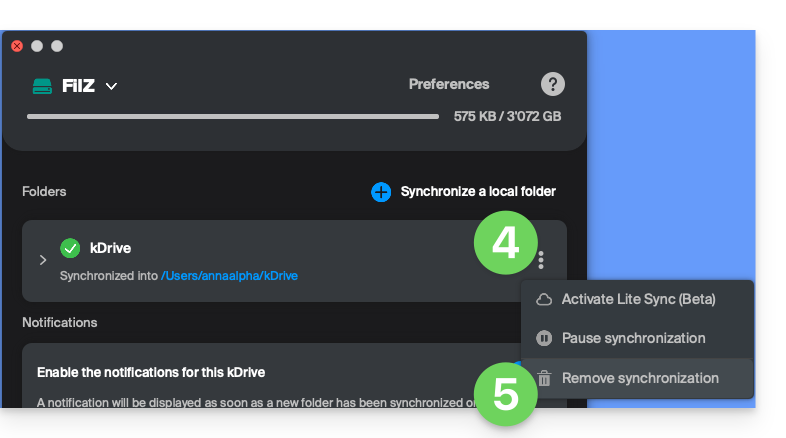
- Click on the ⋮ icon to the right of the synchronized kDrive, under Folders.
- Choose Stop synchronization (only on your device, without affecting kDrive):
App v4.x
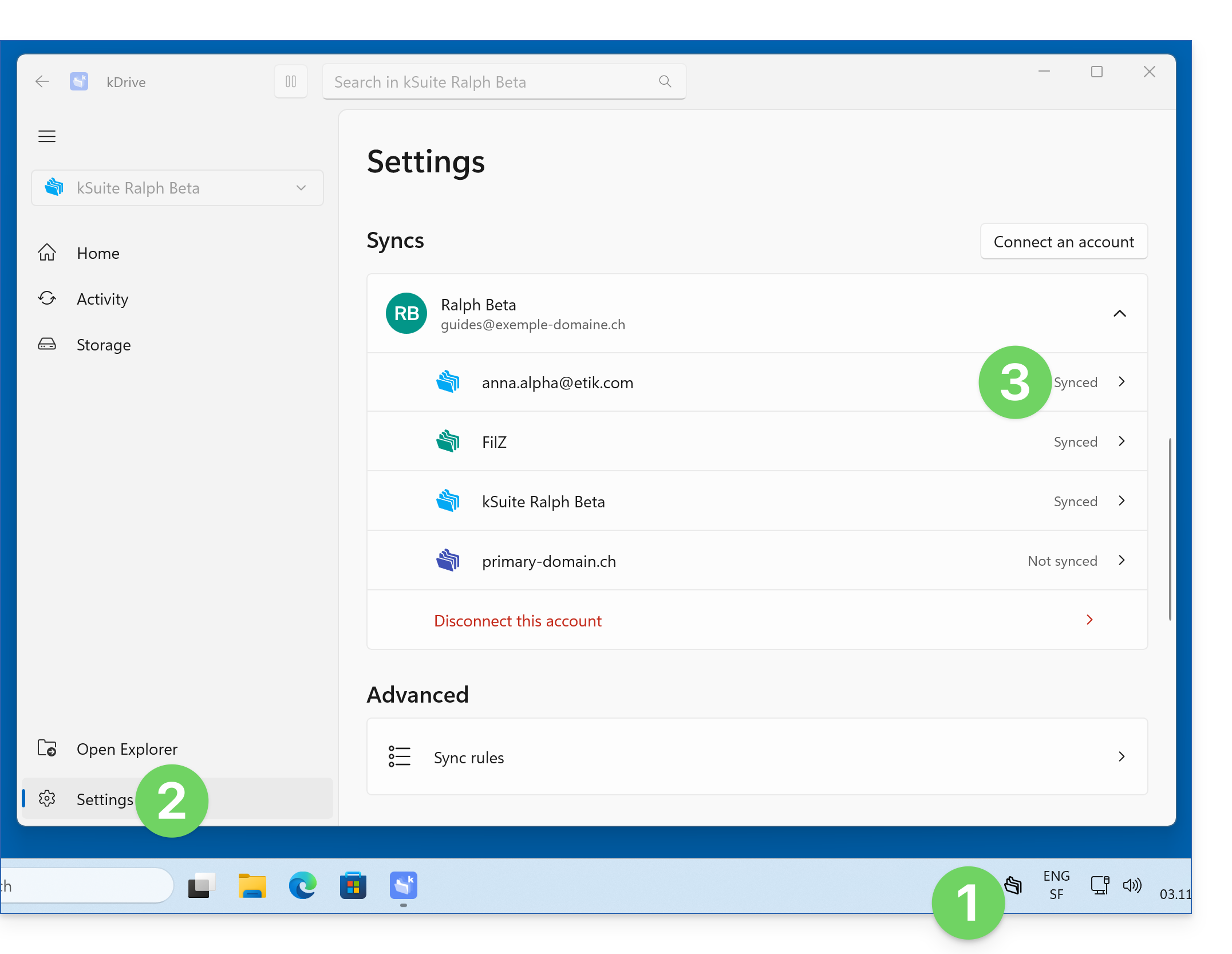
- Launch kDrive on your device: the app icon should be visible in the top right corner on macOS/Linux, and in the bottom right corner on Windows (❓: help).
- Click on Settings.
- Under Synchronizations, click on the kDrive you want to remove:
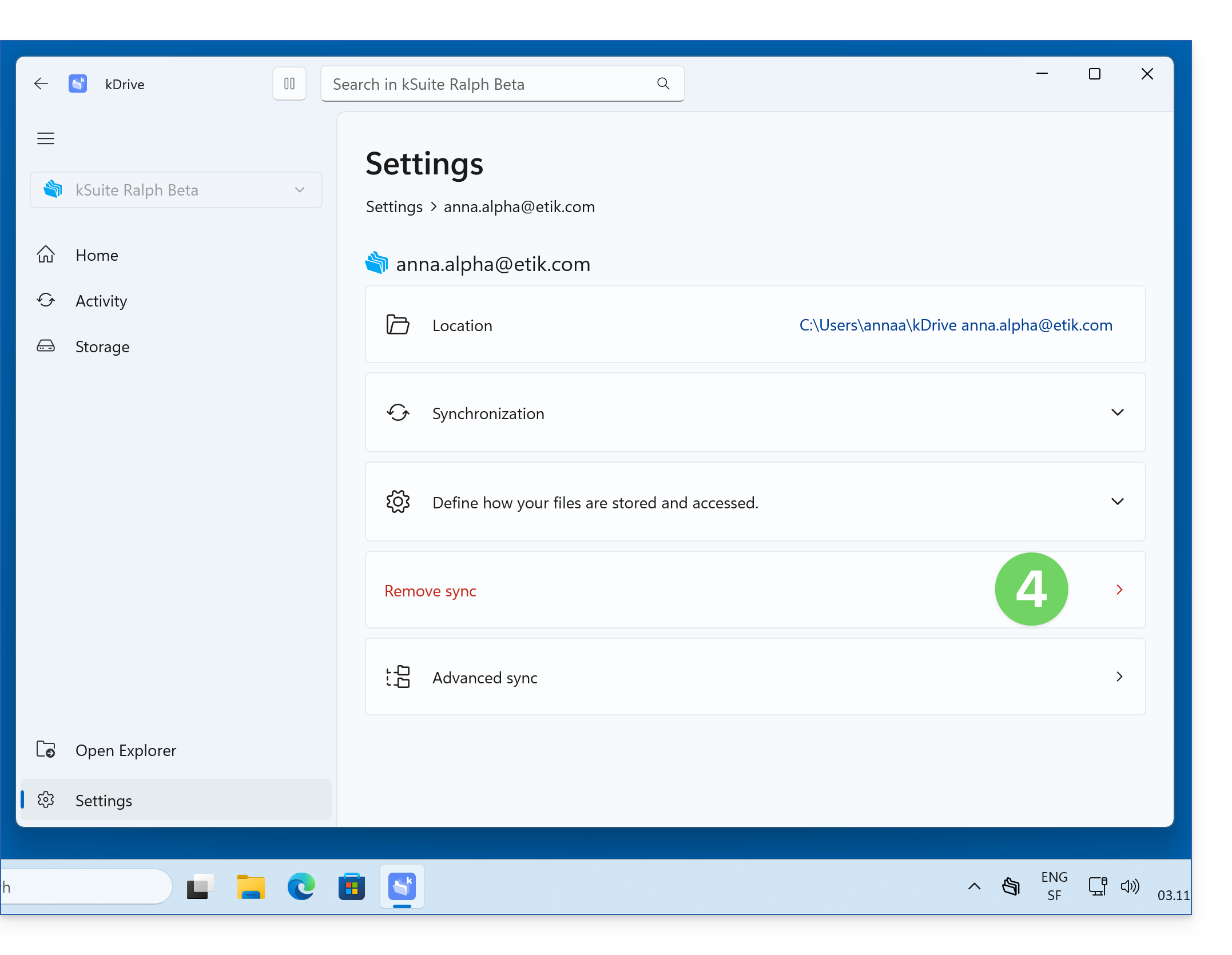
- Click to remove the current synchronization:
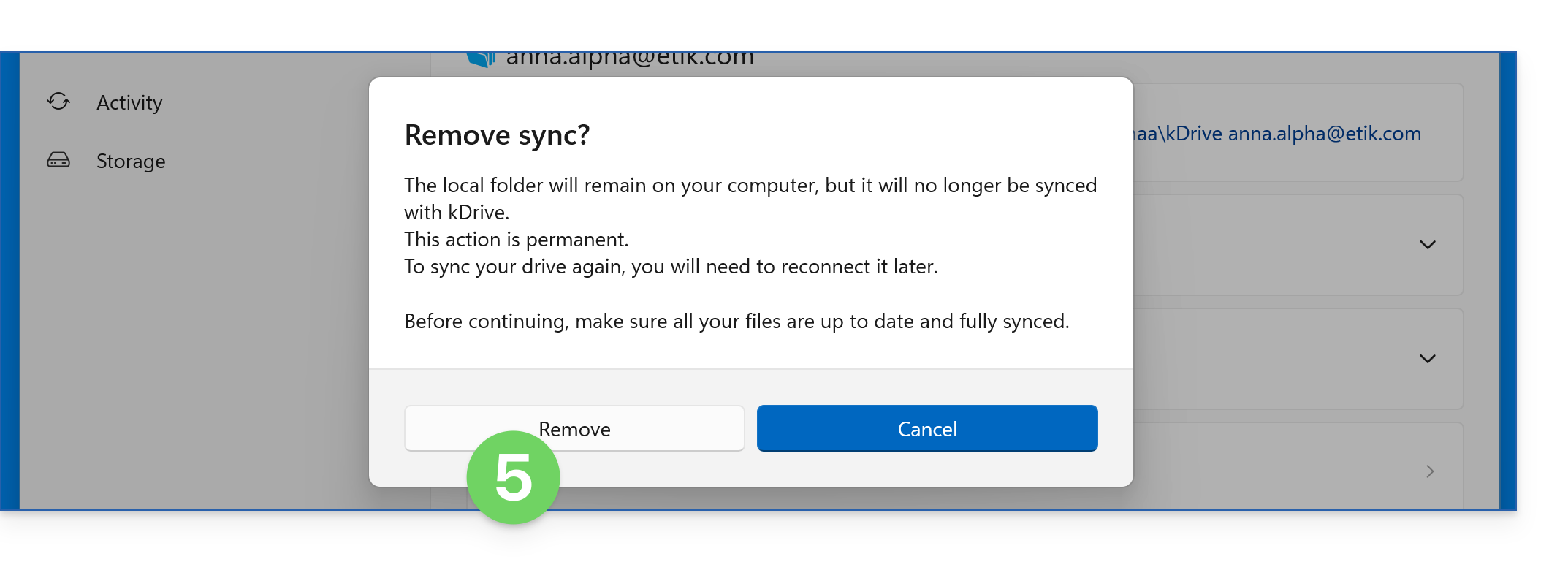
- Click to confirm:
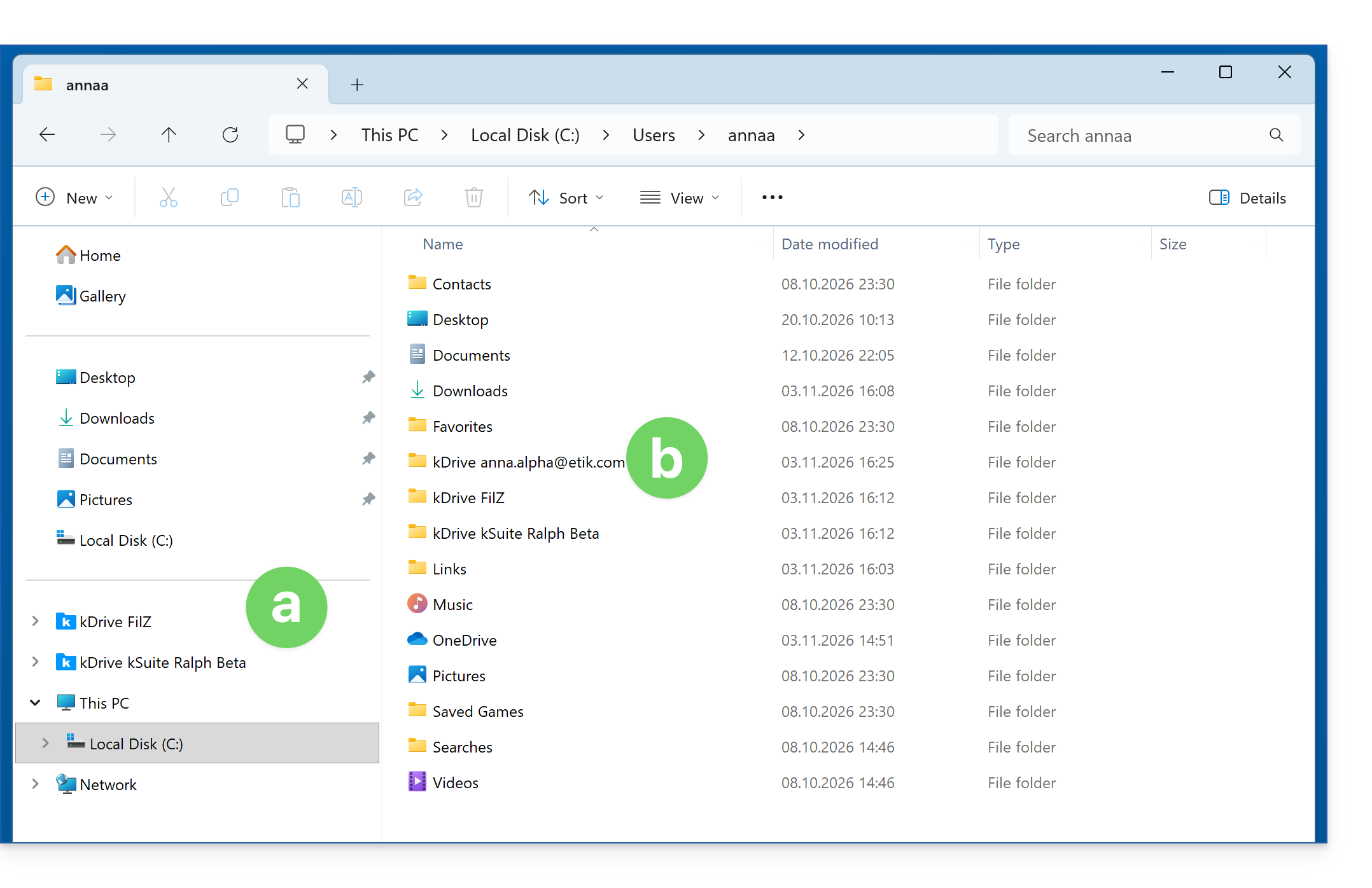
- The corresponding kDrive folder is removed from the shortcuts in your Explorer,
- it will still exist in the actual directory structure of your hard drive and will no longer be synchronized:
It is also possible to stop syncing all kDrives from the same account: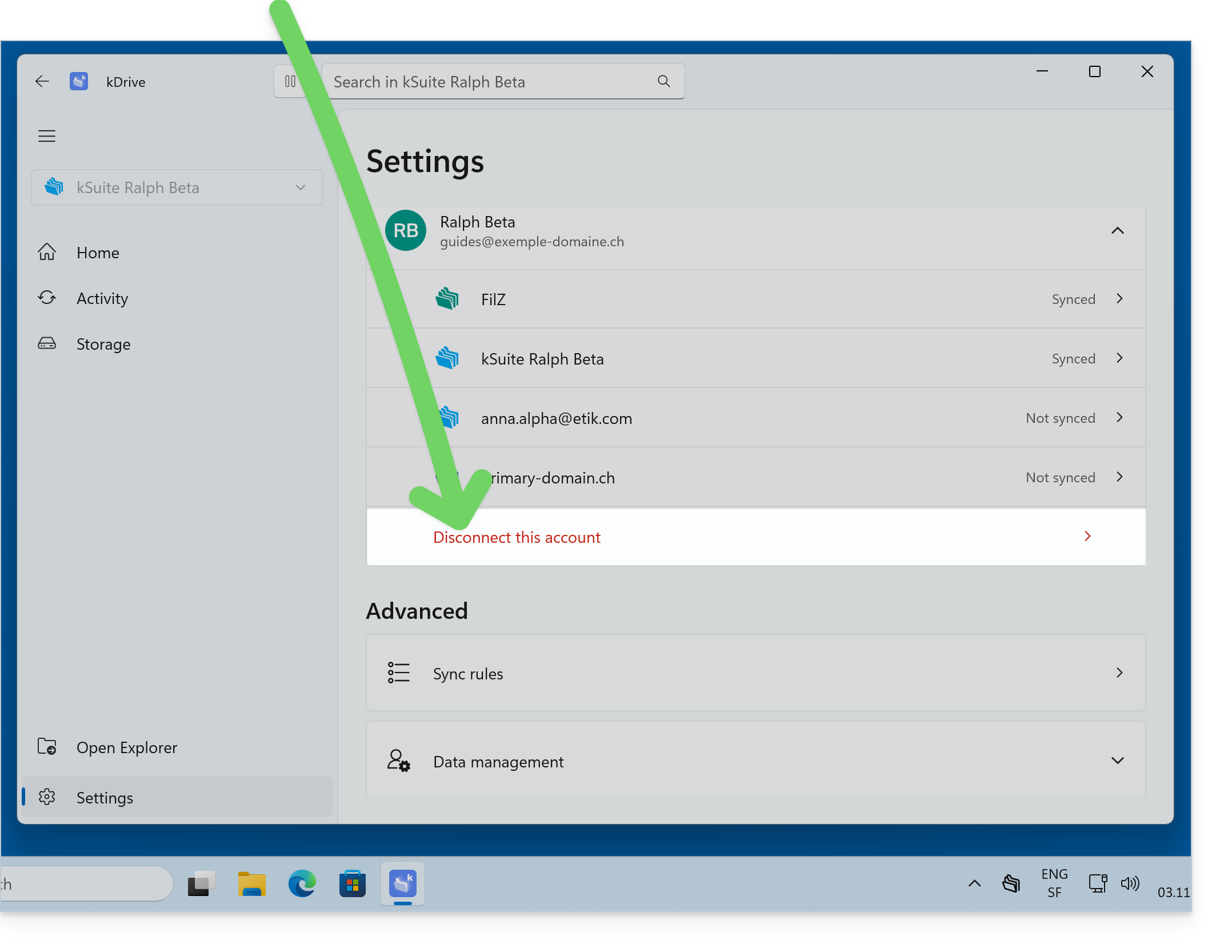
The files will still remain in the actual folder structure on your hard drive and will no longer be synchronized.
Link to this FAQ: https://faq.infomaniak.com/2458
Has this FAQ been helpful?