Knowledge base
1000 FAQs, 500 tutorials and instructional videos. Here, there are only solutions!
Manage multiple kDrive accounts (macOS / Windows)
This guide explains how to connect to and manage multiple kDrive accounts on your computer (macOS / Windows). This feature allows you, for example, to access files from a personal kDrive and a professional kDrive.
Prerequisites
- You must have a kDrive or kSuite subscription.
- You must have the kDrive desktop app installed (desktop application for macOS / Windows / Linux).
Accessing different kDrive accounts from your computer
A user logged into the kDrive application on their computer can already access multiple kDrive accounts if they are already working with multiple kDrive accounts outside of the app, if they have been added to other kDrive accounts, etc. All of these are accessible as long as the user is logged in with the credentials corresponding to these kDrive accounts.
Accessing and managing other kDrive accounts…
To connect with a different account and therefore access other kDrive accounts:
…from the kDrive desktop app (desktop application for macOS / Windows / Linux)
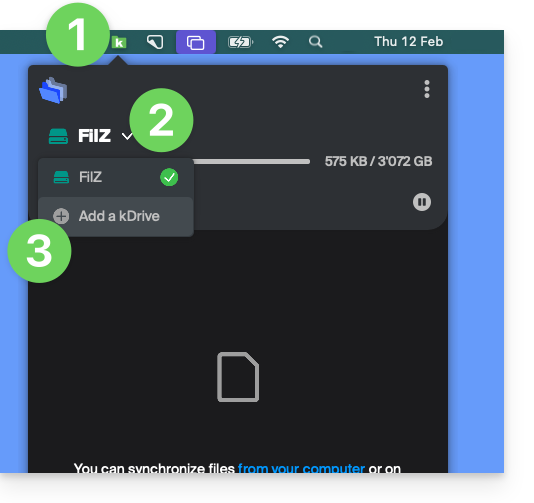
- Left-click on the desktop app icon in your computer's notification area (top right on macOS, bottom right on Windows, and double left-click in the taskbar on Linux).
- Click on the chevron to the right of the kDrive name (the kDrive accounts you already have access to with your user account will be displayed).
- Click on Add a kDrive:
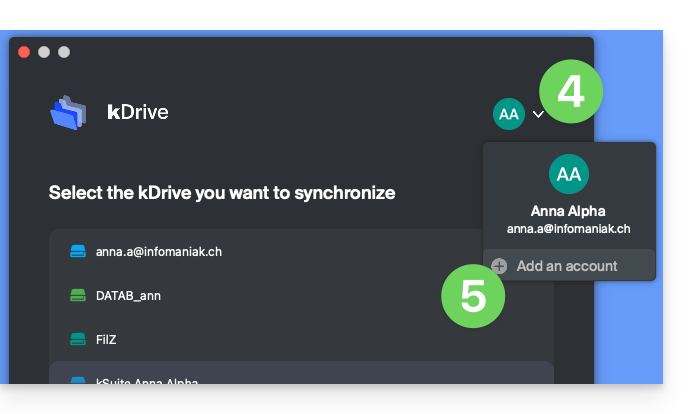
- Click on the badge with your initials or your avatar in the top right corner.
- Click on Add an account:
- Enter your Infomaniak account credentials – refer to this other guide if needed.
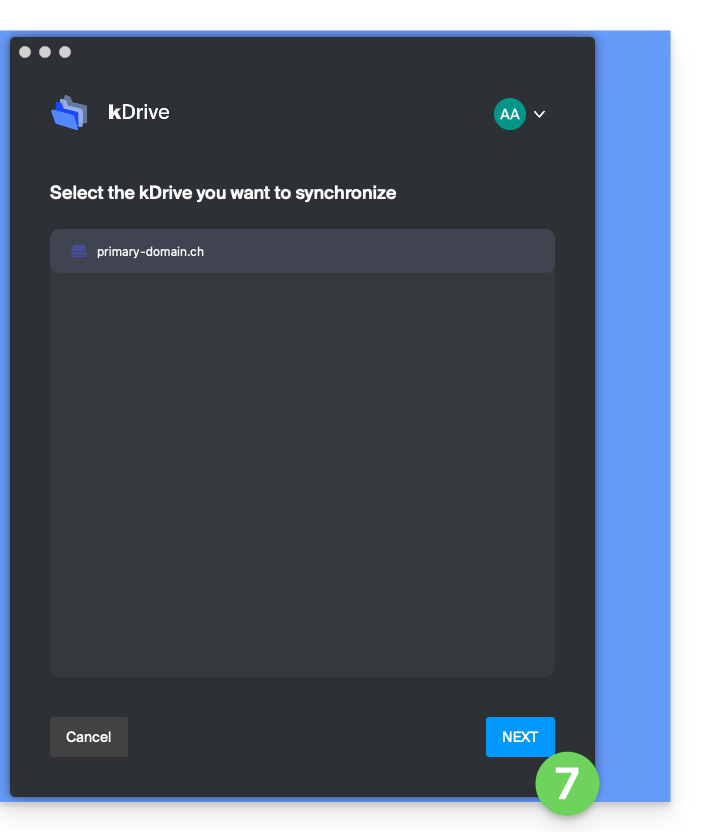
- Choose and configure the kDrive to add (Lite Sync, directory to be used on the computer, etc.):
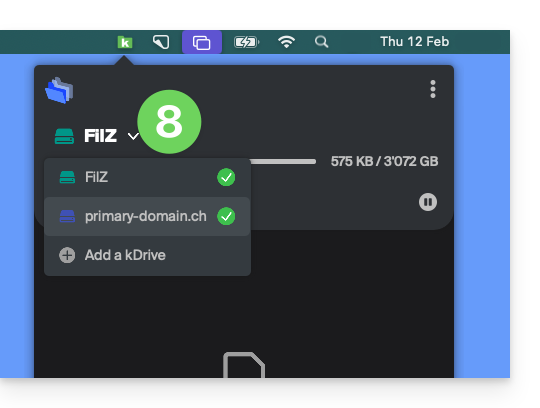
- You can now switch between kDrives by clicking on the kDrive icon and then on the down arrow in the window that opens:
… from the kDrive web app (online ksuite.infomaniak.com/kdrive service)
- Click here to access the Infomaniak kDrive web app (online service ksuite.infomaniak.com/kdrive).
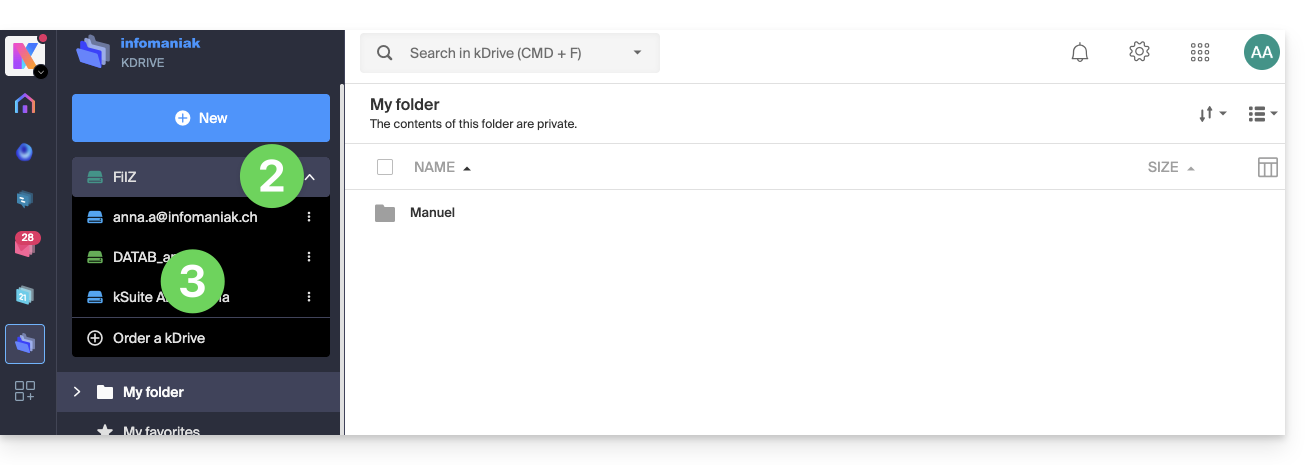
- Click on the down arrow to expand the list at the top left of the kDrive interface.
- Click on the kDrive you want to use
Disconnect a kDrive from the desktop app
To access the kDrive application settings on your device:
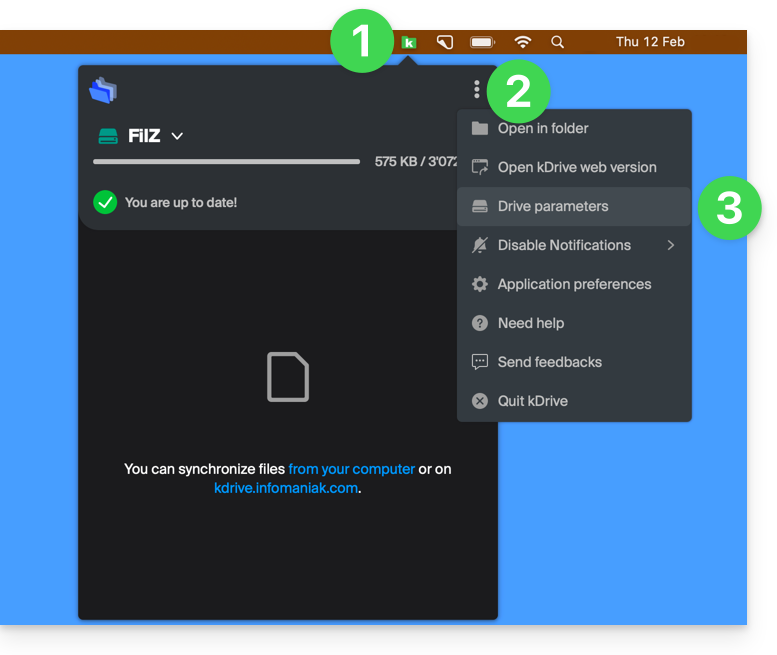
- Left-click on the desktop app icon in the notification area of your computer (top right on macOS, bottom right on Windows, and double-left-click in the taskbar on Linux).
- Click on the ⋮ icon on the right in the application.
- Click on kDrive Settings:
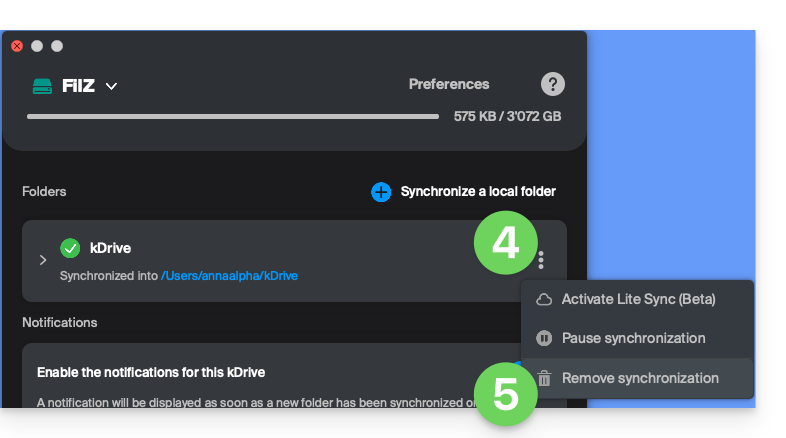
- Click on the ⋮ icon to the right of the synchronized kDrive, under Folders.
- Choose Remove synchronization (only from your device, without affecting kDrive):
Link to this FAQ: https://faq.infomaniak.com/2458
Has this FAQ been helpful?