Knowledge base
1000 FAQs, 500 tutorials and instructional videos. Here, there are only solutions!
Access kDrive files locally and online
This guide explains how to access kDrive files locally on your hard drive using the desktop app kDrive (desktop application for macOS / Windows / Linux), as well as files from the kDrive web app (online service ksuite.infomaniak.com/kdrive).
Prerequisites
- For synchronization between your devices to work when your data is updated on kDrive (new file, edited document, etc.), it is obviously necessary that:
Web < > Computer Synchronization
Shared folders
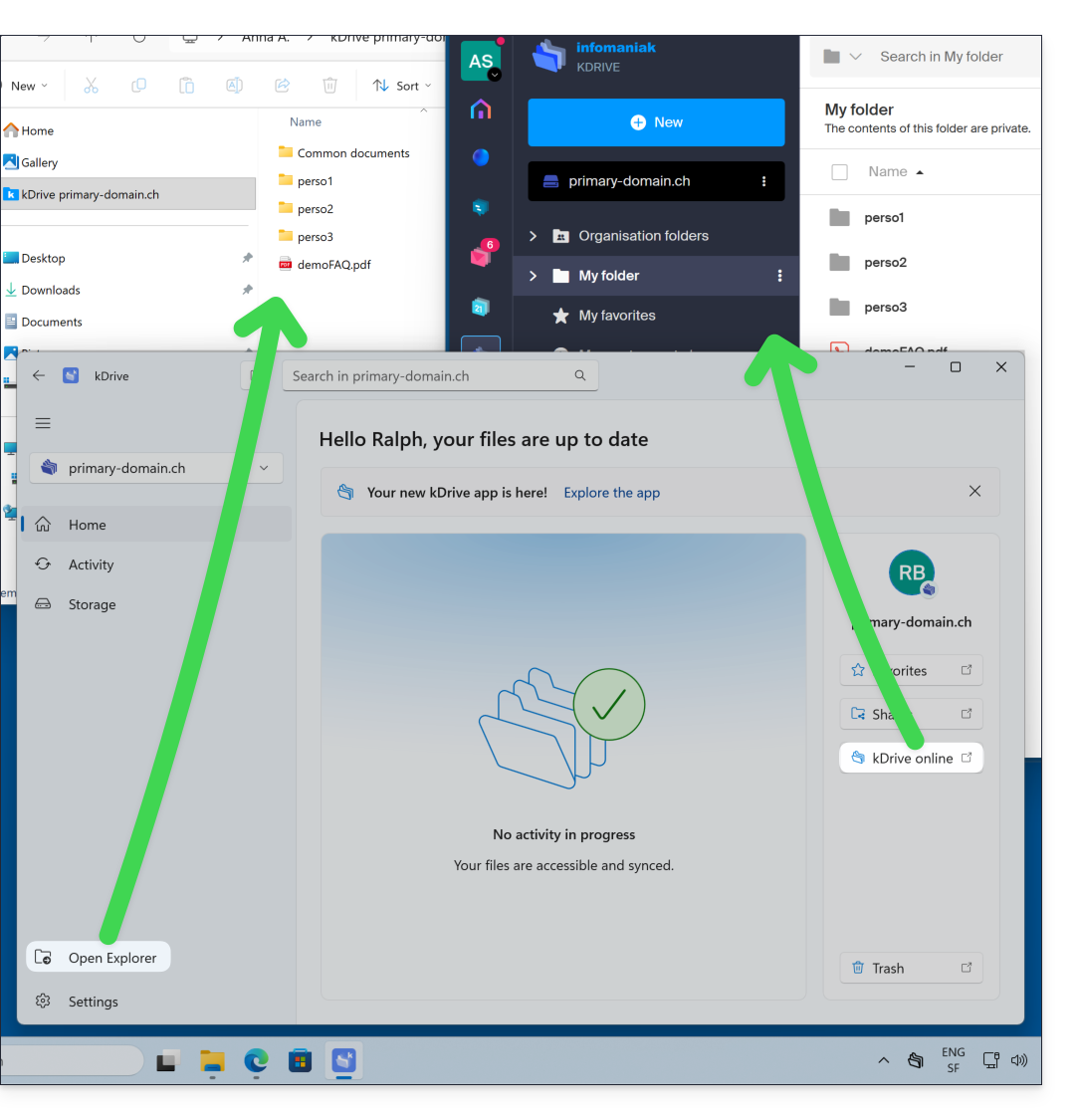
On the web version of kDrive, the shared folder is called Organization folders: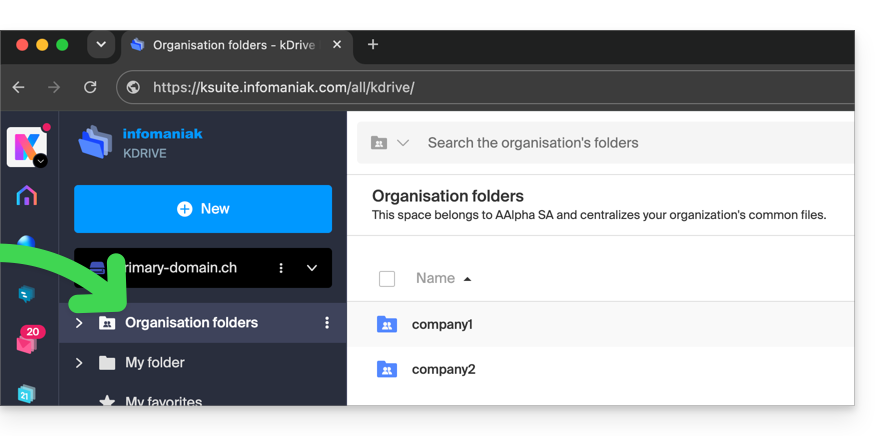
On your computer, you will find the same folder, but named Common documents; do not attempt to rename it: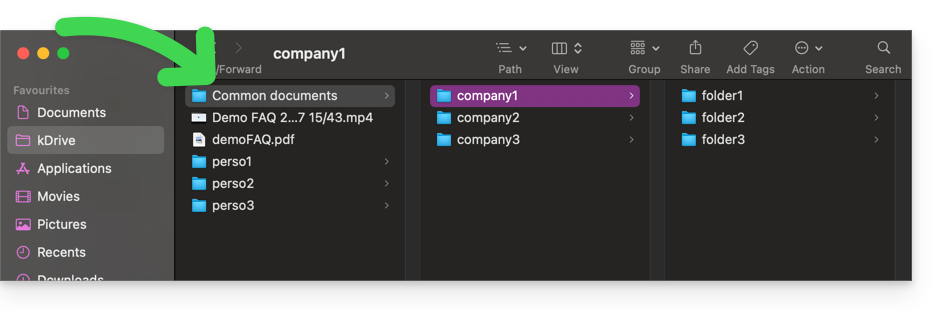
Personal folder
On the web version of kDrive, the logged-in user's personal folder is stored in a separate area ("My folder"), which cannot be modified either: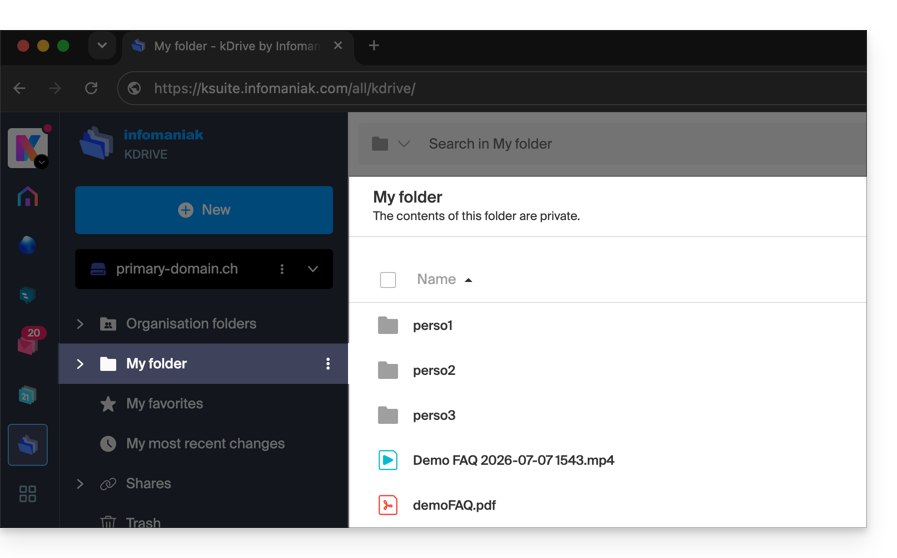
On the computer, everything outside of Common documents belongs to the personal folder ("My folder") of the logged-in user: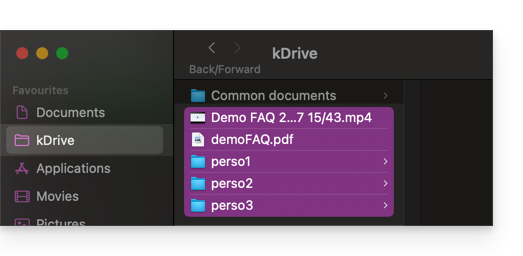
Accessing kDrive files
On the v4.x app
- Launch kDrive on your device: the app icon should be visible in the top right corner on macOS/Linux, and in the bottom right corner on Windows (❓: help).
- Left-click on the icon to bring the application to the foreground.
- On the left side of the kDrive application's home page, click Open Finder / Open Explorer to access the kDrive folder, which is used to store your kDrive files on your computer's hard drive.
- On the right side of the kDrive application's home page, click kDrive Online to open your browser directly to your kDrive web app (online service ksuite.infomaniak.com/kdrive):
About the v3.x app
When the kDrive application is installed and launched:
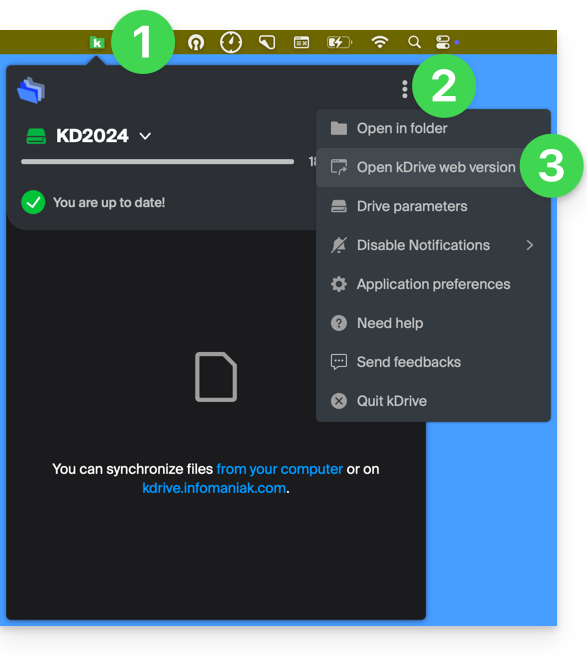
- Left-click on the app icon in the notification area of your computer (top right on macOS, bottom right on Windows, and double left-click in the taskbar on Linux).
- Click on the action menu ⋮ in the top right corner.
- Click on Open kDrive Web to access the files stored on the kDrive server:
- It is possible that the version in the browser may not display correctly.
- Click on the item above to open the disk folder on your computer containing your kDrive files, physically present or virtually present depending on whether Lite Sync is enabled (❓: help).
If not all of your files are present/synchronized, please refer to this other guide.
Link to this FAQ: https://faq.infomaniak.com/2456
Has this FAQ been helpful?