Knowledge base
1000 FAQs, 500 tutorials and instructional videos. Here, there are only solutions!
Manage the kDrive folders to be synced to your device
This guide explains how to select the folders that will be synchronized between the web app kDrive (online service ksuite.infomaniak.com/kdrive) and the desktop app (desktop application on macOS / Windows / Linux).
Prerequisites
- Have a kDrive / kSuite plan.
- Have the kDrive application on the device to be synchronized.
Do not synchronize everything to a single device
When you install the kDrive application on your computer, everything that is already on the kDrive web app (online service ksuite.infomaniak.com/kdrive) will be visible on your computer in a /kdrive (or /kdrive2, etc.) folder:
- either virtually if you choose to enable Lite Sync (for example, 10 GB on the web will be reduced to just a few MB on your computer),
- either physically with the same storage size (10 GB on the Web will require 10 GB on your computer).
But you can specify in the kDrive app on your device that it should not display everything, so that some of your data remains on kDrive (Web) and is neither downloaded, displayed, nor synchronized on your device. This is particularly useful, especially when using advanced synchronization (❓: help).
Desktop app v4.x
To choose which folder(s) you want to be able to view on your computer and exclude others, assuming that your synchronization is currently complete between kDrive Web and your computer: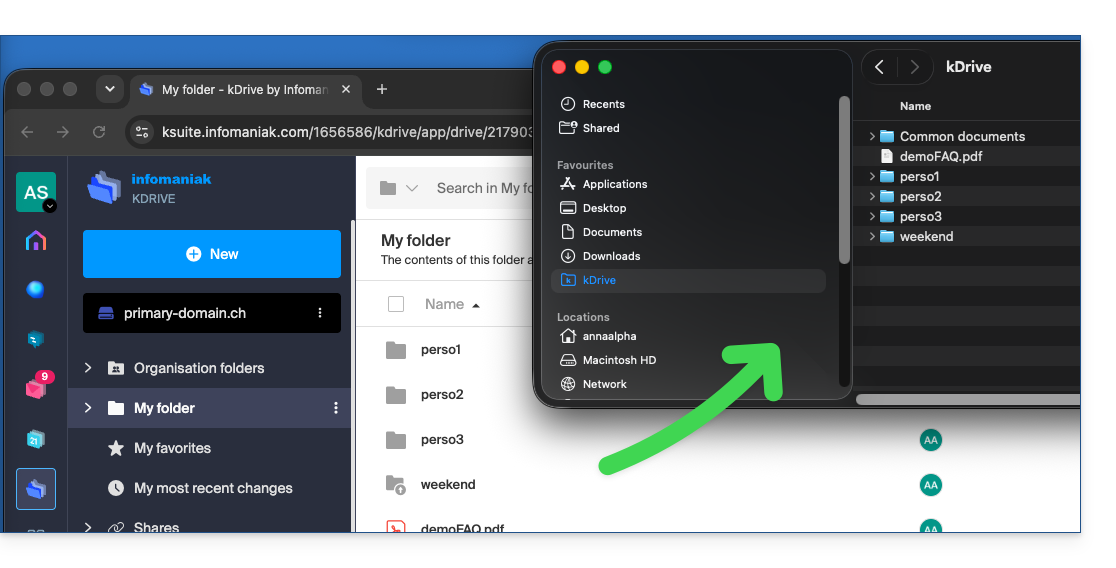
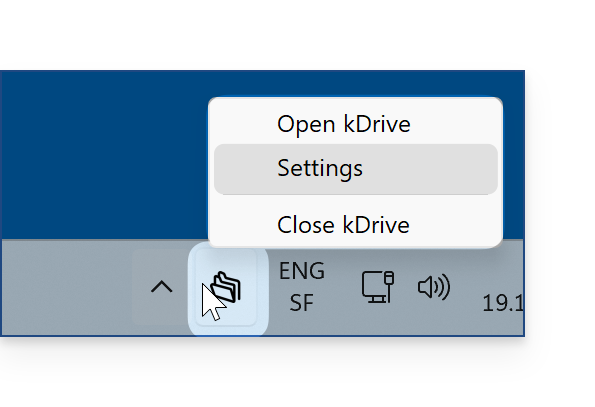
- Launch kDrive on your device: the app icon should be visible in the top right corner on macOS/Linux, and in the bottom right corner on Windows (❓: help).
- Right-click on the icon and choose Settings:
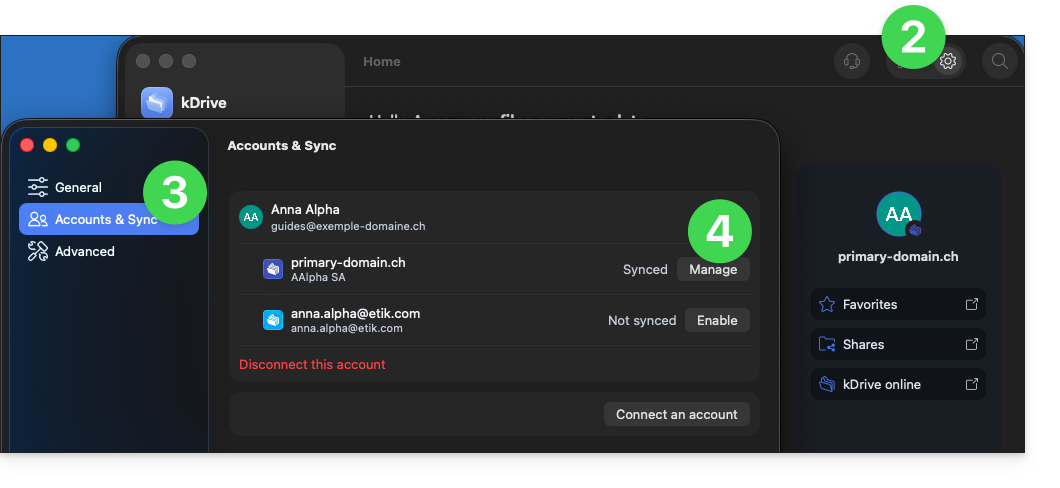
- Go to Accounts & Sync.
- Click on Manage (or ❯) to the right of the current sync:
- Click on Manage synchronization:
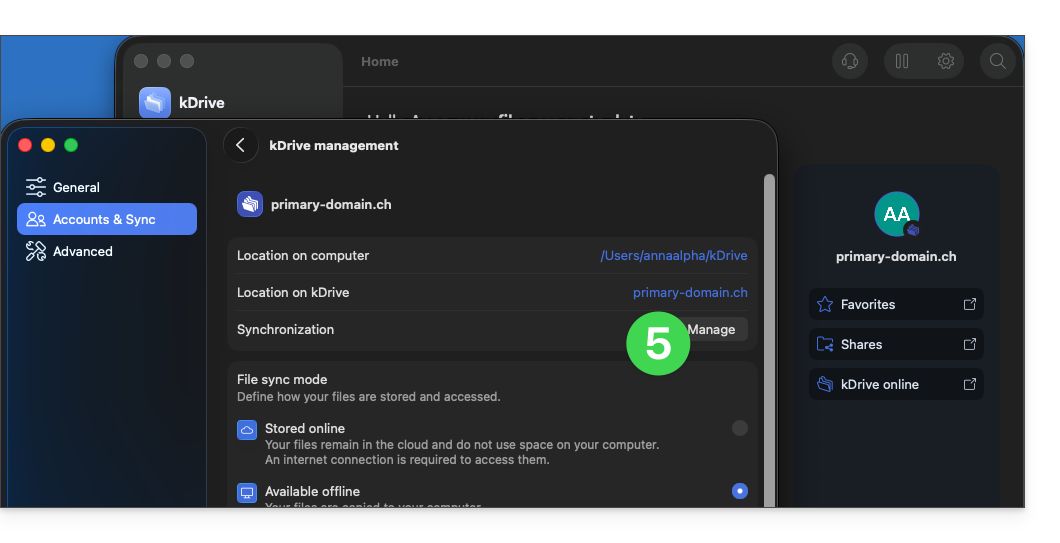
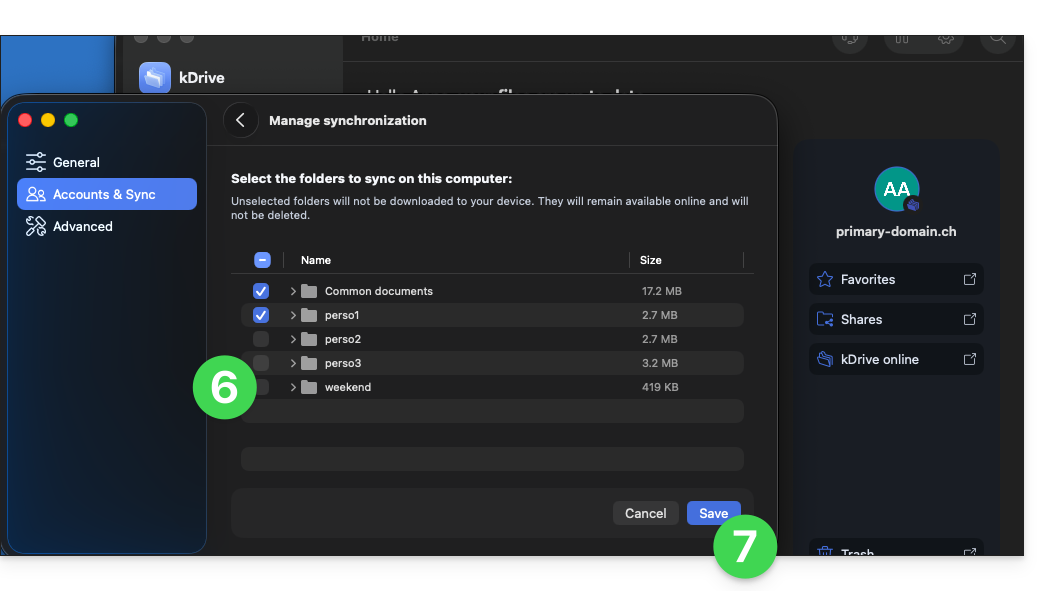
- Enable or disable the boxes corresponding to the data that should no longer appear on your device after the next synchronization.
- Save your changes:
- The effect is immediate; only the files checked in the list will remain synchronized with your device; the rest will be excluded and will no longer be synchronized:
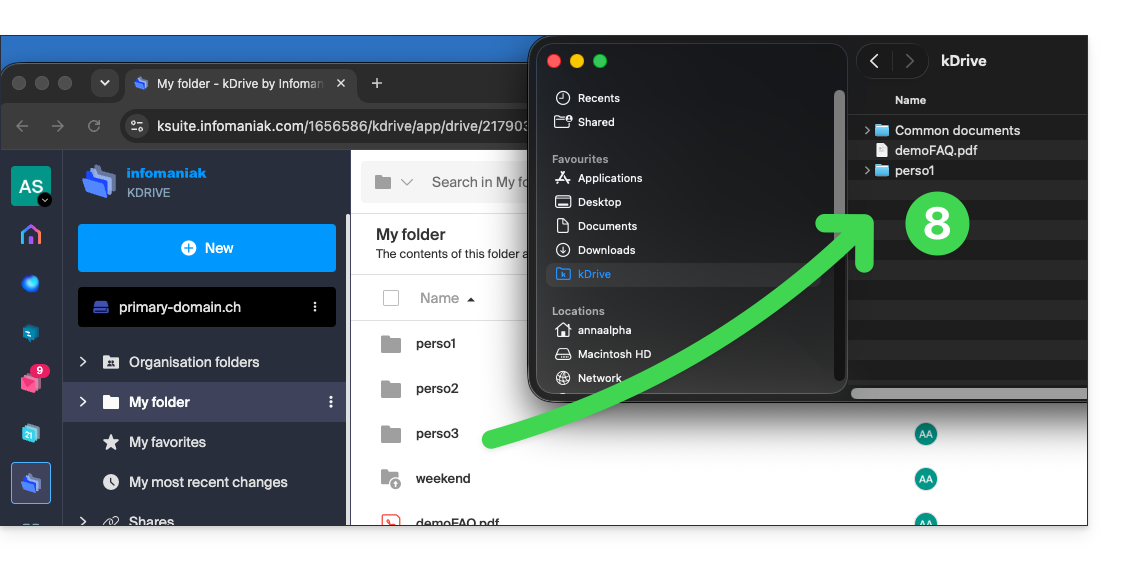
- The kDrive folders in the online version accessible via a browser such as Brave, Chrome, Edge, Firefox, Opera, Safari, etc., will not be affected, but you must ensure, before the operation, that the folder in question was properly synchronized and fully present in this online version (especially if you had just placed it within your synchronized directory).
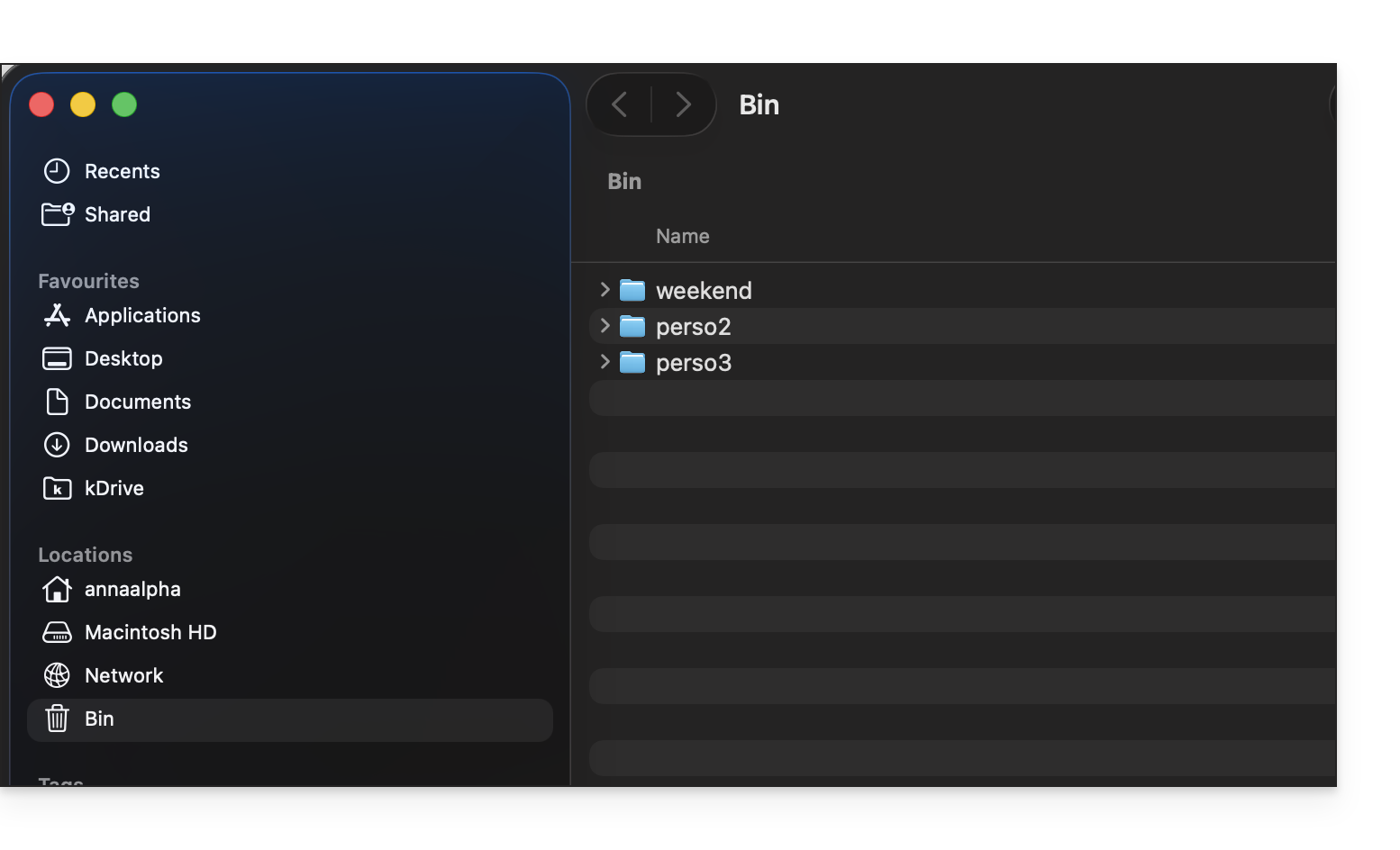
- The data removed from synchronization will go to the device's recycle bin:
- If in doubt, also make sure that your computer does not instantly delete items that are too large when they are placed in the recycle bin, due to the size of the Windows recycle bin, for example:

Desktop app v3.x
To choose which folder(s) you want to be able to access on your computer, go to the settings of the kDrive application on your computer:
- Left-click on the desktop app icon in the notification area of your computer (top right on macOS, bottom right on Windows, and double-left-click in the taskbar on Linux).
- Click on the action menu ⋮ on the right of the window that appears.
- Click on kDrive Settings.
- Click on the chevron to the left of your synchronization name to display the list of folders (currently stored on kDrive Web).
- Expand the contents of the listed folders as needed and check / uncheck the folders to be synchronized with your computer.
- Click the blue Validate button.
But be careful:
- When deselecting a folder that was selected in the list, a message next to the button (point 6 above) warns you that a This folder will be moved to your computer's Recycle Bin..
- This is the folder that was in your kDrive folder structure on your computer.
- The kDrive folders in the online version accessible via a browser will not be affected, but you must ensure, before the operation, that the folder in question was properly synchronized and fully present in this online version (especially if you had just placed it within your synchronized directory).
- If in doubt, also make sure that your computer does not instantly delete overly large items when they are placed in the recycle bin, due to the size of the Windows recycle bin, for example:
Link to this FAQ: https://faq.infomaniak.com/2454
Has this FAQ been helpful?