Knowledge base
1000 FAQs, 500 tutorials and instructional videos. Here, there are only solutions!
Troubleshooting video issues on kMeet
This guide helps you troubleshoot potential camera access issues with kMeet, the ethical video conferencing solution offered by Infomaniak.
With current security standards, a web browser or an application installed on an operating system such as Windows or macOS will necessarily ask for permission to access the microphone and camera as soon as a video conference starts.
Allow access to the camera
To do this:
- Start kMeet via kmeet.infomaniak.com or from one of the applications for desktop or mobile devices.
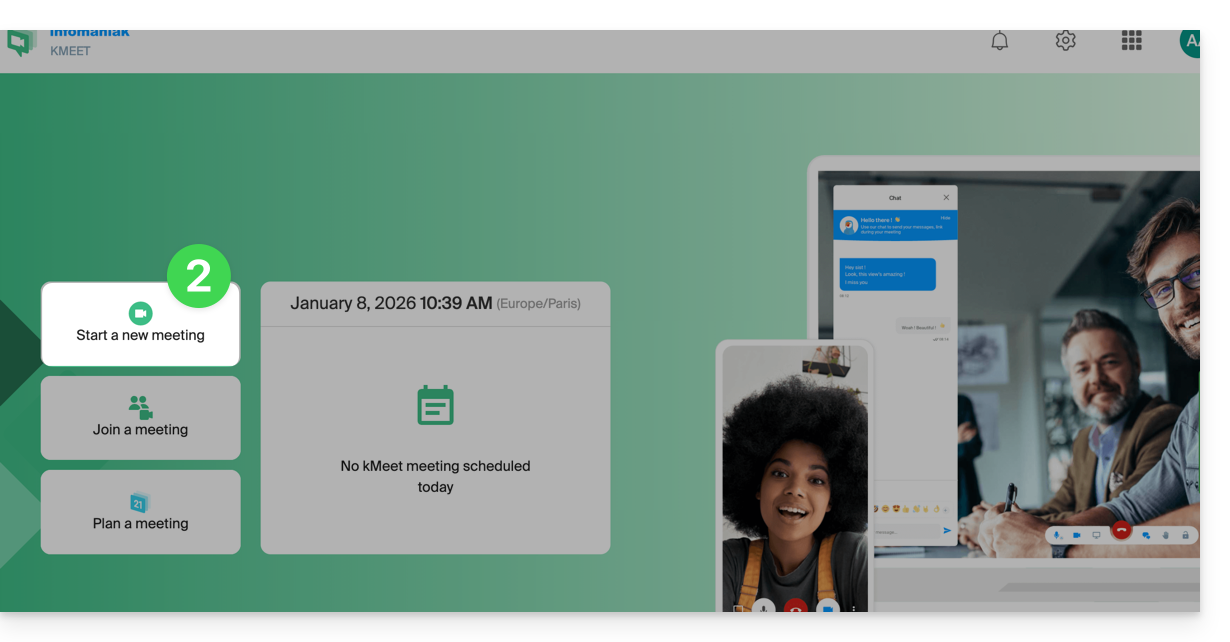
- Start a new meeting:
- Enter a name for your meeting room.
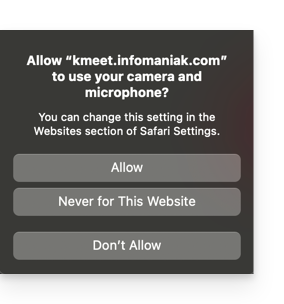
- Continue; a pop-up should appear, asking you to authorize your browser to access your microphone and camera:
- If the popup does not appear automatically, check the icons in your browser's header:
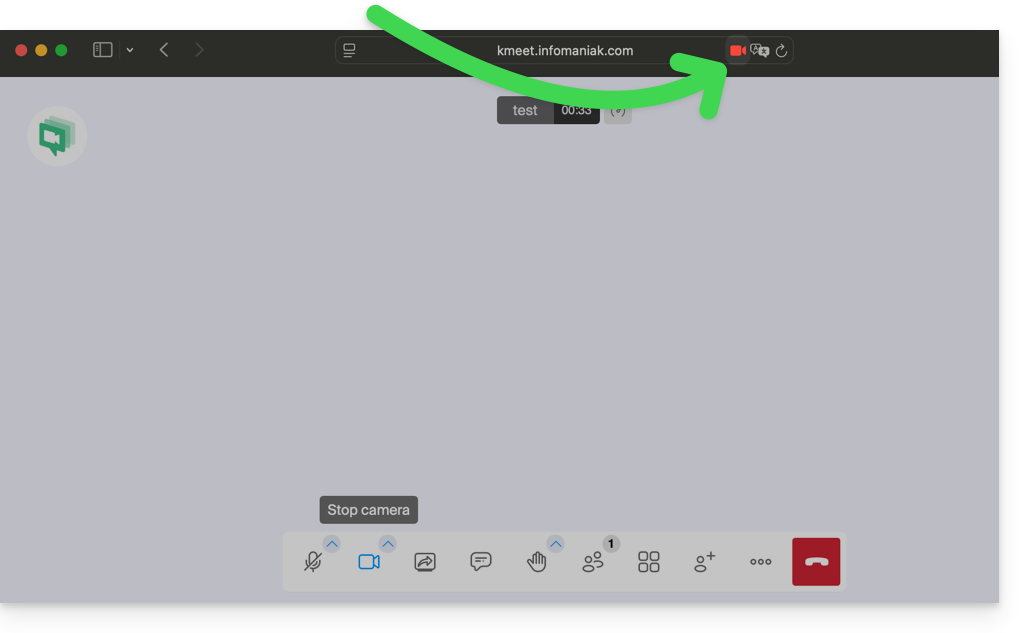
or here: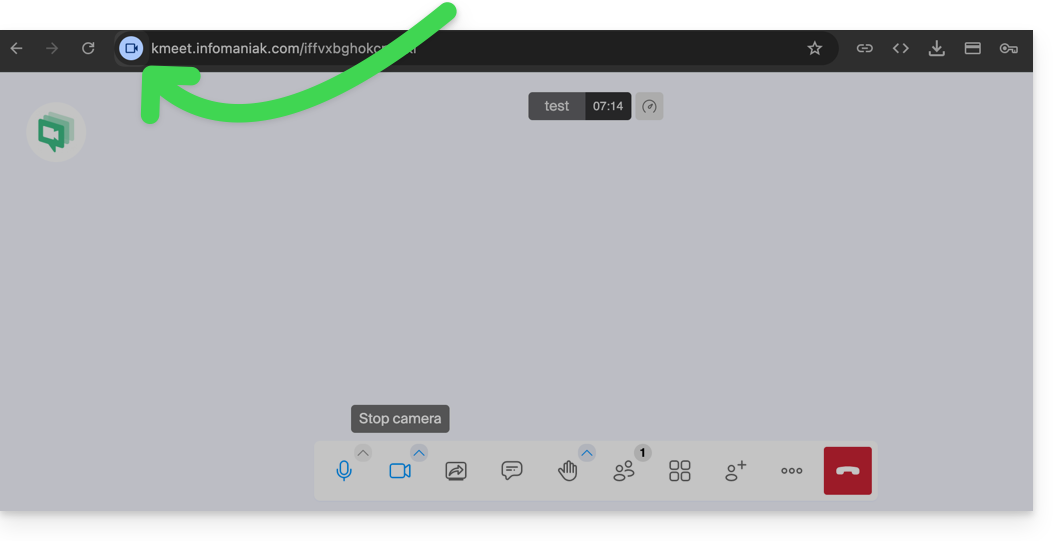
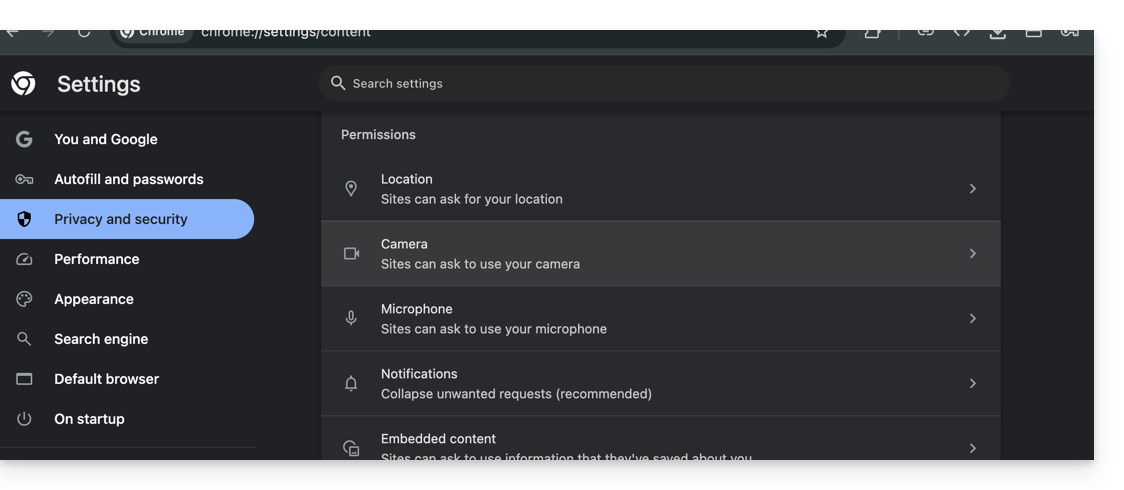
- Your browser settings (here: Chrome) may also allow you to adjust the permission settings and choose a camera if several are available:
Your camera isn't working? Check the physical cover.
If your image remains black even though the camera is enabled, the lens may be covered by a built-in privacy cover.
Many laptops have a small mechanical cursor above the screen:
- Observe the camera lens at the top of your screen.
- If you see a red dot or an opaque mark on the lens, the cover is closed.
- Slide the slider sideways to release the image.
Note: As this is a mechanical device, no software setting can activate the image until the cache is manually cleared.
Link to this FAQ: https://faq.infomaniak.com/2452
Has this FAQ been helpful?