Knowledge base
1000 FAQs, 500 tutorials and instructional videos. Here, there are only solutions!
Getting Started Guide: SwissTransfer (send large files for free)
Thank you for using Infomaniak to securely transmit your large documents to your contacts, ensuring a professional and efficient solution for your data exchange.
Introduction
- SwissTransfer is a secure online file transfer platform that allows you to send large files easily and efficiently.
- Unlike many other file transfer services, SwissTransfer accepts files up to
50 GB, which is particularly useful for large files that cannot be sent as email attachments or by other traditional means. - Furthermore, data security is guaranteed because Infomaniak places particular emphasis on confidentiality, and ethics are at the heart of its concerns.
Transfer data with SwissTransfer
To send files using SwissTransfer:
- Click here to access the SwissTransfer Infomaniak web app (online service swisstransfer.com).
- You can also take advantage of the customization (❓: help) options for your sends with the paid offers https://ksuite.infomaniak.com/swisstransfer.
- You can also use the SwissTransfer mobile app (application for iOS/Android smartphones or tablets); thanks to its integration on iOS/Android, it offers quick file sharing options for your files, photos, PDFs, etc. directly from the file explorer:
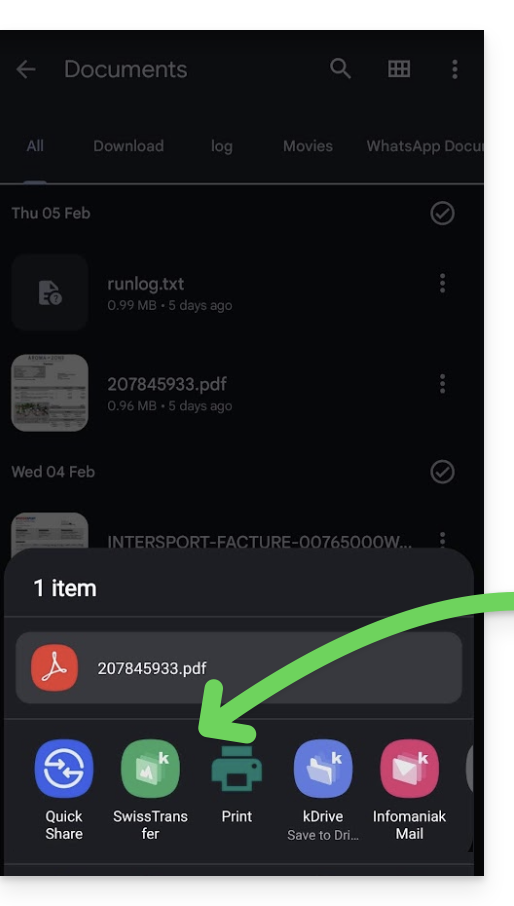
- Refer to this other guide if you have any issues installing the app.
Confirm the user's email address
To enhance security, email address validation is required:
- This verification is only performed once per device (it is saved in your browser).
- If your email address has already been validated, nothing will change for you; otherwise, a confirmation code will be sent to you by email: simply enter it to complete your transfer.
Transfer history
With a paid plan, keep track of your sent files and their details (including statistics) in the Sent menu; you can delete a transfer so that it is no longer available for download: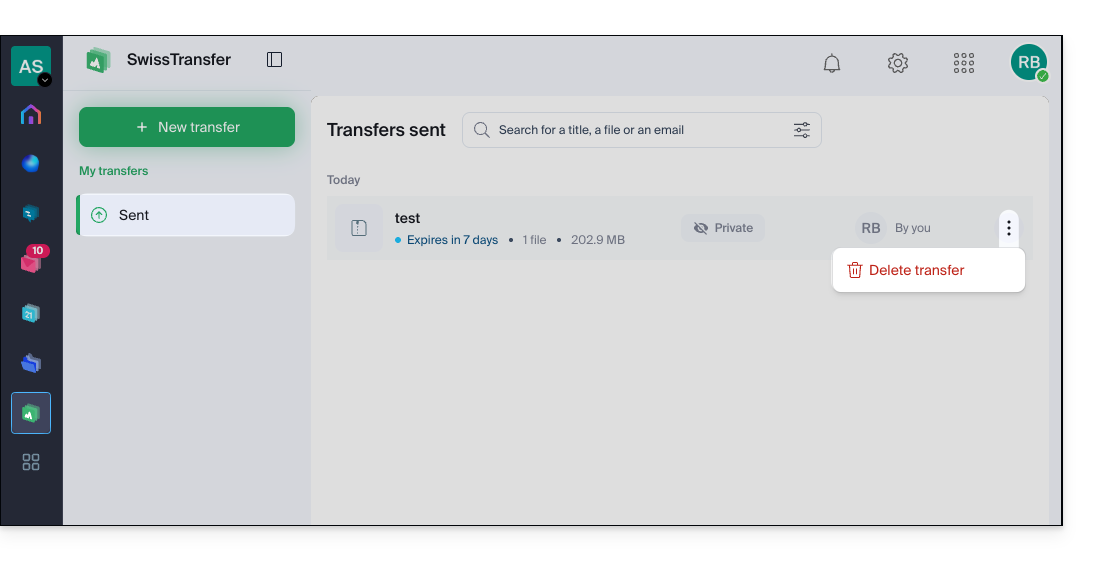
Subscribing to a paid plan allows you to view the history of transfers made from the date the plan was activated. Transfers made before this date will not be retroactively retrieved and will therefore not appear in the history.
Limit for creating a transfer
There are no usage limitations when you receive a SwissTransfer transfer.
Please refer to this other guide regarding storage limits (retention period in particular).
Regarding the creation of a SwissTransfer send, the service is not available in these countries:
- Afghanistan
- Saudi Arabia
- Argentina
- Armenia
- Azerbaijan
- Bahrain
- Bangladesh
- Belize
- Bhutan
- Myanmar
- Bolivia
- Brunei
- Cambodia
- China
- Colombia
- North Korea
- Costa Rica
- United Arab Emirates
- Ecuador
- El Salvador
- Georgia
- Guatemala
- Guyana
- Honduras
- India
- Indonesia
- Iraq
- Iran
- Israel
- Jordan
- Kazakhstan
- Kyrgyzstan
- Kuwait
- Laos
- Lebanon
- Malaysia
- Maldives
- Mexico
- Mongolia
- Nepal
- Nicaragua
- Oman
- Uzbekistan
- Pakistan
- Palestine
- Panama
- Paraguay
- Peru
- Philippines
- Qatar
- Sri Lanka
- Suriname
- Syria
- Tajikistan
- Taiwan
- East Timor
- Turkmenistan
- Uruguay
- Venezuela
- Yemen
Link to this FAQ: https://faq.infomaniak.com/2451
Has this FAQ been helpful?